
Why does your laptop suddenly go dark at 20% when the taskbar promised you another thirty minutes of productivity? This performance gap often stems from chemical degradation rather than software glitches, especially given the high ambient temperatures we face in South Africa. We understand the frustration of a rapidly declining charge and the uncertainty of whether you need to replace your entire machine. Learning how to check laptop battery health Windows 11 is the first step in moving past guesswork to gain a technical, data-driven understanding of your hardware’s status.
This guide delivers the exact steps to generate a professional battery health report using native Windows tools, ensuring you get a clear percentage of your battery’s remaining life without downloading unnecessary bloatware. We’ll walk you through interpreting cycle counts and capacity metrics so you can make an informed decision for your business or home office. You’ll also learn exactly when it’s time to source a reliable replacement battery for brands like Dell, HP, or Apple to restore your operational efficiency and maintain compliance with local e-waste regulations.
Key Takeaways
- Generate a professional battery report using the built-in Windows Terminal to avoid the security risks associated with third-party software.
- Master the technical distinction between Design Capacity and Full Charge Capacity to accurately calculate your hardware’s current efficiency level.
- Identify how South African environmental factors, including high ambient temperatures and frequent power cycling, accelerate the chemical decay of your laptop battery.
- Follow our streamlined guide on how to check laptop battery health Windows 11 to determine if your device requires a high-quality replacement battery.
- Apply the “Rule of 70%” decision framework to decide when it’s more cost-effective to replace the battery for brands like Dell, HP, or Apple rather than buying a new laptop.
Generating the Windows 11 Battery Report via PowerShell
Many users turn to third-party applications when they want to learn how to check laptop battery health Windows 11, but these external tools often introduce unnecessary background processes. Using the built-in Windows diagnostic utility is the most reliable method because it pulls data directly from the Advanced Configuration and Power Interface (ACPI). This ensures you receive a transparent look at your hardware’s actual performance without the risk of bloatware or security vulnerabilities. It’s a professional-grade solution that provides significantly more depth than the standard battery icon in your system tray.
This report is vital for understanding the current state of Lithium-ion battery technology inside your device. Unlike basic taskbar estimates, the PowerShell report provides a historical log of your battery’s capacity over time. It reveals exactly how your usage patterns and environmental factors are impacting the chemical health of the cells, allowing you to identify degradation before it leads to a sudden hardware failure.
Running the Command Step-by-Step
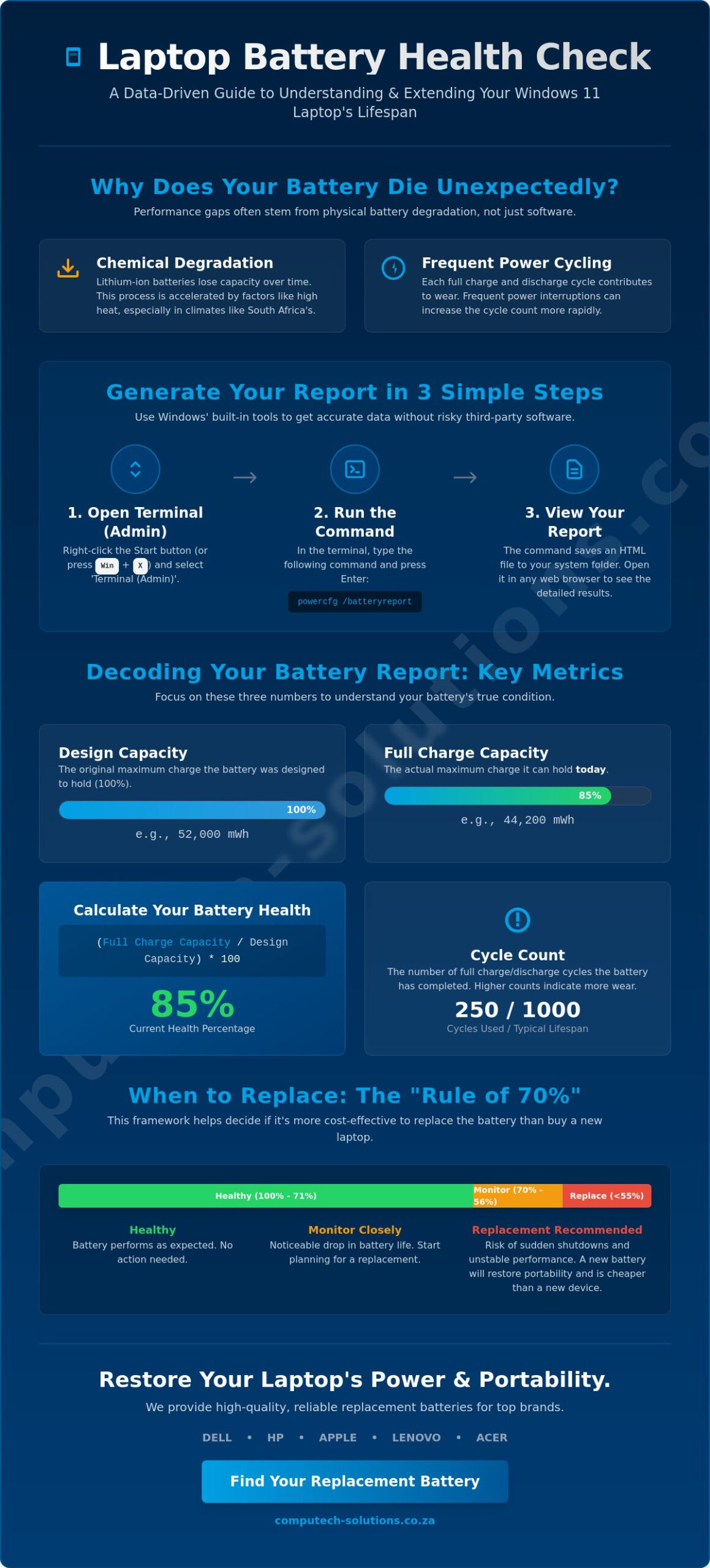
To generate your diagnostic report, you must use the Windows Terminal with elevated privileges. Follow these specific steps to ensure the command executes correctly:
- Right-click the Start button or press Win + X on your keyboard and select Terminal (Admin) from the power user menu.
- If a User Account Control (UAC) prompt appears, click Yes to grant the necessary administrative access for hardware scanning.
- In the terminal window, type the exact command
powercfg /batteryreportand press Enter.
The system will process the request in seconds and save a comprehensive summary as an HTML file that you can open in any web browser for easy viewing.
Troubleshooting Permission and Path Errors
If you encounter an “Access Denied” error, it’s almost certainly because the terminal wasn’t opened as an administrator. Windows 11 restricts battery diagnostics to authorized users to protect system telemetry data. Always verify that the window title bar includes the word “Administrator” before typing your command. If the error persists, check if your corporate IT policy restricts access to the Power Configuration utility.
Sometimes, finding the file in the default System32 folder is difficult due to folder permissions or clutter. You can specify a custom save location to simplify the process. For example, type powercfg /batteryreport /output "C:UsersYourUsernameDesktopbattery_report.html" to send the file directly to your desktop. This ensures the report reflects real-time hardware data rather than cached software estimates, providing a definitive baseline for your hardware’s current health. It’s the most direct way to confirm if you need to invest in a replacement battery for your Dell, HP, or Lenovo laptop.
Interpreting Your Results: Design Capacity vs. Full Charge Capacity
Once you’ve mastered how to check laptop battery health Windows 11, the generated HTML report presents a wealth of technical data. The most critical metrics are found at the top of the report under the “Installed batteries” header. These numbers provide a definitive baseline for your device’s current operational efficiency. Understanding the gap between factory specifications and real-world performance is the only way to accurately assess your hardware’s lifespan.
Design Capacity represents the theoretical maximum energy the battery was engineered to hold when it left the factory. In contrast, Full Charge Capacity reflects the actual maximum energy the battery can hold today. As a battery ages, these two numbers diverge. You can calculate your health percentage by dividing the Full Charge Capacity by the Design Capacity and multiplying by 100. If your result is significantly below 70%, your hardware is likely struggling to maintain a stable voltage, which often leads to the sudden shutdowns many users experience. When this happens, sourcing a high-quality replacement laptop battery is often more cost-effective than replacing the entire unit.
Cycle Count is another vital diagnostic metric. A cycle count is defined as one full 100% discharge and recharge. High cycle counts correlate directly with chemical wear. Even if you only discharge your laptop to 50% and then charge it back to 100% twice, that counts as one full cycle. Most modern batteries are rated for 300 to 500 cycles before significant degradation occurs.
Reading the Installed Batteries Section
The report identifies the specific battery chemistry, which is almost always Lithium-Ion for modern Windows 11 devices. Most reports display capacity in milliwatt-hours (mWh) rather than milliamp-hours (mAh). This is a professional standard because mWh accounts for voltage, providing a more accurate measure of the total energy available to your system. Some high-end enterprise laptops may show multiple “Battery Bridges” if the device utilizes both an internal and a hot-swappable external power source.
Analyzing Battery Capacity History
Scroll down to the “Battery Capacity History” table to see how your hardware has performed over time. This section tracks the steady decline of your battery over the last several months. A gradual downward slope is a normal part of the hardware lifecycle. However, sudden, sharp drops in Full Charge Capacity over a short period often indicate a failing cell or internal defect.
It’s useful to understand how temperature affects battery life when reviewing these historical trends. In the South African climate, high ambient heat causes the internal electrolytes to break down faster. This chemical degradation is clearly visible in the capacity history, where heat-stressed batteries show a much steeper decline than those kept in climate-controlled environments. Knowing how to check laptop battery health Windows 11 allows you to monitor this decline and plan your hardware budget before a total failure occurs.
Factors That Accelerate Battery Degradation in South Africa
While the technical report tells you the current status of your hardware, understanding the external stressors unique to the South African environment explains why degradation often happens faster than global averages. High ambient temperatures are a primary catalyst for chemical decay in Lithium-ion cells. When internal temperatures rise, the chemical reactions inside the battery accelerate, leading to permanent capacity loss. Once you understand how to check laptop battery health Windows 11, you can often see these thermal stress events reflected as sharp declines in your capacity history logs.
Deep discharge cycles also represent a significant risk to hardware longevity. Allowing your laptop to hit 0% frequently can lead to “cell sleep,” a state where the battery’s protection circuit prevents it from accepting a charge. To maintain stability, it’s best to keep your charge level between 20% and 80%. If your battery already shows significant wear, using a high-quality replacement charger for brands like Dell, HP, or Lenovo is essential to ensure stable voltage delivery and prevent further damage to the internal charging circuit.
Environmental Stress and Heat Management
Heat management is often the difference between a battery that lasts three years and one that fails in eighteen months. Using a laptop on soft surfaces like beds or couches blocks the intake vents, trapping heat directly against the battery housing. This thermal buildup forces the cooling fans to run at maximum RPM, which ironically consumes more power and generates even more internal heat. You should also be mindful of storage; leaving a laptop in a hot car can cause more damage in an afternoon than months of heavy office use. For more official guidance on maintaining your system, you can generate a detailed battery report and follow Microsoft’s standardized care protocols.
The Role of Load Shedding in Battery Wear
Frequent power outages and load shedding create a specific type of stress known as “power cycling.” Every time the grid goes down, your laptop’s battery controller must instantaneously switch from AC to DC power. This rapid transition puts a high load on the battery cells. Over time, these frequent disruptions can cause the battery to “calibrate” incorrectly, leading to the sudden shutdowns at 20% that many users report. Knowing how to check laptop battery health Windows 11 helps you identify if these power fluctuations have compromised your hardware. To mitigate this risk, always use a high-quality surge protector to shield your laptop’s sensitive charging circuit from the voltage spikes that often occur when the grid power returns.
Practical Steps to Extend Your Windows 11 Battery Life
Once you’ve followed the steps for how to check laptop battery health Windows 11 and analyzed your report, the next priority is implementing a preservation strategy. While chemical aging is inevitable, software optimization significantly reduces the daily strain on your hardware. Windows 11 includes several integrated features designed to balance performance with longevity. Navigating to Settings > System > Power & battery allows you to switch your Power Mode to “Best Power Efficiency.” This adjustment throttles non-essential background processes, which lowers the internal operating temperature and slows the rate of capacity loss.
Managing background activity is equally critical for operational efficiency. Many applications configure themselves to run automatically upon startup, creating a constant, silent drain on your power cells. You can manage these by opening the Task Manager and reviewing the “Startup apps” tab. Disabling high-impact programs that don’t require immediate availability will yield a measurable increase in your daily runtime. Adopting the 20-80% charging rule is another professional best practice. Keeping your battery within this range prevents the high-voltage stress that occurs when pushing cells to 100%, effectively extending the number of usable cycles your hardware can provide.
Software Tweaks for Immediate Relief
Modern laptop displays are often the largest consumers of power. If your device supports high refresh rates, such as 120Hz or 144Hz, manually capping the display at 60Hz in the display settings will immediately reduce power consumption. You should also disable keyboard backlighting during daylight hours and set your screen brightness to the lowest comfortable level. For overnight preservation, use “Hibernate” instead of “Sleep.” While Sleep keeps your RAM powered for a quick wake-up, Hibernate saves your session to the SSD and cuts power entirely, which is vital during extended South African load shedding windows.
Hardware Maintenance and Best Practices
Physical care is just as important as software tuning. Ensure your charging port remains free from dust and debris, as poor contact can cause electrical resistance and localized heating. Always verify that you’re using an AC adapter with the correct wattage for your specific model. Using an undersized charger forces the component to run at maximum capacity, which generates excessive heat and can lead to unstable power delivery. If you notice your percentage indicator becoming erratic, perform a manual calibration by fully discharging the battery until the laptop shuts down, then charging it to 100% without interruption. If these optimizations don’t resolve your power issues, it may be time to purchase a replacement laptop battery or charger to restore your system’s reliability.
When to Replace Your Battery: A Buyer’s Decision Framework
Mastering how to check laptop battery health Windows 11 provides you with the data needed to make a technical decision about your hardware’s future. Most industry professionals utilize the “Rule of 70%” as a primary benchmark. When your full charge capacity drops below 70% of its original design capacity, the battery cells often struggle to maintain the stable voltage required for high-performance tasks. This degradation results in more than just shorter runtimes. It often triggers system-level performance throttling as the OS attempts to prevent a total power failure during CPU spikes.
Beyond the data in your report, you must watch for physical and operational warning signs that demand immediate intervention. If you notice your laptop’s chassis is bulging, the trackpad is lifting, or the device feels excessively hot during simple tasks, the battery may be swelling. This is a significant safety risk that requires professional attention. Other red flags include “Plugged in, not charging” errors or the laptop shutting down instantly when the AC adapter is disconnected. These symptoms indicate that the internal chemistry can no longer hold a functional charge.
The decision to repair or replace often comes down to a simple cost-benefit analysis. A general guideline is that if a battery replacement costs less than 50% of the price of a new, equivalent laptop, the repair is a sound investment. Replacing the battery for premium brands like Apple, Dell, or HP can extend the life of a high-spec machine by several years. This approach is also environmentally responsible. Under the National Environmental Management: Waste Act (NEMWA), laptop batteries are banned from South African landfills. Opting for a replacement battery instead of a new laptop reduces e-waste and ensures your old cells are handled through proper Extended Producer Responsibility (EPR) channels.
Identifying the Correct Replacement Model
Finding a compatible power source requires more than just knowing your laptop’s brand. You need to identify the specific part number, which is usually printed directly on the battery casing. Common examples include codes like Acer AS10D31, Dell J60J5, or Lenovo L15M4A01. While low-quality generic batteries are available, they often lack the sophisticated protection circuits found in genuine or high-quality OEM-equivalent units. Using an inferior battery can lead to motherboard damage or shorter lifespans. If you’re uncertain about compatibility, consulting with professional technical support ensures you receive a component that matches your system’s voltage and wattage requirements perfectly.
Securing a Reliable Power Solution
Purchasing from a specialized South African retailer provides the peace of mind that comes with local warranties and verified hardware standards. A high-quality replacement battery restores the mobility that defines a laptop, allowing you to work through load shedding windows without the constant anxiety of a failing power source. Whether you need a solution for an ASUS gaming rig or a Samsung ultrabook, sourcing the correct part is the most efficient way to maintain your operational uptime. Browse our full range of replacement laptop batteries with nationwide delivery to find the definitive solution for your device.
Secure Your Hardware Longevity Today
Understanding your battery’s health allows you to transition from reactive troubleshooting to proactive hardware management. You’ve learned how to leverage the Windows Terminal to identify the gap between design capacity and real-world performance. You also now understand how South Africa’s unique environmental challenges, such as high heat and frequent power cycling, demand a more rigorous monitoring schedule. By mastering how to check laptop battery health Windows 11, you can accurately predict when a cell is approaching its end-of-life before a total system failure occurs.
If your diagnostic report shows a health percentage below the critical 70% threshold, it’s time to take action. Restore your laptop’s mobility with a high-quality replacement battery and benefit from our expert technical support for all major brands. We provide nationwide delivery across South Africa for Acer, Dell, HP, and other leading manufacturers. Taking these steps ensures your device remains a reliable tool for your professional productivity and daily operations.
Frequently Asked Questions
How often should I check my laptop battery health in Windows 11?
You should generate a diagnostic report every three to six months to track degradation trends effectively. Regularly knowing how to check laptop battery health Windows 11 allows you to identify sudden drops in capacity before they lead to unexpected hardware failure. In the South African climate, where high ambient temperatures and load shedding are common, a quarterly check is a better professional standard for maintaining operational uptime.
Can I fix a battery that has a low ‘Full Charge Capacity’?
You cannot chemically restore a battery once its full charge capacity has declined due to natural aging or heat damage. While performing a manual calibration can sometimes improve the accuracy of the percentage displayed by the operating system, it doesn’t add physical capacity back to the cells. Once your health percentage falls below 70%, the only reliable solution to restore your device’s mobility is to source a high-quality replacement battery.
Why does my Windows 11 battery report show a different capacity than the box said?
The discrepancy occurs because “Design Capacity” is a theoretical factory rating, while “Full Charge Capacity” is the actual energy the battery can hold at this moment. Even new batteries can vary slightly from the box specifications due to manufacturing tolerances. If you’ve just learned how to check laptop battery health Windows 11, don’t be alarmed by a small 1% or 2% difference on a brand-new device; this is common across all major manufacturers.
Is it safe to leave my laptop plugged in all the time during load shedding?
It’s technically safe to leave your laptop plugged in, but doing so during active load shedding cycles exposes the hardware to unnecessary risks. The primary danger isn’t overcharging, but rather the voltage spikes that often occur when the grid power returns. To protect your battery’s health and the internal charging circuit, we recommend using a high-quality surge protector or disconnecting the charger when the power goes out.
What is a ‘good’ cycle count for a 2-year-old laptop battery?
A good cycle count for a two-year-old laptop typically ranges between 300 and 500 cycles. Most modern Lithium-ion batteries are designed to retain approximately 80% of their original capacity after 500 full discharge and recharge cycles. If your count is significantly higher than this, you’ll likely notice a sharp decrease in runtime. At this stage, you should begin planning for a replacement to ensure your productivity isn’t disrupted.
Does Windows 11 use more battery than Windows 10?
Windows 11 is optimized for modern hardware, but its enhanced visual effects and background processes can consume more power than Windows 10 on older machines. Features like high refresh rate support and real-time widgets contribute to a higher baseline power draw. You can mitigate this by adjusting your power plan to “Best Power Efficiency” and disabling non-essential startup applications in the Task Manager to reduce the constant drain on your cells.
Can a faulty charger damage my laptop’s battery health report?
A faulty or low-quality charger can skew your battery health report by providing unstable voltage to the battery controller. This instability often causes the system to record incorrect capacity data or fail to calibrate properly. Always ensure you’re using a verified charger with the correct wattage for your specific Dell, HP, or Lenovo laptop. This ensures your diagnostic reports remain accurate and prevents permanent damage to the battery’s internal protection circuit.
How do I know if my battery is physically swelling?
Physical swelling often manifests as a lifting trackpad, keys that become difficult to press, or a visible bulge in the laptop’s bottom casing. If your laptop no longer sits flat on a desk or the seams of the chassis are starting to separate, the battery cells have likely expanded due to heat or internal failure. This is a serious safety concern. You should stop using the device immediately and seek a professional replacement battery to avoid hardware damage.
