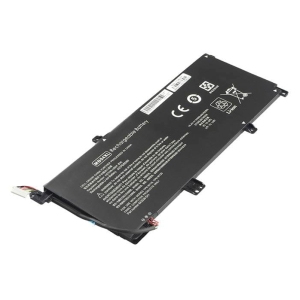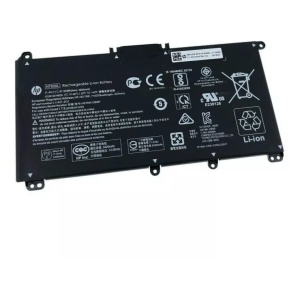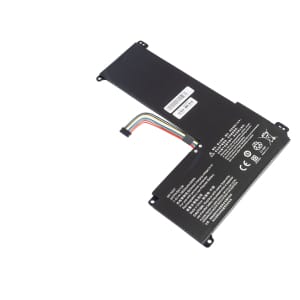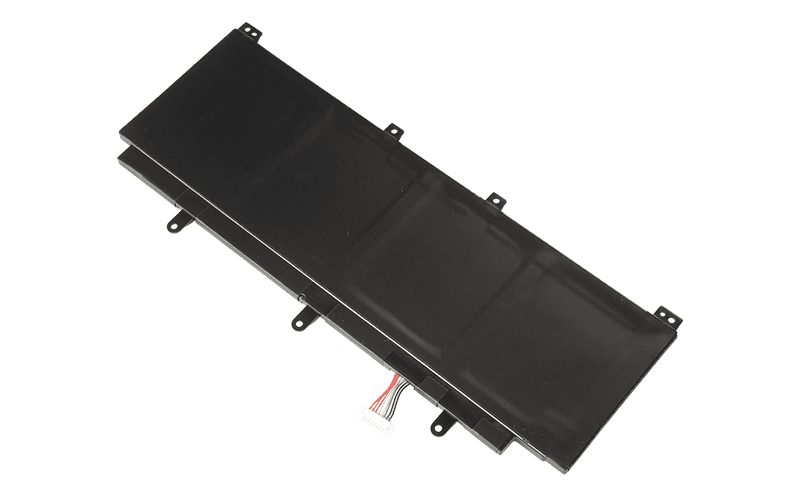
Description
Specifications
Voltage 15.4V,
Capacity 3600mAh/55Wh,
Number of Cells/type 4 Cell (Li Poly),
Colour Black
Compatible Part Numbers
- C41N2009
Compatible Devices
- ROG Flow X13 GV301RA
- ROG Flow X13 GV301QC
- ROG Flow X13 GV301QE
- ROG Flow X13 GV301QH
Tips to Extend Your Battery’s Lifespan
1. Reduce Screen Brightness and Disable Backlight
Lower brightness:
Dim your laptop’s screen as much as possible to conserve significant power.
Turn off keyboard backlighting:
If your keyboard has a backlight, turn it off to prevent unnecessary power drain.
This video explains how to adjust screen brightness and other settings to extend laptop battery life:
2. Manage Connectivity and Peripherals
Disable Wi-Fi and Bluetooth:
Turn off wireless connections when you’re not actively using them to stop the laptop from searching for signals.
Disconnect unused peripherals:
Unplug external devices like USB drives, webcams, or disc drives, as they consume power while connected.
3. Optimize Software and System Settings
Close background apps:
Close applications and browser tabs you’re not using to reduce background processes that drain power.
Use Battery Saver Mode:
Activate your operating system’s battery saver mode to automatically adjust settings for lower power consumption.
Check for power-hungry apps:
Use your laptop’s built-in tools to identify and manage apps that are consuming the most power.
4. Ensure Proper Ventilation and Cooling
Keep the battery cool: Overheating can degrade battery health and performance.
Maintain airflow: Place your laptop on a firm, flat surface to allow for proper airflow and prevent it from getting too hot.
5. Adjust Power and Sleep Settings
Shorten sleep and screen-off timers:
Set your laptop to sleep or turn off its screen after a shorter period of inactivity.
Use power-saving plans:
Switch to a “power saver” plan in your computer’s power settings to fine-tune energy consumption.