
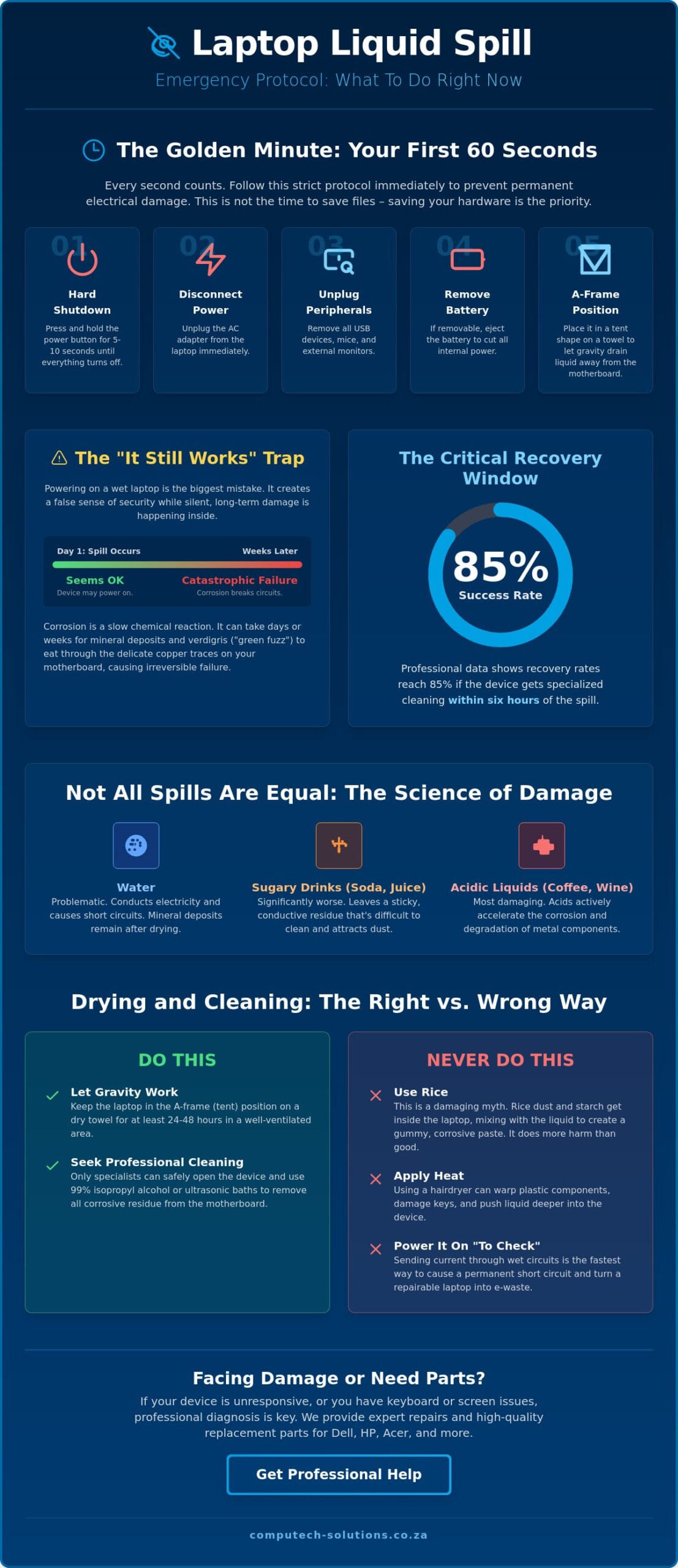
The most dangerous mistake you can make after a liquid spill is assuming your device is safe just because it still turns on. In reality, the “Golden Minute” immediately following an accident determines whether your hardware survives or becomes a total loss. Knowing exactly what to do if you spill water on your laptop is the only way to stop active corrosion; professional data shows that recovery success rates can reach 85% if the device receives specialized cleaning within six hours. While the initial panic is natural, your priority must shift to a disciplined recovery sequence to protect your data and hardware.
We recognize the stress of potentially losing an expensive tool required for your daily work or studies. It’s a high-stakes moment that requires a stable, confident response rather than guesswork. This guide provides a professional emergency protocol to minimize liquid damage and save your laptop from permanent failure. You’ll learn the immediate steps to prevent a short circuit, how to assess if your device is salvageable, and where to find critical replacement components like laptop batteries or LCD panels if hardware failure occurs.
Key Takeaways
- Execute a hard shutdown and disconnect all power sources within the first 60 seconds to prevent immediate electrical short circuits.
- Understand why a laptop that still powers on after a spill is a false sense of security, as internal corrosion can manifest days or weeks later.
- Learn exactly what to do if you spill water on your laptop to avoid damaging myths, such as using rice, which introduces harmful starch and dust into the chassis.
- Identify the specific technical indicators of keyboard failure and LCD panel damage that help you decide whether to repair or replace your hardware.
- Discover how to source high-quality replacement batteries and chargers for major brands like Dell, HP, and Acer to restore your device’s long-term reliability.
Immediate Emergency Steps: The First 60 Seconds
Panic is the enemy of recovery. When a glass tips over, your brain might scramble, but knowing exactly what to do if you spill water on your laptop in the first minute can prevent a total system loss. You have a very narrow window to intervene before electrical current and liquid combine to cause permanent hardware failure. This isn’t the time for a graceful software shutdown; it’s the time for immediate, forced power termination. Every second the device remains energized while wet increases the risk of a non-recoverable short circuit.
Follow this strict emergency protocol without hesitation to stabilize the situation:
- Force a hard shutdown: Hold the power button down for 5 to 10 seconds until the screen goes black and the fans stop. Don’t worry about unsaved work; saving the hardware is the priority.
- Disconnect all power: Pull the AC power adapter from the laptop immediately. Avoid touching the metal tip if it’s wet.
- Remove peripherals: Unplug mice, USB drives, printers, and external monitors to clear the ports.
- Eject the battery: If your laptop has a removable battery, slide the latches and remove it to cut all remaining current.
- The A-Frame Maneuver: Open the laptop and flip it over into a tent shape (A-frame) on a flat, towel-covered surface. This uses gravity to pull liquid away from the motherboard.
Why Power is Your Greatest Enemy
Water acts as a highly efficient conductor for electrical current. When liquid enters the chassis, it initiates destructive processes such as electrochemical oxidation and immediate short-circuiting. Even a tiny drop can bridge two critical circuits on the Printed Circuit Board (PCB), causing permanent failure. Beyond the logic board, liquid reaching lithium-ion cells presents a severe risk of fire or battery swelling. This is why cutting the power is more important than any other step in the recovery process. Total power isolation is the only way to pause the damage while you prepare for the drying phase.
Removing External Peripherals and Power
Safety is paramount during the initial response. When you disconnect your power adapter, ensure your hands are dry and avoid touching wet metal connectors to prevent electrical shock. Clearing all ports is essential because it prevents peripheral damage and improves internal airflow. If you are technically inclined and have the correct tools, removing the back panel to disconnect an internal battery or remove the SSD can further protect your data. Identifying what to do if you spill water on your laptop includes recognizing when to stop and let the device drain. By removing the SSD or HDD, you ensure your professional files remain safe even if the motherboard eventually requires replacement.
Why “It Still Works” is a Dangerous Assumption
A common mistake many users make is assuming their device survived simply because it powers on after a spill. This false sense of security often leads to a catastrophic failure weeks later. Powering up a device to “test” it before it’s completely dry is the fastest way to turn a minor cleaning job into a total hardware loss. When you are determining what to do if you spill water on your laptop, you must prioritize long-term stability over immediate gratification. The liquid inside doesn’t just disappear; it initiates a slow, silent chemical reaction that compromises your motherboard over time.
The type of liquid involved dictates the speed of this destruction. Pure water is problematic, but sugary or acidic liquids like coffee, soda, or wine are significantly more damaging. If you were browsing for event catering and happened to discover Pastelería Ibiza for a custom cake when the spill occurred, the sugar residue can be particularly harmful to internal circuits. These substances leave behind sticky residues and organic acids that accelerate the degradation of delicate electronic components. Even after the liquid evaporates, mineral deposits remain on the board. These minerals create conductive bridges that allow electricity to flow across circuits that should remain isolated. This process can take days or even weeks to reach a breaking point, meaning a laptop that works today might fail completely in twenty-one days as the copper traces finally corrode through.
The Science of Liquid Damage and Corrosion
When liquid and oxygen meet the copper traces on a motherboard, a chemical reaction occurs. This results in the formation of verdigris, the characteristic “green fuzz” that technicians look for during an inspection. This oxidation eats away at the metal, eventually breaking the electrical paths required for the device to function. Simply letting the laptop air-dry won’t stop this process. Professional cleaning using high-grade isopropyl alcohol or ultrasonic baths is often the only way to neutralize these deposits and ensure the hardware remains reliable for professional use.
Delayed Failures and Intermittent Issues
Liquid damage often manifests as intermittent hardware glitches rather than a total blackout. Keyboard membranes are highly sensitive; you may experience “ghost typing” or dead zones where specific keys stop responding as the internal layers stick together. LCD panels are also vulnerable, as moisture can seep between the backlight layers to cause permanent staining or flickering. If you notice these persistent issues, you might need to explore professional hardware solutions to find high-quality replacement parts. Additionally, liquid reaching the internal circuitry of your battery can trigger safety sensors, causing the device to stop holding a charge or leading to dangerous battery swelling. Identifying these signs early is crucial for knowing what to do if you spill water on your laptop before the damage becomes irreversible.
Drying and Cleaning Your Laptop: Dos and Don’ts
Once you’ve stabilized the device by cutting the power and positioning it to drain, the next phase of recovery begins. This stage is where many users inadvertently cause permanent damage by following outdated internet myths. Understanding what to do if you spill water on your laptop involves unlearning common “hacks” that can introduce new contaminants into your hardware. Your goal is to remove moisture without creating mechanical or thermal stress on the internal components.
The most important tool you have at this stage is patience. While the urge to check your data is strong, rushing the drying process is the primary cause of post-spill failure. Industry standards suggest a minimum of 48 hours for air drying before attempting to power the device back on. This window allows microscopic droplets trapped under Surface Mount Devices (SMDs) on the motherboard to evaporate completely. If you attempt to bridge those circuits with electricity too soon, you risk a catastrophic short circuit that no amount of drying can fix.
Why You Must Avoid Heat and Rice
The “Rice Myth” is one of the most persistent and harmful pieces of advice found online. Rice is not an effective desiccant for internal electronics; it lacks the suction power to pull moisture from deep within a laptop chassis. Instead, it introduces fine starch particles and dust that can gum up cooling fans, clog ports, and get trapped under keyboard membranes. Similarly, heat is a significant threat. Never use a hair dryer on a high-heat setting or place your laptop on a radiator. Excessive heat can melt plastic components, warp the layers of your LCD panel, or damage the adhesive holding your battery in place. Use a lint-free microfibre cloth to gently blot visible moisture from the surface, but avoid applying pressure that could push liquid further into the device.
The Professional Way to Air Dry
The ideal environment for drying electronics consists of cool, dry, moving air. Instead of rice, use silica gel packets or a dedicated dehumidifier if you have one available, as these are designed to manage moisture without leaving residue. Set up your laptop in the “tent position” described earlier in a room with high airflow. A fan or a hair dryer on a strictly “cool” setting can be used to circulate air around the device. Keep the airflow source at least 30 centimeters away from the open ports. You can also use short, controlled bursts of compressed air to clear liquid from under the keyboard keys. Ultimately, knowing exactly what to do if you spill water on your laptop means trusting the drying timeline over your desire to get back to work.
Evaluating the Damage: When to Repair or Replace
After the mandatory 48-hour drying period, you must systematically assess your hardware. Most users think a successful boot means the crisis has passed, but specific components often suffer localized damage that doesn’t immediately stop the machine from running. Understanding what to do if you spill water on your laptop includes recognizing the difference between a minor peripheral failure and a fatal motherboard short. Start by testing every key on your keyboard. Dead zones, ghost typing, or persistent stickiness indicate that liquid has compromised the internal membrane layers. If the keyboard is the only casualty, the laptop remains highly salvageable through a simple component replacement.
Visual artifacts are another critical indicator of liquid ingress. Inspect the LCD for watermarks or bruising, which appear as bright or dark patches where liquid has seeped between the panel layers. Backlight flickering is also common if moisture reached the display cable or the inverter board. Your battery health is equally vital. If the device only runs while plugged in or the battery percentage fluctuates wildly, the internal controller circuit is likely damaged. In such cases, you can source specialized hardware to restore portability without replacing the entire machine. Identifying these specific failures early prevents you from overspending on a new device when a targeted repair would suffice.
Common Components That Fail After a Spill
The keyboard is almost always the first casualty because it acts as the primary catchment area for spills. While an external USB keyboard is a temporary workaround, it isn’t a long-term solution for professional mobility. Liquid also frequently targets the battery’s protection circuit, which can lead to safety shutdowns or failure to charge. If you notice persistent display issues such as vertical lines or staining, consult our Laptop Screen Replacement Guide to determine if your LCD panel requires a professional swap. Replacing these individual modules is a cost-effective way to extend the life of your hardware.
Signs You Need a Professional Diagnostic
A successful recovery isn’t always possible through air drying alone. You must seek professional assistance if your laptop fails to reach the POST (Power-On Self-Test) or if you detect a distinct ozone or burning smell. Other warning signs include the laptop running excessively hot or the fans spinning at maximum RPM immediately upon startup. These symptoms suggest a short circuit on the motherboard or a compromised thermal management system. Technicians in South Africa generally advise that if a repair cost exceeds 50 to 60 percent of the device’s replacement value, it’s more economical to replace the unit entirely. If you’re unsure about the extent of the internal damage, it’s best to seek professional hardware assessments to avoid further electrical risks. Knowing exactly what to do if you spill water on your laptop means recognizing when the damage has moved beyond simple DIY fixes.
Sourcing Reliable Replacement Parts in South Africa
Once you’ve completed the assessment phase of what to do if you spill water on your laptop, the focus shifts to restoration. In the South African market, finding high-quality, brand-specific components is essential for maintaining the long-term integrity of your hardware. Using generic or low-quality parts often leads to secondary failures, such as poor thermal management or unstable power delivery. Computech-Solutions provides a comprehensive inventory of replacement parts, ensuring you don’t have to replace an entire machine when only a specific module is compromised. We offer nationwide delivery, allowing professionals and students to receive critical hardware quickly regardless of their location.
Our team understands the urgency of a working device for your business or studies. We provide expert technical support to help you identify the correct parts for DIY replacement, bridging the gap between identifying a fault and implementing a solution. This comprehensive service model ensures you have a reliable partner to help you recover from even the most severe liquid incidents.
Finding the Right Battery and Charger
Accuracy is vital when matching model numbers for Acer, Lenovo, or ASUS replacement batteries. A slight mismatch in voltage or physical dimensions can prevent a successful repair or even cause further electrical strain. High-quality laptop chargers are equally important; if your original adapter was submerged or shorted, a generic replacement might lack the necessary surge protection to keep your motherboard safe. We also maintain a stock of Apple-compatible batteries and chargers for MacBook users, along with specialized power solutions for Dell, HP, Samsung, Sony, and Toshiba systems. Using verified components is the only way to guarantee your laptop’s safety after a spill.
Total Solutions for Hardware Failures
Beyond power components, we provide a wide range of laptop LCD replacement panels for various brands. Purchasing from a reputable South African retailer gives you access to technical expertise that generic international marketplaces lack. Our team assists with the technical specifications required for DIY part replacement, ensuring your new hardware works correctly the first time. Choosing a total solution provider means you can source everything from batteries to screens in one place, streamlining your recovery process. Browse our full range of replacement laptop parts and batteries to find the exact components needed to restore your device to full operational efficiency.
Restoring Your Hardware’s Operational Efficiency
Recovering from a liquid spill requires a disciplined approach that prioritizes immediate power termination and patient drying. By following these professional protocols, you’ve already significantly increased the chances of your device’s survival. Remember that knowing what to do if you spill water on your laptop is only half the battle; the other half is ensuring any damaged components are replaced with high-quality, brand-specific hardware to prevent future instability.
If your assessment reveals a compromised battery, a flickering screen, or a malfunctioning charger, you don’t have to face the recovery process alone. We are specialists in Acer, Dell, HP, and Apple replacement parts, providing the specific components needed to restore your system’s reliability. With nationwide delivery across South Africa and expert technical support for all hardware queries, we ensure your downtime remains minimal. Find high-quality replacement batteries and chargers at Computech-Solutions to secure the long-term health of your hardware. Your laptop is a vital investment, and with the right parts and professional guidance, it can continue to serve your professional needs for years to come.
Frequently Asked Questions
Is it okay to use a hair dryer to dry my laptop after a spill?
No, you should never use a hair dryer on a heat setting to dry your hardware. High temperatures can melt plastic components, damage keyboard membranes, and warp the delicate layers of your LCD panel. If you must use a hair dryer, keep it on a strictly cool setting and maintain a distance of at least 30 centimeters to avoid pushing liquid deeper into the chassis.
Does the “rice method” actually work for wet electronics?
The rice method is an ineffective myth that often causes more harm than good. Rice lacks the suction power to draw moisture out of internal circuitry and instead introduces fine starch particles and dust into the device. These contaminants can clog cooling fans and stick to the motherboard, potentially causing mechanical failure or overheating issues long after the liquid has dried.
My laptop works fine after spilling water on it; do I still need to worry?
Yes, a laptop that powers on immediately after a spill isn’t necessarily safe from failure. Internal corrosion is a progressive chemical reaction that can take days or weeks to reach a critical point. Mineral deposits left behind by the liquid create conductive bridges that eventually short-circuit the motherboard. Knowing what to do if you spill water on your laptop involves addressing this invisible damage before it becomes a permanent hardware loss.
How long should I wait before turning my laptop back on after a spill?
You should wait a minimum of 48 hours for the device to air dry completely in a low-humidity environment. This window is the industry standard for ensuring that microscopic moisture trapped under Surface Mount Devices on the motherboard has evaporated. Attempting to power the device sooner increases the risk of an electrical short that could destroy the motherboard or the battery controller circuit.
What should I do if I spilled coffee or juice instead of water?
Sugary or acidic liquids require immediate professional attention because they are significantly more corrosive than plain water. These liquids leave behind sticky residues and organic acids that eat through copper traces on the motherboard even after the liquid evaporates. You’ll likely need a professional cleaning using an ultrasonic bath or high-grade isopropyl alcohol to neutralize these substances and ensure the hardware remains reliable.
Can a spilled drink permanently damage my laptop battery?
Yes, liquid can easily short-circuit the battery’s internal protection circuit or the battery management system. If liquid reaches the lithium-ion cells, it can cause the battery to stop holding a charge, fail to be recognized by the laptop, or even swell dangerously. If you notice your laptop only works when plugged in or the battery percentage fluctuates wildly after a spill, the battery likely requires replacement.
Is it worth replacing the screen if liquid got inside the display panel?
Replacing the screen is a highly cost-effective solution if a professional diagnostic confirms the motherboard is still functional. Liquid ingress into an LCD panel causes permanent staining, backlight flickering, or vertical lines that won’t disappear with drying. If the rest of the system is stable, swapping out the LCD panel can restore your device to full professional use for a fraction of the cost of a new unit.
Where can I buy a replacement battery if mine was damaged by a spill?
You can source high-quality replacement batteries for all major brands, including Acer, Apple, ASUS, Dell, HP, Lenovo, Samsung, Sony, and Toshiba, through our online store. When determining what to do if you spill water on your laptop, sourcing a verified power source is critical for long-term safety. We offer nationwide delivery across South Africa and expert technical support to help you match the correct part to your specific laptop model.
