
A failing battery in a high-performance Dell XPS 15 9575 or Precision 5530 isn’t just a minor inconvenience; it’s a direct threat to your hardware’s structural integrity. When your high-resolution display begins to drain power faster than you can charge it, or you notice the trackpad becoming physically difficult to click, the culprit is almost certainly an aging 0tmfyt battery. These specialized 6-cell Li-Polymer units are engineered for Dell’s unique 2-in-1 architecture, where tight tolerances mean there’s zero room for component failure or heat-related expansion.
You’ve likely felt the frustration of navigating confusing part numbers like 8N0T7 and FW8KR while searching for a replacement that won’t trigger BIOS compatibility errors. We understand that South African professionals require their mobile workstations to remain truly mobile, free from the stress of technical disruptions. This guide provides the definitive solution to master your 0tmfyt battery, covering everything from technical specifications to safe installation and performance optimization. You’ll learn how to restore factory-level battery life and ensure 100% compatibility with your specific Dell model. We also detail how our streamlined nationwide delivery across South Africa gets your machine back to peak efficiency quickly, ensuring your business operations continue without delay.
Key Takeaways
- Understand the technical specifications of the 0tmfyt battery, including its 11.4V voltage and 64Wh capacity, to ensure a perfect fit for your Dell 2-in-1.
- Identify early warning signs of battery failure, such as chassis bulging or “plugged in, not charging” errors, to prevent permanent hardware damage.
- Learn the precise steps for safe internal battery replacement, including the specific Torx T5 and Phillips #00 tools required for Dell XPS and Precision models.
- Discover why high-density Lithium-Polymer cells are essential for maintaining the slim profile and thermal efficiency of your high-performance laptop.
- Secure a reliable replacement with nationwide delivery across South Africa, avoiding the risks and delays associated with international shipping.
Understanding the 0TMFYT Battery: Compatibility and Specifications
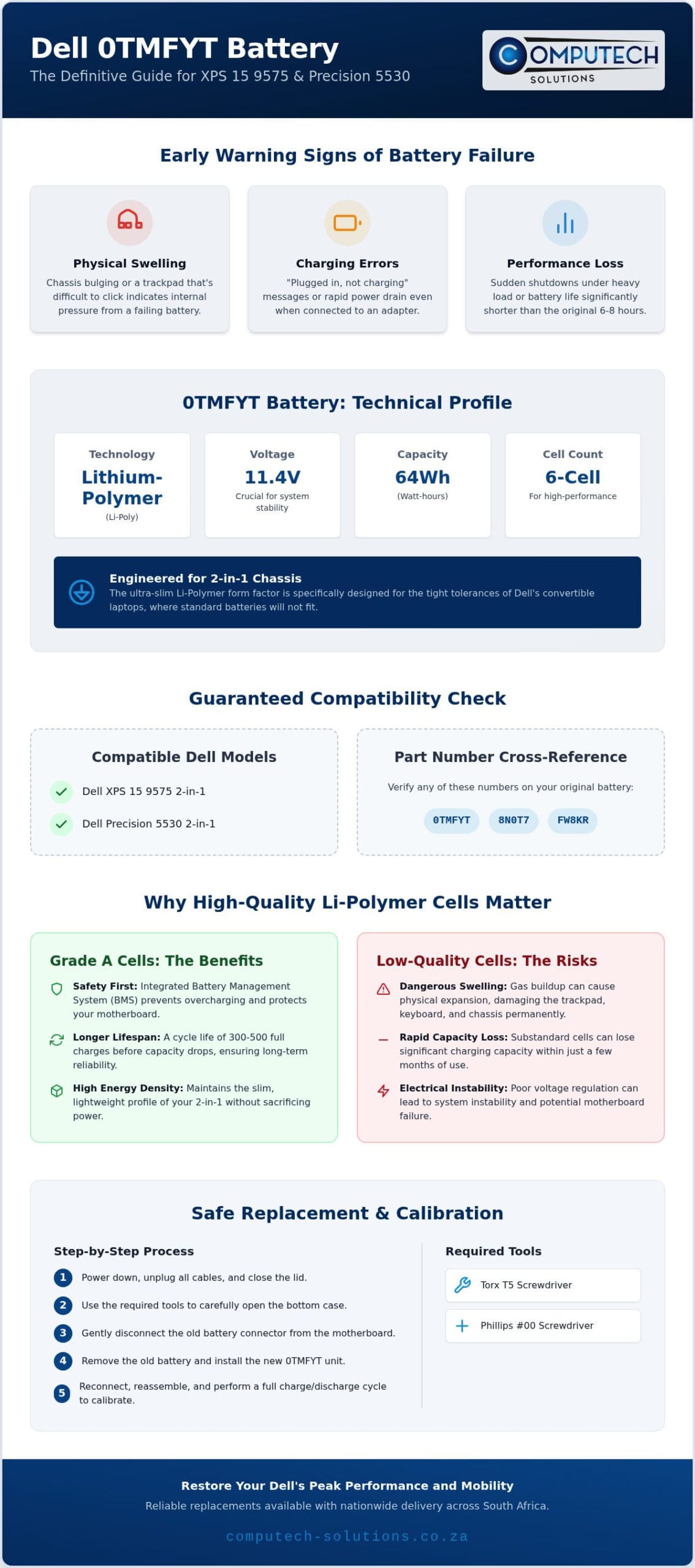
The 0tmfyt is a specialized 6-cell internal battery designed specifically for Dell’s high-performance convertible workstations. Unlike standard laptop batteries that use rigid cylindrical cells, this unit utilizes Lithium-ion polymer battery technology. This allows for a flexible, pouch-style construction that fits within the extremely tight tolerances of a 2-in-1 chassis. The battery operates at a nominal voltage of 11.4V and offers a total energy capacity of 64Wh. These technical specifications are hard-coded into the system’s power management firmware, making the correct voltage essential for hardware safety.
Compatibility is precise and non-negotiable for these high-end machines. The 0tmfyt is engineered exclusively for the Dell XPS 15 9575 2-in-1 and the Dell Precision 5530 2-in-1. You might find this component listed under several cross-compatible Dell part numbers, including 8N0T7, FW8KR, or simply TMFYT. It’s vital to verify these exact identifiers before ordering to ensure full BIOS recognition and electrical stability. At Computech-Solutions, we provide expert technical support to help you match these part numbers correctly, ensuring your replacement works perfectly from the first boot.
Why 0TMFYT is Unique to Dell 2-in-1 Systems
Convertible laptops face unique thermal and spatial challenges that standard laptops don’t encounter. The 0tmfyt battery features an ultra-slim form factor that is significantly different from standard XPS 15 batteries, such as the 97Wh 6GTPY found in traditional clamshell models. Standard batteries are physically too thick for the 9575’s slim chassis. The 11.4V rail is also calibrated specifically for the power draw of the unique processor architectures used in these machines. Using an incorrect physical size or voltage can lead to motherboard failure or permanent chassis damage.
Technical Breakdown: 64Wh vs. Battery Life
Watt-hours (Wh) represent the total energy capacity available to your system. A 64Wh rating means the battery can deliver 64 watts of power for one hour. In the context of the XPS 9575, this capacity is critical for supporting the power-hungry 4K InfinityEdge displays often found on these models. While a new 0tmfyt battery typically provides 6 to 8 hours of runtime under standard productivity workloads, high-resolution video editing or 3D rendering will deplete this energy faster. Maintaining a high-quality Li-Polymer cell ensures the discharge rate remains stable even under these heavy professional loads, preventing sudden system shutdowns.
Performance Metrics: Why Li-Polymer Quality Matters
Lithium-Polymer (Li-Poly) technology represents a significant advancement over traditional Li-ion cells. Its main benefit is high energy density, which allows the 0tmfyt battery to maintain a slim, flat profile without sacrificing power. This compact shape is essential for the Dell 2-in-1’s folding hinge and thin chassis. A critical component of this architecture is the internal Battery Management System (BMS). The BMS acts as a safety watchdog, monitoring voltage levels and temperature to prevent electrical surges from damaging your motherboard.
One common issue with aging or inferior replacement batteries is “swelling.” This occurs when chemical reactions within the pouch produce gas, causing the battery to expand. In a Dell XPS 15 9575, this expansion often puts pressure on the trackpad or keyboard, making them unresponsive. Choosing high-quality cells reduces this risk significantly. If you’re unsure if your current unit is compromised, you can chat with our technical team for assistance.
Cell Quality and Cycle Life Expectancy
Not all batteries are created equal. Grade A cells are manufactured to higher standards, ensuring they can handle the high-current demands of a Precision 5530. Most premium 0tmfyt replacements offer a cycle life of 300 to 500 cycles. Cycle life is the total number of full discharge and charge sequences a battery can undergo before its capacity drops below 80% of its original rating. Using substandard cells often leads to rapid capacity loss within just a few months of use.
Impact of South African Power Conditions
South Africa’s unique power environment presents specific challenges for laptop longevity. Frequent load shedding can force your laptop into a state of deep discharge if you aren’t careful. Li-Polymer batteries are particularly sensitive to being left at 0% charge for extended periods, which can lead to “chemical sleep” where the battery no longer accepts a charge. Following best practices for lithium-ion battery care, such as keeping your charge between 20% and 80%, will extend the lifespan of your unit.
You can further protect your 0tmfyt by optimizing Windows power settings. Setting the “Battery Saver” to activate at 30% and using the “Dell Power Manager” to limit maximum charge levels during periods of heavy AC use are effective strategies. These small adjustments prevent the heat buildup that accelerates cell degradation, keeping your machine operational during long power outages.
Troubleshooting Dell Precision and XPS Battery Issues
When your high-end Dell laptop begins to lose its portability, the symptoms are usually distinct. The most common indicator of a failing 0tmfyt battery is the “Plugged in, not charging” error in the Windows taskbar. This message often suggests that while the system recognizes the AC adapter, the battery’s internal management system has blocked the charging circuit for safety. You can confirm the hardware status by using Dell SupportAssist to run a dedicated battery health diagnostic. If the report returns a status of “Fair” or “Poor,” the internal cells have likely reached the end of their functional life.
BIOS-level alerts provide even more direct feedback. If you see a “Battery not detected” or “The battery has experienced a permanent failure” message during the initial boot sequence, the motherboard can no longer communicate with the battery’s firmware. These errors aren’t just software glitches; they’re clear indicators that the 0tmfyt component requires immediate attention to prevent operational downtime. Identifying these signs early helps you avoid the stress of a laptop that only works when tethered to a wall socket.
Software vs. Hardware Battery Failures
Before concluding that you need a physical replacement, it’s worth ruling out temporary logic errors. You can perform a “flea power” drain by shutting down the laptop, disconnecting the AC adapter, and holding the power button for 15 seconds. This process clears the static charge from the motherboard and resets the charging logic. Additionally, ensure your Dell BIOS and chipset drivers are updated to the latest versions. Manufacturers frequently release firmware updates to resolve charging bugs that cause “not charging” errors. However, if the BIOS diagnostic still shows a hardware failure after these steps, a physical replacement is the only definitive solution.
The Swollen Battery Risk
As Lithium-Polymer batteries age, chemical degradation can lead to the production of gases that cause the battery pouch to expand. In the ultra-slim chassis of the Dell XPS 15 9575, there is virtually no clearance between the battery and the internal components. A swollen 0tmfyt battery will physically press against the underside of the trackpad, leading to erratic cursor behavior or a trackpad that’s physically impossible to click. In advanced stages, this pressure can warp the aluminum chassis or damage the keyboard assembly.
Safety is paramount when dealing with expanded cells. You should never attempt to pierce or “vent” a swollen battery, as this will cause an immediate thermal event and potential fire. If you notice the palm rest of your Precision 5530 lifting or the bottom cover bulging, stop using the device and disconnect the power. Removing the failing unit immediately is the only way to protect the expensive top assembly and ensure your laptop remains a viable tool for your business.
How to Safely Replace and Calibrate Your 0TMFYT Battery
Replacing the internal battery in a Dell XPS 15 9575 or Precision 5530 2-in-1 requires precision. Unlike older laptops with external latches, these models use a unibody-style base cover that demands specific tools for access. You’ll need a Torx T5 screwdriver for the external base screws and a Phillips #00 screwdriver for the internal battery fasteners. Before you begin, shut down the system and disconnect the AC adapter. Grounding yourself is essential to prevent Electrostatic Discharge (ESD) from damaging sensitive motherboard components. Working on an anti-static mat is the safest approach for these high-end machines.
Once you’re grounded, remove the screws securing the bottom panel. Carefully pry the base cover off, starting from the hinge area. You’ll see the large 0tmfyt battery occupying the lower half of the chassis. Disconnect the battery cable from the motherboard first; this cuts power to the system entirely and prevents short circuits. Remove the screws holding the old unit in place, lift it out, and drop in the new 0tmfyt battery. Secure the internal screws and reconnect the power cable before snapping the base cover back into position. If you encounter any resistance during this process, contact our technical support team for real-time guidance.
The Calibration Process for New Batteries
New batteries require calibration to synchronize correctly with the Windows power manager. After installation, charge the laptop to 100% without interruption. Once full, let it remain on the charger for an extra hour to ensure the cells are balanced. Then, disconnect the power and use the laptop until the battery level reaches approximately 5%. Finally, charge it back to 100% in one continuous session. This “Deep Cycle” method trains the battery’s internal controller to recognize its true capacity limits. Calibration ensures your Windows battery percentage remains accurate and prevents the system from shutting down unexpectedly when it still shows remaining charge.
Post-Installation Verification
Always verify the hardware handshake before returning to full productivity. Restart your laptop and tap the F2 key repeatedly to enter the BIOS menu. Navigate to the “Battery Information” section to check the system’s recognition of the new hardware. The system should recognize the battery as a compatible component with a “Health: Excellent” status. BIOS verification is the most reliable way to confirm the hardware handshake between the battery and motherboard. If the BIOS displays an “Unknown” status, you should double-check the internal connector seating to ensure a firm data connection between the battery’s BMS and the laptop’s charging circuit.
Choosing a Reliable Replacement Battery in South Africa
Selecting a replacement for a high-value machine like the Precision 5530 requires more than just finding the lowest price. International marketplaces often involve long lead times, hidden import duties, and complex return processes that can leave your business stranded. Choosing a local specialist like Computech-Solutions ensures you receive a component that’s been verified for the South African market. Our specialized focus on high-capacity Li-Polymer cells means you get a battery that meets the exact 11.4V and 64Wh requirements of your 2-in-1 workstation without the risks of cross-border shipping. We provide a stable, authoritative partnership that prioritizes your operational uptime.
Local technical support is an invaluable asset when dealing with complex Dell 2-in-1 hardware. If you encounter BIOS recognition issues or need guidance on the physical installation of your 0tmfyt battery, having access to experts who understand the specific architecture of the XPS 9575 is essential. Evaluating warranties and return policies is much simpler when dealing with a domestic provider. This proximity allows for faster resolutions and ensures that your investment is protected by a reliable, professional service model that understands the local business environment.
Generic vs. Original: Making an Informed Choice
High-quality generic 0tmfyt replacements often provide the most efficient path to restoring your laptop’s performance. These units utilize Grade A cells that match the original manufacturer’s specifications while offering a more accessible price point for aging hardware. The real value lies in choosing a supplier that actively tests their stock and maintains local availability. This is particularly critical for users who cannot afford to wait weeks for a replacement during frequent power disruptions. Nationwide delivery across South Africa means your repair timeline is measured in days, ensuring your machine is back in service quickly.
Extending the Life of Your New Battery
Once your new battery is installed, proactive maintenance is the key to longevity. Heat is the primary enemy of Lithium-Polymer chemistry; it accelerates the degradation of the internal pouch. Ensure your laptop’s cooling fans are free from dust and avoid using the device on soft surfaces that block airflow. If you primarily use your laptop at a desk while connected to power, use the Dell Power Manager software to limit the maximum charge to 80%. This simple adjustment significantly reduces the chemical stress on the cells, preventing the premature swelling issues common in high-density batteries.
Managing your power settings effectively and keeping the firmware updated will ensure your hardware remains a reliable asset for years to come. If you’re ready to restore your machine’s mobility, we’re here to help. Browse our range of Dell Replacement Laptop Batteries for nationwide delivery and secure a definitive solution for your workstation today.
Restore Your Dell Workstation to Peak Efficiency
Restoring the mobility of your Dell XPS or Precision workstation requires high-performance 64Wh Li-Polymer cells that match the system’s precise 11.4V electrical requirements. By identifying early signs of degradation and following a structured calibration process, you protect your hardware from the risks of chassis swelling and sudden power loss. The 0tmfyt battery is a critical component that maintains both the structural and operational integrity of your high-end machine.
You don’t have to navigate technical disruptions alone. Our team provides the expert technical assistance needed to ensure a perfect hardware match for your Dell hardware, alleviating the stress of compatibility concerns. With nationwide South African shipping, you can return to full productivity quickly without the delays and risks associated with international imports. Trust in a comprehensive service model that prioritizes your business uptime and operational growth.
Order your 0TMFYT Replacement Battery from Computech-Solutions today and experience the confidence of a professional-grade power solution. Your machine is an investment; keeping it powered correctly is the best way to ensure its longevity.
Frequently Asked Questions
Is the 0TMFYT battery compatible with the standard Dell XPS 15 9570?
No, the 0tmfyt battery is not compatible with the standard Dell XPS 15 9570 clamshell model. It’s designed exclusively for the Dell XPS 15 9575 2-in-1 and Precision 5530 2-in-1 systems. Clamshell models like the 9570 use physically larger batteries with different connectors. Using the wrong part can lead to electrical issues, so it’s vital to check your specific model number before ordering.
How long should a new 0TMFYT battery last on a single charge?
A new 64Wh battery typically provides between 6 and 8 hours of runtime under standard productivity workloads. However, these Dell 2-in-1 systems often feature high-resolution 4K InfinityEdge displays that consume significant power. If you’re performing intensive tasks like video editing or running maximum screen brightness, you should expect the runtime to decrease to approximately 3 to 4 hours depending on the workload.
Why is my Dell laptop saying “Battery not detected” after I installed a new one?
This error usually indicates a communication failure between the motherboard and the battery’s internal management system. First, ensure the internal connector is seated firmly and clicked into place. If the physical connection is secure, try performing a “flea power” drain by holding the power button for 15 seconds while the battery is disconnected. Updating your BIOS to the latest version often resolves recognition bugs that cause this message.
Can I replace the 0TMFYT battery myself, or do I need a professional?
You can replace the battery yourself if you have the correct tools, specifically a Torx T5 and a Phillips #00 screwdriver. Since this is an internal component, you’ll need to remove the base cover and handle delicate ribbon cables. If you’re uncomfortable working with internal electronics or lack ESD grounding equipment, seeking professional assistance is a safer choice to avoid accidental motherboard damage or short circuits during the installation process.
Does load shedding damage my laptop battery?
Frequent power outages can indirectly damage your battery by forcing it into frequent deep discharge cycles. Lithium-Polymer cells degrade faster when they’re regularly drained below 10%. Additionally, the power surges that sometimes occur when electricity returns can stress the laptop’s charging circuit. We recommend using a high-quality surge protector and keeping your laptop charged above 20% to mitigate these risks during load shedding throughout South Africa.
What is the difference between the 0TMFYT and the 8N0T7 part numbers?
There is no functional difference between these two identifiers. Dell uses multiple part numbers, including 0tmfyt, 8N0T7, and FW8KR, to refer to the same 11.4V 64Wh battery assembly. These numbers are often used interchangeably in manufacturing and inventory systems. As long as the battery matches the physical dimensions and voltage requirements of your XPS 9575 or Precision 5530, it will be fully compatible and recognized by the BIOS.
How do I dispose of my old or swollen Dell battery in South Africa?
You must never dispose of lithium-ion batteries in standard household waste due to fire risks. In South Africa, you should take old or swollen batteries to specialized hazardous waste collection points. Many major retailers and electronics stores provide dedicated battery recycling bins. If the battery is severely swollen, place it in a non-conductive container like a plastic bucket with sand and contact a local e-waste professional for safe handling.
Should I leave my Dell 2-in-1 plugged in all the time?
Leaving your laptop plugged in constantly can lead to heat buildup and accelerated cell wear. While modern systems stop charging at 100%, keeping the cells at maximum voltage for long periods isn’t ideal for longevity. We suggest using the Dell Power Manager software to set a “Primarily AC Use” profile. This caps the charge at 80%, which significantly extends the lifespan of your battery by reducing chemical stress and heat during operation.
