
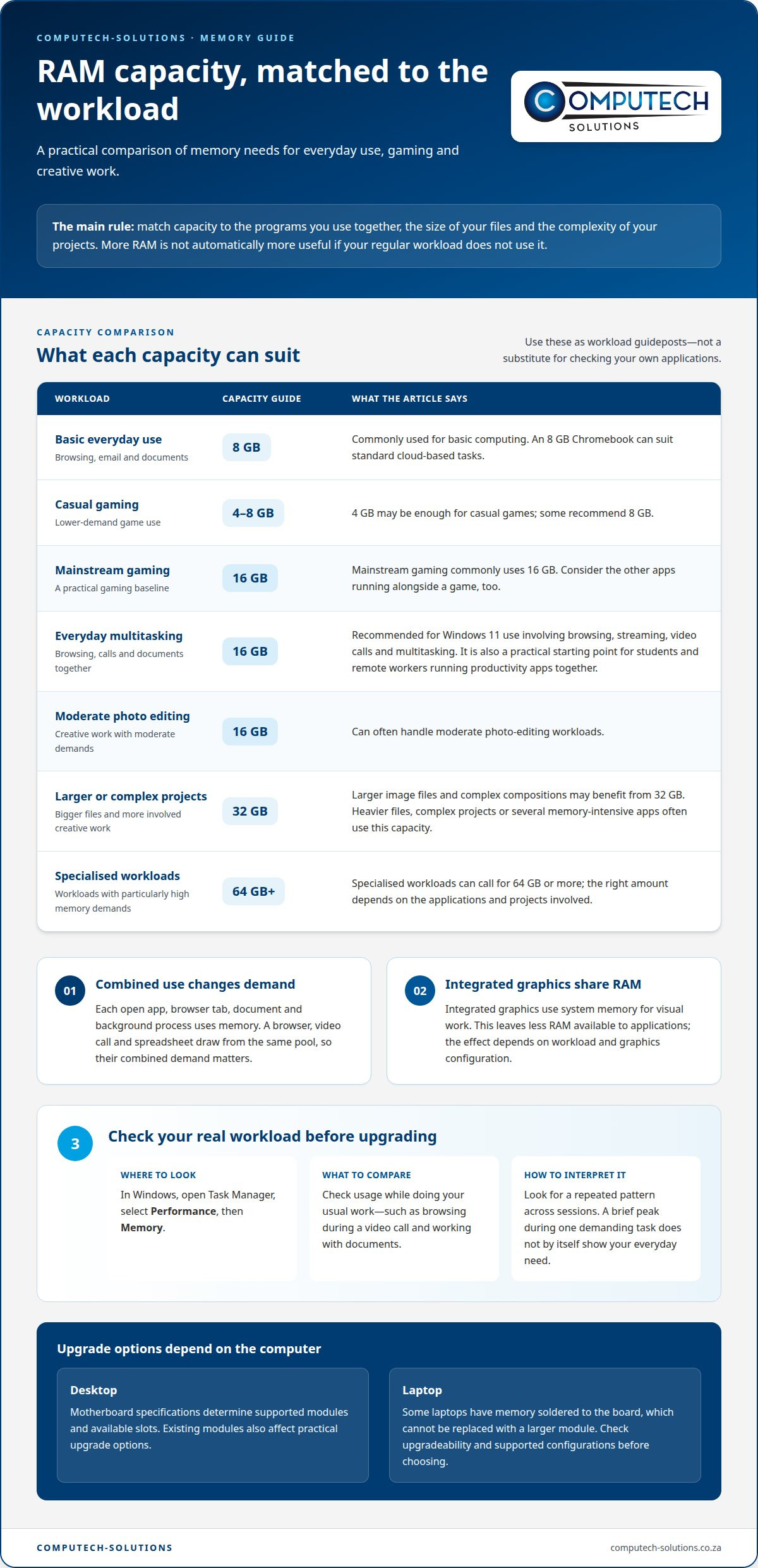
For most people, 16 GB of RAM is a practical starting point, and for mainstream gaming, 16 GB is the baseline. If you’re deciding how much RAM you need, 8 GB can handle basic computing, while demanding creative work may benefit from 32 GB or more. More RAM isn’t automatically better if your usual tasks don’t use it.
It’s easy to focus on one number, especially when a game lists a minimum requirement. But how much RAM you need depends on what you run at the same time, the size of your projects and whether your computer can be upgraded later.
This guide covers RAM needs for gaming, everyday use, creative work and different operating systems. It also explains how to assess whether upgrading a laptop or desktop makes sense, so you can match memory to the way you actually use your computer.
Key Takeaways
- Use 16 GB as a practical starting point for mainstream gaming and everyday multitasking; demanding workloads can call for more.
- Match memory to the applications you run together, since several browser tabs, calls and documents can increase demand.
- For creative projects, file size and workload complexity help determine whether 16 GB or 32 GB is the better fit.
- Separate an operating system’s minimum memory requirement from the capacity that feels comfortable for regular use.
- Before upgrading, consider your typical workload and whether memory usage consistently exceeds 80% during normal tasks.
Multitasking and application memory demands
RAM holds the data your computer needs quick access to while applications are running. The capacity you need depends on which programs you use together, not just the one in front of you.
Memory use across applications
Each open application, browser tab, document and background process uses memory. A browser, video call and spreadsheet running together draw from the same pool of RAM, so their combined demand matters more than any single program’s needs.
Light multitasking means using 2-4 applications. For heavier browser sessions and mixed laptop workloads, 16 GB is widely used. If memory use consistently exceeds 80%, Windows Task Manager can help identify whether your usual workload is pressing against available capacity.
Integrated graphics and shared memory
Integrated graphics use system memory for visual work rather than relying entirely on separate graphics memory. The processor and graphics therefore share the computer’s RAM, leaving less available for applications.
For example, a laptop with integrated graphics running a game, browser and voice chat must fit those tasks within shared memory. The effect depends on the workload and graphics configuration, so consider RAM capacity alongside the visual demands of your applications.
Choosing capacity and understanding tradeoffs
RAM capacity is the amount of memory available to applications at once. For casual games, 4 GB may be enough, while some recommend 8 GB; mainstream gaming commonly uses 16 GB. Heavier files, complex projects or several memory-intensive applications often use 32 GB, while specialised workloads can call for 64 GB or more.
Too little RAM can leave applications competing for space and make multitasking less responsive. Extra capacity offers little practical benefit if your usual workload doesn’t use it, so choose an amount that suits the programs and files you handle.
Memory channels, speed and latency
Memory channels describe how the processor communicates with RAM modules. More than one channel can increase the data path available to the system, which can matter when integrated graphics also use system memory. The motherboard and processor determine which channel architecture is supported.
RAM speed affects how quickly data moves, while latency describes the delay before data is available. Capacity, speed and latency are separate characteristics: more capacity doesn’t automatically mean faster memory. The computer’s supported memory specifications determine which modules can operate correctly.
Upgradeability and soldered memory
Desktop motherboards commonly use removable RAM modules, while some laptops have memory soldered directly to the board. Soldered memory can’t be replaced with a larger module, so installed capacity is an important consideration when choosing a laptop.
For an upgrade, the motherboard or laptop design determines whether modules can be added or replaced and which configurations are supported. Check the system specifications before choosing memory. The number of available slots and the existing modules affect your practical options.
Everyday productivity and multitasking
Everyday memory demand depends on which applications are open together and what you’re doing in them. A document, video call and browser session create a different load from a single open application.
Memory needs for everyday tasks
Everyday computing uses RAM to keep active applications responsive while you move between them. For basic browsing, email and document editing, 8 GB is commonly used; an 8 GB Chromebook can suit standard cloud-based tasks.
A Windows 11 computer used for browsing, streaming, video calls and multitasking is recommended to have 16 GB. Students and remote workers can benefit from that capacity when productivity applications, web research and video conferencing run together.
Consider your full workflow, not one task in isolation. A video meeting alongside browser tabs and several documents demands more memory than editing one document alone. Mobile work may also involve switching between cloud-based applications, so active tasks matter more than stored files.
Storage and memory serve different purposes. Storage keeps files when the computer is off; RAM holds the information applications need while running. A full drive and limited memory are separate issues, even though both can affect your experience.
Checking installed memory and upgrade needs
To check installed RAM in Windows, open Task Manager, select Performance, then Memory. Compare usage with your usual workload, such as a video call while browsing and working with documents.
Consider an upgrade if memory utilisation exceeds 85% during normal use. A consistently high reading alongside slow application switching suggests that active tasks are competing for available capacity. A brief peak during a demanding task alone doesn’t show your everyday needs.
Check usage while doing the work that feels slow, rather than after closing applications. See whether the same pattern appears across several sessions. This can help distinguish regular workload pressure from a temporary spike caused by one application or task.
For a desktop, the installed configuration also affects upgrade options. The motherboard determines which memory modules are supported and how many slots are available, while some laptops use soldered memory. These design differences determine whether you can expand capacity.
If you’re weighing a replacement against continued use, discuss desktop computer options for a workflow that regularly pushes memory capacity.
Creative work and video editing
Creative applications can use more memory as files grow and projects become more complex. Editing a few photos creates different demands from managing a high-resolution video timeline alongside several applications.
For moderate photo editing, 16 GB can often handle the workload. Larger image files and complex compositions may benefit from 32 GB, especially when multiple editing applications or browser references remain open. Layers, image dimensions and the number of active files all contribute to memory use.
Video editing also depends on project demands. A lighter project may work with 16 GB, while higher-resolution timelines and heavier multitasking may suit 32 GB. Standard 4K video editing may run well with 32 GB, giving a useful reference point for creators planning that kind of work.
More demanding professional projects can require more headroom. Creative professionals working across photo, video and design may use 32-64 GB, while professional video and 3D workstations can suit 64 GB or more. These capacities are relevant when large files, complex scenes or several demanding applications are part of the same workflow.
Consider what runs alongside your editing application. For example, a creator might keep a video timeline open while using design software and a browser. Each application adds to total memory demand. A game or other demanding program running at the same time adds another workload, so the project alone may not reveal the full requirement.
RAM capacity affects how much active project data your computer can handle at once. If a project regularly pushes memory close to its limit, switching between editing tasks may become less responsive. More capacity can provide working headroom, but it doesn’t replace the processor, graphics hardware or storage that demanding creative applications also need.
Choose capacity around the largest projects you regularly handle, not just an occasional simple edit. For moderate photo work or lighter video editing, 16 GB may fit; larger compositions, 4K timelines and heavier multitasking point toward 32 GB. Professional video, 3D and design work may justify 64 GB or more, depending on project complexity.
Operating-system minimum RAM requirements
An operating system’s minimum RAM requirement is what it needs to run, not necessarily enough for comfortable daily use. Windows, macOS and Ubuntu have different minimums, and browsing, productivity applications and background processes add to the workload.
Minimum requirements versus practical capacity
Windows can run with 4 GB as a very minimal amount, but that figure doesn’t describe a comfortable capacity for a primary Windows 11 computer. The practical recommendation for everyday Windows 11 use is 16 GB, supporting browsing, streaming, video calls and multitasking. The gap reflects the memory used by applications beyond the operating system itself.
Minimum figures indicate whether a computer can run an operating system, not how smoothly it will handle several active tasks. A computer might start Windows with limited memory, leaving less for a browser, documents and a video call. Choosing a computer based only on the operating system’s minimum can leave little room for everyday work.
Requirements differ by operating system
Minimum memory requirements vary by operating-system version. For macOS 10.15 Catalina and macOS 11 Big Sur, the listed minimum is 4 GB. macOS 10.14 Mojave and earlier listed macOS and OS X versions have a listed minimum of 2 GB.
Ubuntu Linux has a listed minimum of 4 GB. These figures describe different operating systems and versions, so they shouldn’t be treated as interchangeable. A computer suitable for one installation may not provide the same practical experience with another operating system and its applications.
Plan for applications as well as the operating system
Memory demand rises as you open applications alongside the operating system. A Windows 11 user running a browser, documents and a video call needs capacity for those tasks in addition to Windows. A minimum requirement doesn’t account for every combination of programs or files.
Before buying, match the operating system version to the computer’s installed memory, then consider the work it must support. For example, a system meeting Ubuntu’s 4 GB minimum may suit a lighter setup, while Windows 11 productivity use points to 16 GB. The best comparison is between the system requirement and your actual workflow.
Operating-system minimums also vary between versions, as the macOS examples show. A figure for Mojave shouldn’t be applied to Sonoma, and a Windows minimum doesn’t describe every Windows workload. Check the exact version and distinguish its listed minimum from the capacity your applications need.
Laptop and desktop RAM upgrades
A RAM upgrade makes sense when your usual workload exceeds available memory and your computer supports expansion. Laptop and desktop needs depend on task demands, upgradeability and how long you plan to keep the system.
For everyday laptop or desktop use, 16 GB is a practical target for modern multitasking. A laptop used for development commonly has 16 GB, while larger projects and heavier local testing can benefit from 32 GB. Workstation needs are higher: 32 GB is a suggested baseline for workstation laptops, and 64 GB is more common for desktop workstations.
For gaming, 16 GB is a baseline, with 32 GB recommended for enthusiast setups. High-end gaming systems and workstations can need 64 GB or more. These figures describe different workloads, not a rule that every computer should have the largest capacity. Choose around the applications and projects you expect to use over the next three years.
Before upgrading, identify your computer’s current memory configuration and supported capacity. The motherboard determines compatible RAM generation, module capacity and operating speed. A module from the wrong generation won’t fit the slot, and supported configurations vary by computer. Desktop systems often allow module replacement, while some laptops have soldered memory that can’t be expanded.
Existing modules also affect your upgrade options. A computer with open memory slots may allow additional modules; a full configuration may require replacing existing ones. Check the supported layout before choosing, because modules must be combined in a supported configuration. More capacity can help with memory-heavy work, but it won’t make every task faster if the processor or storage is the limiting factor.
For laptops that can’t be upgraded, choosing enough memory at purchase matters more. A 16 GB or 32 GB configuration may provide more headroom for longer ownership, depending on workload. Data analysis with smaller datasets may work with 16 GB, while large datasets can call for 32 GB. Heavy virtualization and large-scale data processing can call for 64 GB or more.
A useful decision is to compare your current capacity with the heaviest routine workload, then establish whether the system accepts a suitable upgrade. If the memory is soldered or the computer can’t support the capacity your work needs, consider a replacement rather than expecting an unsupported upgrade to solve the problem. Discuss a laptop or desktop computer for your workload when replacement is the practical next step.
Computech-Solutions
Computech-Solutions helps South African customers decide whether to keep using their computer or replace it when memory limits affect their workload. If your laptop can’t be upgraded or no longer suits your applications, compare your needs with the available laptop and desktop options.
If your laptop still meets your memory needs but has a worn battery, replacement options include Acer, Apple, ASUS and Dell laptop batteries. These address battery replacement, not RAM capacity, so choose the solution that fits the problem you’re trying to solve.
Contact Computech-Solutions to discuss your computer needs.
Make your next computer decision with confidence
Your next computer should support your current routine and the work you expect to take on. Before choosing an upgrade or replacement, consider whether your applications, projects or study habits are likely to change. Looking ahead can help you avoid paying for capacity your workflow won’t use or choosing a system that soon feels constrained.
If you’re still deciding how much RAM you need, focus on your most important tasks and whether your current computer supports the memory configuration they require. Replacement may make more sense when the system’s design limits upgrades. If you can expand its memory, a suitable upgrade may extend its usefulness for everyday work.
Computech-Solutions can help you consider the next step for your computer needs. Contact Computech-Solutions for RAM advice and move forward with a clearer plan for your setup.
Frequently Asked Questions
What RAM capacity is suitable for gaming?
For mainstream PC gaming, 16 GB is a solid target, while some major games list 8 GB as their minimum and recommend 16 GB. Check the requirements for the specific game, then account for other programs you keep open. A browser, voice chat or recording application also uses memory. Integrated graphics share system RAM, which can leave less available for the game.
Does an AI PC need more RAM?
For local AI tools and AI PC workloads, 32 GB is a recommended capacity. Larger models or multiple processes running at once can make 32 GB or more relevant. The workload matters: using an online AI service differs from running models locally, where model size and concurrent applications affect memory demand. Consider the AI tools you plan to run alongside your usual applications.
What RAM capacity suits workstation and AI tasks?
For workstation tasks, 32 GB is a suggested baseline for laptops, while 64 GB is a more common baseline for desktop workstations. Large-scale data processing and heavy virtualization can call for 64 GB or more. For AI work, larger local models and simultaneous processes also increase memory needs. Base the choice on the size of active projects and how many environments run together.
What RAM capacity fits a budget system?
For a budget Windows PC, 8 GB is a practical minimum for usability. That can suit basic tasks, but it leaves less room for several demanding applications running together. For cloud-based Chromebook tasks, the amount of memory needed depends on how heavily you multitask. Before buying, match the system type and memory configuration to your everyday applications, rather than comparing capacity alone.
What RAM capacity suits mainstream everyday use?
For mainstream PC use, 16 GB is the recommended baseline. It gives everyday tasks such as browsing, streaming and video calls room to run alongside other applications. If your routine is lighter, your needs may differ from a workflow that keeps multiple tools open. Think about the applications you use at the same time, not just the computer’s main purpose.
How much memory is suitable for professional work?
A 32 GB configuration is a useful base choice for professional computer use, especially when projects involve large files or demanding software. Photo, video and design work can call for 32-64 GB, depending on project complexity. Professional video, 3D work and data science may suit 64 GB or more. Account for the applications you run together and the size of active projects.
How much memory is enough for basic everyday computer use?
For basic browsing, word processing, video playback and sorting photos, 8 GB can be sufficient. A Chromebook used for standard cloud-based tasks can also work with 8 GB; lighter multitasking may even suit 4 GB. To decide how much RAM you need, consider whether video meetings, many open tabs or several documents are part of your routine, rather than focusing on basic tasks alone.
What gaming RAM capacity is recommended in 2026?
For mainstream gaming in 2026, 16 GB remains the baseline, while 32 GB suits enthusiast setups. Some major games list 8 GB as a minimum and recommend 16 GB, so minimum requirements don’t necessarily represent a comfortable setup. High-end gaming systems may need 64 GB or more, particularly alongside demanding applications. Let the games and other programs you run guide how much RAM you need.
