
A seven-year-old PC isn’t automatically ready for retirement. If it still meets your needs, a targeted upgrade may be worthwhile; if several core components are holding it back, starting fresh may make more sense. For a system in the 3-7-year range, targeted upgrades are a sensible starting point, so is it worth upgrading a 7-year-old PC depends on its performance, compatibility and the cost of the parts it needs.
It’s reasonable to hesitate before spending money on an older computer: a new component can improve one problem without resolving broader limits. This article will help you weigh the practical trade-offs and choose the option that fits your work, everyday use or gaming needs.
You’ll learn how to spot a performance bottleneck, check whether the motherboard and other components support an upgrade, and compare targeted spending with replacing the whole system. Use the decision guide to weigh those factors and choose what makes sense for your PC in South Africa.
Key Takeaways
- Identify the component slowing your PC down before replacing parts; one targeted upgrade may address the main performance issue.
- Check whether the motherboard, processor, memory and other components can support the upgrade you have in mind. Windows 11 officially supports Intel and AMD processors from the 8th generation onward.
- Balance a graphics card upgrade against the processor and memory, since older components can still limit performance.
- Compare the combined cost and usefulness of the upgrades you need with the benefits of replacing the whole PC.
- Account for power supply capacity and cooling when considering newer components, as both affect whether an upgrade is practical for your system.
Assessing PC performance and current specifications
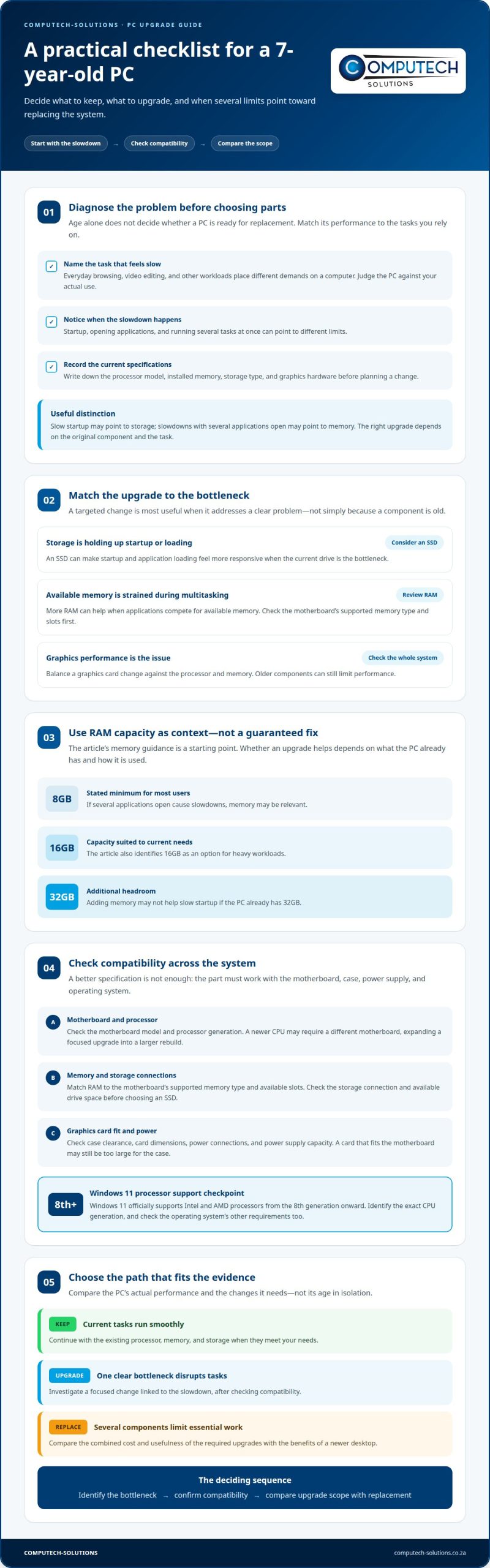
Start with the task that feels slow, then identify the component responsible. A seven-year-old desktop can still be useful if its processor, memory and storage meet your needs.
Desktop PC Lifespan
There is no single typical lifespan that applies to every desktop PC in 2026. A system remains useful as long as its performance, compatibility and condition support the tasks you rely on. Age alone doesn’t determine whether replacement is necessary.
A desktop used for web browsing has different demands from one used for video editing. Compare the computer’s limits with your actual workload instead of treating its age as a retirement date. A seven-year-old PC that handles everyday tasks smoothly is different from one that struggles with essential software.
Current Performance and Specifications
Record the processor model, installed memory, storage type and graphics hardware. Then note when slowdowns occur: during startup, when opening applications, or with several tasks running. This can help distinguish a storage delay from a memory shortage or processor limitation.
For context, one older system used an Intel Core i5-4440, a fourth-generation processor, and 32GB of DDR3 memory. Another configuration included a Core i7-4790K quad-core processor running at 4 GHz, plus 16GB of DDR3-2133 memory. These examples show why processor name, generation and memory capacity all matter.
Use this comparison to organise your assessment:
| Option | Performance signal | Specification to review | Likely direction |
|---|---|---|---|
| Keep using the PC | Current tasks run smoothly | Existing processor, memory and storage | Continue with the present setup |
| Targeted upgrade | One clear bottleneck disrupts tasks | The component linked to that slowdown | Investigate a focused change |
| Replace the PC | Several components limit essential work | Overall specification and software needs | Compare with a newer desktop |
Choose an upgrade by matching the slowdown to the component, not by age alone.
SSD and RAM Performance Gains
An SSD can make startup and application loading feel more responsive when the current drive is the bottleneck. More RAM can help when applications compete for available memory. Neither upgrade has a fixed performance gain: results depend on the original component and the task.
For most users, 8GB of RAM is the stated minimum. A 16GB capacity suits current needs, while 32GB gives additional headroom; heavy workloads may call for 16GB or 32GB. If a computer already has 32GB, adding more memory may not address slow startup. If it has 8GB and slows with several applications open, memory may be the more relevant target.
These checks clarify whether it is worth upgrading a 7-year-old PC: identify the bottleneck, confirm what the current specifications can support, and link each proposed change to a specific task.
Checking component compatibility and upgradeability
A useful upgrade must fit the existing system, not merely improve one specification. Check the processor, motherboard, memory, storage connections, power supply and operating system together before choosing parts.
A seven-year-old PC may support some newer components, but compatibility depends on its exact hardware. For example, a replacement processor must work with the motherboard, and a memory upgrade must match the motherboard’s supported memory type. Compatibility is a system-wide decision.
Check the motherboard and processor
Start with the motherboard model and processor generation. The motherboard determines which processor families and memory types are supported. A newer CPU may require a different motherboard, turning a focused upgrade into a larger rebuild.
Windows 11 officially supports Intel and AMD processors from the 8th generation onward. A seven-year-old computer may use an older processor generation, so its age alone cannot establish compatibility. Identify the exact CPU model and compare its generation with Windows 11’s stated processor requirement.
Processor support is only one part of operating-system compatibility. The PC must also meet the operating system’s other requirements. If your current system cannot run the operating system you need, weigh that limit alongside the cost and scope of hardware changes.
Check memory, storage and physical fit
Confirm the motherboard’s memory type and available slots before planning a RAM change. A DDR3 system, such as one with DDR3-2133 memory, cannot use a different memory type simply because the new modules have a higher capacity. Match the replacement to the board’s supported specifications.
For storage, check the connection type and available drive bays. An SSD upgrade is useful only if the PC can connect to the drive you choose. A desktop with room for a drive may offer a different upgrade path from a compact system with limited internal space.
Graphics cards also need physical clearance and suitable power connections. Measure the space inside the case, then compare it with the card’s dimensions and power requirements. A card that fits the motherboard may still be too large for the case.
Consider Windows support and upgrade scope
When Windows 10 support ends, standard support and security updates end with it. Continued use then requires careful consideration of operating-system security and software needs. Compatibility requirements for newer operating systems can narrow the upgrade options for a PC with an older processor.
List each required change before deciding. If a processor upgrade also requires a motherboard and memory replacement, compare that combined scope with replacing the desktop. If you’re weighing a complete system change, discuss desktop computer options as one practical path.
Compatibility tells you whether a part can work; upgradeability tells you whether the complete change is practical. Match each part to the motherboard, case, power connections and operating-system requirements before deciding how to proceed.
Choosing a CPU or graphics card upgrade
Choose the part that matches your workload, not the newest specification. Prioritise an SSD, RAM, GPU or CPU according to the bottleneck affecting your tasks.
For slow application loading, consider storage; for several open apps, consider RAM. Graphics-heavy games point towards the GPU, while processor-heavy tasks may need a CPU upgrade. Compatibility and the rest of the system still shape the decision.
CPU Upgrade
A CPU upgrade targets processing limits, such as slow calculations or demanding software. Unlike a graphics card, it affects tasks that rely heavily on the processor. The motherboard must support the replacement CPU, so an older desktop may need a motherboard change too. That broader work can make a CPU upgrade less focused than replacing one graphics card.
Consider a Core i7-4790K running at 4 GHz. It is a quad-core processor, but its age and platform still matter when newer software or components are involved. If the motherboard cannot support a suitable replacement, weigh the combined scope against replacing the computer.
Graphics Card Upgrade
A graphics card upgrade is most relevant for games and other graphics-intensive workloads. A newer card may work in an older desktop, but an older processor and memory can still limit performance. For example, a Core i7-4790K system was considered capable of around 60 frames per second with a better graphics card.
That figure is not a universal result for every game or configuration. A GTX 760, for example, was considered insufficient for AAA games released in the preceding four years. Compare the specific games and settings you use with the complete system, rather than judging the card alone.
Use the observed slowdown to set your upgrade priority. If game visuals or frame delivery are the problem, assess the GPU first. If the system stalls during processor-heavy work, assess the CPU and motherboard together. If delays centre on loading or multitasking, revisit the storage and memory bottlenecks identified earlier.
Before choosing a graphics card, consider its physical fit, power needs and the system’s other components. A card that fits the slot may still exceed the case space or power supply capacity. Those constraints can require changes beyond the graphics card itself, making the upgrade less targeted.
For a CPU change, confirm that the motherboard supports the intended processor. A replacement that requires a new motherboard can also affect memory compatibility. Compare all required parts, not just the CPU’s performance, with the work the computer needs to handle.
There is no fixed upgrade order for every older PC. Match the part to the task: GPU for graphics workloads, CPU for processor-bound work, and storage or RAM for their respective bottlenecks. Then check compatibility before deciding whether the upgrade is worthwhile.
Comparing upgrade costs with buying a new PC
Compare the complete upgrade list with the cost and capability of a replacement desktop. Count every component you need, not just the first part that seems to solve the slowdown.
Upgrading the Existing PC
An upgrade can be the more focused option when one component limits performance. An SSD, memory, graphics card or processor may address a specific task. The total cost depends on the required parts and any extra changes, such as a motherboard needed for a new CPU.
Build a complete parts list before judging the upgrade. Include every component needed for compatibility, then consider whether the remaining processor, memory and storage still meet your workload. Replacing a graphics card alone, for example, may not help enough if older components continue to limit performance.
In January 2025, one author contacted five computer shops about upgrading a PC. That example shows why a useful comparison needs more than a single part estimate: the proposed scope can differ depending on the system and upgrade plan. For a South African buyer, compare actual options in rand, without converting overseas figures into local prices.
Separate essential changes from optional ones. An SSD may be the priority if loading is the problem, while a graphics card may matter more for gaming. If the upgrade expands to several core components, reassess whether keeping the existing case and other parts still offers practical value.
Buying a New PC
A new desktop replaces the existing platform rather than fixing one bottleneck. It can make sense when several core parts need attention or when the current system cannot support the software you rely on. Its total cost covers the complete computer, not just one upgrade component.
Compare a replacement with the full upgrade list. Include the processor, motherboard, memory, graphics card and storage wherever those changes are required. Then assess whether the new system handles your actual applications better, rather than simply checking whether its parts are newer.
Use the same workload for both options. A desktop for email and browsing doesn’t need the same configuration as one for gaming or video editing. Match each option to the tasks you perform, then weigh the components you can keep against the new system’s overall capability.
Don’t treat a quoted amount for one component as the final upgrade cost. The five-shop example from January 2025 illustrates the value of comparing complete plans. South African prices can vary by configuration and components, so compare current rand totals rather than importing foreign price ranges.
For a clear decision, write down the required upgrade parts and the proposed new desktop configuration. Compare their full costs and how well each meets your needs. A focused upgrade is easier to justify when it solves one defined problem; replacement becomes more compelling as the required upgrade list grows.
Considering power supply and cooling
A graphics card or processor upgrade changes the demands on an older desktop. The power supply and cooling system must support the new configuration, not just the original parts. Consider both before treating a component upgrade as a complete solution.
Start with the power supply label and the proposed component requirements. Compare the available connectors and rated capacity with the graphics card or processor installation needs. A GTX 760 being replaced by a newer graphics card, for example, makes this check essential. The card must connect correctly, and the power supply must support the complete system. Don’t assume that a card fitting the motherboard means the existing power supply is suitable.
Also account for the rest of the system. The power supply supports the processor, graphics card, storage and other installed components together. If an upgrade adds a more demanding graphics card, assess the complete configuration rather than the card alone. A CPU change can also affect overall requirements, especially if you plan other component changes.
Cooling affects how well an upgraded desktop manages heat during demanding tasks. Check that airflow through the case is clear and that the fans work properly. Dust around vents or a blocked fan can restrict airflow. For a gaming PC, compare its behaviour during a demanding game with normal desktop use. Noise or slowdowns during intensive work may indicate that the cooling setup needs attention.
Match the cooler to the component and case. A replacement processor may need a compatible cooler, while a larger graphics card can restrict space around existing fans. Check the physical layout before buying parts. Measure the clearance between the case and graphics card, and check whether cables obstruct airflow. These details affect whether the upgrade will fit as planned.
Use this practical sequence for an upgrade plan:
- Power: Compare the power supply’s capacity and connectors with the planned parts.
- Fit: Check that the graphics card and cooler fit inside the case.
- Airflow: Inspect vents and fans for dust, blockage or poor circulation.
- Load: Consider how the PC behaves during demanding tasks, not only at startup.
These checks help reveal hidden costs before a graphics card or CPU purchase. If several supporting parts also need replacement, include them in the full upgrade comparison. For a new system instead, discuss desktop computer options as part of your decision.
Computech-Solutions
Computech-Solutions sells desktop computers for situations where an older system needs broader replacement rather than a targeted upgrade. If your comparison points towards starting fresh, a new desktop can be a practical next step. The right choice depends on your workload, the components limiting your current PC, and whether upgrading them remains worthwhile.
For laptop owners facing a separate power issue, Computech-Solutions sells replacement batteries for Acer, Apple, ASUS and Dell laptops. These suit laptop battery needs, not desktop performance upgrades. Keeping those decisions separate helps you focus on a solution that fits your device and its actual problem.
If you’re weighing an upgrade against a new desktop, contact Computech-Solutions to discuss your options.
Choose a PC that supports your next step
Your next computer should support the work you expect to do, not just resolve today’s frustration. Consider which applications, projects and everyday tasks you need it to handle. That forward-looking view can help you avoid spending on an upgrade that soon feels limiting, or replacing a PC that still serves you well.
So, is it worth upgrading a 7-year-old PC? The answer comes down to whether a focused change can meet your needs without turning into a series of costly compromises. Choose the option that gives you dependable performance for your workload and a practical path forward.
Computech-Solutions offers desktop computers for readers whose decision points towards replacing their current system. For guidance on your next step, contact Computech-Solutions for PC advice.
Once you understand what you need, you can move ahead with confidence and choose a PC solution that works for you.
Frequently Asked Questions
How can I check whether a 7-year-old PC needs an upgrade or replacement?
Track which tasks cause problems and whether the slowdown is consistent. For example, note whether video calls stutter while documents remain responsive, or whether every application takes longer to open. Windows Task Manager can show which resources are heavily used during a slowdown. These observations can help distinguish a specific performance issue from broader limits affecting several everyday tasks.
How do upgrade costs compare with buying a new PC in South Africa?
Compare current South African quotes in rand for complete, like-for-like options. For an upgrade, include every part needed for the proposed configuration, not just the headline component. For a new PC, compare a system that supports the same applications and workload. Also account for accessories or software you’ll need to replace or add, so the totals reflect what you’ll actually use.
Will a CPU or graphics card upgrade work with a 7-year-old PC motherboard and power supply?
An upgrade will work only if the specific parts match the system’s requirements. For a CPU, confirm motherboard socket and processor support, including whether a BIOS update is needed. For a graphics card, check slot compatibility, card dimensions, power connectors and power supply capacity. An older power supply, for example, may lack the connector required by a newer card, even if the card fits the motherboard.
What are the risks of upgrading an old PC, including compatibility and power-supply issues?
The main risks are buying a part that won’t fit or work, underestimating supporting changes, and disrupting existing data or settings during installation. A graphics card may exceed the case clearance or power supply capacity; a processor may require a compatible motherboard. Back up important files before hardware changes, and keep the original parts until the upgraded system starts and runs your essential applications.
When is it better to replace a 7-year-old PC rather than upgrade it?
Replacement is more practical when the upgrade plan becomes a platform rebuild, several important applications remain poorly supported, or the system can’t meet your required tasks after a focused change. Ask whether you’d retain enough working components to justify the upgrade. If not, a new desktop may provide a clearer path. Whether it is worth upgrading a 7-year-old PC depends on the usefulness of the finished system, not its age alone.
