
A future-proof PC isn’t the one with the most expensive parts; it’s the one you can upgrade without replacing the whole system. Planning how to future-proof a PC build in 2026 means choosing a suitable build tier, an upgradeable CPU platform, and enough power, cooling, and case space for later changes. With careful planning, a gaming PC can last up to 5–7 years without a major overhaul.
It’s understandable to want to avoid spending twice, especially when your needs or games may change. The practical goal is to build within your budget now while leaving room for targeted upgrades. This guide explains how to choose a tier for your workload, check platform compatibility, and plan power, cooling, storage, and case space, so you can replace the parts that become limiting instead of rebuilding the whole PC.
Key Takeaways
- Set your build tier around the games and tasks you use, then prioritise the components that affect them most.
- Plan memory and storage capacity for your workload, with more headroom for streaming, editing, AI applications, or heavy mods.
- Choose a CPU platform and motherboard that support upgrade paths such as DDR5 memory or PCIe 5.0.
- Leave room for future graphics card upgrades by planning power supply capacity, cooling, and case clearance together.
- Review your system over time and upgrade its bottleneck, such as the GPU or storage, rather than replacing every component at once.
1. What Does “Future-Proof” Actually Mean?
Future-proofing means choosing parts that meet your needs now and leave practical upgrade options later. For a gaming PC, a well-planned build can last up to 5–7 years without a major overhaul, but no component stays current indefinitely. The aim is to avoid replacing several parts together when one upgrade could restore performance.
The components with the greatest effect are the graphics card, processor, memory, storage, and the platform connecting them. For gaming, the GPU often determines graphics performance, while the CPU must keep pace with it. A future-focused gaming build should include at least 32GB of RAM; choose 64GB for streaming, video editing, AI applications, heavy mods, virtual machines, or other memory-heavy work. In 2026, plan for 1TB as standard storage, 2TB as a practical minimum, or 4TB for serious gaming ambitions.
In South Africa, component prices in 2026 depend on the exact model, performance tier, and capacity, so there is no single price that applies to every build. Warranty terms also depend on the specific component and its written warranty conditions; review what those terms cover before purchasing.
Budget planning starts with the display and workload, not the most expensive parts list. For example, a 1080p 60Hz monitor may not make full use of a high-end graphics card. If your target is 1440p gaming, balance the GPU, CPU, and monitor around that goal. Keep funds for memory and storage capacity rather than spending the entire budget on one premium component.
A balanced CPU selection prevents the graphics card from waiting on a processor that cannot keep up. A modern 6-core CPU suits a mainstream-to-high-end build in 2026. Match its performance to the games and applications you run, then select a GPU for your resolution and visual settings. For demanding 4K gaming or ray tracing, account for rising VRAM needs: plan on at least 12GB for a new gaming PC, with 16GB or more suited to higher-end builds.
Upgradeable builds spread spending across time, while buying higher-end components upfront puts more capability into the initial system. The first approach can make sense when the motherboard, power supply, and case support later changes; upfront performance makes sense when your workload needs it immediately. Either way, a GPU running at 100% during demanding games can indicate when a graphics upgrade is worth considering. Assess the whole system first, so a new part addresses the actual limitation rather than adding unused performance.
2. Build tiers for different performance needs
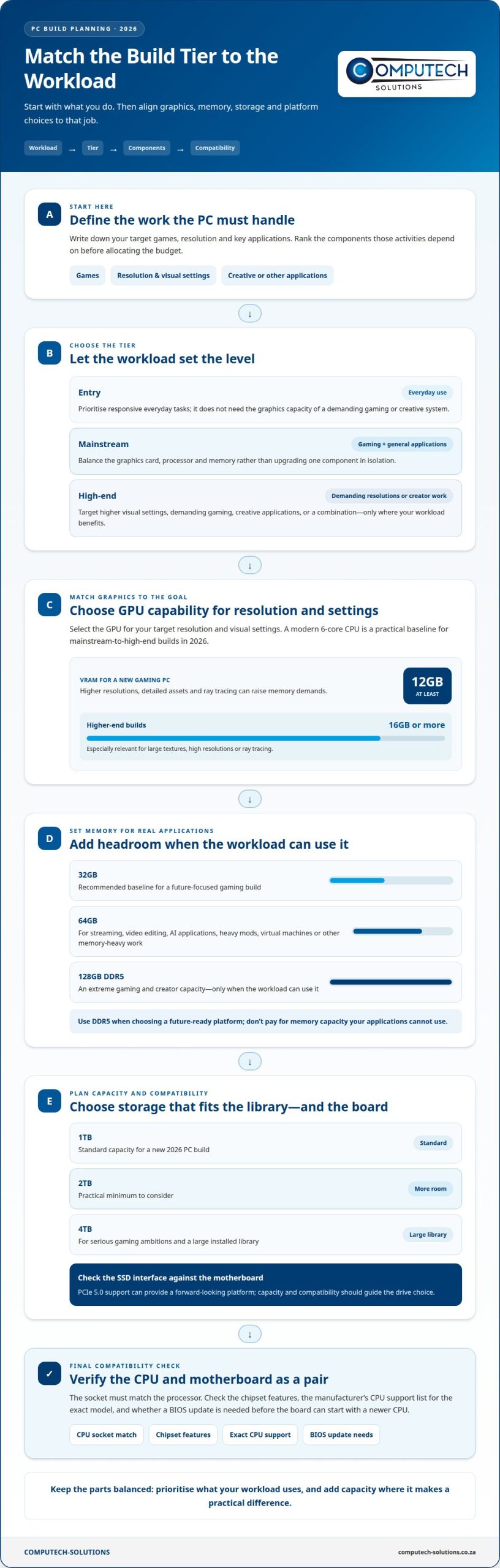
Choose a build tier by matching its strongest components to your main workload. A PC for everyday tasks does not need the same graphics capacity as a system for 4K gaming, streaming, or creative applications. Decide what you want the computer to do first, then allocate the budget around those priorities.
For a mainstream gaming build, balance the graphics card with the processor and memory rather than upgrading one part in isolation. A modern 6-core CPU is a practical baseline for mainstream-to-high-end builds in 2026. At the higher end, select a GPU that suits your target resolution and visual settings; 4K gaming and ray tracing can increase VRAM demands.
GPU memory affects how comfortably a graphics card handles detailed assets and demanding visual settings. For a new gaming PC in 2026, plan for at least 12GB of VRAM; higher-end builds should target 16GB or more. That extra capacity matters most when your games or creative workloads use large textures, high resolutions, or ray tracing. It does not replace the need to balance GPU capability with the rest of the system.
For intensive creator work, choose a tier according to the applications you actually run. Streaming, video editing, AI applications, heavy mods, and virtual machines can benefit from 64GB of RAM. An extreme gaming and creator system may use 128GB of DDR5, but that capacity only makes sense when the workload can use it. For a more general future-focused gaming build, 32GB remains the recommended baseline. Use DDR5 when selecting a future-ready platform.
For storage, use 1TB as the standard capacity for a new 2026 PC build, and consider 2TB a practical minimum. Serious gaming ambitions can justify 4TB, especially when a large library needs to stay installed. Match the SSD interface to the motherboard: PCIe 5.0 support can provide a forward-looking platform, but capacity and compatibility should guide the drive choice.
Think of entry, mainstream, and high-end as workload tiers, not fixed shopping lists. An entry build can prioritise responsive everyday use; a mainstream build can balance gaming and general applications; a high-end build can target demanding resolutions, creative work, or both. Add enthusiast-level capacity only when your applications can use it, rather than paying for headroom you don’t need.
For a practical decision, write down your target games, resolution, and key applications, then rank the components they depend on. This keeps the GPU, VRAM, RAM, and SSD choices aligned instead of letting one premium part consume the budget. If you want to discuss how a build tier fits your computing needs, talk through your requirements.
3. Choosing an upgradeable CPU platform and motherboard
The CPU platform determines which processors, memory, and expansion devices a motherboard supports. If you plan to upgrade over time, choose the processor and motherboard as a pair, then verify compatibility before buying. A newer processor alone won’t make an older motherboard upgradeable if its socket or firmware doesn’t support it.
Start with the CPU socket and chipset. The socket must match the processor, while the chipset determines which motherboard features are available. Check the manufacturer’s CPU support list for the exact processor model. Some boards need a BIOS update before they can start with a newer CPU, so plan for that before assembly.
For South African buyers, compare the exact CPU and motherboard model numbers with the manufacturer’s specifications and support list. Confirm the socket, supported memory type, BIOS requirements, and physical fit before purchasing. These checks help prevent buying parts that won’t work together or fit inside the case.
Memory support is another platform decision. A motherboard designed for DDR5 cannot use DDR4 memory, so match the RAM type to the board rather than assuming similar-looking modules are interchangeable. Check the board’s supported memory configurations and available slots. If an upgrade is likely, consider how the planned capacity can be reached without replacing every installed module.
Expansion also affects future options. Check the motherboard’s PCIe slot layout for the graphics card and any add-in cards you may need. PCIe 5.0 support is one of the platform features to consider for a forward-looking build. Also review M.2 storage connections and other onboard ports, so adding storage later won’t force an unnecessary platform replacement.
Think beyond the initial build. A motherboard with suitable expansion options gives you more choices as your workload changes, but extra features matter only if you’ll use them. A gaming system may prioritise graphics-card support and storage expansion, while a creator build may need more memory capacity and connections for additional devices.
Before finalising the platform, use this compatibility sequence:
- Match the CPU model to the motherboard socket and CPU support list.
- Confirm the BIOS supports that processor, including any required update process.
- Match DDR5 memory to a board that supports DDR5, then review its memory slots.
- Check PCIe 5.0, graphics-card slot layout, and storage connections against your upgrade plans.
- Confirm the motherboard’s dimensions suit the case selected for the build.
This makes the motherboard an upgrade foundation, not just a short-term connection point. Prioritise features linked to your next likely change, such as a CPU replacement, more memory, or another SSD. Avoid paying for unused expansion, but don’t choose a board that blocks an upgrade you already expect to make.
4. Selecting a power supply and planning for cooling and case space
A power supply should support the parts installed now and leave capacity for a planned graphics card upgrade. For a future-ready mainstream-to-high-end PC build in 2026, the recommended range is 750W-850W. Choose a unit rated 80+ Gold or better to support stability during future GPU upgrades. Wattage describes power capacity, while the 80+ rating describes efficiency; they answer different questions.
Size the PSU for the complete system, not just the GPU. Consider the processor, graphics card, storage, cooling hardware, and any planned additions, then compare the total with the graphics card you might install later. A PSU suited only to the current build can make a GPU upgrade require another purchase. On the other hand, capacity far beyond your needs can take money away from parts that improve your actual workload.
Check the PSU’s physical format and cable connections as well as its rating. It must fit the case, and its connectors must suit the motherboard and graphics card. Before assembly, route the required cables without blocking fans or making components hard to reach later. A clear cable path also makes a GPU replacement easier without disturbing unrelated connections.
Cooling depends on airflow through the whole case, not just on the CPU cooler. Identify the intake and exhaust openings, then position fans to move air across heat-producing parts. A graphics-card upgrade, for example, may increase cooling demand in the same enclosure. Dust filters and unobstructed vents matter because restricted airflow can make it harder for the system to shed heat.
Case space can also limit upgrades. Compare the case’s internal clearances with the dimensions of your planned graphics card, CPU cooler, and PSU. Check whether a longer card could interfere with fans, drive mounts, or cables. If you plan to add a liquid cooler later, confirm there’s a suitable mounting position and enough room for its radiator. Don’t assume a component will fit just because the current parts do.
Use this planning sequence before choosing the case and PSU:
- List the current components and the GPU upgrade you’re planning around.
- Select a 750W-850W PSU for a future-ready mainstream-to-high-end build, rated 80+ Gold or better.
- Confirm PSU connectors, motherboard connections, and graphics-card clearance.
- Map intake and exhaust airflow, keeping vents and cable routes clear.
- Check the case’s internal space for the planned cooler, GPU, and later additions.
For a PC used at home or in an office in South Africa, component fit and airflow matter wherever it operates. A suitable PSU, clear ventilation, and reserved case space can make targeted upgrades easier. Treat these choices as a system: a larger GPU can affect power needs, airflow, and clearance, so plan for all three before buying parts.
5. Budget build scalability
A scalable budget build puts money into parts that are difficult or costly to replace together. Start with today’s workload, then reserve future spending for the component most likely to limit performance. For example, a gaming build can start with a capable platform and a graphics card suited to current games, rather than stretching the budget for every high-end component straight away.
Prioritise a motherboard, power supply, and case that support your planned upgrades. They can stay in place while you replace a GPU, add storage, or increase memory. A low-cost component that blocks your next upgrade may cost more over time if it forces you to rebuild around it. Link each initial purchase to a specific future option instead of paying for features you won’t use.
Plan a review every 2–3 years and consider GPU or storage upgrades on that schedule. Treat it as a reassessment point, not an automatic purchase date. Check which task has become slower, whether available storage is limiting your use, and whether the graphics card still meets your needs. If performance remains suitable, keeping the current part preserves your budget for a more useful change.
Set a clear checkpoint for 2028 or 2029. Assess the system’s bottleneck then, and upgrade that component rather than replacing everything at once. For example, if games are constrained by graphics performance while the CPU, memory, and storage still meet your needs, a GPU upgrade may be more targeted than buying a new PC. If storage is the constraint, adding capacity may solve the problem without changing the platform.
A staged upgrade plan can keep spending focused:
- Build for the current workload, with an upgradeable platform and compatible parts.
- Record the component you expect to change first, such as the GPU or storage.
- Reassess performance every 2–3 years instead of upgrading by habit.
- Use the 2028 or 2029 review to identify the actual bottleneck.
- Replace only the limiting component when the rest of the system remains suitable.
A scalable budget doesn’t mean buying the cheapest PC possible. It means avoiding early spending on capacity you won’t use while keeping practical upgrade paths open. A graphics card, SSD, or memory upgrade can extend a system’s usefulness, but only if the existing motherboard, PSU, and case can support it.
For help matching computer hardware to your budget and upgrade priorities, discuss your PC requirements.
Computech-Solutions
Computech-Solutions supports South African computer users with hardware for everyday computing. If you’re planning a desktop build and also maintain a laptop, its replacement batteries for Acer, Apple, ASUS, and Dell laptops can help with that separate device-maintenance need. This can be useful when you manage more than one computer and want each to keep serving its intended purpose.
Use the platform, power, cooling, and upgrade criteria in this guide to shape your PC decisions. For a replacement laptop battery to support your other device, contact Computech-Solutions.
Make Your Next PC Decision with Confidence
The most useful next step is to turn your build plan into a short list of priorities: what the PC must handle now, which change you expect to make later, and what would make you replace the whole system. That gives each component a clear purpose and helps keep upgrades tied to real needs. A practical way to decide how to future-proof a PC build in 2026 is to make those priorities before choosing individual parts.
Keep your plan flexible. If your workload changes, reassess which part is limiting your system instead of assuming you need a complete rebuild. For desktop hardware decisions, describe your intended use and upgrade goals clearly to focus the discussion.
Discuss your PC build needs with Computech-Solutions and take the next step with a plan that fits your requirements.
Frequently Asked Questions
What Does “Future-Proof” Actually Mean?
Future-proofing means making a PC easier to adapt, not guaranteeing it will run every future application. If you’re deciding how to future-proof a PC build in 2026, focus on whether a planned upgrade can solve a specific limitation without replacing unrelated parts. For example, if your work shifts from office tasks to video editing, a suitable platform can make a memory or storage upgrade more practical than starting over.
What Would a Future-Ready Gaming PC Look Like?
A future-ready gaming PC balances its processor, graphics card, memory, and storage around the games and display you use. One practical example is a system with a modern 6-core CPU, at least 32GB of RAM, and a graphics card with at least 12GB of VRAM. Choose storage capacity and GPU performance for your game library, resolution, and preferred visual settings.
What CPU socket and motherboard features offer the best upgrade path in 2026?
Choose a motherboard that supports the processor family you plan to upgrade within, plus DDR5 memory or PCIe 5.0 for a forward-ready platform. Before buying, check the board maker’s processor support list and BIOS requirements for the exact CPU. Also consider how many memory slots and storage connections your future setup may need, since those determine whether expansion can use the existing board.
How much GPU VRAM is recommended for 1440p and 4K gaming in 2026?
For a new gaming PC, use at least 12GB of VRAM as a practical baseline. For 4K gaming or ray tracing, aim toward 16GB or more, since higher resolutions and demanding visual features increase memory demands. At 1440p, assess the games and settings you intend to use rather than treating resolution alone as the deciding factor.
What PSU wattage and ATX 3.1 features should a future-ready PC use?
A future-ready mainstream-to-high-end build can use a 750W-850W power supply rated 80+ Gold or better. ATX 3.1 is not a substitute for checking that the unit’s connectors match the selected graphics card and motherboard. Compare the PSU’s dimensions with the case and consider the power needs of the GPU you may add, so a future upgrade doesn’t require replacing the supply.
What are the risks of overspending to future-proof a PC instead of upgrading later?
Overspending can tie up your budget in capacity you don’t use, such as enthusiast memory for everyday browsing or a graphics card beyond your monitor’s needs. A sound approach to how to future-proof a PC build in 2026 is to plan purchases around current workloads and likely upgrades. That leaves room for useful additions, such as storage, and ensures each component serves a clear purpose.
