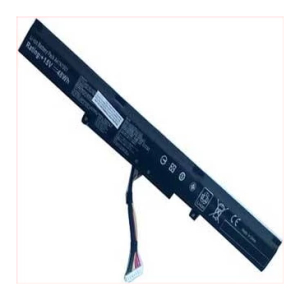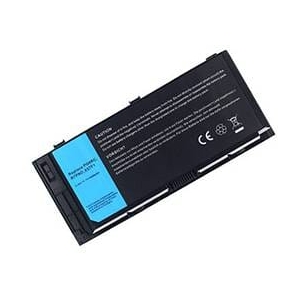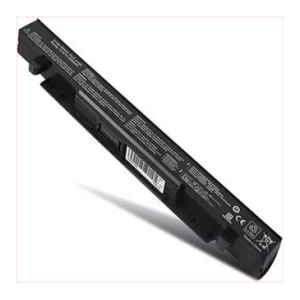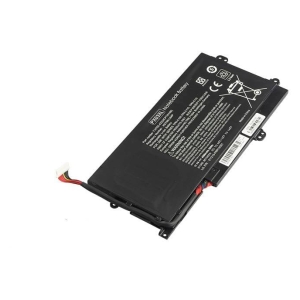
Description
Specifications
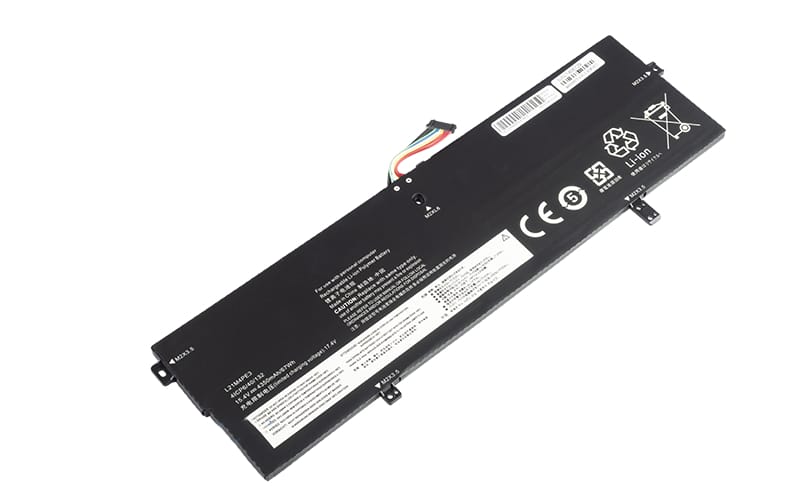
Voltage 15.4V,
Capacity 4350mAh/67Wh,
Number of Cells/type 4 (Li-Poly),
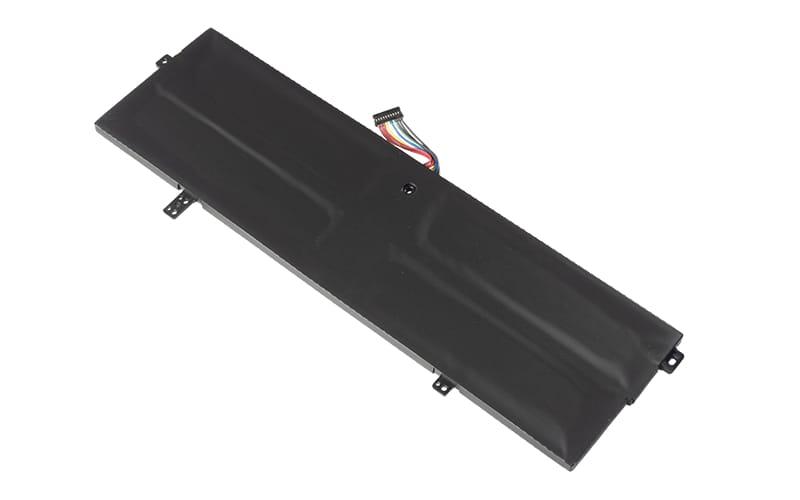
Colour Black,
Compatible Part Numbers
Lenovo
- L21M4PE3
- L21B4PE2
- L21L4PE0
- 5B11F38367
- SB11F38368
- 5B11F38372
- 5B11N51762
- 5B11N51726
- 5B11F38379
- 5B11N51740
- SBB1F52851
Compatible Devices
- Lenovo Yoga 7 16IAP7
- Yoga 7 16IRL8
- Yoga 7 14IAL7 Type 82QE
- Yoga 7 14ARB7 Type 82QG
How to Check Your Laptop Battery Health
Method 1: Use Windows Battery Report
This is one of the best ways to see the actual condition of your battery.
Step 1 — Open Command Prompt
- Press Windows + R.
- Type
cmd. - Press Enter.
Step 2 — Generate a battery report
Type:
powercfg /batteryreport
Then press Enter.
Windows will create a battery health report, usually saved as:
C:UsersYourNamebattery-report.html
Step 3 — Open the report
Copy the location shown in Command Prompt and paste it into your web browser.
Look for these two figures:
- Design Capacity — the battery’s original capacity when new.
- Full Charge Capacity — how much capacity the battery can currently hold.
Step 4 — Calculate battery health
Use:
Battery Health % = Full Charge Capacity ÷ Design Capacity × 100
For example:
- Design Capacity: 50,000 mWh
- Full Charge Capacity: 40,000 mWh
Battery health:
40,000 ÷ 50,000 × 100 = 80%
So the battery has approximately 80% of its original capacity remaining.
What do the results mean?
Battery Health General condition
90–100% Excellent
80–89% Good
70–79% Showing some wear
Below 70% Consider replacing the battery
Very low capacity / unexpected shutdowns Battery replacement may be advisable
90–100% Excellent
80–89% Good
70–79% Showing some wear
Below 70% Consider replacing the battery
Very low capacity / unexpected shutdowns Battery replacement may be advisable