
Your iPhone slows down, dims the screen, and the battery icon turns yellow right when you need it most. This happens because Low Power Mode is on, cutting performance to save charge. The quickest way to fix this is to turn off Low Power Mode and check your battery’s health. We’ll guide you through the exact steps to get your iPhone running at full speed again, plus tips on upgrading your charging gear from Computech Solutions. Learn more about turning off Low Power Mode here.
Turning Off Low Power Mode
When your iPhone’s performance dips, the first step is usually turning off Low Power Mode. Many users find their phones sluggish due to this setting.
Quick Steps to Disable
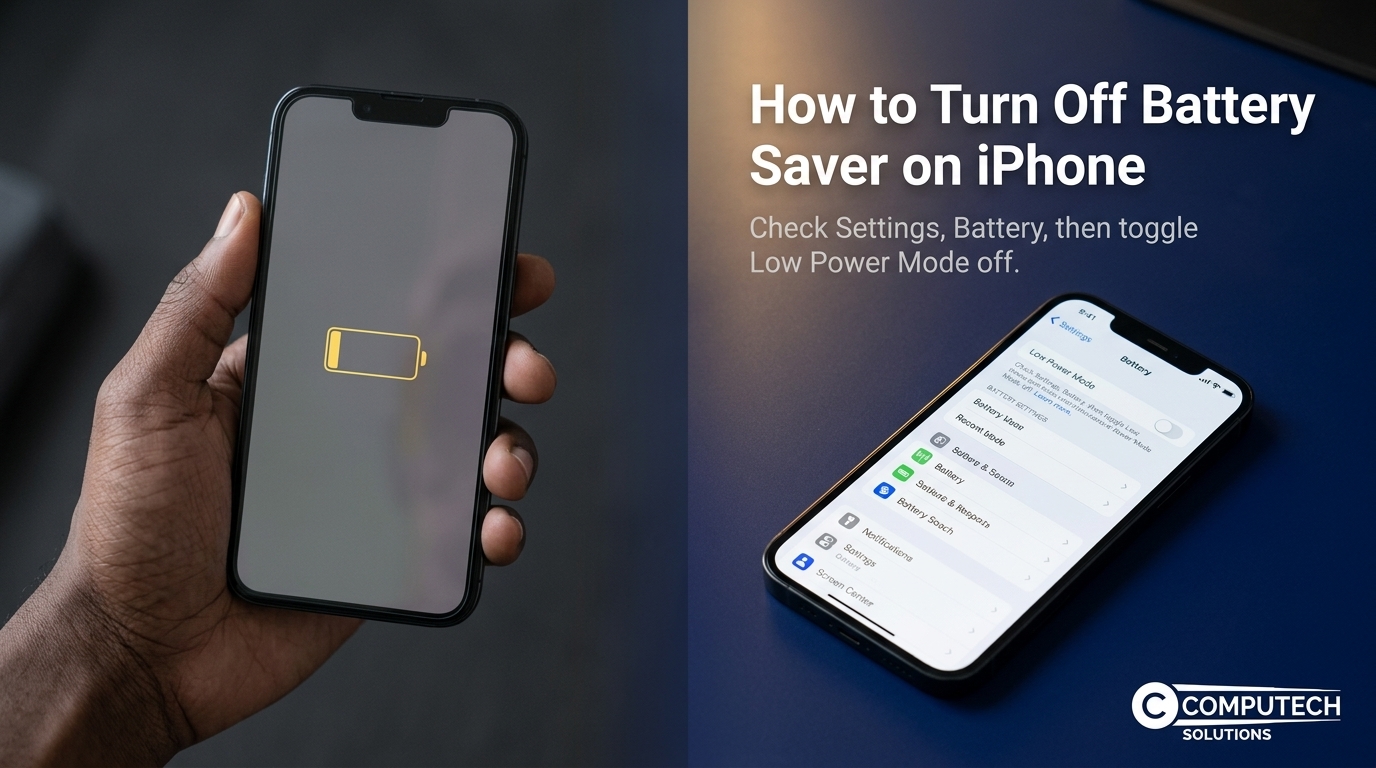
It’s simple to turn off Low Power Mode on your iPhone. Open the Settings app, tap on “Battery,” and switch off the Low Power Mode toggle. You’ll notice the battery icon changing from yellow to its normal color, indicating that the mode is off. This setting often activates automatically when the battery level drops to 20%, but you can manually control it to ensure your device runs at full speed whenever you need it.
Confirm Low Power Mode is Off
After switching it off, check for a performance boost. Navigate back to the home screen and open an app or two to see the change. If the phone responds faster, you’ve successfully disabled Low Power Mode. For more tips, visit this external guide.
Why Performance Improves
Disabling Low Power Mode allows your iPhone to function at full capacity. This mode limits background activities and visual effects to conserve energy, which can make the phone feel slow. By keeping it off, you ensure that your device operates smoothly, enhancing your user experience.
Checking iPhone Battery Health
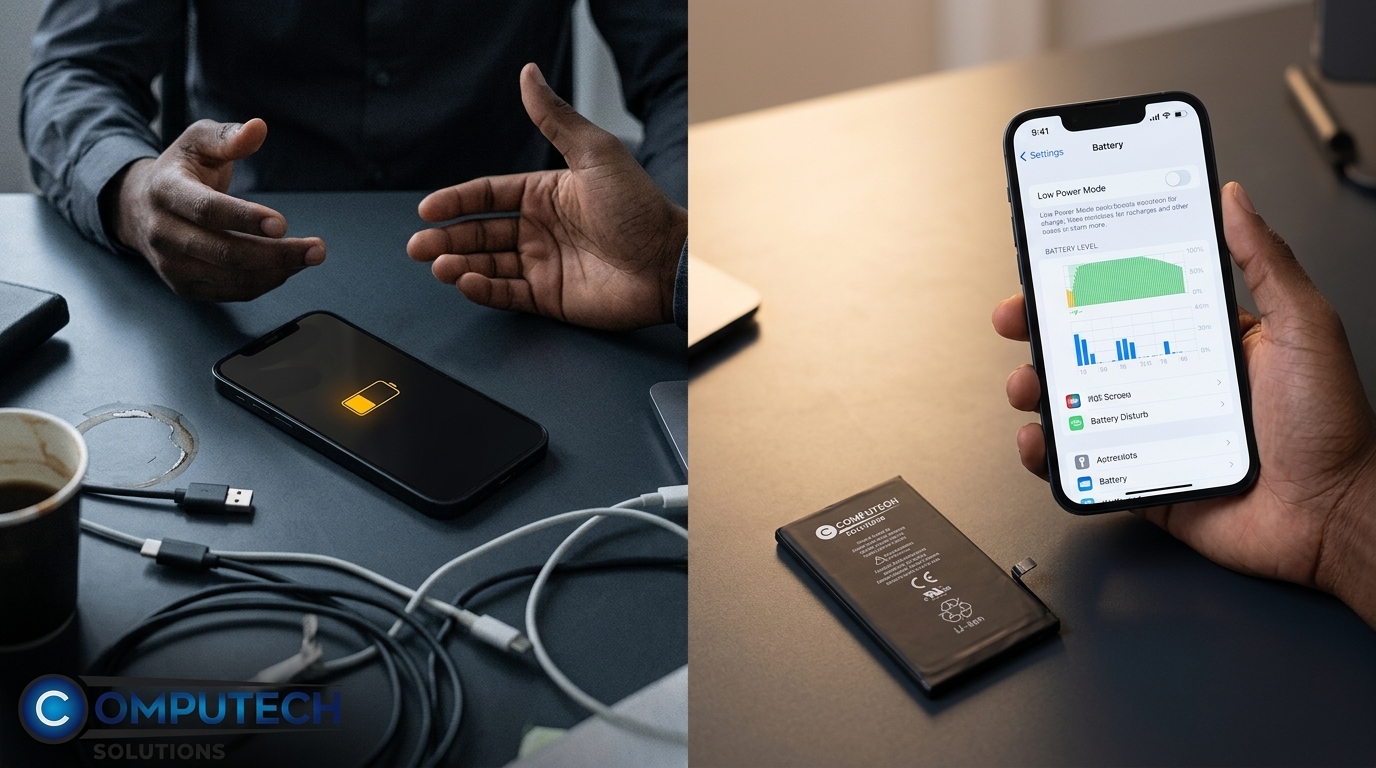
If your iPhone continues to perform poorly, it’s time to check the battery health. Understanding this can help you decide if a replacement is necessary.
How to Access Battery Health
To view your battery’s health, go to Settings, tap on “Battery,” then “Battery Health.” Here, you’ll see the maximum capacity percentage and peak performance capability. A battery health over 80% usually means it’s in good shape. If below, consider a replacement for optimal performance. Explore more on battery health checks.
Signs Your Battery Needs Replacing
Your iPhone might need a new battery if it drains quickly or shuts down unexpectedly. Another indicator is the notification in the Battery Health section suggesting service. If you notice these signs, a replacement can restore your phone’s longevity and efficiency.
Recommended Power Solutions
Once you’ve assessed your battery health, consider upgrading your charging accessories to enhance your device’s performance.
Chargers and Cables for iPhones
Investing in quality charging gear is crucial. Look for a USB-C PD charger for quick charging, or consider an MFi-certified Lightning cable to ensure compatibility and safety. These options help maintain your phone’s battery health by providing stable power. Learn more about different charging solutions.
Essential Backup Power Options
During loadshedding, a reliable power bank becomes essential. Choose a power bank with at least 10,000mAh for extended use. For home use, a MagSafe charger offers convenience and efficiency. Explore Computech Solutions’ range of backup power solutions to keep your iPhone powered anytime. Explore backup power options.
Frequently Asked Questions
Why does the iPhone battery icon turn yellow?
The yellow battery icon indicates that Low Power Mode is activated, reducing performance to conserve energy.
How do I keep my iPhone from entering Low Power Mode automatically?
You can manually turn off Low Power Mode by going to Settings > Battery and toggling it off. This prevents it from activating automatically when the battery is low.
When should I replace my iPhone battery?
Consider replacing your battery if its health is below 80% or if you experience frequent shutdowns or poor performance.
What’s the best charger for iPhones in South Africa?
A USB-C PD charger is recommended for fast charging. Ensure it is from a reputable brand for safety and efficiency.
How can I extend my iPhone’s battery life?
Regularly update iOS, avoid extreme temperatures, and use quality charging accessories to maintain battery health.
