
Old hardware is not automatically due for replacement, but persistent slowdowns, crashes, unsupported systems, or devices that cannot handle daily work make a strong case for change. Knowing how to get buy-in for IT hardware upgrades at work starts with showing how current equipment affects productivity, reliability, and business risk, then comparing those effects with the full cost of upgrading.
It is reasonable to question whether new equipment is necessary when existing devices still switch on and handle basic tasks. The key is whether they reliably support the work people need to do, and whether keeping them creates more disruption or expense than a planned replacement.
This article will help you assess performance and support needs, account for costs beyond the purchase price, reduce disruption during upgrades, and plan future budgets. It also explains how to present practical benefits to decision-makers, connecting hardware choices to smoother daily operations and the organisation’s needs.
Key Takeaways
- Compare the full cost of keeping current equipment with the purchase, setup, software, training, and disruption costs of upgrading.
- Assess whether devices still meet daily work needs, receive manufacturer support, and perform reliably before recommending replacement.
- Plan backups, implementation steps, and staff support to reduce disruption during a hardware change.
- Use a phased upgrade schedule to prioritise critical equipment and spread planned costs over time.
- Connect the proposed upgrade to practical outcomes such as smoother workflows, improved reliability, and room for business growth.
1. Hardware upgrade costs beyond the purchase price
A hardware quote is only one part of the decision. Include setup, data transfer, software compatibility, staff training, support, and the time employees need to adjust to new devices. If software requires a newer operating system or separate licences, include those costs in the same proposal. A computer with a lower upfront cost can be more expensive to run if it needs frequent repairs or struggles with essential applications.
Compare repair, replacement, and leasing by assessing their full costs over the period you expect to use the equipment. A repair may make sense when it fixes a specific fault and restores performance. Repeated repairs, recurring downtime, and ongoing compatibility problems can weaken that case. Leasing spreads costs into scheduled payments, so compare the agreement’s total commitment and included support with the cost of buying and maintaining equipment.
To calculate total cost of ownership, add purchase, installation, compatible software, maintenance, energy use, and downtime across the expected useful life. Then estimate return on investment by comparing those costs with measurable gains, such as work hours recovered through fewer slowdowns or crashes. State your assumptions and use the same time period when comparing repair, replacement, and leasing.
Review software compatibility separately. List the applications employees rely on, their operating-system requirements, and any specialist tools that need testing before deployment. A new computer that cannot run a core application creates extra support work and can disrupt productivity. Include time to migrate files, configure access, and help staff learn any changed features.
Energy efficiency can affect ongoing operating costs, but the impact depends on the devices, workload, and hours of use. Compare expected usage and power requirements across suitable options rather than assuming every new model will lower energy bills. Also account for the cost of keeping older hardware running, including servicing and the possibility that replacement parts become harder to obtain as equipment reaches end of life.
Downtime has a cost beyond the repair itself: employees may wait, customer service may slow, and other projects can be delayed. In the UK, 65% of surveyed SMEs reported hardware failure as the top cause of IT downtime. Treat this as a UK finding, not a South African estimate, and use your own incident records to show local effects. Hardware changes can also cause planned downtime, so include implementation time in the comparison.
For management and finance, present the current problem, repair and replacement options, total ownership costs, and expected operational gains in one concise proposal. Use supplier figures in Rand, state assumptions clearly, and show how phasing the work could limit disruption and spread budget demands.
2. Assessing whether an upgrade is necessary
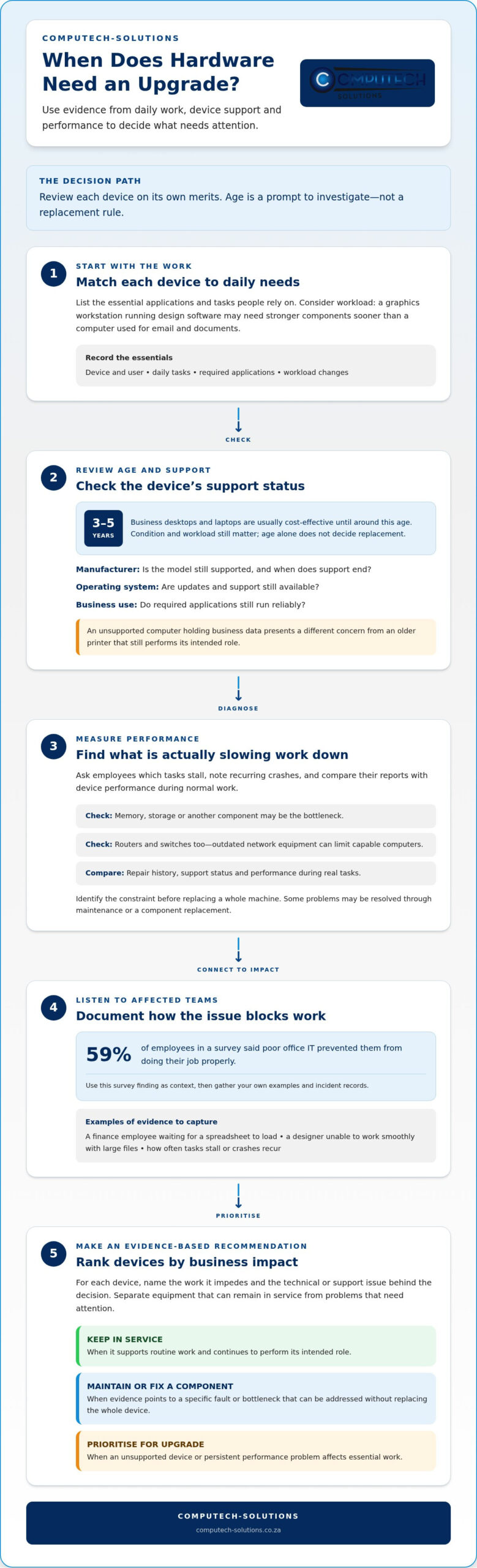
Start with evidence from the devices people use, not a blanket replacement date. Business desktops and laptops are usually cost-effective until around 3-5 years of use, but condition and workload matter. A graphics workstation running design software may need stronger components sooner than a computer used for email and documents. Treat age as a prompt for review, not a decision on its own.
Check manufacturer support for each model and operating system. Manufacturers eventually stop issuing updates and support for older systems, and end-of-life hardware may no longer receive patches or replacement parts. Record whether each device remains supported, when support ends, and whether required applications still run reliably. An unsupported computer holding business data presents a different concern from an older printer that still performs its intended role.
Measure actual performance before recommending a purchase. Ask employees which tasks stall, note recurring crashes, and compare those reports with device performance during normal work. A slow computer may have a bottleneck in memory, storage, or another component, so identify the constraint before replacing the whole machine. Assess routers and switches too: outdated network equipment can limit otherwise capable computers.
Employee feedback helps connect technical findings to operational impact. In a survey, 59% of employees said poor office IT prevented them from doing their job properly. Use that finding as context, then gather your own examples: a finance employee waiting for a spreadsheet to load, or a designer unable to work smoothly with large files. Increasing workloads can expose limits that were not apparent when the same equipment handled lighter tasks.
- Match each device to its daily workload and essential applications.
- Record crashes, slowdowns, repair history, and support status.
- Check whether network equipment or one component is causing the bottleneck.
- Ask affected teams which tasks are blocked and how often.
Compare findings by business impact. A functioning device that supports routine work may remain in service, while an unsupported laptop used for essential tasks may deserve priority. Separate problems that maintenance or a component replacement can solve from those requiring a full device upgrade. This avoids spending on equipment that will not address the actual bottleneck.
Present management with a short evidence-based recommendation: name the affected devices, describe the work they impede, and show the support or performance issue behind each decision. Include employee examples alongside technical records, then explain which equipment can remain and which needs attention. To discuss suitable hardware options against your team’s requirements, share your upgrade priorities.
3. Avoiding hardware failures and downtime
Hardware failure can interrupt employee work and affect service delivery, so upgrade planning should address prevention and recovery. For systems that must run 24/7, even a short interruption can waste staff time or disrupt services. Start by reviewing incident records, recurring faults, and the equipment most critical to daily operations. This helps prioritise a replacement before a failing device creates an unplanned outage.
Maintenance can extend the usable life of existing data centre assets and improve their return on investment. Keep a record of servicing, recurring errors, and performance changes for each asset. When an issue appears, determine whether maintenance can resolve it or whether aging components continue to threaten reliable operation. This helps teams avoid replacing equipment that remains fit for purpose while addressing genuine failure risks.
Before a significant hardware change, make a full backup of important data. Confirm that it includes the files and systems needed for core work, then assign clear recovery responsibilities. A backup plan supports recovery if installation, migration, or configuration causes an issue. Document the steps so technical staff can act consistently instead of reconstructing the process during an outage.
To plan a phased rollout with minimal disruption, begin with the most critical hardware, then upgrade other equipment in planned stages. Schedule each stage around team workflows, communicate affected services in advance, and allow time to test devices before wider deployment. This limits how much work is exposed to a problem at once.
For each phase, prepare a device and application checklist. Confirm that required software works, user files are accessible, and staff can complete essential tasks on the replacement equipment. Record faults found during testing and resolve them before moving to the next group. When an upgrade affects several teams, an IT expert or managed service provider can help design and implement a transition plan that minimises disruption.
After installation, monitor processor and graphics-card temperatures under load to check that cooling is adequate. Test equipment during representative tasks, such as rendering a design file or running a data-heavy application. Record overheating or performance issues and address them before the device returns to normal use. A defined test process helps identify problems early, before employees depend on the upgraded system.
Finally, assign responsibility for each rollout stage: who backs up data, installs equipment, validates applications, and supports users. Keep a recovery plan available during implementation, and log the outcome of each phase. These controls give management a clear view of disruption risks and show how the upgrade plan protects business continuity and employee productivity.
4. Budgeting for future upgrades
A hardware budget works best as a schedule, not a last-minute request after equipment fails. Start with an inventory of desktops, laptops, and network equipment, then record each device’s condition, role, and support status. Use those records to forecast which equipment needs attention first and which can remain in service. This creates a practical basis for planned spending in South African Rand.
Prioritise equipment by business impact. A device supporting essential customer or financial work may rank above a computer used occasionally, even if both are aging. Note the consequences of failure, available workarounds, and the number of employees affected. This helps management see why one upgrade belongs in the current budget while another can wait.
Use a phased approach: begin with the most critical hardware, then schedule the rest over time. A planned sequence can spread budget demands and reduce the risk of sudden financial strain. For example, a business could first address devices that interrupt essential workflows, then allocate later budget periods to lower-priority equipment. Set the order according to operational need, not a uniform replacement rule.
Link the schedule to projected team growth. If a department expects more employees or heavier computing workloads, forecast the devices and capacity those changes require. A predictable hardware upgrade schedule helps align spending with business plans instead of reacting after systems become constrained. Review forecasts when team structure, workloads, or business priorities change.
Build each proposal from clear cost categories. Separate equipment purchases from setup, software, migration, training, maintenance, and planned downtime. Keep supplier estimates in Rand and distinguish confirmed costs from internal estimates. This gives finance a consistent view of the commitment and helps prevent supporting expenses from being overlooked during approval.
- Inventory: Track device type, assigned team, condition, and support status.
- Priority: Rank each item by operational importance and the effect of failure.
- Timing: Phase replacements according to urgency and available budget.
- Growth: Match planned capacity to forecast employee and workload changes.
- Review: Update the schedule when business plans or equipment needs change.
Present the schedule as a rolling plan, with the reason for each priority and the budget period it belongs to. Show what can be deferred and the business risk of delay. An IT provider can help align the schedule with projected team growth and technical requirements. Review actual spending against the plan during budget discussions, then revise future phases based on equipment performance and changing business needs.
To make the plan practical, work with an IT provider to create a predictable hardware upgrade schedule that fits projected team growth. Make the reason for each timing decision clear, and use a phased approach: start with the most critical hardware, then upgrade the rest over time instead of bringing every replacement forward at once.
A predictable schedule can help avoid sudden financial strain by making upcoming needs visible. If growth forecasts or business priorities change, revisit the sequence with the IT provider and adjust which equipment comes first. This keeps planned upgrades connected to business needs while leaving lower-priority items for later.
5. Benefits of upgrading hardware
A strong business case links an upgrade to work employees can complete more reliably, not simply to newer specifications. For example, compare the time staff spend waiting for slow computers with the time they could spend on customer work, reporting, or design tasks. The potential benefit is clearer when each hardware improvement supports a defined business outcome.
UK research offers context, not a South African forecast: office employees lose around 11 working days per year because of sluggish or unreliable technology. UK workers also spend up to 130 hours per year waiting for computers to boot or run apps. Use those figures as examples of the issue, then base your proposal on your own team’s experience and records.
New hardware can improve productivity when it addresses a measured bottleneck. More memory can help a computer run several applications at once, while replacing a traditional hard disk drive with a solid-state drive can reduce boot and application loading times. Match the change to the task: adding capacity will not resolve a network bottleneck, and replacing a whole computer may be unnecessary if one component limits performance.
Hardware decisions can also prepare a business for growth. Select equipment with upgradeable memory or storage when future workloads may increase, and consider network capacity as employee devices are added. Portable laptops can support mobile teams working across locations, while office-based teams may benefit more from desktop configurations suited to their daily applications.
Build the business case by stating the current problem, the proposed change, and the outcome to measure. Compare total ownership costs with expected gains, including reduced waiting, fewer interruptions, and capacity for future work. Avoid promising a precise return without supporting records. Instead, explain how the team will track results after implementation.
Useful evidence for approval includes device performance logs, recurring incident records, application loading delays, employee feedback, and time lost to workarounds. Compare the same measures before and after deployment. For example, track how often a task stalls, how long it takes to complete, and whether support requests change.
Present finance and management with a concise proposal: the affected teams, the evidence, the hardware change, the full cost in Rand, and the measures for reviewing results. Discuss suitable hardware for your workplace needs as you assess the options.
Across the UK economy, sluggish or unreliable technology accounts for over 348 million working days lost annually. This broader context supports the productivity case, while businesses should assess their own equipment and work patterns.
Adding RAM can help a computer run more applications simultaneously and improve multitasking. Businesses can prepare for growth by choosing computers with upgradeable storage or memory and network equipment that can support more devices. Routers with strong Wi-Fi coverage and built-in security can also improve connectivity.
Computech-Solutions: Acer Replacement Laptop Batteries
Computech-Solutions can help when your upgrade assessment points to a replacement laptop battery rather than a complete device. A battery replacement may be a focused option when the laptop otherwise meets your team’s work requirements. The range includes Acer, Apple, ASUS, and Dell replacement laptop batteries, supporting businesses assessing hardware needs across these brands.
For a management proposal, distinguish a component replacement from a full laptop upgrade. This keeps the recommendation aligned with the issue identified, whether it’s battery performance or broader device limitations. Contact Computech-Solutions or visit computech-solutions.co.za to explore its replacement laptop batteries.
Turn the upgrade decision into a clear next step
Keep the process moving by assigning an owner to the proposed change and agreeing on the next decision point. A practical way to get buy-in for IT hardware upgrades at work is to make the decision easy to revisit: document the selected option, its business purpose, and what management needs to approve. This keeps the conversation focused on action rather than reopening the entire assessment.
Not every laptop issue calls for a complete replacement. If a device still meets work needs, a replacement battery may be a suitable component-level option. Computech-Solutions offers Acer, Apple, and ASUS replacement laptop batteries, giving businesses another option to consider for those devices.
Take the next step with a focused discussion about your hardware needs. Contact Computech-Solutions today to explore suitable options and keep your upgrade planning moving forward.
Frequently Asked Questions
Is it Needed?
An upgrade is warranted when equipment cannot reliably support essential work, lacks manufacturer support, or repeatedly interrupts important tasks. For example, if a laptop cannot run the software a team needs, compare its limitations with the requirements of that work. If it still performs reliably and remains supported, keeping it in service may be sensible. Assess each device by its role and condition rather than applying one replacement rule across the business.
What benefits and productivity gains can IT hardware upgrades deliver?
Upgrades can help employees complete demanding tasks more smoothly, use several applications together, and work comfortably in different settings. For example, a design team handling large files may benefit from hardware suited to that workload, while mobile employees may need portable devices. Ergonomic features, such as comfortable screens and keyboards, can also better support daily work. Measure gains against specific tasks and employee feedback rather than assuming every new device will improve productivity.
What are the security, compatibility and downtime risks of outdated workplace hardware?
Unsupported hardware may stop receiving manufacturer patches, making known weaknesses harder to address. Older devices can also fail to run current software or meet an application’s requirements, creating workflow and support problems. Replacing or migrating equipment can itself interrupt work if files, access, or applications are not ready. Before making a change, identify critical systems, preserve important data, test essential applications, and plan how to recover if problems arise during the transition.
