
A failing battery in a high-performance machine like the ASUS ZenBook Pro 14 isn’t just a technical glitch; it’s a direct threat to your professional output. You’ve likely noticed your UX480 or UX450 series laptop losing its edge, forcing you to tether your workflow to a power outlet or risking unexpected shutdowns during critical tasks. It’s frustrating to navigate the technical ambiguity of voltage differences, such as 15.2V versus 15.4V, especially when the risk of a low-quality generic damaging your motherboard is a significant concern.
We understand that your priority is a stable, functional device that supports your business goals without interruption. This guide provides the technical precision you need to master the specifications, verify compatibility, and execute a safe installation of the c41n1804 battery to restore your laptop’s professional performance. By choosing a reliable local partner for your hardware, you can bypass the stress of technical guesswork and long international lead times.
We’ll break down the exact compatibility matrix for the ZenBook Pro 14, explain how to source a high-quality replacement with nationwide South African delivery, and provide a streamlined, step-by-step tutorial for a successful DIY replacement. This ensures your laptop remains a dependable asset for your daily operations.
Key Takeaways
- Identify the technical specifications of the c41n1804 battery, including how to navigate voltage and capacity variations for your specific ZenBook model.
- Verify exact compatibility within the ASUS ZenBook Pro 14 UX480 and UX450 series to ensure a seamless hardware integration without operational risks.
- Distinguish between high-quality Grade A+ replacement cells and inferior clones by evaluating essential safety features like thermal cut-offs and overcharge protection.
- Prepare for a successful DIY installation by securing the required Torx T5 and Phillips #0 tools and following professional anti-static protocols.
- Learn maintenance strategies, such as the 20-80% charging rule and effective heat management, to extend the functional lifespan of your new power source.
Understanding the C41N1804 Battery Specifications
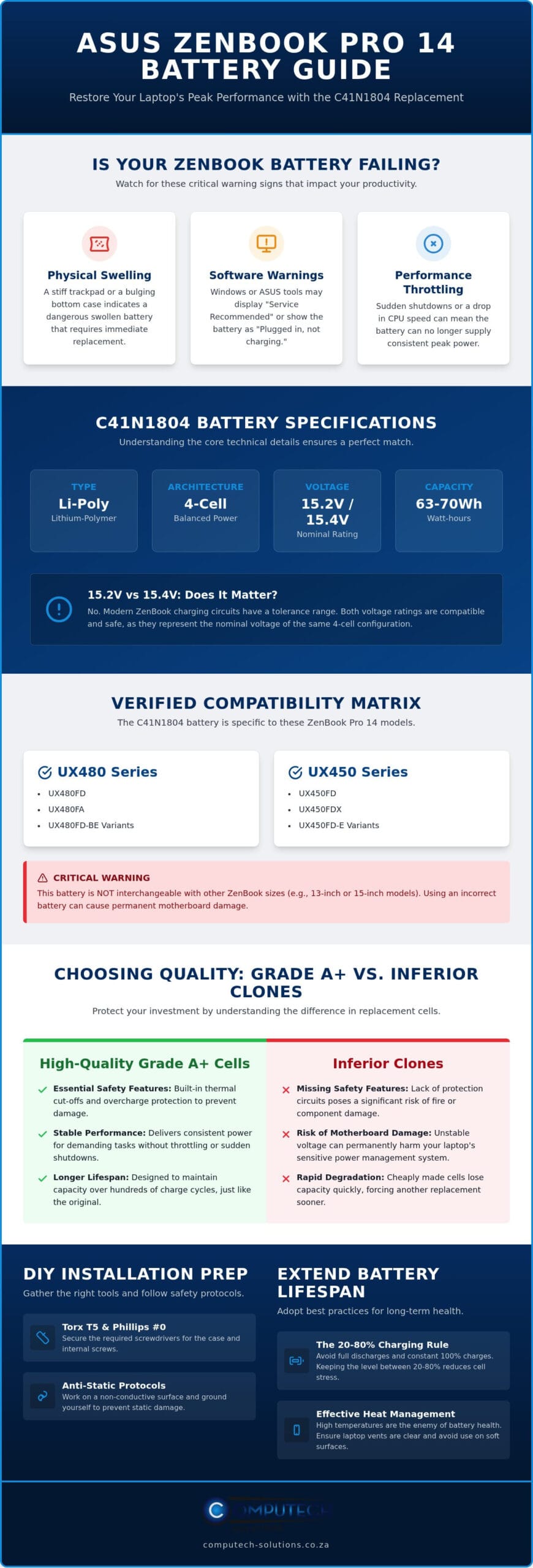
The c41n1804 is a high-capacity Lithium-Polymer (Li-Poly) internal battery engineered to meet the rigorous energy demands of the ASUS ZenBook Pro 14. Unlike older nickel-based cells, this Li-Poly unit offers a slim profile and high energy density, making it ideal for the compact chassis of professional-grade ultrabooks. For a deeper dive into the chemistry behind these power sources, Understanding Lithium-Ion Batteries provides essential context on how these cells maintain stability and performance over hundreds of charge cycles.
This battery utilizes a 4-cell architecture, which is critical for balancing weight with runtime. It typically features a nominal voltage of either 15.2V or 15.4V and a capacity rating between 63Wh and 70Wh. These specifications aren’t just numbers; they dictate how long your ZenBook can sustain heavy creative tasks, such as video rendering or multi-layered graphic design, without needing a wall outlet. Matching the part number exactly is the best way to ensure your motherboard’s power management system communicates correctly with the battery’s internal controller.
15.2V vs 15.4V: Does the Voltage Difference Matter?
It’s common to find the c41n1804 listed with slightly different voltage ratings, usually 15.2V or 15.4V. This minor variance often causes confusion for professionals looking for a precise replacement. In modern laptop engineering, charging circuits are designed with a specific tolerance range to handle these small fluctuations safely. Both ratings are typically compatible because they represent the nominal voltage of the 4-cell configuration. The total energy, measured in Watt-hours (Wh), is the product of voltage and ampere-hours. A 70Wh battery will provide a slightly longer runtime than a 63Wh version, but both will function correctly if the physical connector and part number align with your ZenBook model.
Identifying Signs of Battery Failure in Your ASUS ZenBook
Battery degradation often manifests in ways that impact your daily productivity before the laptop fails to turn on. You should monitor your device for these specific red flags:
- Physical Distortion: If your trackpad feels stiff or the bottom casing appears to bulge, the battery is likely swelling. This is a safety risk and requires immediate replacement.
- Software Warnings: Windows or ASUS diagnostic tools may display “Service Recommended” or show that the battery is “Plugged in, not charging.”
- Performance Throttling: Sudden shutdowns during high-load tasks or a noticeable drop in CPU speed often indicate the battery can no longer provide a consistent peak current.
Recognizing these signs early helps you avoid total downtime and protects your laptop’s internal components from the physical pressure of a failing cell.
ASUS ZenBook Pro 14 Compatibility Matrix
Ensuring you have the correct battery is the first step toward a successful hardware restoration. The c41n1804 is specifically designed for the ASUS ZenBook Pro 14 series, primarily covering the UX480 and UX450 model lines. These machines are engineered for professional mobility, and their internal power configurations are highly specialized. While these laptops share a similar aesthetic to their siblings, their internal power requirements are distinct from the larger 15-inch or smaller 13-inch ZenBook models.
Verified Compatible ASUS Model Variants
The compatibility list for the c41n1804 includes several high-performance variants that professionals rely on for daily productivity. The following models are confirmed to use this specific battery architecture:
- UX480 Series: UX480FD, UX480FA, and UX480FD-BE variants.
- UX450 Series: UX450FD, UX450FDX, and UX450FD-E variants.
It’s vital to remember that the ZenBook Pro 14’s unique internal layout means this battery is not interchangeable with other sizes. For instance, a battery from a ZenBook 13 or ZenBook 15 will not fit the physical mounting points or match the specific connector alignment required for the Pro 14 chassis. Using an incorrect battery can lead to permanent motherboard damage or terminal failure.
Confirming Your Battery Part Number
Before finalizing your purchase, you must cross-reference the manufacturer part numbers to ensure a perfect match. The c41n1804 is often listed under the secondary part number 0B200-02980100 or 0B200-02980000. You can find your exact laptop model by checking the small print on the sticker located on the base of your device. If the sticker is worn or illegible, restart your laptop and enter the BIOS menu to view the system information directly from the hardware.
For users who prefer a software-based check, running a Windows Battery Report is a reliable method. Open the Command Prompt and type powercfg /batteryreport. This generates a detailed HTML file that lists the original battery’s SKU and chemistry. If you discover your current battery is swollen while checking these details, follow professional protocols for Handling Damaged Batteries to prevent fire hazards or chemical leaks. Relying on the laptop model name alone can be risky, as manufacturers sometimes change internal components mid-production. If you’re unsure about your specific model variant, you can contact our technical support team for expert verification to ensure your replacement is hassle-free.
Choosing Quality: Generic vs. Genuine Replacements in South Africa
Navigating the replacement market for a c41n1804 battery requires a discerning eye for quality over initial cost. For South African professionals, the stakes are higher due to the unique electrical environment. Frequent load shedding cycles force your ZenBook Pro 14 to rely on its internal power source more often than intended; this accelerates chemical wear and demands a cell that can handle deep discharge cycles without failing prematurely. While cheap clones may appear identical on the surface, they often lack the sophisticated power management controllers found in Grade A+ replacements.
A reliable power source must include integrated safety circuits to protect your hardware investment. These features prevent motherboard damage through overcharge protection, short-circuit prevention, and thermal cut-offs. If a battery lacks these safeguards, a simple power surge or internal fault could result in permanent hardware failure. Once you’ve successfully swapped your old unit, following the EPA guidelines for battery disposal is a critical final step to ensure environmental safety and regulatory compliance.
What Makes a High-Quality Replacement Battery?
Longevity starts with Tier 1 Lithium-Polymer cells. High-quality replacements prioritize stable voltage delivery even under the heavy professional workloads typical of the ZenBook Pro 14. You should verify that any battery you purchase carries international certification standards such as CE, FCC, and RoHS. These labels confirm the product has undergone rigorous testing for electromagnetic interference and hazardous material restrictions. A premium c41n1804 replacement ensures your laptop maintains its peak performance without the thermal throttling often associated with inferior, unstable power cells.
The Advantage of Buying Locally from Computech-Solutions
Sourcing your hardware locally provides a level of security that international marketplaces cannot match. When you choose a South African partner, you eliminate the risk of long international lead times and complicated customs clearances. We offer nationwide delivery that brings urgent replacements to your door quickly, minimizing professional downtime. More importantly, local sourcing simplifies the warranty and return process. If you encounter a technical hurdle or need to verify a specific revision of the ASUS ZenBook architecture, our experts are available to provide immediate support. This direct access ensures you receive a product tailored to the South African electrical context, backed by a straightforward service model that protects your business operations.
Step-by-Step: How to Replace the C41N1804 Battery
Replacing the internal power source of your ASUS ZenBook Pro 14 is a precise task that requires the right environment and tools. Before you begin, ensure you have a Torx T5 screwdriver for the external chassis and a Phillips #0 for the internal components. You’ll also need a plastic prying tool to separate the casing safely. Safety is paramount; power down your laptop completely and disconnect the charger. It’s best to work on an anti-static mat or touch a grounded metal object to discharge any static electricity that could damage the motherboard’s sensitive circuits.
The c41n1804 battery is secured by several internal screws and a delicate ribbon cable. Once the base is open, focus on the battery connector. This ribbon cable often has a small metal or plastic locking clip. Slide this clip back gently before pulling the cable out of its socket. Forcing this connection can lead to terminal damage, so take your time. After removing the old battery, remember that South African law under the National Environmental Management: Waste Act prohibits disposing of Lithium-Ion batteries in general waste. Take your old unit to dedicated e-waste points at retailers like Makro, Pick n Pay, or Woolworths.
Opening the ZenBook Pro 14 Chassis
The ZenBook Pro 14 features a premium aluminium finish that’s easily scratched by metal tools. Start by removing the visible Torx T5 screws from the base. Check for hidden screws under the rear rubber feet; these are often overlooked and can cause the base to crack if you try to force it open. Insert your plastic prying tool into the seam near the hinges and work your way around the perimeter. You’ll hear small plastic clips disengaging. Apply even pressure to avoid snapping these clips, as they’re essential for a flush fit when you reassemble the device.
Installing and Calibrating the New Battery
Place your new c41n1804 into the bay, ensuring it sits flat against the mounting points. Secure it with the Phillips #0 screws you removed earlier. Reconnect the ribbon cable and lock the clip into place before snapping the base cover back on. To ensure the Windows power management system recognizes the new hardware, perform a “First Charge” protocol. Charge the laptop to 100% without interruption, then use it until the battery drops to approximately 5% before charging it back to full. This calibrates the internal controller for accurate runtime reporting. If your laptop fails to recognize the new battery, you may need to enter the BIOS and reset the default power settings. If you encounter resistance during disassembly or need advice on tool selection, chat with our technical support team for immediate assistance.
Maximising the Lifespan of Your New ASUS Battery
Once you’ve installed your c41n1804, the focus shifts to preservation. Modern Lithium-Polymer cells thrive within a specific operational window. Keeping your charge level between 20% and 80% significantly reduces chemical stress on the battery’s internal components. This practice can extend the functional life of the unit by preventing the wear associated with extreme charge states. It’s a simple habit that ensures your ZenBook Pro 14 remains a reliable tool for years rather than months.
Thermal management is the second pillar of battery longevity. The ASUS ZenBook Pro 14 features a sophisticated cooling system designed for high-performance creative work. However, using the laptop on soft surfaces like beds or couches blocks the intake vents. This causes the internal temperature to rise, which is the primary cause of battery swelling. Always operate your device on a flat, hard surface during heavy processing tasks to ensure the c41n1804 stays within its safe thermal range. If you notice the fans running at maximum speed constantly, it’s time to check for dust buildup in the vents.
Use the MyASUS application to automate these healthy habits. The app includes a “Battery Health Charging” mode that allows you to limit the maximum charge to 80% or even 60%. This is particularly useful if your laptop is frequently plugged into a desktop setup. By capping the charge, you prevent the battery from sitting at high voltage for extended periods, which is a major factor in capacity loss.
Advanced Power Management for Professionals
Small software adjustments yield significant gains in efficiency. Disabling the “Fast Startup” feature in Windows prevents micro-drains that occur when the system is supposedly off. During resource-intensive rendering or multi-layered graphic design, manage your background processes to prevent unnecessary CPU spikes. Power-hungry peripherals, such as unpowered external hard drives or high-brightness RGB keyboards, also put additional strain on the internal battery chemistry. Disconnecting these when they’re not in use preserves the cycle count of your new power source.
Restoring Total Laptop Health
A new battery is only one part of the hardware ecosystem. To ensure the c41n1804 receives a clean, stable current, pair it with a high-quality ASUS laptop charger. Using damaged or low-quality adapters can lead to erratic charging behaviour and heat spikes. If you notice persistent flickering after a battery swap, it may indicate that your device requires a laptop LCD replacement panel or further diagnostic checks. We provide technical support and nationwide delivery across South Africa to keep your IT hardware in peak condition. If you need further advice or wish to browse our full range of ASUS Replacement Laptop Batteries, our experts are ready to assist with compatibility verification and hassle-free shipping.
Restore Your ZenBook Pro 14’s Professional Edge
Restoring your professional mobility starts with a precise hardware upgrade. It’s time to work untethered. We’ve detailed the essential specifications and the exact steps required to safely refresh your ASUS ZenBook Pro 14. By prioritising Grade A+ cells and following proper calibration protocols, you ensure your UX480 or UX450 series laptop continues to meet the high demands of your creative workflow.
Avoid the operational risks of low-quality generics by partnering with a local specialist. We offer high-quality replacement cells protected by a 12-month warranty and provide expert technical support to verify your specific model variant. Our efficient nationwide shipping across South Africa ensures your replacement arrives quickly, allowing you to return to full productivity without delay.
Order Your C41N1804 Replacement Battery Now
Taking control of your hardware maintenance is a smart investment in your professional stability. You now have the knowledge and the local support needed to keep your ZenBook performing at its best.
Frequently Asked Questions
Is the C41N1804 battery compatible with the ASUS ZenBook Pro 15?
No, the C41N1804 is specifically engineered for the 14-inch chassis of the ZenBook Pro 14 series. The ZenBook Pro 15 uses a larger internal layout and different manufacturer part numbers that are not interchangeable with the smaller 14-inch version. Attempting to install this battery in a 15-inch model will result in physical misalignment and potential electrical damage. Always verify your specific model number on the base of your laptop before purchasing your replacement.
How long does a C41N1804 replacement battery typically last?
A high-quality c41n1804 replacement battery typically provides between 300 and 500 full charge cycles. Depending on your daily usage and power management habits, this translates to approximately two to three years of reliable professional performance. Factors like ambient temperature and the intensity of your creative workloads will influence this duration. Using the MyASUS health charging modes can help extend this lifespan toward the upper end of the estimate by reducing chemical wear.
Does a 15.4V battery work in a laptop that originally had a 15.2V battery?
Yes, a 15.4V battery is compatible with systems originally rated for 15.2V. Modern laptop charging circuits are designed to handle these minor voltage variances safely as they fall within the standard operating tolerance for 4-cell Lithium-Polymer configurations. The critical factor is matching the battery part number and the physical connector. As long as the part number matches your original hardware, the slight voltage difference won’t harm your motherboard or affect your daily performance.
Can I replace the ASUS ZenBook Pro 14 battery myself?
You can replace the battery yourself if you have the correct precision tools and follow anti-static safety protocols. The process involves removing the bottom cover with a Torx T5 screwdriver and disconnecting the internal ribbon cable with a Phillips #0 driver. While the task is straightforward for those comfortable with small electronics, it requires patience to avoid damaging internal clips or the aluminium chassis. If you feel unsure, our technical support team is available to provide guidance.
What should I do if my new C41N1804 battery is not being detected?
If your system doesn’t detect the new c41n1804, first verify that the internal ribbon cable is fully seated and the locking clip is engaged. You should also try performing a power reset by holding the power button for thirty seconds while the charger is disconnected. If the issue persists, check the BIOS for a battery reset option or update your Windows battery drivers through the Device Manager to ensure proper hardware communication between the cell and the OS.
Where can I buy a C41N1804 battery with nationwide delivery in South Africa?
You can purchase a high-quality replacement directly from Computech-Solutions. We specialise in ASUS replacement laptop batteries and offer fast, reliable shipping to any location within South Africa. Our online checkout process is streamlined for professional users who need to minimise downtime. Every battery we sell is backed by expert technical support to ensure you receive the correct part for your specific ZenBook Pro 14 model variant without any compatibility issues.
Why is my ASUS laptop battery swelling and is it dangerous?
Battery swelling occurs due to gas buildup from chemical degradation or excessive heat exposure. It’s a serious safety risk that can damage your trackpad, keyboard, and internal circuits. A swollen battery is also a fire hazard and should be removed from the device immediately. Don’t attempt to puncture the casing. Once removed, place it in a non-flammable container and take it to a professional e-waste recycling facility for safe disposal at a designated collection point.
How do I calibrate my new ASUS laptop battery for the first time?
To calibrate your new battery, charge it to 100% and leave it plugged in for an additional two hours. Disconnect the charger and use your laptop until the battery level drops to approximately 5%. Finally, charge the device back to 100% without interruption. This process helps the internal fuel gauge and Windows power management system accurately report your remaining runtime. It ensures you don’t experience unexpected shutdowns during your workday or lose unsaved progress during creative tasks.
