
When your HP laptop starts acting up, every second counts. Slowdowns, driver issues, or boot glitches can derail your day fast. The fastest fix is downloading HP Support Assistant—a tool designed to scan for driver updates, BIOS checks, and hardware alerts before problems get worse. Keep reading to learn how this simple step can get your laptop back on track and where to find reliable HP-compatible parts if hardware replacements are needed. [https://www.bestbuy.com/site/hp/hp-laptops/pcmcat1513015098109.c?id\u003dpcmcat1513015098109]
Quick HP Support Assistant Setup
If your HP laptop is giving you trouble, the first step to recovery is getting HP Support Assistant. This tool helps identify issues before they become major problems.
Download and Install Guide
Start by searching “HP Support Assistant download” using your web browser. Visit the official HP site, as this ensures you’re getting the correct version. Once on the site, click the download link and save the file to your computer. After the download finishes, open the file and follow the on-screen instructions to install the software. This process is quick and straightforward, allowing you to start diagnosing your laptop’s issues immediately.
Once installed, open HP Support Assistant from your desktop or Start menu. You’ll be greeted with a simple interface designed to guide you through the diagnostic process. Before proceeding, make sure your laptop is connected to the internet. This connection is essential for downloading necessary updates and performing accurate checks.
Initial HP Diagnostics Tool Configuration
After installation, it’s time to configure the HP Diagnostics Tool. Run the software and choose the “Check for updates” option. This step ensures your system’s drivers and BIOS are up-to-date. Regular updates are crucial for maintaining optimal performance, so this tool is invaluable.
Next, navigate to the troubleshooting section. Here, you can perform a full system scan to identify any hardware issues. If the tool finds a problem, it will provide a detailed report with potential solutions. This function is especially useful if your laptop experiences frequent slowdowns or crashes.
Troubleshoot Slow HP Laptop Performance
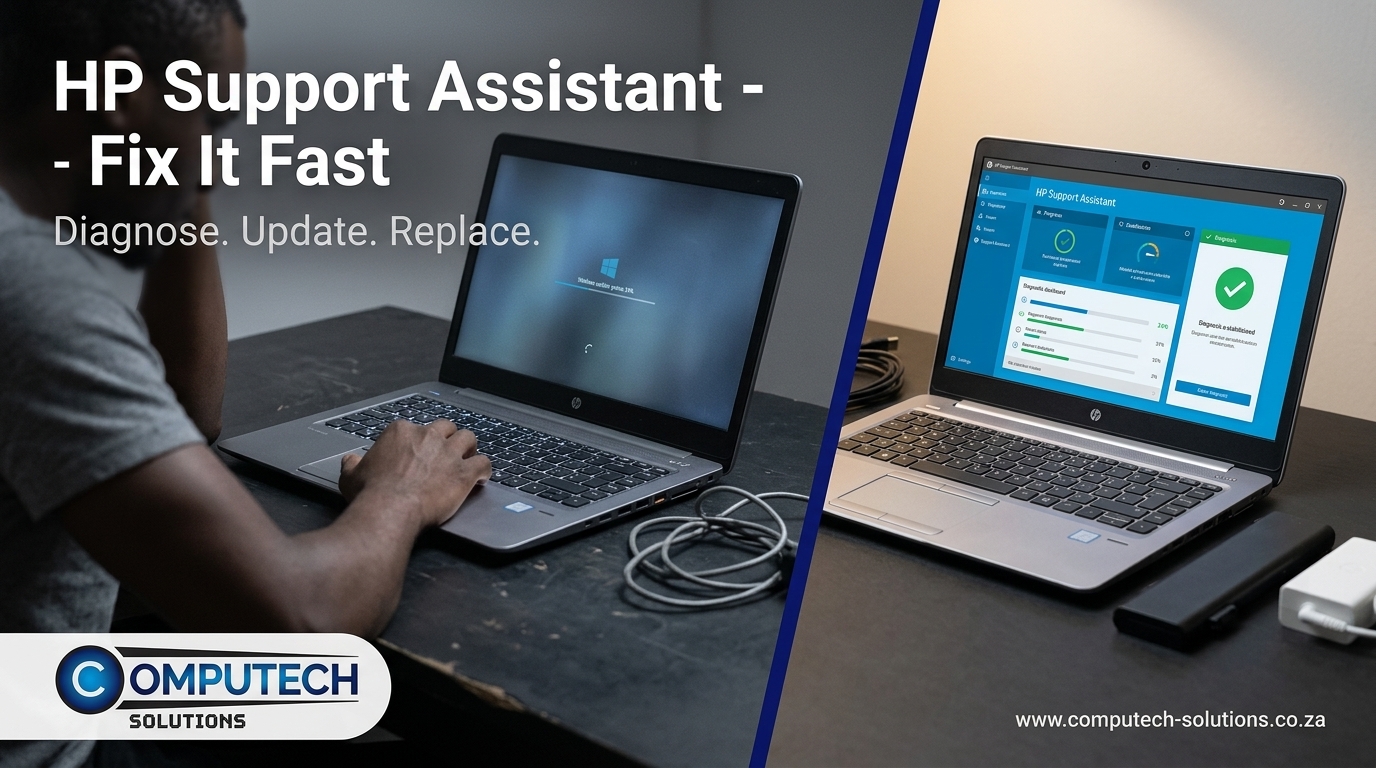
With HP Support Assistant installed, you can now tackle sluggish performance head-on. Let’s explore how updates and diagnostics can help improve your laptop’s speed.
HP Driver Updates and BIOS Check
Start by running a driver update check. Outdated drivers often cause slowdowns and malfunctions. The HP Support Assistant will scan your system and list any available updates. Make sure to update all your drivers, focusing on critical components like the graphics card and network adapter. These updates can significantly enhance your laptop’s performance.
Next, perform a BIOS check. This step ensures your laptop’s motherboard is running the latest firmware. An outdated BIOS can lead to compatibility issues and even prevent your laptop from booting. Keeping the BIOS updated is a foundational step in maintaining system health.
Identifying Hardware Issues with HP Diagnostics
If your laptop continues to underperform, hardware might be the culprit. Use the HP Diagnostics Tool to perform a comprehensive hardware scan. This scan checks components like the hard drive and RAM for errors.
If the diagnostics reveal a faulty part, consider reading our guide on Laptop Battery Compatibility Made Easy: Find the Right Fit and Power Up. It will guide you in replacing or upgrading your components effectively.
Next Steps for Hardware Replacement
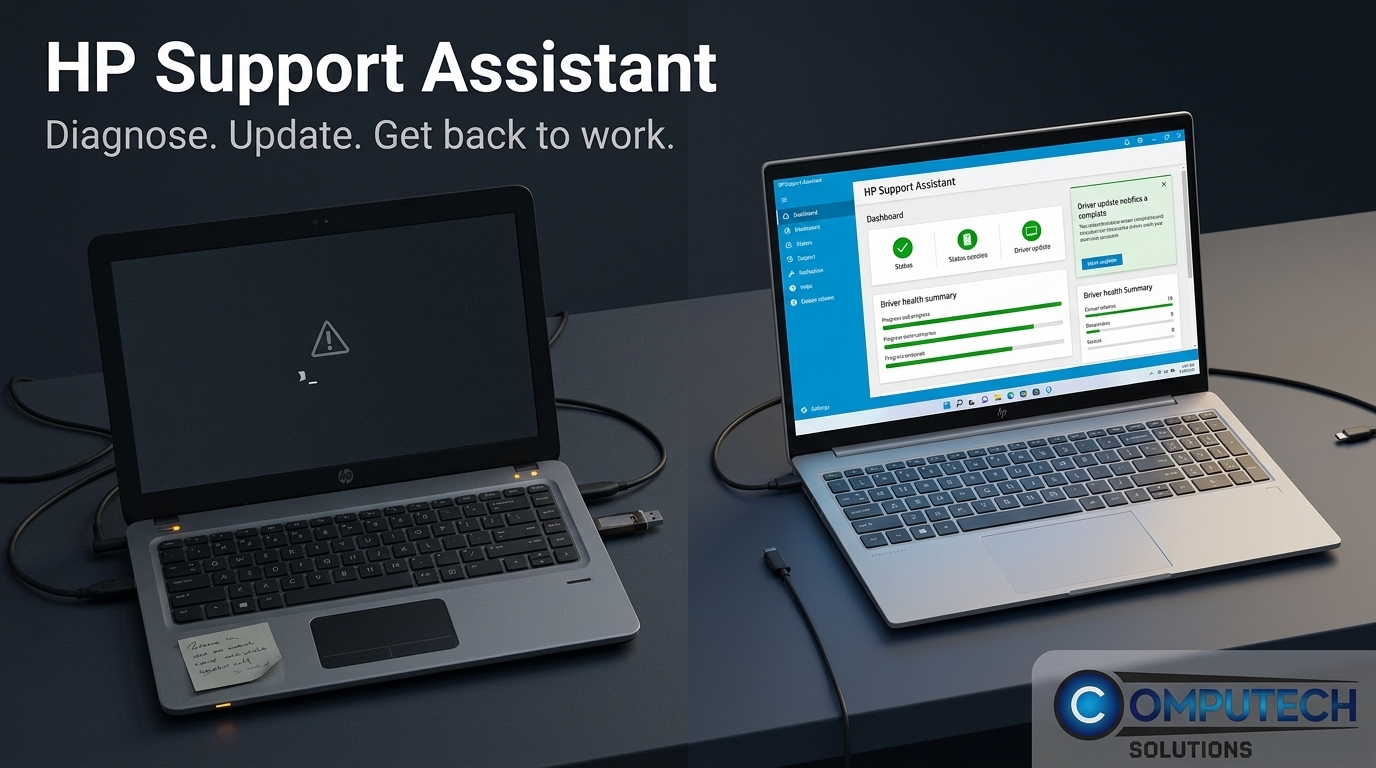
Sometimes, diagnosing isn’t enough. If hardware replacement is necessary, knowing where to start is crucial.
HP Battery Replacement Options in South Africa
Begin by assessing your battery needs. If the diagnostics indicate a battery issue, it’s time to explore replacement options. In South Africa, Computech Solutions offers high-quality generic HP batteries. These replacements are reliable and compatible with most HP laptops.
When choosing a battery, consider your laptop’s model and usage habits. A long-lasting battery is ideal for users frequently on the go. Ensure the replacement matches your laptop’s specifications to avoid compatibility issues.
Choosing the Right HP Laptop Charger and LCD
If your laptop’s charger is faulty, consider investing in a durable HP laptop charger. Look for options like the HP laptop charger 65W or HP USB-C charger. These chargers provide reliable power and are widely available.
For screen issues, an HP laptop LCD replacement might be necessary. Whether it’s a cracked screen or display malfunction, a new LCD can restore your laptop’s visual performance. For guidance, check out HP Support, Simplified: Repairs, Compatible Parts, and Backup Power. This resource provides insights on selecting the right components for your device.
Frequently Asked Questions
How do I download HP Support Assistant?
To download HP Support Assistant, visit the official HP website. Navigate to the Support page, search for “HP Support Assistant,” and follow the download instructions.
Why is my HP laptop running slow?
A slow HP laptop could be due to outdated drivers or a possible hardware issue. Use HP Support Assistant to check for updates and run diagnostics to identify the problem.
What should I do if my HP laptop battery dies quickly?
If your battery drains quickly, consider replacing it with a high-quality generic HP battery. Ensure the new battery is compatible with your laptop model for optimal performance.
How can I update HP drivers on Windows 11?
Use HP Support Assistant to automatically scan for and install the latest driver updates. Run the “Check for Updates” option regularly to keep your drivers current.
Where can I find HP-compatible parts in South Africa?
Computech Solutions offers a wide range of HP-compatible parts, including batteries, chargers, and LCD screens, with nationwide delivery.
