
Did you know that a single spill or persistent buildup of grime can lead to repair bills as high as $800 for premium devices? It is a stressful reality for many professionals who rely on their hardware for daily operations. If you have noticed keys sticking or dust accumulating in your local environment, you are likely searching for how to clean a laptop keyboard safely without causing permanent electrical failure.
We understand the hesitation that comes with applying any cleaning agent near a sensitive motherboard. Keyboard malfunction is the most common hardware failure in many portable devices, with some models seeing failure rates as high as 9.7% over a five-year period. This guide provides the expert-approved steps to eliminate debris and bacteria while maintaining the structural integrity of your machine. You will learn the specific tools required for a professional result, including why many are switching to electric air dusters for a more sustainable, high-efficiency workspace. By the end, you will have the confidence to maintain a hygienic, high-performing laptop that feels like it just came out of the box.
Key Takeaways
- Prioritize hardware integrity by implementing critical safety protocols, such as total power isolation and static prevention, before beginning any maintenance.
- Master the professional five-step process for how to clean a laptop keyboard safely, utilizing techniques like the ‘Gravity Method’ to remove debris without liquid risks.
- Navigate the complexities of sticky keys and accidental spills by using targeted cleaning methods that protect delicate internal membranes and connectors.
- Implement effective preventative strategies to manage environmental dust and humidity, ensuring your workspace remains hygienic and your keys retain their tactile responsiveness.
- Identify the specific technical symptoms that indicate a keyboard requires hardware replacement rather than a deep clean to restore full operational efficiency.
Essential Safety Precautions Before You Start Cleaning
Learning how to clean a laptop keyboard safely starts with total power isolation. You aren’t just cleaning a surface; you’re interacting with a complex electronic assembly. Before any cloth touches a key, the device must be completely inert. This prevents accidental key inputs that could trigger software errors or, more importantly, protects the internal circuitry from short circuits. Professional computer maintenance requires a focus on electronic integrity over simple aesthetics.
A common mistake in DIY maintenance is using standard household plastic brushes. These tools generate significant electrostatic discharge (ESD). While it might seem harmless, a static shock can jump from the brush to the keyboard controller, causing permanent hardware failure. Professional-grade anti-static brushes or compressed air are the only safe choices for dislodging debris. Understanding your hardware is equally vital. Most modern laptops use chiclet or membrane keyboards, where the keys sit on a delicate silicone dome. Mechanical laptop keyboards have individual switches. Each requires a specific pressure level during cleaning to avoid snapping the plastic clips underneath.
Power Down and Disconnect Everything
Start by performing a full system shutdown through your operating system. Don’t simply close the lid or use “Sleep” mode. Once the screen is dark, unplug the laptop charger from both the wall and the device. This eliminates the risk of an electrical surge if a cleaning agent accidentally enters the chassis. Remove all external peripherals, including USB dongles, SD cards, and external mice. Clearing these ports ensures you have an unobstructed path to clean the edges of the keyboard where fine dust often settles. If your laptop has a removable battery, taking it out provides an extra layer of safety against accidental activation.
Avoiding Liquid Damage and Harsh Chemicals
The most critical rule for how to clean a laptop keyboard safely is to never spray any liquid directly onto the device. Even a fine mist can seep between the keycaps and reach the motherboard. Instead, apply your cleaning solution to a microfiber cloth first. Avoid household cleaners containing bleach or ammonia. These chemicals can strip the protective coating off keycaps and cause the plastic to become brittle or discoloured over time. Stick to 70% isopropyl alcohol for effective sanitisation. It evaporates quickly and effectively breaks down skin oils without damaging the hardware. Using the right concentration is essential, as higher water content in lower-grade alcohols increases the risk of internal corrosion.
The 5-Step Process for a Dust-Free Keyboard
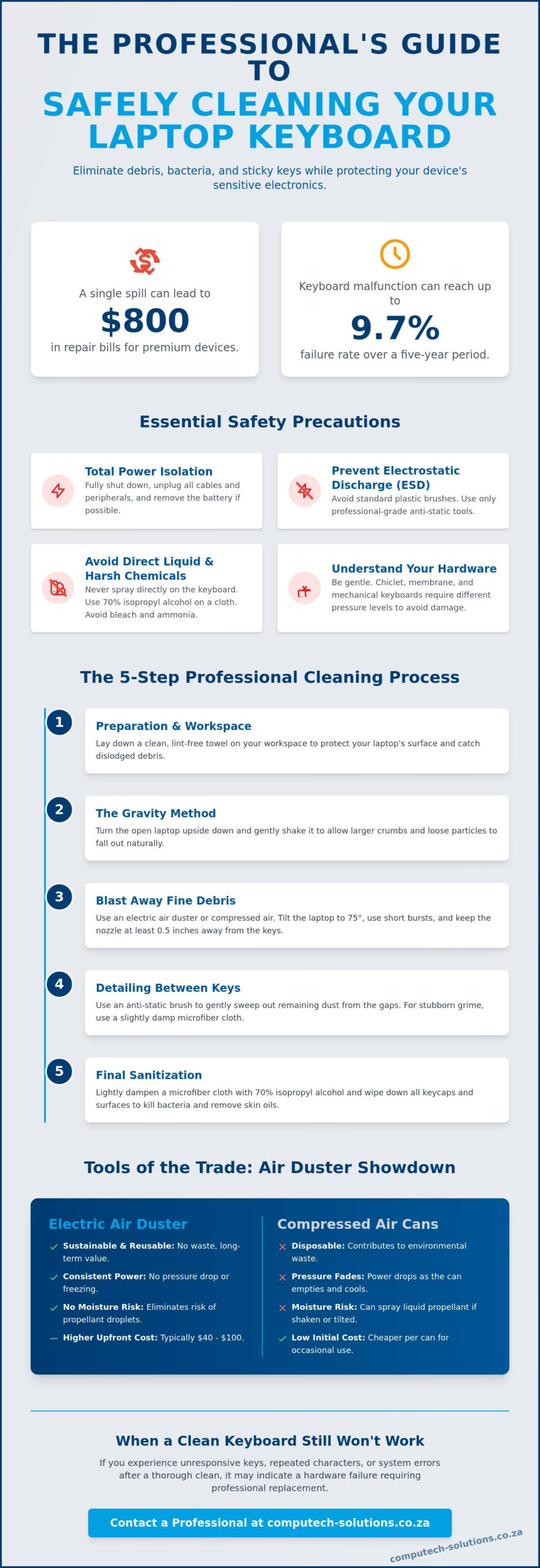
Executing a thorough cleaning requires more than just a quick wipe. It demands a systematic approach that ensures debris is removed rather than redistributed. Before you begin, clear a workspace and lay down a clean, lint-free towel. This surface prevents the laptop lid from being scratched and catches the particles you are about to dislodge. Understanding how to clean a laptop keyboard safely involves a sequence that moves from large debris removal to fine detailing and final sanitisation.
The global electronic cleaning market is projected to reach $8.6 billion by 2034, reflecting a growing professional emphasis on device hygiene. To achieve professional results at home, you should follow this established five-step workflow. This process maintains the tactile response of your keys and prevents the buildup of skin oils that can eventually degrade the keycap finish.
Removing Loose Debris: The Shake and Blast
Start with the “Gravity Method.” Hold your laptop open and turn it upside down over your lint-free surface. Gently shake the device to allow larger crumbs and loose particles to fall out naturally. Once the heavy debris is cleared, use compressed air or an electric air duster. Electric air dusters, which typically range from $39.99 to $99.99, have become a preferred sustainable alternative to disposable cans.
- Tilt the device: Hold the laptop at a 75-degree angle so debris falls away from the screen.
- Use short bursts: Continuous spraying can cause the nozzle to freeze, which may lead to moisture droplets forming on the keys.
- Maintain distance: Keep the nozzle at least half an inch away from the keys to prevent high-pressure air from dislodging delicate internal components.
Detailing with Brushes and Microfibre
After clearing the loose dust, focus on the gaps between the keys. Use a soft-bristled ESD (electrostatic discharge) brush or a clean, dry paintbrush to sweep out stubborn grime. Standard toothbrushes are often too stiff and can leave micro-scratches on premium plastic finishes. Move the brush in a circular motion around each keycap to lift any remaining grit.
The final step is to address the palm rest and trackpad, which often harbour the highest concentration of bacteria. Dampen a microfibre cloth with 70% isopropyl alcohol. Ensure the cloth is merely damp, not dripping. Wipe each key individually, then clean the surrounding chassis. If your hardware feels sluggish or keys remain unresponsive after a deep clean, it may be time to consider high-quality replacement components to restore your workstation’s efficiency. This comprehensive approach ensures your laptop remains a hygienic and reliable tool for your professional tasks.
How to Handle Sticky Keys and Accidental Spills Safely
Unlike external desktop peripherals, laptop keycaps are anchored by fragile plastic scissor switches. Many online forums suggest prying these keys off for a deep clean; however, this is a high-risk maneuver that often results in permanent mechanical damage. If you want to know how to clean a laptop keyboard safely when keys are sticking, you must prioritize non-invasive techniques that preserve these delicate components. Snapping a single plastic retainer can necessitate a full keyboard replacement, with industry repair costs for premium or gaming laptops often ranging from $150 to $400.
Sticky residues from spilled drinks or skin oils require a targeted approach. While the previous section focused on loose debris, stubborn grime beneath the keycap demands a solvent that dissolves contaminants without leaving moisture behind. This is where the precision of specialized tools becomes essential for maintaining operational efficiency.
Safe Techniques for Stubborn Residue
To address a specific sticky key, dampen a high-quality cotton swab with 70% isopropyl alcohol. It is vital that the swab is not dripping; excess liquid can bypass the switch and reach the internal membrane. Use a “gentle circle” technique by tracing the perimeter of the keycap. This allows the alcohol to seep slightly into the gap and dissolve the residue. Press the key repeatedly while the alcohol is still wet to help break up the internal stickiness. Once the key moves freely, use a dry swab to absorb any remaining solvent. Always test the key travel after the area is dry to ensure the tactile “click” has returned to its original state.
Emergency Response for Liquid Spills
If a liquid spill occurs, you have a 10-second window to prevent total hardware failure. Immediate action is the only way to save the motherboard and internal circuitry. Follow these steps with rhythmic efficiency:
- Force a shutdown: Hold the power button until the device is completely off. Don’t waste time with the standard menu shutdown.
- Invert the device: Turn the laptop upside down immediately to stop liquid from seeping deeper into the chassis.
- The “No Heat” rule: Never use a hairdryer to dry a keyboard. High heat can warp the thin plastic keycaps and push moisture further into the internal logic boards.
If the spill involved sugary or acidic liquids, professional technical support is often required to clean the internal layers. Even if the device seems to work after drying, corrosion can develop over weeks or months. Recognizing when a clean keyboard still fails to register presses is critical. Persistent stickiness or ghosting after a professional-grade cleaning often indicates that the internal membrane has already been compromised.
Preventing Dirt Buildup in Challenging Environments
In South Africa, environmental factors play a significant role in hardware degradation. Whether you are dealing with the fine, red dust of the Highveld or the corrosive salt air of the coast, your keyboard acts as a magnet for abrasive particles. Knowing how to clean a laptop keyboard safely is a reactive measure, but proactive prevention is what truly extends the lifespan of your machine. Fine grit can work its way beneath the scissor switches, causing premature wear on the delicate plastic hinges. Maintaining a strict no-food policy at your workstation remains the simplest way to avoid the mechanical failures discussed in previous sections. Small crumbs from snacks often bypass the keycap and lodge directly in the scissor mechanism, leading to the sticky key issues addressed earlier.
Many users turn to silicone keyboard covers to block debris. While these are effective at stopping pet hair and crumbs, they present a distinct thermal risk. Most laptops dissipate a portion of their internal heat through the keyboard assembly. Covering these gaps with a non-breathable silicone layer can lead to elevated internal temperatures. Over time, this heat can degrade the adhesive used in keycap assemblies, making them feel tacky or unresponsive. You must balance the need for cleanliness with the thermal requirements of your specific model.
Maintenance Habits for Longevity
Establishing a weekly wipe routine is the most effective way to prevent permanent oil staining. Human skin naturally produces oils that, when combined with high ambient humidity, can permanently etch the plastic of your keycaps. This results in the shine often seen on well-used hardware. Storing your laptop in a dedicated sleeve when not in use significantly reduces the volume of airborne dust that settles into the chassis overnight. Washing your hands before use is another simple, zero-cost method to reduce the transfer of acids and oils to the keyboard surface.
The Impact of Environment on Hardware
High ambient temperatures in regions like the Northern Cape can exacerbate the buildup of grime. Heat softens the lubricants within the switches, allowing dust to bond more readily to the internal mechanism. This buildup doesn’t just affect typing; it restricts micro-airflow through the keyboard deck. By maintaining a clean surface, you allow for better heat dissipation, which directly impacts the health of your internal components. If your device has already suffered from heat-related performance drops or internal wear, you can find reliable replacement laptop batteries and hardware to restore your system to factory standards. Regular surface maintenance ensures these critical components operate within their intended thermal range, helping you avoid the 6.3% to 9.7% failure rates often seen in portable devices over a five-year period.
When a Clean Keyboard Still Won’t Work: Replacement Solutions
Even after mastering how to clean a laptop keyboard safely, some hardware issues remain unresolved. Professional diagnostics are necessary when physical cleaning fails to restore functionality. Keyboard failure is a documented reality, with hardware failure rates for some devices reaching 9.7% over a five-year period. Differentiating between an obstructed switch and a failing circuit board is the first step toward a functional workspace. If you’ve followed every sanitization protocol and the keys remain unresponsive, you’re likely facing an electrical or mechanical breakdown that no amount of isopropyl alcohol can fix.
The global electronic cleaning market is expanding, yet cleaning has its limits. When internal components reach the end of their lifecycle, replacement becomes the only viable path to maintaining productivity. Understanding the specific symptoms of hardware failure helps you avoid wasting time on repetitive cleaning cycles that won’t yield results.
Identifying Hardware Failure vs. Dirt
Ghosting or repeating characters usually indicate a logic error rather than a physical obstruction. If an entire row of keys stops responding simultaneously, the internal ribbon cable has likely detached or suffered a fracture. You can verify this by connecting an external USB keyboard. If the external device works perfectly, your laptop’s internal hardware is the culprit. This is a common issue in certain models, such as the 2016 MacBook Pro, which saw butterfly keyboard failure rates of 11.8% in its first year. When the underlying membrane is compromised, the device requires technical intervention rather than surface maintenance.
Finding Reliable Replacement Parts
Replacement costs vary based on the tier of your device. Budget-friendly laptop repairs typically range from $50 to $120, while premium gaming rigs can reach $400. For MacBook users, costs can escalate significantly, sometimes reaching $800 depending on the model. When repair costs approach a significant portion of the device’s value, transitioning to a new machine is often the most efficient business decision. If you decide to repair, matching the exact model number is critical for compatibility. Sourcing from reputable South African IT retailers ensures you receive components that meet original manufacturer specifications.
For professionals managing multiple devices, it’s often more cost-effective to invest in new hardware when multiple components begin to fail. Whether you need to upgrade to new Laptops or require Desktop Computers for a more permanent workstation, selecting reliable equipment reduces long-term operational risks. Maintaining a clean environment remains the best way to delay these costs, but knowing when to replace ensures your workflow is never permanently disrupted by aging hardware.
Maximize Your Hardware Longevity Today
A clean workspace is more than an aesthetic choice; it is a critical component of professional operational efficiency. Precision matters. By following the systematic protocols for how to clean a laptop keyboard safely, you protect your device from the 6.3% to 9.7% failure rates commonly seen in portable hardware. Prioritizing power isolation and using specialized tools like electric air dusters ensures your keys remain responsive and hygienic without risking internal electrical damage.
When surface maintenance is no longer sufficient to resolve sticking keys or ghosting, identifying the need for hardware replacement is the next logical step for your business. We provide expert technical support for all major laptop brands and specialize in high-quality replacement batteries, chargers, and LCD panels. With nationwide delivery across South Africa, we ensure your technical disruptions are minimized through reliable hardware solutions. Browse our range of high-quality laptop replacement parts and accessories to restore your workstation to its peak performance. You now possess the expert knowledge to keep your equipment in top condition, ensuring a seamless and productive digital environment for years to come.
Frequently Asked Questions
Can I use wet wipes or baby wipes to clean my laptop keyboard?
You should avoid using standard wet wipes or baby wipes on your keyboard. These products often contain high moisture levels that can seep into the internal circuitry. Many also contain fragrances or skin-softening oils that leave a greasy residue on the keycaps. Instead, use a microfibre cloth lightly dampened with 70% isopropyl alcohol to ensure a quick-drying, residue-free finish.
Is it safe to use a vacuum cleaner on my laptop keys?
Vacuuming your laptop keys is generally unsafe due to the risk of electrostatic discharge (ESD). Household vacuum cleaners generate significant static electricity that can jump from the nozzle to the internal keyboard controller, causing permanent hardware failure. It’s much safer to use a dedicated electric air duster or compressed air, which are designed specifically for sensitive electronics.
How do I clean under the keys if I can’t remove them?
You can effectively clear debris from beneath non-removable keys by using the “Gravity Method” combined with compressed air. Tilt the laptop at a 75-degree angle and use short, controlled bursts of air to dislodge particles. This technique is a core part of how to clean a laptop keyboard safely because it avoids the risk of snapping the fragile plastic scissor switches found in modern chiclet keyboards.
What should I do if I spill coffee on my laptop keyboard?
If you spill coffee, immediately hold the power button to force a shutdown and unplug the charger. Inverting the device prevents the liquid from reaching the motherboard. Because coffee is acidic and often contains sugar, surface cleaning is rarely enough. You’ll likely need professional technical support to address the internal residue before corrosion sets in and causes long-term motherboard failure.
Can I use a hairdryer to blow dust out of the keyboard?
You should never use a hairdryer to blow dust out of your keyboard. The high heat can warp thin plastic keycaps and melt the delicate internal membranes. Additionally, the concentrated air from a hairdryer is often too wide and weak to dislodge grit effectively, often pushing it deeper into the chassis. Stick to cool-air dusters designed for IT maintenance.
How often should I professionally clean my laptop keyboard?
A deep surface cleaning is recommended every three months, especially in dusty environments like the Highveld. Regular maintenance prevents skin oils from bonding with environmental grit, which can lead to the “shine” and mechanical wear discussed earlier. If you work in a high-traffic or coastal area, a monthly wipe with isopropyl alcohol helps maintain a hygienic and responsive workspace.
Why are my keys still sticky even after I cleaned them with alcohol?
Persistent stickiness after cleaning typically indicates that the contaminant is trapped inside the scissor switch mechanism. If you can’t resolve the issue through targeted cleaning with a cotton swab, the internal silicone membrane may be damaged or the residue may have hardened beyond the reach of surface solvents. At this stage, you should evaluate if the keyboard requires a full hardware replacement to restore functionality.
Does cleaning my keyboard void my laptop warranty?
Routine cleaning doesn’t void your warranty, provided you don’t disassemble the laptop or remove keys that aren’t designed to be user-replaceable. Most manufacturers encourage basic maintenance to prevent hardware failure. However, using harsh chemicals like bleach or causing liquid damage during the process will void your protection. Always follow the manufacturer’s specific guidelines for how to clean a laptop keyboard safely to ensure your coverage remains intact.
