
If you’re unsure what to do when you receive a faulty PC component, the safest first move may be to stop testing it. It’s tempting to reseat it, open the casing or try it in another system straight away. But the symptom could point to a fault, an incompatibility or an installation issue, and extra handling may make the problem harder to explain to the seller.
That uncertainty is frustrating, especially when you need the part working and don’t know what evidence a return or warranty request may require. A careful, documented approach helps protect your equipment and keeps the next steps clear. You’ll learn how to check basic connections safely, identify what is and isn’t working, and record useful details without taking unnecessary risks.
This guide also explains how to contact the seller with a clear account of the fault, preserve packaging and purchase records, and decide whether to request a replacement or another resolution. If you need a suitable replacement, compatibility matters. Computech-Solutions provides technical support and computer hardware to customers across South Africa, helping you make an informed next choice.
Key Takeaways
- When you receive a faulty PC component, preserve the packaging and note the symptoms before making further changes.
- Check connections, power, compatibility and installation carefully, since these can mimic a component fault.
- Compare symptoms with possible fault, incompatibility, installation error or transit damage, treating them as clues rather than proof.
- Prepare a clear record with order details, delivery date, photos, system specifications and test results before contacting the seller.
- Use the evidence to decide whether to continue safe checks, follow the seller’s assessment process or consider compatible replacement hardware.
Received a Faulty PC Component? Take These First Steps
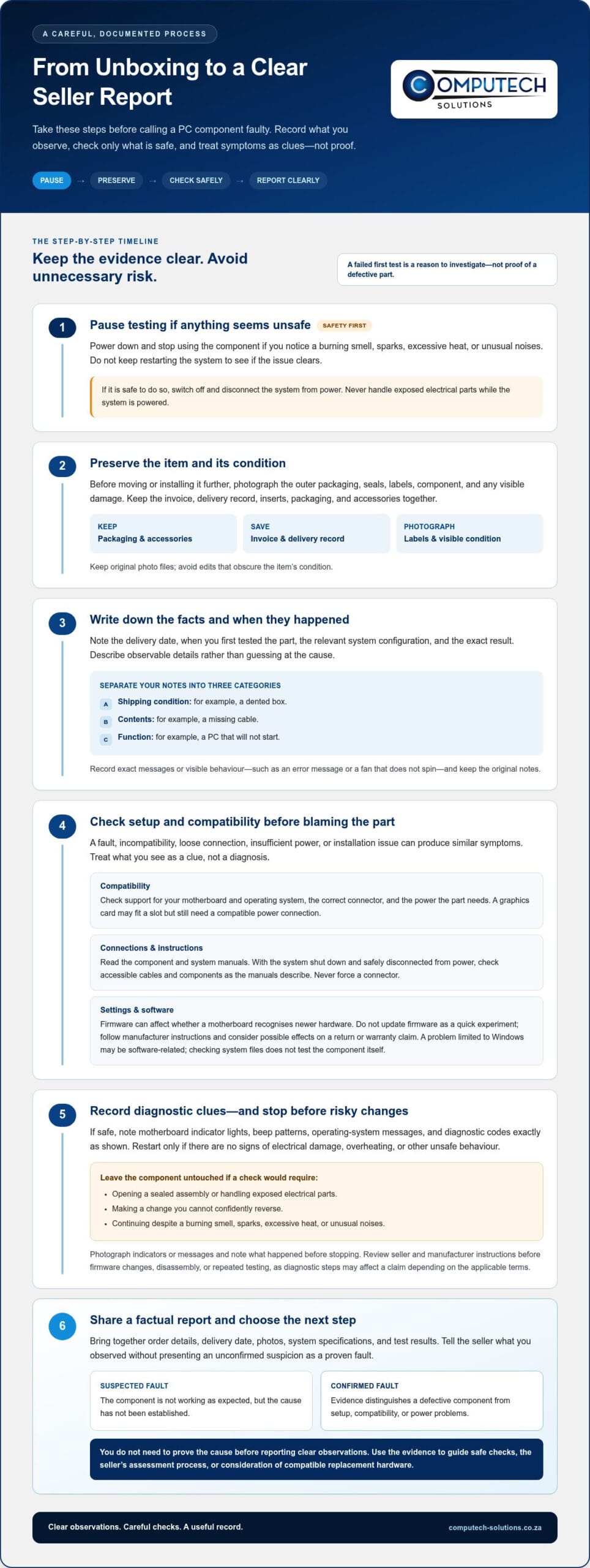
If you’re deciding what to do when you receive a faulty PC component, pause before trying more tests. Power it down and stop using it if you notice a burning smell, sparks, excessive heat or unusual noises. Don’t keep restarting the system to see whether the issue clears. A failed first test is a reason to investigate, not proof that the component itself is defective. Incorrect installation, insufficient power or incompatibility can produce similar symptoms.
Keep your first record factual and separate three things: visible shipping damage, missing parts or accessories, and functional problems. For example, note a dented box under shipping condition, a missing cable under contents, and a PC that won’t start under function. This distinction helps the seller understand what you observed without presenting an initial suspicion as a confirmed fault.
What should you do immediately after unboxing a faulty component?
Before moving or installing the item further, photograph the outer packaging, seals, labels, component and any visible damage. Keep the invoice, delivery record, inserts, packaging and accessories together. Then write down the delivery date, when you first tested the part, the relevant system configuration and the exact result. Describe observable details, such as an error message or a fan that doesn’t spin, rather than guessing at the cause.
These notes create a useful timeline and preserve details that may be harder to recall later. Keep the original files and avoid editing photos in ways that obscure the item’s condition.
What should you avoid doing before contacting the seller?
Don’t force a connector that doesn’t fit, modify the component or discard its packaging. Avoid repeated power cycles and risky tests, particularly if the part shows signs of electrical damage. If it smells burnt, sparks, overheats or makes an unusual noise, stop testing and switch off and disconnect the system from power if you can do so safely. Don’t handle exposed electrical parts while the system is powered.
A measured approach follows a systematic process of elimination: change one safe, relevant factor at a time and record what happens. At this early stage, call it a suspected fault if it isn’t working as expected but the cause hasn’t been established. A confirmed fault requires evidence that distinguishes a defective component from setup, compatibility or power problems. You don’t need to prove the cause before reporting clear observations to the seller.
How to Check a PC Component Safely Before Calling It Faulty
A component can appear dead when the real issue is a mismatch, a loose connection or a system setting. Check straightforward causes first, but don’t assume every troubleshooting step is safe for every item. Read the component and system manuals before changing connections or settings, and compare what you observe with the instructions for the exact hardware.
Start with compatibility. Confirm that the part supports your motherboard and operating system, uses the correct connector, and can receive the power it needs. A graphics card, for instance, may fit in a slot but still need a compatible power connection. Firmware can also affect whether a motherboard recognises newer hardware. Don’t update firmware as a quick experiment: follow the manufacturer’s instructions and consider whether the change could affect a return or warranty claim.
Which basic checks can identify a setup or compatibility issue?
With the system shut down and safely disconnected from power, check that accessible cables and components are seated as the manuals describe. Never force a connector. Restart only if the equipment shows no signs of electrical damage, overheating or other unsafe behaviour. Record motherboard indicator lights or beep patterns, operating-system messages and diagnostic codes exactly as shown. These details can help distinguish a setup issue from a component that isn’t being detected.
If the problem appears limited to Windows, it may be software-related rather than a hardware fault. Microsoft explains how to check for corrupted system files with built-in tools. This checks operating-system files, not the component itself, so don’t treat the result as proof either way.
When should you stop troubleshooting and leave the component untouched?
Stop if a check would require opening a sealed assembly, handling exposed electrical parts or making a change you can’t confidently reverse. Don’t continue if the component smells burnt, sparks, overheats or makes unusual noises. Power down and disconnect the system if it’s safe to do so; don’t touch exposed parts while it’s connected to power.
Diagnostic steps such as firmware changes, disassembly or repeated testing may affect a claim, depending on the applicable terms. Review the seller’s and manufacturer’s instructions before proceeding. Photograph any indicator or message and note what happened before stopping. For help selecting compatible computer hardware, contact Computech-Solutions’ technical support with your system details.
Faulty, Incompatible, or Damaged in Transit? Compare the Likely Causes
A PC symptom can have several possible causes. A system that won’t boot, for example, may be reacting to a faulty component, an unsupported part, a poor connection or another issue elsewhere in the system. Use the signs below as clues, not a diagnosis. A symptom identifies a problem, but not always its source.
| Possible cause | Clues to look for | What the clues don’t prove |
|---|---|---|
| Component fault | The part isn’t recognised, a feature repeatedly fails, or the same problem occurs during normal use despite a seemingly correct setup. | One unsuccessful test doesn’t establish that the component is defective. A connection, power supply or system issue may produce similar results. |
| Compatibility issue | The motherboard, power supply, operating system or system requirements don’t appear to support the part. It may fit physically but remain undetected or lack expected functionality. | Physical fit alone doesn’t confirm compatibility, and an error message may have more than one cause. |
| Installation error | A cable or component may not be seated correctly, or the system may show an error immediately after installation. | The timing doesn’t prove the component is faulty. A connection issue can imitate a failed part. |
| Transit damage | Look for cracks, bent connectors, damaged packaging or loose parts, and photograph what you find. | Visible damage may be relevant evidence, but it doesn’t by itself explain every functional symptom. |
How can you tell a defective component from an incompatible one?
Compare the part’s specifications with the motherboard, power supply and system requirements, using the relevant manuals or manufacturer documentation. Check whether the connector and supported configuration match. Recognition errors, missing functionality or repeated failure during ordinary use can strengthen the case for a fault, but they aren’t conclusive by themselves. Don’t label a component defective based on one unverified test; note exactly what happened and under what conditions.
One failing part can also affect the wider system. A power-related issue, for instance, may prevent startup or cause other components to behave unexpectedly. That doesn’t identify which part is responsible. Keep observations separate from assumptions as you compare possible causes.
Could shipping damage or installation explain the symptoms?
Yes. A poorly seated component may not be detected, while a damaged connector or loose part may interfere with operation. Record visible cracks, bent pins or connectors, and packaging damage before changing anything. If checking the installation would require force or risky disassembly, stop and preserve the evidence. Keep the cause tentative until the evidence or a qualified diagnosis supports it.
How to Document the Fault and Contact the Seller
A clear report helps the seller understand what happened and identify the next step. Focus on verifiable details: what you ordered, when it arrived, what you observed and which checks you actually performed. Keep your description neutral. “The motherboard doesn’t detect the memory module” is more useful than “the module is definitely defective” if the cause hasn’t been established.
What evidence should you include in a faulty-component report?
Gather the relevant information before contacting the seller:
- Purchase and delivery details: the order reference, item identification and delivery date.
- Condition evidence: clear photos of the component, labels, packaging and any visible damage. A short video may help demonstrate a symptom if recording it is safe.
- System specifications: the relevant motherboard, power supply, operating system and other details needed to understand the setup.
- Test results: each check you performed and the observed result, including any error message or diagnostic indicator.
Include only checks you completed. If you haven’t tested the item in another system, don’t imply that you have. Keep original photos and copies of purchase and delivery records with your notes.
How should you explain the problem and request a resolution?
Contact the seller through its stated process and provide a short timeline. For example: “Delivered on [date]. Installed in [system details] following the manual. On first start, [specific symptom appeared]. I checked [specific connection or setting], and the result was [observation].” This separates events from assumptions and gives the seller a practical starting point.
State what you’re requesting, such as guidance on the next assessment step or a replacement, without claiming a technical cause you can’t verify. Ask what the seller needs next, then save your message, attachments and all written replies in one place. If you speak by phone, note the date, who you spoke with and what was agreed, then follow up in writing where appropriate.
Consumer rights and seller terms can depend on the circumstances. Before making a legal claim, check current South African consumer-protection guidance and the terms that apply to your purchase. Don’t assume a particular remedy or outcome before the seller responds.
For help identifying compatible replacement hardware, message Computech-Solutions about suitable PC components. This is separate from any claim concerning a purchase made elsewhere.
Choose Your Next Step: Replacement, Further Diagnosis, or Compatible Hardware
Once you’ve recorded the symptoms and completed safe basic checks, choose a next step that fits the evidence. You don’t have to keep testing until you can name the exact cause. Stop if further checks involve risk, then use your notes to guide a seller assessment or an informed replacement decision.
When is replacement a sensible next step?
Replacement may be appropriate after the original seller’s process or a qualified diagnosis establishes that route. If the cause is still uncertain, follow the seller’s instructions before buying another part; a replacement won’t resolve an incompatibility or a fault elsewhere in the system. For complex devices like laptops where isolating components is difficult, device repair services such as ervintech.com can help verify whether hardware is truly defective. Any return, warranty or replacement outcome depends on the applicable terms and circumstances, so avoid assuming eligibility or a particular result.
If you do need another component, match it to the system before ordering. Check the model, interface and connector, physical dimensions, power requirements, and motherboard and operating-system compatibility. Established IT hardware providers like GenX Systems LLC offer detailed specifications for critical components such as power supplies to help ensure your new hardware fits seamlessly. A part that looks similar or fits into a slot may still be unsuitable. Use the system and component documentation to compare specifications rather than relying on appearance alone.
How can you reduce the risk of another component problem?
Keep the exact model details for your computer and relevant components to hand. Note the motherboard model, available connections, power supply specifications and any physical size limits that matter to the replacement. If you’re unsure how those details affect selection, Computech-Solutions’ technical support can help you identify suitable computer hardware. Computech-Solutions supplies computer hardware and components to customers across South Africa, with nationwide delivery.
Keep the product documentation, packaging and accessories until the new component is installed and working as expected. This gives you the information and materials to refer back to if questions arise. Avoid changing several parts or settings at once, since doing so can make it harder to identify what resolved the issue.
For help choosing a component that suits your system, get help choosing suitable computer hardware from Computech-Solutions. Share your device and component specifications so the selection can be guided by compatibility, not guesswork.
Move Forward With a Clear, Safe Next Step
Knowing what to do when you receive a faulty PC component starts with protecting the item and preserving clear evidence. A failed test is a clue, not a diagnosis: compatibility, power or installation issues can resemble a component fault. Record what you observed, check only what’s safe, and contact the seller with a concise timeline before deciding whether further assessment or replacement makes sense.
If you need replacement hardware, confirm the model, connectors, dimensions and power requirements against your system before choosing a part. The right match can help prevent another compatibility problem. Computech-Solutions supplies computer hardware and components, offers technical support to customers, and provides nationwide delivery across South Africa.
Contact Computech-Solutions for help choosing suitable computer hardware. Share your device and component details to get started.
Frequently Asked Questions
Can I keep using a PC component if it seems faulty?
Stop using it if you notice sparks, a burning smell, excessive heat, unusual noise or visible electrical damage. Switch off and disconnect the system if you can do so safely. If there are no warning signs, avoid repeated tests and record the symptoms before deciding what to check next. A part that behaves unexpectedly may be faulty, incompatible or incorrectly installed, so a single failure doesn’t confirm the cause.
How do I know whether a new PC component is faulty or incompatible?
Compare the component’s model and specifications with your motherboard, power supply, operating system and system requirements. Check the manuals for supported connections and configurations. Recognition errors or missing features can point to incompatibility, installation issues or a fault, so treat them as clues. Record the precise message and checks performed. One failed test alone doesn’t prove the component is defective.
Should I test a faulty component in another computer?
Only consider testing it in another computer if the component is compatible with that system, the manuals support the setup, and you can perform the check safely. An unsuitable test may create new problems or put another system at risk. If testing requires disassembly, force or unfamiliar connections, stop. If you’re unsure whether this step could affect a claim, check the seller’s instructions before proceeding.
What evidence should I send when reporting a faulty component?
Include your order reference, item identification, delivery date and a plain description of the symptoms. Attach clear photographs of the component, labels, packaging and any visible damage. Add relevant system specifications and list each check you performed with its observed result. A short video can help show a symptom if recording it is safe. Keep your original files and copies of all messages.
Can opening or testing a component affect a warranty or return claim?
It can depend on the seller’s and manufacturer’s applicable terms and on the steps you take. Don’t assume that opening or testing automatically voids a claim, but avoid modifying the item or opening a sealed assembly. Read the relevant instructions before further diagnosis. If the terms are unclear, contact the seller through its stated process and ask what checks are appropriate before continuing.
What should I do if a PC component was damaged during delivery?
Photograph the packaging, labels, component and visible damage before discarding or altering anything. Keep the packaging, accessories, invoice and delivery records together. Note when the item arrived and what damage you observed, separating visible condition from functional symptoms. Contact the seller promptly through its stated process and provide the evidence. Avoid installing or powering up a visibly damaged component if doing so could create a safety risk.
What if the seller does not respond to a faulty-component report?
Follow up in writing through the seller’s stated contact process, referring to your original message and order details. Keep copies of both messages, attachments and any replies, and note when you contacted the seller. Review the applicable seller terms and current South African consumer-protection guidance before making legal claims or deciding on further steps. Don’t assume a specific remedy or outcome without checking what applies to your purchase.
