
Keeping your laptop plugged in isn’t automatically the quickest way to wear out its battery. Heat and long periods at a high charge level also matter, so knowing how to manage battery wear on a load shedding schedule involves more than unplugging whenever the power goes off.
Frequent charging can be a concern when an outage interrupts work and leaves you relying on the laptop’s remaining charge. Power conditions can change, so having a practical routine for interruptions is useful even when outages are less frequent.
This guide explains how to balance battery power and backup options, reduce avoidable heat and unnecessary battery cycling, and use built-in charging settings where available. You’ll also learn how to check battery health and recognise when an ageing battery may no longer provide enough runtime for your needs. A few repeatable habits can help you protect battery health while keeping work moving when the power supply changes.
Key Takeaways
- Learn how to manage battery wear on a load shedding schedule by balancing laptop battery use with suitable backup power.
- Understand how heat and time spent at a high charge can affect battery health, and why every charge doesn’t cause meaningful wear.
- Compare laptop batteries, UPS units, inverters and compatible power banks by portability, purpose and setup needs.
- Follow a simple before, during and after outage routine to prepare your laptop, protect your work and return to normal use.
- Recognise when battery-care habits aren’t enough and a correctly matched replacement battery may better support your needs.
How load shedding affects laptop battery wear – and what it does not
Load shedding changes when your laptop draws power from its battery, but an outage doesn’t automatically damage the battery. When mains power is interrupted, a functioning laptop switches to its internal battery so you can keep working. That normal changeover is different from the gradual capacity loss that happens as a battery ages and is used over time.
Temporary drain is not the same as permanent wear. A laptop that loses charge during an outage has used some of its stored energy; it hasn’t necessarily lost the ability to hold that energy in future. Battery condition can be affected by age, temperature, workload and charging behaviour. Guidance also varies by laptop and battery design, so follow the manufacturer’s recommendations for your model. For background on common degradation mechanisms, see Lithium-ion battery degradation.
Quotable summary: “An outage can drain your battery for now; long-term capacity loss develops gradually and isn’t caused by a power cut alone.”
Does load shedding directly damage a laptop battery?
Usually, the battery simply takes over when the power supply stops. The laptop then runs on stored charge until mains power returns or the battery gets low. That switch from wall power to battery power is part of normal laptop operation, not proof of damage. Using battery power contributes to use over time, but a single charge or outage doesn’t automatically cause meaningful capacity loss.
Keep the distinction clear: battery wear is gradual, while battery drain is the immediate drop in charge during use. Heat, age and charging patterns can influence long-term condition. Power equipment that is unsuitable for a laptop may create separate risks, so use the correct charger or adapter and follow the device manufacturer’s guidance. No single cycle count or lifespan applies to every laptop.
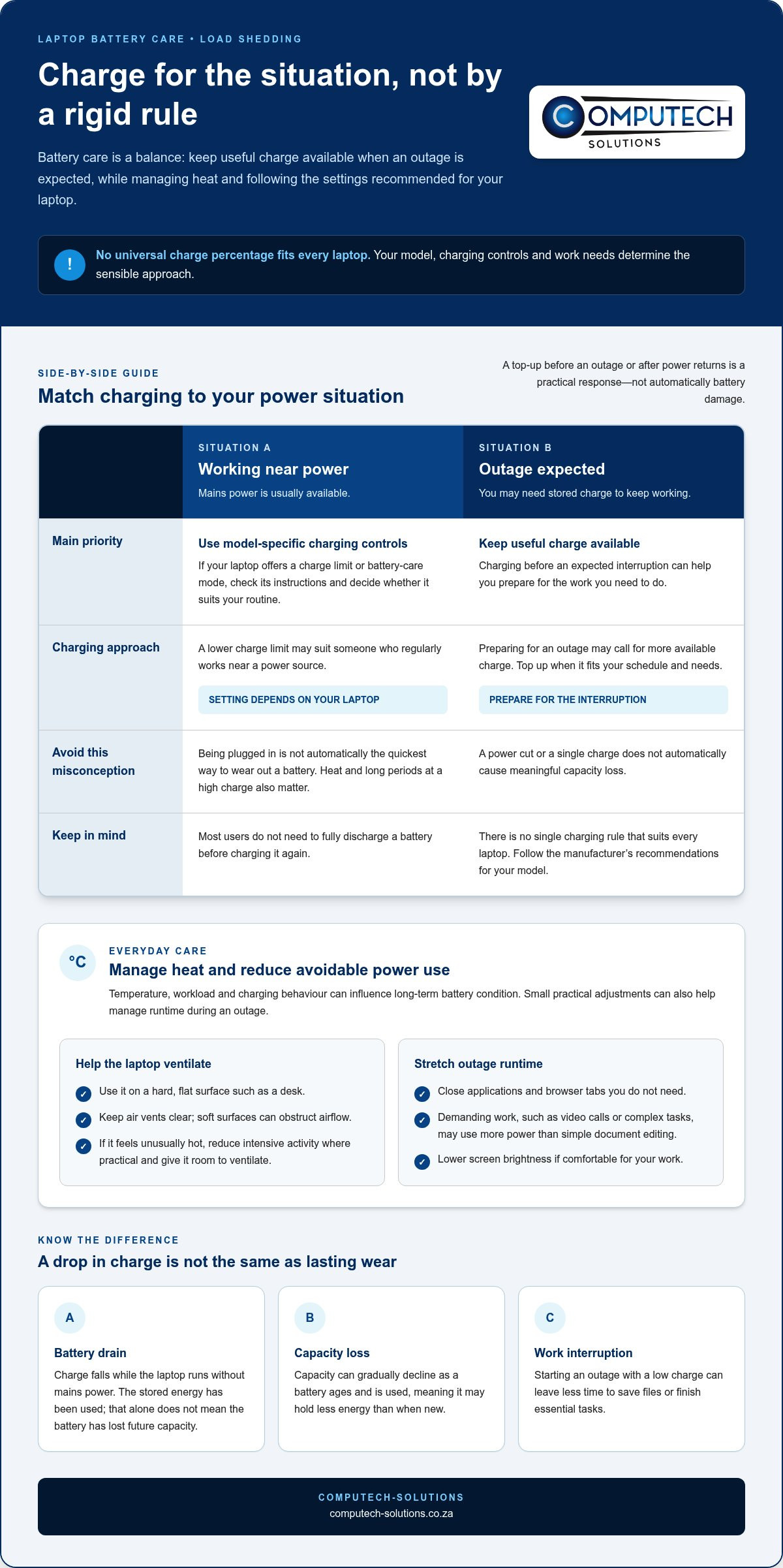
- Battery drain: The charge level falls while the laptop runs without mains power.
- Capacity loss: Over time, the battery may hold less energy than it did when new.
- Work interruption: A low starting charge can leave less time to save files or finish essential tasks.
Why a load shedding schedule can make battery care harder
Repeated or unpredictable outages can mean relying on battery power more often than your usual routine requires. The main practical challenge is timing: if an outage starts while the laptop is already low, you may have little time to save work, prepare essential files or close applications. A schedule helps you anticipate that risk, even though it can’t prevent every unexpected interruption.
Planning makes how to manage battery wear on a load shedding schedule more straightforward. Check the expected outage window, note how much charge you’ll need for priority tasks, and consider whether a suitable backup option fits your working pattern. The aim isn’t to avoid every battery-powered session. It’s to reduce unnecessary strain while keeping work disruption manageable.
If outages are frequent, match your routine to the work you need to protect. Save important files before the expected interruption, and avoid starting demanding tasks when power is likely to go off and the battery is already low. The next section covers battery habits that influence wear and ways to manage heat during everyday use.
Understand the battery habits that contribute to laptop battery wear
A laptop battery’s capacity is the amount of energy it can store and provide between charges. As a rechargeable battery ages and gets used, that capacity can gradually decline, so the laptop may run for less time than it did when new. This doesn’t mean every top-up causes noticeable harm. For outage planning, balance useful charge with sensible care rather than following a rigid rule that ignores your laptop’s design and your work needs.
Battery care works best when you manage temperature, consider how you use the laptop, and follow the charging controls recommended for your specific model.
Charging patterns: avoid turning battery care into a rigid rule
Charging before an expected outage, or topping up when power returns, is a practical response to your schedule. It isn’t automatically harmful. There’s no single charge percentage that suits every laptop, and most users don’t need to fully discharge a battery before charging it again. Follow the manufacturer’s advice on charge limits and battery-care modes, which can vary by model and software.
Some laptops provide a setting that limits charging or adjusts charging behaviour to suit a routine. If yours has one, read its instructions to understand what it does and whether it fits your needs. A lower charge limit may suit someone who regularly works near a power source, while preparing for an outage may call for more available charge. Treat these as model-specific choices, not universal battery rules.
Heat, workload, and storage during outages
Heat is a factor you can manage during charging and demanding work. Use the laptop on a hard, flat surface, such as a desk, and keep its air vents clear. Soft surfaces can obstruct airflow. If the laptop feels unusually hot, reduce intensive activity where practical and give it room to ventilate.
When you need the battery to last through an outage, close applications and browser tabs you don’t need. Video calls, complex tasks and other demanding work may use more power than simple document editing. Lowering screen brightness can also reduce energy use, but choose a level that still lets you work comfortably. These steps can help manage runtime without relying on a fixed charging target.
If you’ll leave the laptop unused for an extended period, don’t assume that storing it fully charged or empty is best. Check the manufacturer’s recommended storage charge and conditions for your model. Guidance can differ, so avoid applying a general rule as though it were suitable for every laptop.
For how to manage battery wear on a load shedding schedule, focus on practical adjustments: keep the laptop cool, tailor charging settings to its manufacturer’s guidance, and adapt your workload when runtime matters.
If your laptop’s battery no longer lasts through the outages you need to manage, you can discuss a replacement laptop battery via WhatsApp.
Compare laptop battery power with UPS, inverter, and power bank options
The right backup depends on how long you need to work, whether you need to move around, and what power input your laptop accepts. External power can reduce how often the laptop relies on its internal battery, but no option is automatically suitable for every device. Check your laptop manufacturer’s specifications, including its power requirements and charging connection, before choosing backup equipment.
| Option | Portability | Intended use | Setup and compatibility |
|---|---|---|---|
| Laptop’s internal battery | Built in and portable with the laptop | Short interruptions and work away from mains power | No extra setup; runtime depends on the laptop’s condition, model, settings and workload. |
| UPS | Usually kept near the equipment it supports | Bridging a sudden power cut so you can continue briefly, save work or shut down safely | Connect the laptop’s power adapter to the UPS; match its output and connections to the adapter’s requirements. |
| Inverter | Generally suited to a fixed home or work setup | Providing backup power to selected devices, depending on the system | Setup varies; check that the available output and connection suit the laptop’s charger. |
| Compatible power bank | Portable, subject to its size and weight | Adding power for a laptop while travelling or working away from a mains outlet | Confirm that the power bank’s output and cable support the laptop’s charging input. |
When the laptop’s own battery may be enough
For a short outage or light tasks such as editing a document, the internal battery may provide enough time to keep working. If the schedule is known, start with enough charge for the work you expect to do. Don’t treat an estimated runtime as a promise: an older battery, high screen brightness, demanding applications and model-specific settings can all affect how long the laptop runs.
When external backup power can reduce battery dependence
Each backup option serves a different purpose. A UPS is typically used as a short bridge during an interruption, while an inverter can support devices as part of a broader backup setup. A compatible power bank prioritises portability for one device. Consider the task, location and equipment you need to support rather than looking for one universal best choice.
Before connecting external power, compare its output and connection with the laptop manufacturer’s specifications. A connector that fits isn’t enough on its own; the power source must also suit the laptop’s charging requirements. Computech-Solutions provides solar power solutions, including installation and commissioning of solar inverters and battery backup systems for residential or small office use. Check the laptop’s compatibility separately before using any backup setup to power it.
For how to manage battery wear on a load shedding schedule, choose backup according to your work pattern. A compatible source can take some demand off the internal battery, while the laptop’s own battery remains useful for portability and short interruptions.
Build a before, during, and after load shedding battery routine
A repeatable routine helps protect your work and makes charging decisions less stressful. Treat the schedule as a planning prompt, not a guarantee: outage times can change, and an interruption may still happen unexpectedly. Check for current updates, prepare the files and power options you need, then adjust laptop use if the outage occurs.
Quick checklist: check the schedule, prepare and save before the outage, conserve power during it, then resume your usual charging routine when electricity returns.
Before the scheduled outage: prepare the laptop
Check the latest schedule using a current, reliable source, and look for updates before the expected interruption. While power is available, charge the laptop as practical in line with its manufacturer’s guidance. Save important work, and make essential files accessible so you’re not relying on an active connection to retrieve them during the outage.
- Check the expected window. Confirm the latest information and allow for schedule changes rather than assuming the original timing will hold.
- Protect your work. Save open documents, back up important files using your usual method, and close tasks you can safely pause.
- Prepare your power setup. If you use a UPS, inverter or compatible power bank, connect or position it in advance and make sure it suits your laptop’s charging requirements.
During the outage: use power deliberately
Once the power is off, prioritise the work that needs your laptop. Lower screen brightness to a comfortable level, close non-essential applications and pause demanding tasks if they can wait. These choices can reduce power use, but they can’t guarantee a fixed amount of extra runtime; actual battery life depends on the laptop, its condition, settings and workload.
Keep the laptop on a hard, stable surface with ventilation unobstructed. If you have compatible backup power, use it according to its instructions and your device’s specifications. Save changes as you work, especially before the battery becomes low. This reduces the chance of losing recent work if the outage lasts longer than expected.
After the outage: restore normal use
When electricity returns, reconnect the laptop’s charger or compatible backup setup as appropriate. Resume charging according to the manufacturer’s recommendations and any battery-care settings enabled for your model. There’s no need to compensate for the outage with an unusual charging routine. Check that your recent work is saved, then return to normal use.
Using how to manage battery wear on a load shedding schedule as a regular planning habit means making small, timely decisions instead of reacting at the last minute. If your current battery no longer supports the work you need to do during interruptions, discuss a replacement laptop battery with Computech-Solutions via WhatsApp.
When battery care is no longer enough: consider a compatible replacement
Good charging habits can help you avoid unnecessary strain, but they can’t restore capacity a battery has already lost through age and use. If your laptop now runs for much less time than it used to, and that reduced runtime repeatedly disrupts essential work during outages, a replacement may be worth considering.
Before deciding, look at the pattern. Does the laptop’s charge fall quickly during ordinary tasks, or mainly during demanding work such as video calls? Does it have enough runtime when you reduce screen brightness and close non-essential applications? Changes in settings, workload or access to a suitable power source can affect how long you can work, so don’t assume every short-runtime problem is a worn battery.
Deciding whether a replacement battery could help
Check your laptop’s battery-health information and follow the instructions for your specific model. In Windows, the powercfg /batteryreport command can generate a report; use your laptop maker’s guidance to interpret the results. For other systems, find the manufacturer’s model-specific battery-health steps. A diagnostic can help inform your decision, but it doesn’t replace considering how well the laptop meets your daily needs.
- Consider replacement: The laptop repeatedly runs short of the time you need, even during lighter tasks.
- Review other causes: Runtime changes with demanding applications, high screen brightness or power settings may not point to battery capacity alone.
- Consider power access: A compatible backup option may better suit your needs if you require longer working time away from mains power.
Match the replacement battery to the laptop
Battery compatibility depends on the laptop, so identify its exact model before selecting a replacement. Batteries that look similar aren’t necessarily interchangeable. Use model-specific information to match the battery correctly, and follow the laptop manufacturer’s guidance for the device. Computech-Solutions supplies replacement laptop batteries for Acer and other major brands, including Apple, ASUS, Dell, HP, Lenovo, Samsung, Sony and Toshiba.
Think about the tasks an older battery can no longer support, such as finishing a document during an interruption or carrying the laptop between work locations. That context helps you decide whether a replacement battery fits your needs, rather than expecting battery-care settings to recover capacity that has already declined. Avoid assuming a particular improvement in runtime without device-specific evidence.
If reduced battery life is making planned outages harder to manage, share your laptop model and battery needs with Computech-Solutions on WhatsApp. Ask about a replacement laptop battery.
Make battery readiness part of your work plan
Use an ordinary workday to assess whether your laptop’s current runtime fits the way you rely on it. Note the exact model and how the battery performs during the tasks you need to complete. That gives you a clearer basis for deciding whether a change in settings, backup power or a replacement battery is the right next step.
Knowing how to manage battery wear on a load shedding schedule is ultimately about making a practical choice for your own device, not following a one-size-fits-all rule. If battery capacity is no longer meeting your needs, Computech-Solutions supplies replacement laptop batteries and provides technical support to customers nationwide across South Africa.
Discuss a compatible replacement laptop battery with Computech-Solutions on WhatsApp. Share your laptop model and what you need the battery to support, and take the next step with greater confidence. A considered plan can help you stay prepared and focused on your work.
Frequently Asked Questions
Does load shedding damage a laptop battery?
No, load shedding by itself doesn’t damage a laptop battery. The laptop uses its internal battery when mains power stops, which is normal operation. The charge level will fall as you continue working, but that temporary drain isn’t the same as permanent loss of battery capacity. A sudden outage may interrupt unsaved work, so save documents regularly and use a suitable backup source if you need time to close tasks safely.
Should I keep my laptop plugged in whenever electricity is available?
You can plug in your laptop while power is available, but there’s no single rule that suits every model or routine. If you often work near an outlet, check whether your laptop has a charge limit or battery-care mode and follow its manufacturer’s instructions. Before an expected outage, having enough charge for your planned tasks may be more useful than adhering to a fixed charging target.
Can I use my laptop while it is charging during load shedding?
Yes, you can use a laptop while it receives power from a compatible backup source, such as a UPS, inverter or power bank. The laptop may draw power while you work, so charging behaviour and battery level can depend on the device and workload. Use the laptop’s appropriate charger and check that the backup source meets its power and connection requirements. Keep vents clear during use.
How can I make my laptop battery last longer during an outage?
Choose settings that reduce unnecessary power use. Lower the screen brightness to a comfortable level, close applications you aren’t using, and pause demanding tasks such as video editing if they can wait. Download or open essential files before the outage if you’ll need them offline. If you step away, put the laptop to sleep. These measures can reduce consumption, but actual runtime will vary.
Is it better to use a UPS or a laptop power bank during load shedding?
Neither is best for every situation. A UPS is useful near a desk when you want a short bridge to save work or shut down safely. A compatible power bank is more portable and can suit working away from a fixed setup. Before using either, compare its output and connection with your laptop’s specifications. Select based on where you work and how you need to use the laptop.
What should I do if my laptop battery no longer lasts through load shedding?
First consider whether the reduced runtime happens during ordinary tasks as well as demanding ones. If it’s consistently too short for your needs, check your laptop maker’s battery-health guidance and identify the exact laptop model. Battery-care settings can’t restore capacity already lost through wear. A correctly matched replacement may be a practical next step. Computech-Solutions supplies replacement batteries for Acer and other major laptop brands.
Does using a laptop power-saving mode prevent battery wear?
No, power-saving mode doesn’t prevent battery wear. It can reduce energy use by limiting some activity, which may help the laptop run longer on its current charge. That’s useful during an outage, but it doesn’t reverse capacity loss or replace model-specific charging controls. Use the mode when its limits suit your task, and check the laptop manufacturer’s guidance for settings designed to manage battery charging.
Should I fully drain my laptop battery before recharging it?
No, you generally don’t need to wait until the battery is empty before recharging. A full discharge isn’t a requirement for routine charging on modern laptops, and waiting may leave you with too little power for an outage. Recharge when it suits your work plan, while following the laptop maker’s instructions for your model. If the battery behaves unexpectedly, consult its battery-health guidance rather than deliberately draining it.
