
The right UPS for a desktop PC is sized by its watt output, not just its VA rating. For ups backup power for a desktop PC in South Africa, choose a unit with output watt capacity 20-25% above the combined load of the equipment you’ll connect. That headroom helps the UPS support your setup without running at its limit.
It’s easy to focus on the computer alone, but the monitor and any other devices you want backed up also add to the load. The VA rating matters too, so compare it with the UPS’s watt capacity to get a clearer picture of what the unit can support.
This guide explains how to estimate your total load and choose a suitable capacity, then compares home and office UPS types, runtime, output and useful features. You’ll be better equipped to choose backup power that fits your PC and gives you time to save work or shut down safely.
Key Takeaways
- Add the wattage of the PC, monitor and other devices you want backed up, then allow 20-25% extra UPS output watt capacity for headroom.
- Compare both watts and VA when sizing a unit; the power factor affects how its VA rating translates into usable watt capacity.
- Home and office UPS units commonly range from 650-1500 VA, with runtime depending on the connected load and model.
- Understand how line-interactive and online double-conversion designs respond to power changes so you can match the topology to your needs.
- Review monitoring and management features alongside capacity to choose a UPS that supports practical shutdown and power-management needs.
1. Calculating total device wattage and headroom
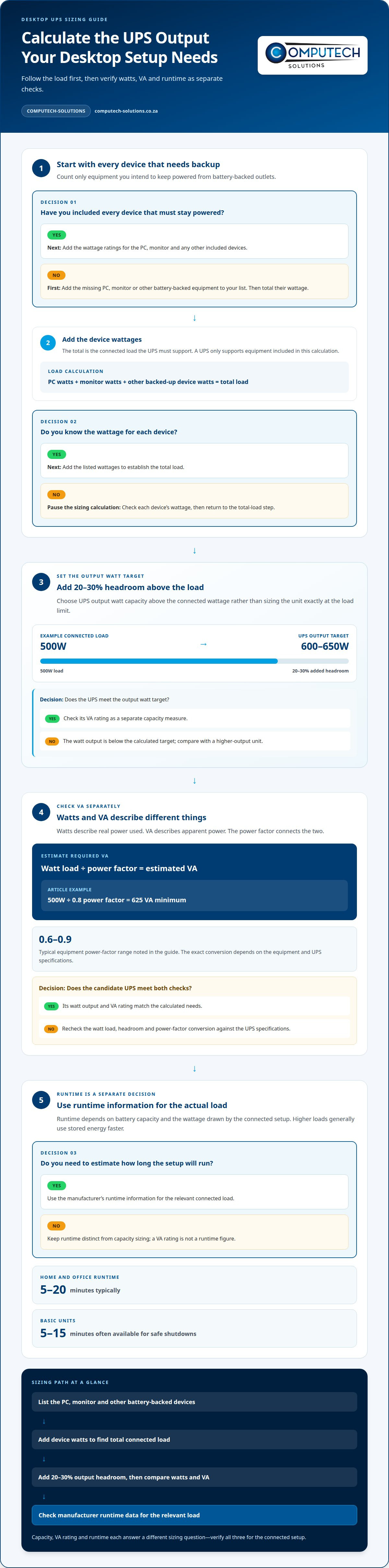
Start by listing the equipment that must stay powered during an outage: the desktop PC, monitor and any other devices connected to battery-backed outlets. Check each device’s wattage, then add the figures to estimate the total load. A UPS only supports the equipment included in that calculation.
For example, if the combined load is 500W, allow extra output capacity rather than choosing a UPS rated exactly for 500W. A useful guide is 20-30% above the connected wattage. That means a 500W load calls for 600-650W of UPS output capacity. The headroom helps accommodate load changes without sizing the unit at its limit.
Check watts and volt-amperes, or VA, separately. Watts describe the real power used by equipment, while VA describes apparent power. The power factor connects the two: divide the watt load by the power factor to estimate the required VA rating. For a 500W load and a 0.8 power factor, the minimum rating is 625 VA. Most equipment power factors typically range from 0.6 to 0.9, so the exact conversion depends on the equipment and UPS specifications.
Keep these steps in order:
- List the PC, monitor, and other devices needing battery backup.
- Add their wattage ratings to establish the total load.
- Increase that total by 20-30% for output headroom.
- Compare the UPS’s watt rating and VA rating with your calculated needs.
Runtime is a separate calculation. It depends on the UPS battery capacity and the wattage drawn by the connected setup; higher loads generally use stored energy faster. Use the manufacturer’s runtime information for the relevant load, rather than treating the VA rating as a runtime figure. Home and office UPS runtime is typically 5-20 minutes, while basic units often provide 5-15 minutes for safe shutdowns.
UPS batteries typically need replacement every 2-5 years, depending on the model. Replacement cost varies with the UPS and compatible battery type, so there isn’t one useful South African price for every setup. Keep vents unobstructed, follow the unit’s handling instructions, and use a designated battery-recycling route rather than putting spent batteries in household rubbish.
A brand name alone doesn’t establish warranty or service support in South Africa. Before choosing, compare the specific model’s local warranty terms, service arrangements and access to compatible replacement batteries.
2. Home and office UPS characteristics
A home or office UPS is designed to keep selected equipment running when input power fails. ETSI describes a UPS as using energy storage, such as batteries, to maintain power to connected loads. In South Africa, a battery-backed unit can therefore help keep selected equipment running during load shedding.
Typical home and office units are rated between 650 and 1500 VA. That range covers different setups, but the rating alone doesn’t tell you how long a desktop PC will run. Runtime depends on the connected load and the model’s battery capacity. A PC with its monitor connected draws more power than the PC alone.
Many home and office units are line-interactive. They respond to changes in input voltage and switch to battery when the voltage falls outside safe limits. This can help manage common power fluctuations while providing backup during an outage. The exact response depends on the UPS design and operating conditions.
Can a UPS protect a desktop PC from South African load shedding and power surges? A battery-based UPS can keep a computer powered during an input failure, giving you time for a controlled shutdown. Surge protection depends on the unit’s stated protection features, so battery backup alone doesn’t confirm that it offers surge protection.
Output waveform is another feature to consider. Some higher-end home and office models provide sine-wave output, but it isn’t always required for PC loads. Match the output type to your equipment’s requirements. A standard desktop setup, for example, may have different needs from specialised equipment that specifies sine-wave input.
Check the outlet layout before choosing a model. Find out which sockets provide battery backup and which, if any, offer surge protection only. Connect the PC and monitor to battery-backed outlets if both need to stay powered during an outage. Avoid adding equipment that isn’t part of the intended backup load.
For an unreliable or erratic electrical supply, the Food and Agriculture Organization of the United Nations notes that battery-based backup may be required. In practice, choose a unit for the equipment it must support, then assess its topology, battery capacity, output and outlet arrangement. These features help determine whether it suits a desktop setup or a broader office load.
If you’re also selecting a computer for your setup, you can discuss desktop computer options alongside your backup requirements.
Check the UPS’s stated input-voltage requirements against the available wall outlet before choosing a unit. This makes the wall outlet rating a practical compatibility check when planning a desktop setup. Confirm that the outlet available where the UPS will sit matches this requirement. Outlet compatibility is separate from questions about backup runtime, supported load and protection features, so review those characteristics for the equipment as well. Keeping these checks distinct helps ensure the selected unit fits both the available supply and the devices it is meant to support.
3. Line-interactive and online UPS topologies
Topology describes how a UPS handles incoming electricity before delivering power to connected equipment. For a desktop PC, the main options to compare are line-interactive and online double-conversion designs. Both provide battery backup, but they handle changes in the incoming supply differently.
A line-interactive UPS supplies connected equipment from the input while monitoring voltage. It switches to battery when the input voltage falls outside safe limits. This can suit environments with fluctuating supply, including during South African load shedding. For typical home and office use, line-interactive systems are usually sufficient.
An online double-conversion UPS continuously powers connected devices through its inverter. Rather than relying directly on the input, the equipment receives power through this conversion path. This topology is designed for settings where consistent power is especially important, such as data centres and critical infrastructure.
The practical difference is how each topology conditions power. A line-interactive design responds when voltage moves beyond its safe operating range. An online design keeps the inverter between the supply and connected equipment continuously. Neither topology changes the need to size output capacity for the full connected load.
For a home desktop, a line-interactive unit is generally a proportionate starting point. It provides battery support during a power failure without using a topology mainly suited to critical infrastructure. An office with essential equipment may have different continuity needs. Consider what must stay powered and how costly an interruption would be.
Use these decision points to compare the two designs:
- Choose line-interactive when the UPS supports a desktop PC and ordinary home or office equipment.
- Consider online double-conversion when equipment operates in a data centre or supports critical infrastructure.
- Match the topology to the load by identifying which devices need continuous backup.
- Keep capacity separate from topology, since the design type doesn’t establish how much watt output or runtime the setup needs.
Topology alone doesn’t determine runtime. Battery capacity and connected load affect how long equipment stays powered, while the topology describes how the UPS processes incoming electricity. Compare the manufacturer’s information for the specific model and load rather than assuming every unit with the same topology behaves identically.
For a desktop PC in South Africa, a line-interactive unit is usually suitable for home or office use. Online double-conversion is designed for data centres and critical infrastructure where continuous inverter power is required. Choose based on the equipment’s role, the consequences of interruption and the UPS specifications for your setup.
4. Monitoring and management features
Monitoring features help you understand a UPS’s operating state. A display may show battery condition, load level, input status or estimated runtime. These readings can help explain why a desktop shuts down sooner than expected. Treat runtime as an estimate because the connected load affects how long battery power lasts.
Start with the information you’ll need during an outage. A load indicator shows whether connected equipment is approaching the unit’s capacity. A battery indicator may show the charge state or signal a battery issue. For a desktop and monitor, these readings can help distinguish a heavy load from a battery that needs attention.
Audible alarms offer another way to notice a change while you’re working. Depending on the UPS, an alarm may signal a power failure, low battery or overload. Read the model’s alarm descriptions so you know what each tone means. If an overload warning appears, disconnect equipment that doesn’t need battery backup.
Some models connect to a computer for status monitoring or controlled shutdown. Check whether the UPS has a compatible data connection and whether its management software supports your operating system. A shutdown feature can help close the computer safely as battery power runs low, but it needs correct setup and compatibility.
Management tools are most useful when they answer a practical need. Before choosing, decide whether you need status information at the UPS, alerts on the computer or automatic shutdown. A home PC used for occasional documents may need only clear indicators. An office workstation handling unsaved work may benefit from computer communication and shutdown controls.
Use this feature checklist when comparing models:
- Readout: Identify whether the display shows load, battery state, and input status.
- Alerts: Check which conditions trigger audible or on-screen warnings.
- Computer connection: Confirm the connection and software support the computer’s operating system.
- Shutdown control: Determine how the unit signals the computer before battery power runs low.
- Battery information: Look for indicators that help identify battery condition or replacement needs.
Management features don’t increase the UPS’s watt capacity or battery runtime. They make the unit’s status easier to interpret and can help you decide when to shut down. For example, an estimated runtime display is useful only when considered alongside the actual load connected to battery-backed outlets.
Choose features that suit your desktop routine, not the longest feature list. A clear load reading and understandable alerts may be enough for a basic PC setup. If preserving unsaved work matters, prioritise compatible shutdown management. Check the model’s manual to understand each indicator, since displays and alarm behaviour vary.
5. Selecting UPS capacity for a desktop computer
Choose capacity from the equipment’s actual watt draw, not the PC’s advertised power supply rating. Add the desktop, monitor, and any other device that needs battery backup. Then select UPS output watt capacity 20-25% above that combined load. The extra capacity provides headroom while keeping the unit from being sized exactly to the load.
Watts and VA describe different parts of the UPS rating. Watts measure usable output power; VA measures apparent power. The power factor links them, and most equipment typically ranges from 0.6 to 0.9. Check both UPS ratings, because a high VA figure alone doesn’t guarantee enough watt output for your desktop and monitor.
What UPS capacity in VA and watts suits a desktop PC and monitor? First total their wattage, add 20-25% headroom, then divide the resulting watt requirement by the equipment’s power factor to estimate VA. A suitable model must meet or exceed both calculated requirements.
For a practical comparison, use this sequence:
- Identify the wattage drawn by the PC and monitor under the intended operating setup.
- Add the wattage of other equipment that must stay on during an outage.
- Increase the combined load by 20-25% to establish the minimum output watt capacity.
- Use the power factor to estimate the required VA, then compare both figures with the UPS ratings.
- Review runtime for the expected load, since capacity ratings don’t state how long the battery will last.
Home and office models commonly fall within 650-1500 VA, but that range isn’t a recommendation for every desktop. A low-load office PC and a higher-draw workstation can require different output. Graphics cards, additional screens, and connected peripherals change the total. Choose against the actual equipment combination, not the computer category alone.
How much do desktop PC UPS units cost in South Africa? Prices vary by rated watt and VA capacity, battery runtime, topology and management features. Compare units that meet your calculated requirements instead of treating the lowest price or largest VA number as the best value.
Runtime is a separate selection decision. A typical home or office UPS provides 5-20 minutes, depending on load and model. Basic units often provide 5-15 minutes for safe shutdowns. If your priority is saving work and shutting down, assess runtime at your actual load. Longer operation requires a model whose battery capacity supports that demand.
Use the capacity calculation to narrow your options before comparing management tools or topology. For help matching a desktop setup to UPS capacity, discuss your desktop computer requirements.
Computech-Solutions: Desktop Computers
Computech-Solutions sells desktop computers for customers choosing or upgrading a PC setup. If your current computer no longer suits your work, consider your software and workload when selecting a desktop. This can help you plan appropriate backup capacity from the outset.
Once you have a desktop, its actual power draw, monitor and other connected equipment determine the required UPS output. Use those devices’ requirements to compare UPS capacity and runtime rather than assuming every desktop has the same load. This ties your backup choice to the equipment you’ll rely on during an outage.
For help choosing a desktop computer to suit your needs, contact Computech-Solutions.
Make backup planning part of your next PC decision
Treat backup planning as part of choosing or updating your desktop, rather than a separate decision after installation. Adding displays or other equipment as your workload changes can alter the setup that needs backup. Keep a simple record of your computer and connected devices so you can review your power needs after an upgrade.
Choosing UPS backup power for a desktop PC in South Africa means matching the backup to your equipment and how you use it. Decide what needs to stay powered, what can shut down and how you want to manage interruptions. These priorities give you a practical basis for choosing your next step without paying for features your setup doesn’t need.
For help choosing a desktop computer that fits your needs, contact Computech-Solutions about desktop computers. A considered setup is a strong starting point for keeping your work supported.
Frequently Asked Questions
What size UPS do you need?
Choose a UPS whose watt output exceeds the combined draw of your desktop, monitor, and any other equipment requiring backup. For ups backup power for a desktop PC in South Africa, a useful sizing target is 20-25% extra watt capacity. Then check the VA rating as well, since it must also suit the connected load. If you add another monitor later, recalculate the total before connecting it.
Which UPS types are best for desktop PCs: standby, line-interactive, or online?
For most home and office desktop setups, line-interactive is usually suitable. It switches to battery when input voltage falls outside safe limits. A standby UPS normally supplies power from the mains and switches to battery when mains power fails, making it a simpler option for basic backup needs. Online double-conversion continuously powers devices through its inverter and is suited to data centres and critical infrastructure.
How often should UPS batteries be replaced, and what do replacements cost in South Africa?
UPS batteries typically need replacement every 2-5 years, depending on the model. Replacement costs vary by UPS and compatible battery type.
Which UPS brands have reliable warranty and service support in South Africa?
A brand name alone doesn’t establish warranty or service support. Compare the specific model’s local warranty terms, service arrangements and access to compatible replacement batteries.
