
Your HP laptop boots up but then slows down or glitches at the worst moments. This isn’t just annoying—it can halt your work and cause stress. The quickest way to fix this starts with the HP Support Assistant already installed on your device. Running this tool helps you check driver updates, BIOS, and battery health so you can spot problems early and decide if it’s time for a new battery or charger. Learn more about HP Support Assistant.
Quick Fixes for Slow HP Laptops
When your HP laptop starts to drag its feet, it’s important to recognize the signs early and take action. This section will walk you through common symptoms and initial steps using the HP Support Assistant.
Common Symptoms of Slow Performance
You might notice your laptop taking longer to boot up or apps not responding as quickly as they used to. These performance issues can escalate, causing frustration. A slow laptop may frequently freeze, making tasks feel like a race against time. You might also hear the fan working harder than usual, which indicates the device is under strain. If these issues persist, it’s time to dig deeper.
First Steps with HP Support Assistant
When your laptop acts up, the HP Support Assistant is your first line of defense. This built-in tool is designed to make troubleshooting a breeze. To start, open the software and navigate to the “Updates and Tune-ups” section. Here, you can check for any pending driver or BIOS updates that might be causing the slowdown. You might be surprised how often a simple update resolves lingering issues. For more guidance, check out this discussion on common problems with HP Support Assistant.
Using HP Support Assistant Effectively
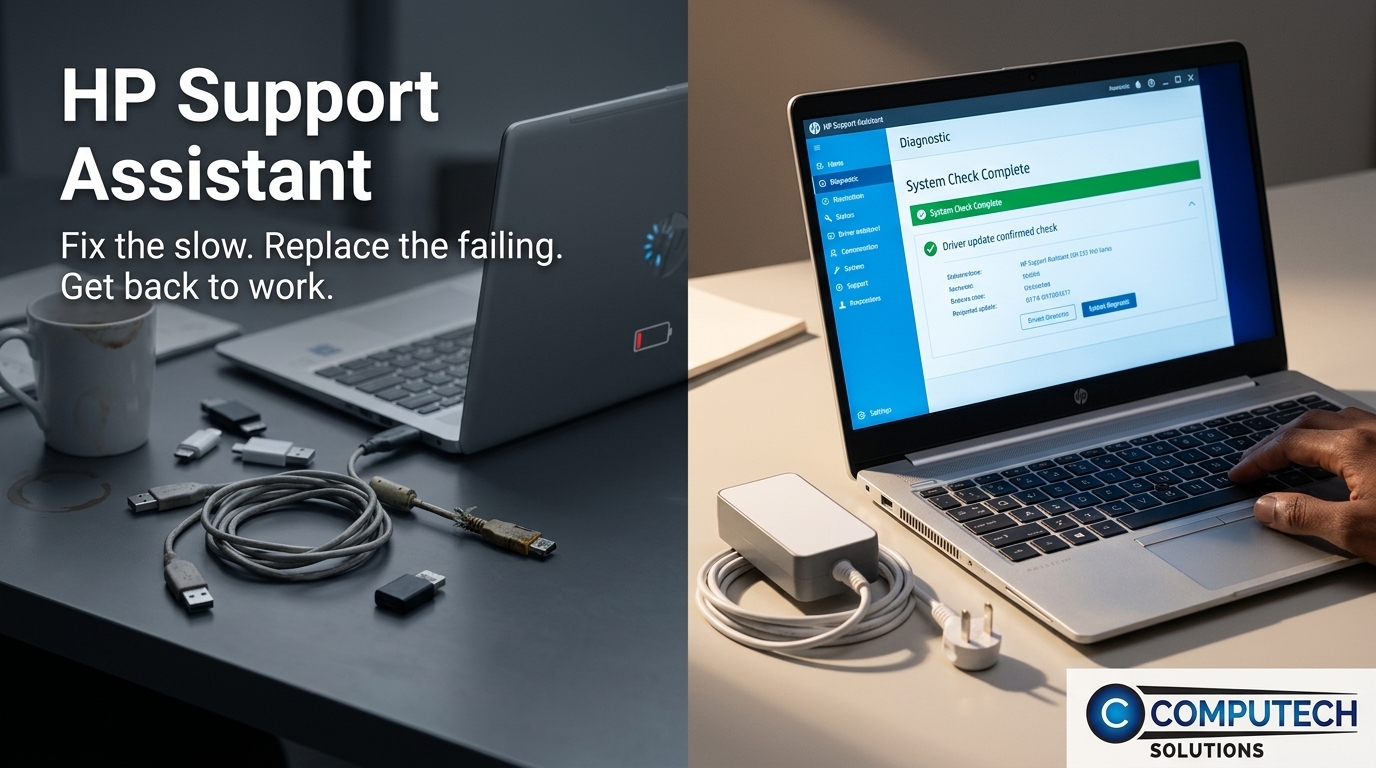
Taking full advantage of the HP Support Assistant can turn your sluggish laptop into a faster, more reliable machine. This section dives into updating drivers and running diagnostics.
Updating Drivers and BIOS
Keeping your drivers and BIOS up-to-date is key to optimal laptop performance. Outdated drivers can cause compatibility issues, leading to slowdowns. Open the HP Support Assistant and check for updates. If updates are available, follow the prompts to install them. This process is typically quick and can dramatically improve your device’s speed. Regular updates also ensure your system runs smoothly with any new software you install. For step-by-step help, visit this troubleshooting guide.
Running Diagnostics for Quick Insights
Running diagnostics can pinpoint problems that updates alone might not fix. The HP Support Assistant includes tools to run a full system check. Look for any alerts about hardware or software issues. These diagnostics can reveal whether your laptop’s battery or charger might be contributing to the slowdown. This insight helps you decide if it’s time to replace these components, ensuring your laptop runs without interruptions. For further troubleshooting tips, read this thread on HP Support Assistant issues.
Identifying When to Replace Parts
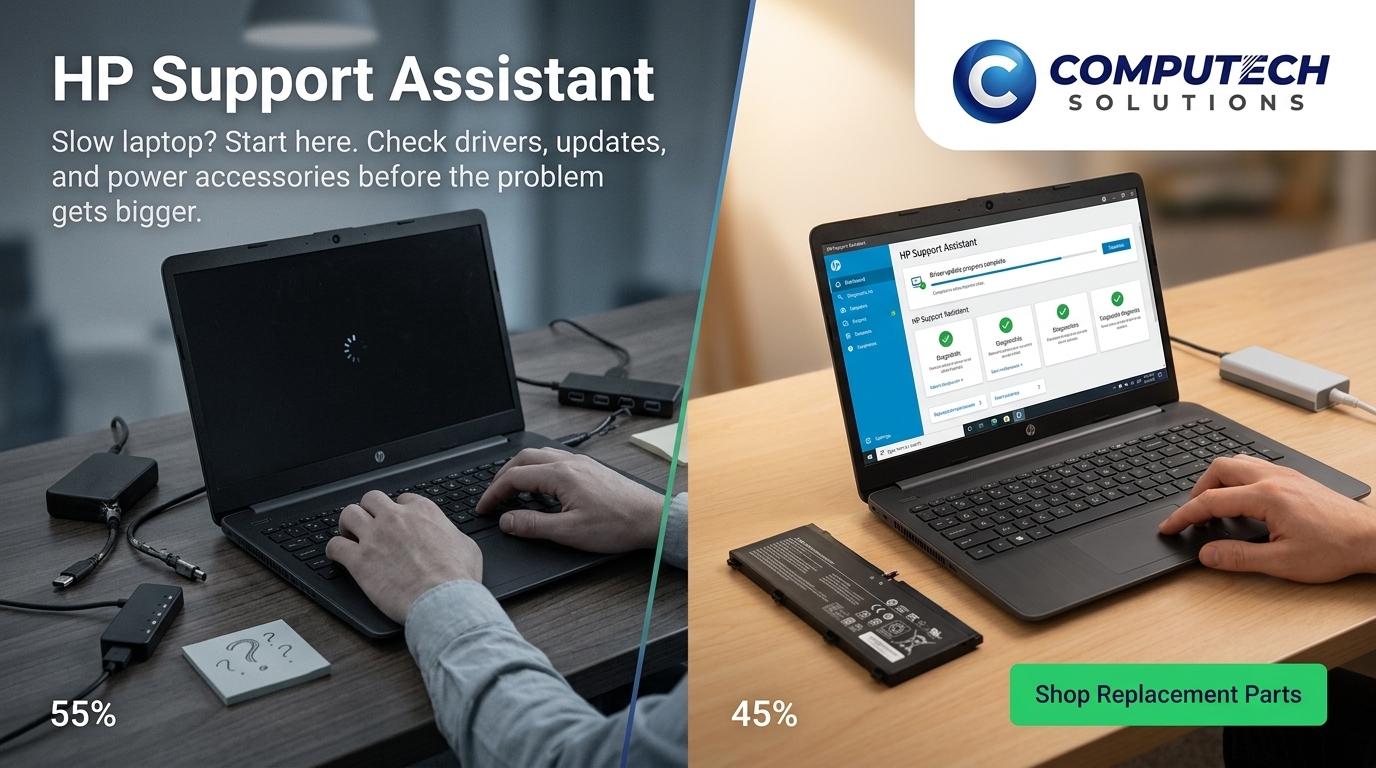
Sometimes, software fixes aren’t enough. If your laptop’s performance issues persist, a hardware component might be failing. Let’s explore how to identify these common issues.
Signs of a Failing Battery
A battery that drains quickly or doesn’t hold a charge can slow down your laptop. If your device shuts down unexpectedly or needs frequent recharging, the battery might be the culprit. You can check the battery health using the HP Support Assistant. If it indicates the battery is worn out, consider replacing it with a high-quality generic option. For more information on choosing the right battery, visit our guide on laptop battery compatibility.
Recognizing Charger Issues
A faulty charger can mimic battery problems. If your laptop doesn’t charge properly or the charging cable heats up excessively, the charger might be failing. Ensure the power adapter and cable are in good condition. If issues persist, replacing the charger could solve your problems. We offer reliable, generic replacements for HP chargers. Learn more about compatible parts and backup options in our post on HP Support, Simplified.
Frequently Asked Questions
1. How do I update my HP laptop drivers?
Open the HP Support Assistant, go to “Updates and Tune-ups,” and follow the prompts to install any available updates. This keeps your system running smoothly with the latest software.
2. What does the HP Support Assistant do?
The HP Support Assistant helps troubleshoot issues, update drivers, and run diagnostics to improve laptop performance. It’s a built-in tool designed for quick problem-solving.
3. How can I tell if my HP laptop battery needs replacing?
If your laptop frequently shuts down, doesn’t hold a charge, or the HP Support Assistant indicates poor battery health, it’s time for a replacement.
4. Why is my HP laptop running slowly?
Common reasons include outdated drivers, failing hardware like batteries or chargers, and background processes consuming resources. Use the HP Support Assistant to identify and resolve these issues.
5. Where can I buy replacement parts for my HP laptop?
You can purchase high-quality generic replacements for batteries and chargers from Computech Solutions, ensuring reliable performance and compatibility.
