
The price ceiling alone won’t tell you which laptop is the better fit. With laptops under R10,000 in South Africa, the right choice depends on how the design, memory, storage, operating system, processor and display match your everyday tasks. A lower price can mean trade-offs in one or more of these features, so compare the full specification rather than focusing on a single headline detail.
It’s understandable to want a laptop that feels responsive, has enough room for your files and suits the way you work or study, without stretching your budget. This guide explains what to look for in each key feature and how those differences can affect practical use, from portability and multitasking to screen comfort and software compatibility.
Key Takeaways
- Compare portability and build choices with how often you’ll carry the laptop and where you’ll use it.
- Match memory and storage to your multitasking needs and the files or applications you plan to keep on the device.
- Consider operating system compatibility with the software and tasks you rely on before choosing.
- Assess processor capability alongside your workload, and compare screen size and resolution for comfort and clarity.
- If an Acer laptop needs a replacement battery, Computech-Solutions offers Acer Replacement Laptop Batteries.
Laptop weight and design
For laptops under R10,000 in South Africa, portability depends on more than the screen’s appearance. Compare the listed weight, chassis materials, hinge design and included charger. A compact model may suit daily commuting, while a larger laptop can provide a roomier keyboard and display. Choose around the way you’ll carry and use the device.
Start with your regular routine. If you move between home, campus and work, compare each laptop’s stated weight and the charger’s size, since both go into your bag. A lighter device may be easier to carry, but a slim design can mean fewer ports or a smaller keyboard. Review the product images alongside the specification details.
Next, consider the parts you’ll use every day. If possible, open and close the hinge and check that the screen stays in position. Make sure the keyboard layout suits your documents, email or spreadsheets. For example, someone who regularly enters figures may prefer a dedicated number pad, while a commuter may value a compact design.
Consider the casing and serviceability, too. A metal finish feels different from plastic, but appearance alone doesn’t prove durability. Look for firm keyboard support, a screen that stays steady during normal typing and ports positioned so your mouse or charger won’t crowd your workspace. These details can affect comfort during long study or work sessions.
Should I choose a new, refurbished, or used laptop under R10,000? Choose new for an unused device and its stated manufacturer coverage; consider refurbished for a professionally restored machine; choose used only when its condition, battery behaviour and included accessories suit your needs. Compare the actual unit’s condition and specifications, not just its category.
For a refurbished or used laptop, inspect the casing for cracks, loose hinges and damaged corners. Test the keyboard, touchpad, webcam and charging connection, and check for screen marks that remain visible when the display is on. A clean exterior can hide worn parts, so test the main functions before buying.
What extra costs, such as delivery or software, should I consider when buying a laptop in South Africa? Add delivery, required software licences and accessories your setup needs, such as a mouse, laptop bag or external storage. The total depends on delivery terms, the software you use and what’s included with the laptop.
Finally, match design to your working environment. A laptop used mainly at a desk may not need the lightest chassis; a device carried daily should fit comfortably in its bag. Check the charger, port placement and keyboard layout before comparing models. That practical assessment helps you spend the R10,000 budget on features you’ll use.
Memory and storage
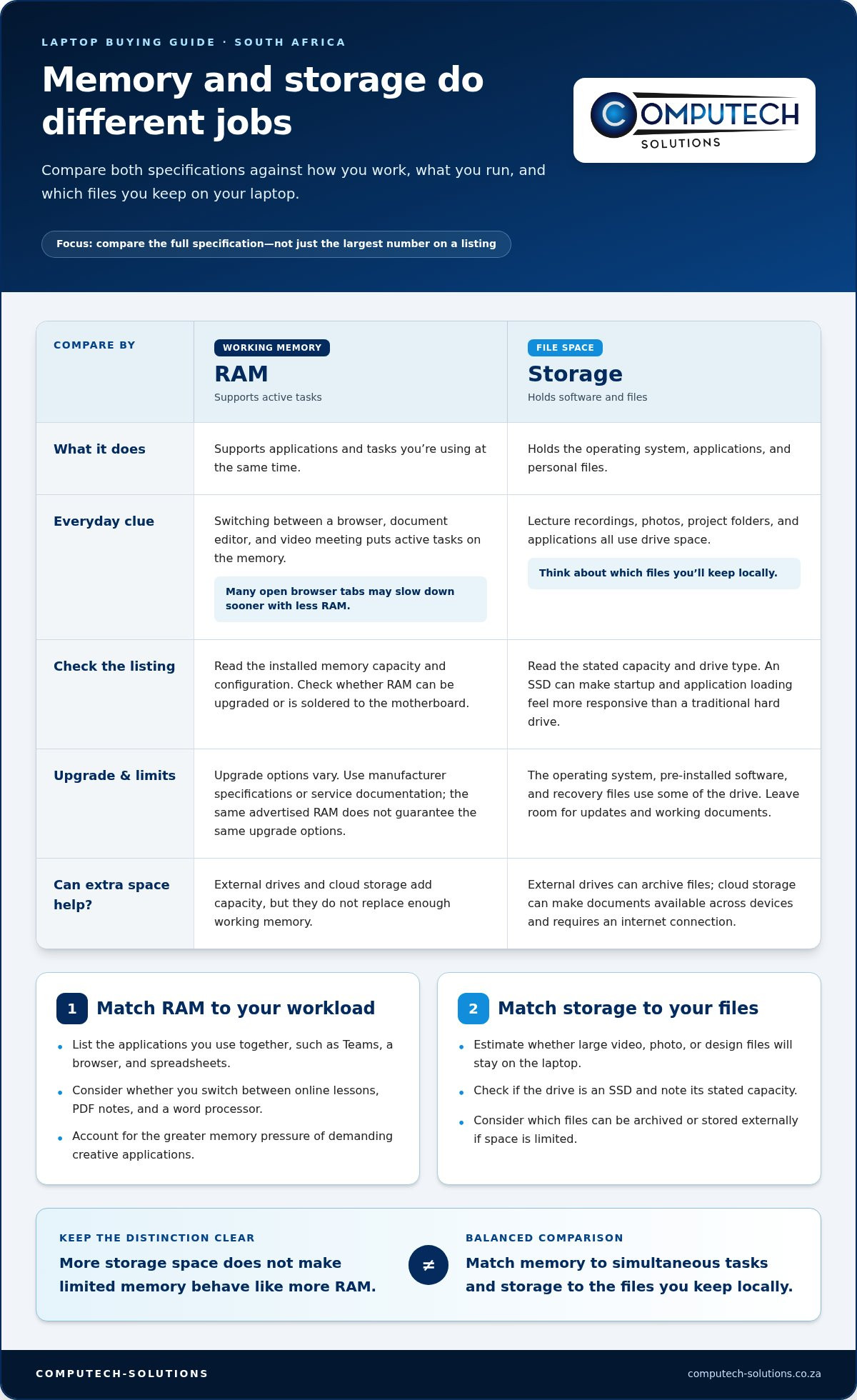
Memory and storage affect different parts of everyday laptop use. Memory, usually listed as RAM, supports active tasks such as running a browser, document editor and video meeting together. Storage holds the operating system, applications and personal files. Compare these specifications separately: a large storage drive doesn’t make limited memory behave like more RAM.
Start with your workload. A learner switching between online lessons, PDF notes and a word processor needs enough memory to keep those applications responsive. Someone with many browser tabs open may notice slowdowns sooner on a laptop with less RAM. For email and documents, prioritise smooth multitasking; demanding creative applications place greater pressure on memory.
Check the listing for the installed memory capacity and configuration. Some laptops allow a memory upgrade, while others have RAM soldered to the motherboard. This determines whether you can expand capacity later. Look at the manufacturer’s specifications or service documentation, and don’t assume that two laptops with the same advertised RAM offer the same upgrade options.
Storage capacity determines how much space remains for files after the operating system and applications take their share. A student saving lecture recordings, photos and project folders needs more room than someone who stores most documents online. Check the drive type as well as capacity. An SSD can make startup and application loading feel more responsive than a traditional hard drive.
Use these practical checks while comparing options:
- List the applications you use together, such as Teams, a browser and spreadsheets.
- Estimate whether large video, photo or design files will stay on the laptop.
- Check whether storage is an SSD, and read the stated capacity carefully.
- Look for upgrade information before treating memory or storage as expandable.
- Confirm which files can be archived or stored externally if space is limited.
Remember that advertised storage isn’t all available for your files. The operating system, pre-installed software and recovery files use some of the drive. Leave room for updates and working documents rather than planning to fill it completely. A laptop for coursework, for example, may need space for applications, downloaded readings and saved assignments.
External drives and cloud storage can add capacity, but they don’t replace enough working memory. An external drive can archive photos or completed projects; cloud storage can make documents available across devices. Both need to fit your workflow, and cloud services require an internet connection. Choose a laptop whose built-in memory and storage suit your regular tasks first.
For a balanced comparison, match memory to the applications you run at once and storage to the files you keep locally. Then check upgrade options and drive type. This helps you identify which specification matters most in daily use, rather than choosing a laptop simply because its listing shows the largest number.
Operating system
The operating system affects how you install applications, manage files and connect accessories. Compare Windows, ChromeOS and Linux against your daily tasks, not just the laptop’s processor or memory. A learner using Microsoft Word for assignments, for example, may need a different setup from someone who mainly uses Google Docs in a browser.
Start by listing the software you rely on. Check whether your work requires a desktop application, a web app or a specific operating system. Microsoft 365, Google Workspace and industry-specific tools can have different versions and features across platforms. Confirm that your essential applications work on the laptop’s installed system before you decide.
ChromeOS is designed around Google services and browser-based work. A Chromebook can suit tasks such as Google Docs, Gmail and online learning portals. Consider how often you need to work offline and whether your required applications have suitable ChromeOS versions. If you rely on a specialised Windows accounting program, for example, check compatibility before choosing a Chromebook.
Linux offers a flexible operating system with different distributions and interfaces. It can suit users comfortable installing software and managing settings themselves. Check that your required applications, printers and other peripherals support the Linux distribution on the laptop. A familiar application may have a web-based alternative, but its functions may differ from the desktop version.
Use this short comparison before purchase:
- Write down the applications needed for study, work and personal tasks.
- Identify whether each application requires Windows, ChromeOS, Linux or a browser.
- Check compatibility with devices such as your printer or external monitor.
- Note any software licence or subscription costs outside the laptop purchase.
- Confirm the installed operating system and included setup details in the listing.
Consider the first-use experience, too. A Windows laptop may ask you to complete account and privacy settings during setup. ChromeOS commonly centres setup on a Google account, while Linux setup varies by distribution. Allow time to connect to Wi-Fi, install updates and sign in to essential services before a class or work deadline.
For laptops under R10,000 in South Africa, the most useful operating system is the one that runs your core software without creating extra setup work. Match compatibility, offline access and software expenses to your actual routine. That comparison helps you avoid choosing a system that looks suitable on paper but disrupts your established workflow.
Processor options
The processor, or CPU, handles instructions from applications and the operating system. Its importance depends on your workload, not just its name. A laptop for email, Google Docs and online lessons has different demands from one running photo-editing software or several business applications at once.
Start by identifying the exact processor model in each laptop listing. Intel and AMD make processors for different performance needs, and a brand name alone doesn’t show how a particular chip compares. Note the full model designation, then compare laptops in the same price range using manufacturer specifications instead of relying on labels such as “fast” or “powerful.”
Think about the tasks you run at the same time. A browser with multiple tabs, a video meeting and a spreadsheet place more combined demands on the CPU than a single word-processing document. For basic tasks, prioritise a balanced laptop rather than paying for processing capacity you won’t use. For heavier applications, compare the processor details with the software’s requirements.
Processor specifications can include core count, clock speed and power characteristics. These details describe a chip, but no single figure tells the whole story. A higher clock speed doesn’t automatically make one laptop better, because cooling, power limits and design affect sustained performance. Compare complete configurations and check the intended-use information for each processor.
Integrated graphics also matter. Many everyday laptops use graphics built into the processor for video playback, presentations and basic visual tasks. This can suit online learning or office work. Applications involving advanced 3D rendering or demanding games have different graphics needs, so review their requirements rather than assuming every processor handles them equally well.
Use this comparison process:
- Write down your main applications, such as Microsoft Excel, Zoom or a photo editor.
- Check each application’s processor requirements and operating-system support.
- Compare the complete Intel or AMD processor model, not the brand name alone.
- Consider whether your usual tasks run together or one at a time.
- Review independent performance tests for the exact laptop configuration, if available.
Power use can affect operating temperature and battery consumption. A processor designed for a thin notebook may balance responsiveness with energy efficiency, while a performance-focused configuration may need more cooling. Repeated video exports, for example, keep a CPU busy longer than editing a short document. The laptop’s cooling design affects how consistently it can handle that workload.
For laptops under R10,000 in South Africa, compare the processor alongside memory, storage and your software needs. Choose based on the tasks you perform regularly, not on a processor label in isolation. That method helps you distinguish suitable everyday performance from specifications that add little value to your particular workload.
Screen size and display resolution
Screen size affects viewing space and portability, while resolution describes image detail. Compare both against tasks such as reading, spreadsheets and video calls before choosing.
Screen size
Screen size measures the display diagonally, so it doesn’t show the laptop’s full width or height. A larger screen can make side-by-side windows in Microsoft Excel easier to use, while a smaller display may suit a compact desk or bag. Compare the listed screen size with the laptop’s overall dimensions and keyboard layout.
Think about where you’ll work. If you often review PDFs beside notes, more screen area can reduce window switching. If you use a laptop on a crowded lecture desk, a compact design may be easier to position. For online meetings, consider how the screen fits your usual viewing distance and whether the laptop can connect to an external monitor.
Consider scaling and text size, too. Smaller interface elements leave more room for content but may feel tiring during long reading sessions. If you can view a model in person, open a familiar page, such as a Google Docs document. Check that menus, text and controls are comfortable to read at your usual distance.
Display resolution
Resolution is the number of pixels arranged across the screen’s width and height. More pixels can show finer detail, but the result also depends on screen size, panel quality and software scaling. Compare the stated resolution in each listing rather than assuming displays of a similar physical size look equally sharp.
For writing assignments or browsing, clear text matters more than an impressive specification. A higher-resolution panel can make small fonts and detailed images appear sharper. However, operating-system scaling may enlarge interface elements and change how much content fits onscreen. Check a sample document and website at the settings you expect to use.
Screen finish and viewing angles affect comfort, too. A glossy panel can reflect a bright window, while a matte finish can reduce distracting reflections. An IPS panel generally supports broader viewing angles than a basic TN panel, which can help when showing a presentation to someone beside you. Check the panel type and finish in the product specifications.
Use a simple comparison: identify your main screen task, compare size and resolution, then assess text clarity and reflections. A learner reading PDFs in a bright room, for example, may prioritise legibility and glare control over maximum pixel detail. Someone editing images should also inspect colour appearance.
Review the display specifications alongside the device’s other features before deciding. Discuss laptop display options to help narrow your comparison.
Computech-Solutions: Acer Replacement Laptop Batteries
Computech-Solutions offers Acer replacement laptop batteries for situations where your laptop’s battery no longer supports your daily routine. Replacing the battery may address battery-related limitations without requiring you to choose a different laptop. Before selecting one, identify your Acer model and battery part number to match the replacement to your device.
Computech-Solutions also offers replacement laptop batteries for Apple, Dell and HP devices. If your current laptop’s runtime is affecting study or work, explore a replacement battery for its brand instead of making a purchase decision based on runtime alone.
Explore Computech-Solutions’ laptop battery options at computech-solutions.co.za.
Make Your Next Laptop Decision With Confidence
Choosing among laptops under R10,000 in South Africa is a chance to focus on the setup that supports your next stage of work or study. Think beyond the initial purchase: a device that meets your needs today should also fit how you expect to use it as your tasks evolve. If your current laptop still suits your routine, replacing a worn battery may be worth considering alongside a full replacement.
Computech-Solutions offers Acer, Apple and ASUS Replacement Laptop Batteries, giving you options for these laptop brands when battery replacement is relevant. For help with your next step, contact Computech-Solutions to discuss its laptop options.
Match your choice to your real priorities. With a clear shortlist and the right support, you can make your decision with greater confidence.
Frequently Asked Questions
What are the best options right now?
The best choice is the model that fits your main tasks and stated budget, not a single universal pick. For laptops under R10,000 in South Africa, compare current listings and shortlist devices that meet your software needs and include the essentials for your setup. A home-based learner may prioritise a comfortable keyboard, while someone carrying a laptop daily may favour a compact design.
What prices and specifications should I compare?
For laptops under R10,000 in South Africa, compare live listings against your budget because prices and specifications vary by model and seller. Check the exact processor, installed memory, storage type and capacity, operating system, screen size and resolution. Also note what the listing includes, such as a charger or bundled software. Include delivery and any separately purchased software in your total budget.
Which laptops have the best performance for everyday use?
Choose a laptop that handles your routine smoothly, including your browser, documents and work applications. List the programs you use during a typical morning, then check whether each candidate supports them. If possible, try a sample document and video call on the device. This shows how well it fits your workflow beyond its model name.
What are the best laptops for students in South Africa?
The best student laptop supports the software and online systems required for the course. Review course guidance for specialist applications, assessment platforms and file formats before choosing. A design student may need different capabilities from someone who mainly reads notes and prepares written assignments. Consider, too, whether coursework must be completed offline, such as during a commute or power interruption.
