
Your desktop drags through boot-up and everyday tasks, making work and study frustrating. The culprit is often a slow storage drive, not the whole machine. A fast SSD upgrade targets this bottleneck directly, cutting load times and speeding up your desktop without the need for a full replacement. In this guide, you’ll learn how to spot the storage problem and pick the right SSD to get your system running smoothly again. For a discussion on related issues, check out this post on Reddit.
Identify Storage as the Culprit
Solving the problem of a sluggish desktop starts with identifying the true bottleneck. Often, the storage drive is the main cause. Let’s break this down.
Frustration with Slow Boot Times
If your desktop takes ages to start, you know the frustration. You press the power button, and it feels like forever before you can actually begin working. This delay isn’t just annoying; it’s a clear sign that your storage drive might be the issue. Traditional hard drives can be the main culprits, especially when they’re older or nearly full.
Recognising the Storage Bottleneck
You might think your entire computer is slow, but often it’s just the storage. When opening apps or files takes too long, it’s time to look at the drive. An SSD upgrade can noticeably speed up your system. SSDs read and write data much faster than traditional drives, meaning quicker boot times and faster loading of applications and files.
Common Misconceptions About Desktop Speed
Many people assume their whole computer needs replacing when it’s just slow storage holding it back. Some believe upgrading RAM is the solution, but if storage is the bottleneck, more RAM won’t help much. An SSD is the more impactful choice for storage-related slowdowns. For more insights, visit this post on Quora.
Choosing the Right SSD
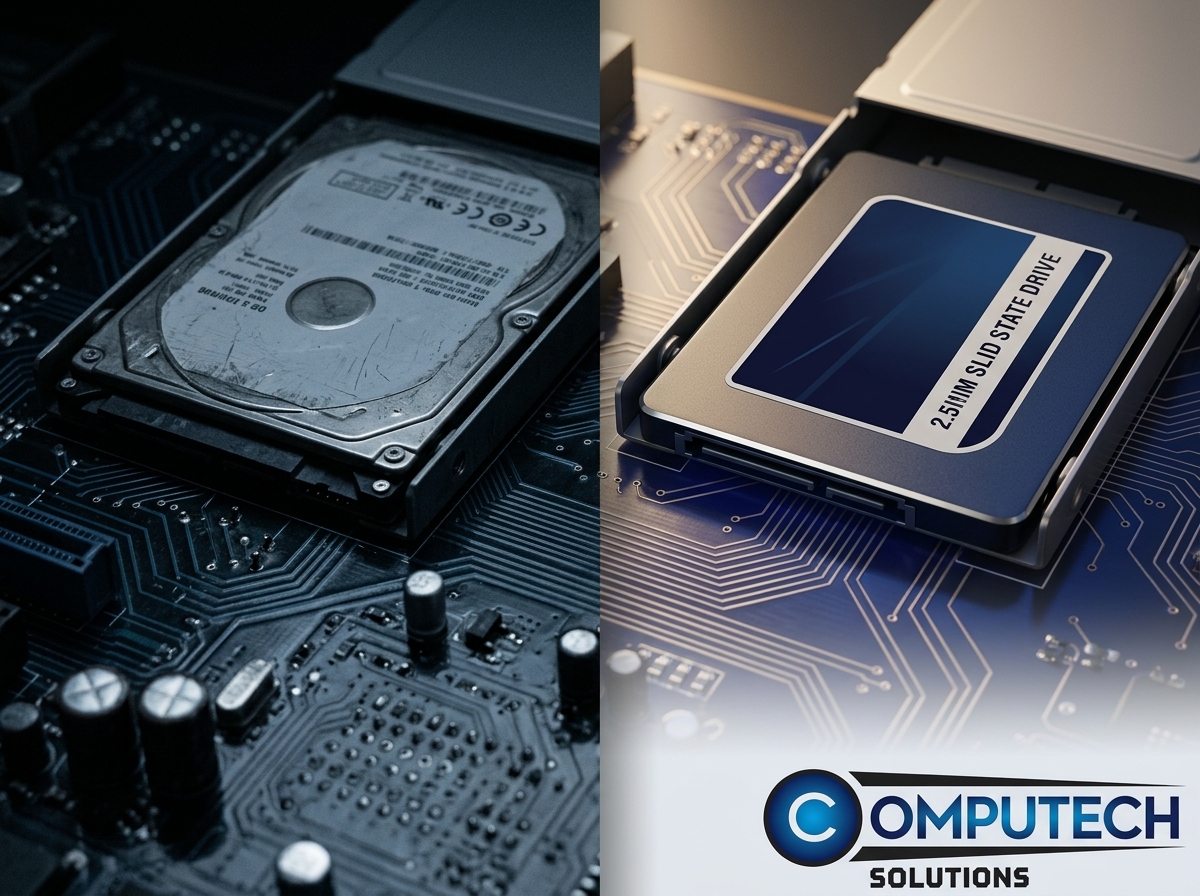
Once you’ve identified the issue, the next step is choosing the right SSD to fix it. Here’s how to make the best choice for your system.
SATA SSD vs NVMe M.2 SSD
When upgrading, you have two main options: SATA SSDs and NVMe M.2 SSDs. SATA SSDs are generally more affordable and offer a significant speed boost over traditional hard drives. They’re great for older systems. NVMe M.2 SSDs, on the other hand, provide even faster speeds, but your motherboard must support them. They are ideal for newer systems or those requiring maximum performance.
Understanding PCIe 3.0 vs PCIe 4.0
Another factor to consider is the PCIe generation. PCIe 3.0 is common and sufficient for most users, offering good speed improvements. PCIe 4.0 doubles the data rate, making it perfect for high-performance needs like gaming or video editing. However, ensure your motherboard supports PCIe 4.0 if you choose this option.
Matching SSD to Your Motherboard
Before purchasing an SSD, verify compatibility with your motherboard. Check the available slots and interfaces. SATA SSDs fit into SATA slots, while NVMe M.2 SSDs require an M.2 slot. Confirming compatibility ensures you make the right choice without unexpected issues during installation. For more detailed guidance, read about the best SSDs.
Upgrade Your Desktop with Confidence
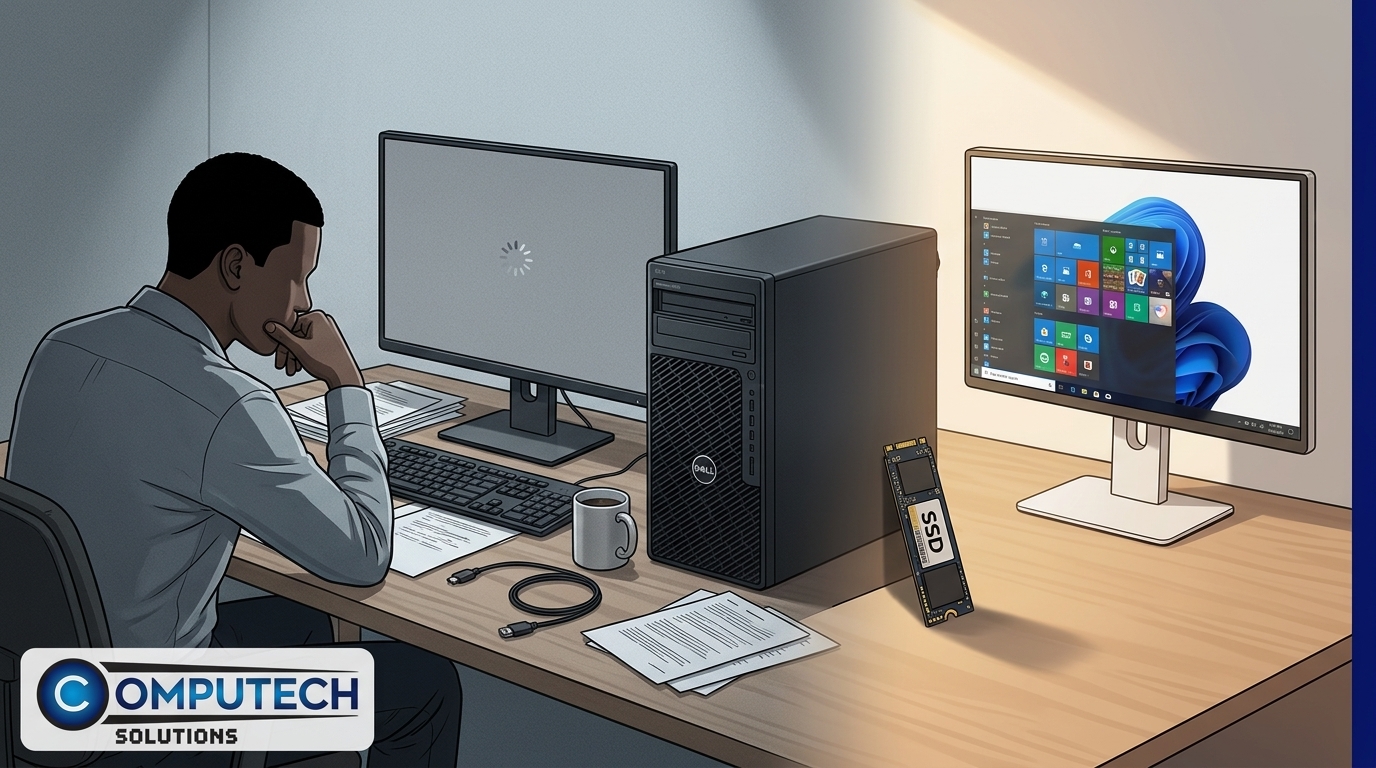
Equipped with the right SSD, you can now confidently upgrade your desktop. Here’s how to proceed smoothly.
Simple Steps to Clone HDD to SSD
Backup Data: Ensure all important data is backed up.
Clone the Drive: Use cloning software to copy your existing drive to the new SSD.
Install the SSD: Switch off your PC and install the SSD.
Set SSD as Boot Drive: Access BIOS settings to set the SSD as your main boot drive.
Ensuring TRIM Support and DRAM Cache
After installation, check for TRIM support on your SSD. TRIM helps maintain SSD performance over time. Also, ensure your SSD has a DRAM cache, which aids in speed and efficiency. These features ensure you get the most from your SSD upgrade.
Computech Solutions’ Back-to-School Deals
Now is the perfect time to upgrade with Computech Solutions. Enjoy back-to-school promotions on SSDs, ensuring you get great value. The longer you wait, the more time you spend with a slow system. Act now and enjoy a faster, more responsive desktop.
Frequently Asked Questions
What is the main benefit of upgrading to an SSD?
Upgrading to an SSD drastically decreases boot times and improves overall system responsiveness, making your desktop feel faster and more efficient.
How do I know if my desktop is compatible with an SSD?
Check your motherboard’s available slots and interfaces. SATA SSDs require SATA slots, while NVMe M.2 SSDs need M.2 slots. Refer to your motherboard’s manual for specifics.
Is it difficult to clone my current HDD to a new SSD?
Cloning is straightforward with the right software. Backup your data, use cloning software to transfer data, and set the SSD as your boot drive in BIOS settings.
Can upgrading to an SSD help with gaming performance?
Yes, an SSD can significantly reduce load times in games, providing a smoother gaming experience. It won’t increase frame rates but will improve loading speed.
Do SSDs last longer than HDDs?
SSDs generally have longer lifespans due to fewer moving parts. They are more durable and reliable over time compared to traditional hard drives.
