
Your laptop slows down just when you need it most. The screen dims, apps lag, and battery saver kicks in without warning. Learning how to turn off battery saver quickly can bring instant relief—but if it keeps happening, the real problem is your battery or charger struggling to keep up. Keep reading to find fast fixes and smarter power upgrades from Computech Solutions that get your laptop running at full speed again. Check out these power settings to better manage your battery.
Disable Battery Saver Quickly
How to Turn Off Battery Saver
If you’re tired of your laptop slowing down, turning off the battery saver is your first step. On Windows, this can be done in just a few clicks. Simply go to your settings, find the battery saver option, and toggle it off. This setting is a quick fix when you need full performance. But if you find yourself doing this often, it might be time to look into your battery or charger for a more permanent solution.
Disable Battery Saver Windows 10
For Windows 10 users, disabling battery saver is straightforward. Open the Start menu, go to Settings, and select System. From there, navigate to Battery. You’ll see the option to turn off battery saver. By ensuring this feature is off, your laptop will no longer limit performance to save power. If you frequently face this issue, it might indicate that your battery isn’t holding charge well, which could mean it’s time to replace it.
Disable Battery Saver Windows 11
Windows 11 users can disable battery saver by clicking on the battery icon in the system tray and selecting Battery settings. Here, you can easily toggle off the battery saver. This adjustment helps when you need your laptop to operate at full speed. Regularly needing this setting may suggest your battery can’t keep up with your demands. Explore getting a replacement to eliminate this hassle once and for all.
Understanding Battery Saver Issues
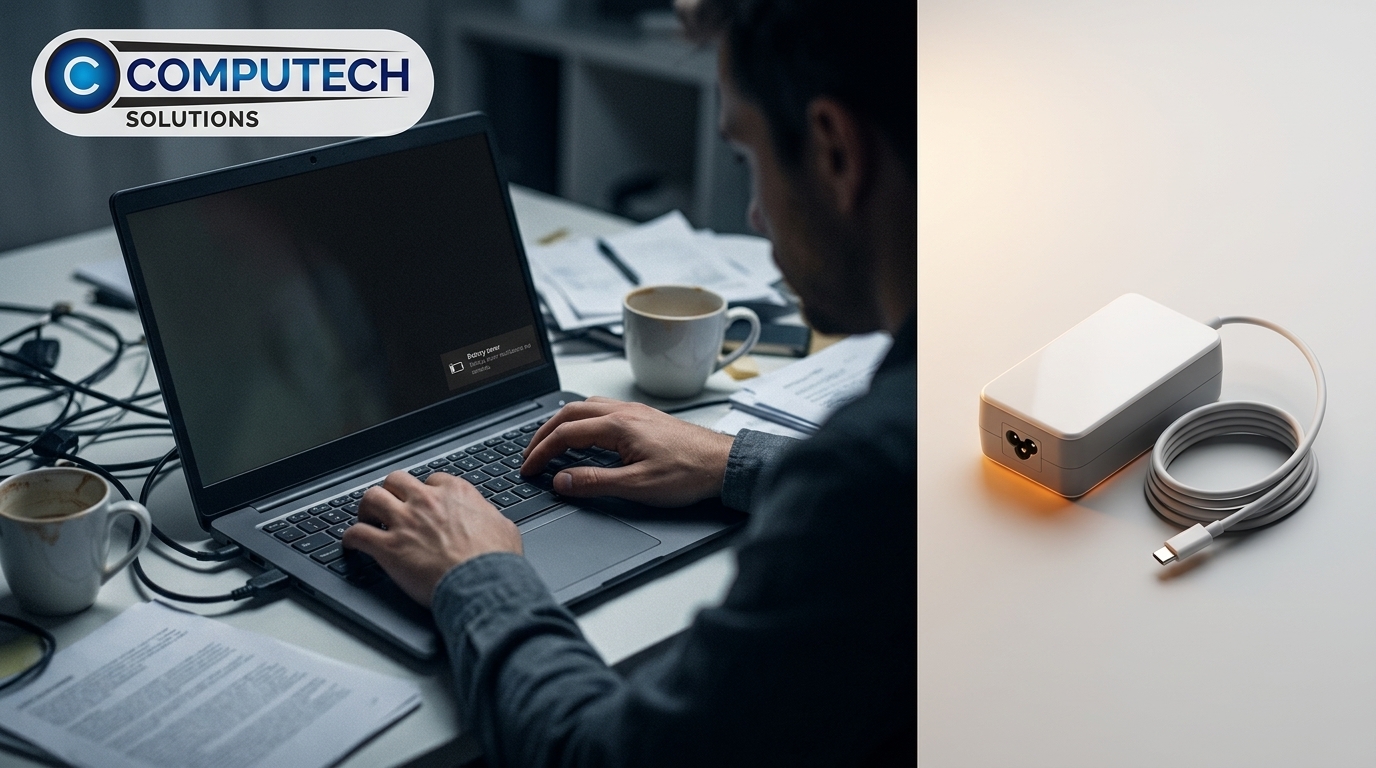
Laptop Keeps Dimming Screen
When your laptop keeps dimming the screen, it can be frustrating. This often happens because your device is trying to conserve battery life. If you notice this occurring frequently, it’s a sign that your battery might not be as strong as it once was. Consider browsing our selection of high-quality replacement batteries to resolve this issue and enjoy a brighter screen without interruptions.
Laptop Throttling on Battery
Laptops tend to throttle performance when running on battery to extend life. While this is helpful short-term, it can disrupt tasks requiring more power. A laptop that frequently throttles indicates a larger problem with its battery capacity. Addressing this with a reliable replacement can restore full performance. Discover your options for battery upgrades with Computech Solutions.
Power Management Settings Explained
Understanding power management settings can help maintain your device’s performance. These settings control how your laptop uses energy, from screen brightness to CPU usage. Checking these settings regularly ensures your laptop runs optimally. If changing settings doesn’t help, it may be time to consider replacing your battery or exploring other power solutions.
Solutions to Persistent Power Problems
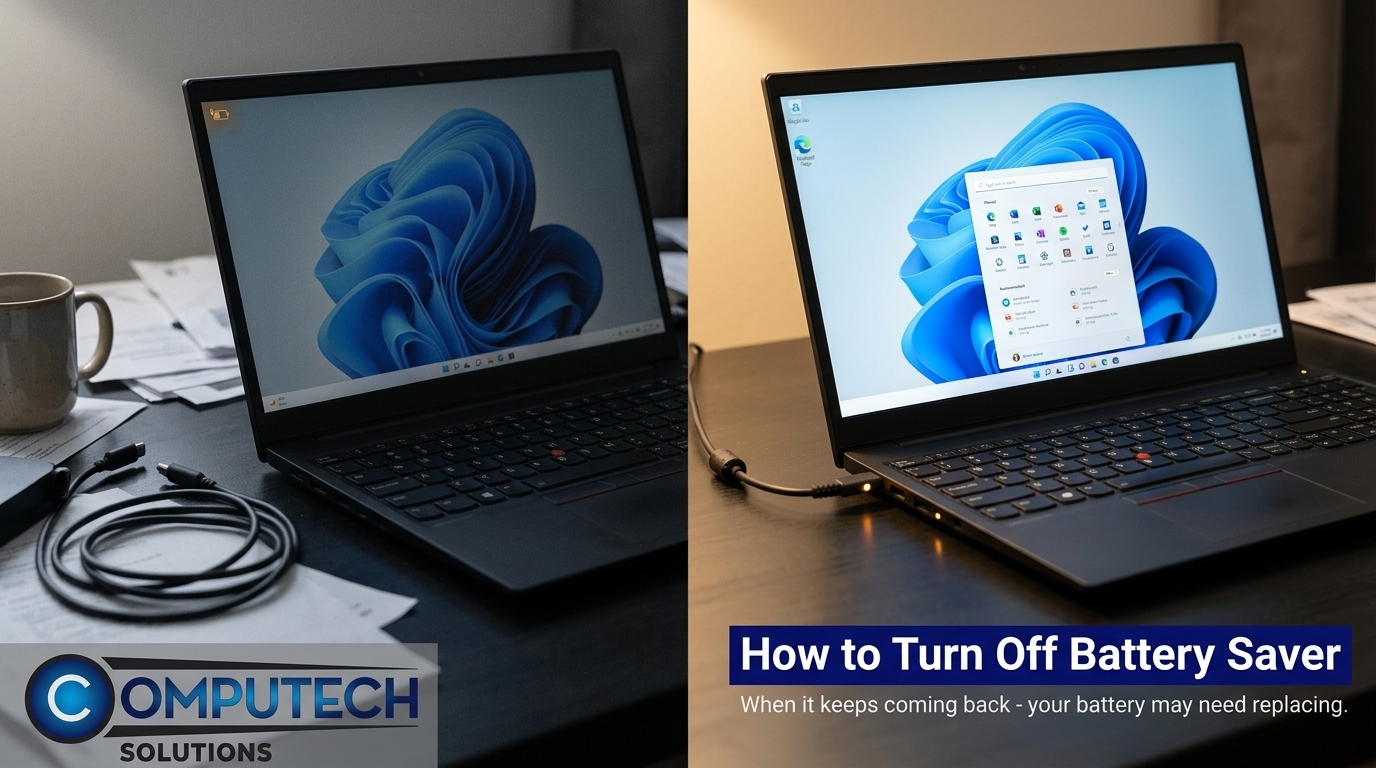
Laptop Battery Replacement South Africa
If you’re in South Africa and need a new laptop battery, Computech Solutions has you covered. We offer high-quality replacements compatible with many brands. A fresh battery can eliminate frequent battery saver interruptions and keep your laptop running smoothly. Browse our options and enjoy nationwide delivery for your convenience.
Laptop Charger Replacement Options
A faulty charger can also cause power issues. Computech Solutions provides a range of chargers to suit your needs, including USB-C PD chargers and more. Replacing your charger can improve charging speed and efficiency. Check out our selection to find the perfect fit for your laptop and say goodbye to power woes.
Solar Backup for Laptop and More
Loadshedding can disrupt your productivity, but a solar backup system can help keep your laptop and other devices running. Computech Solutions offers solar backup solutions tailored to your needs. By investing in backup power, you can work uninterrupted, even during outages. Contact us to learn more about how you can make your home office more resilient.
Frequently Asked Questions
How do I turn off battery saver mode?
To turn off battery saver mode, navigate to your laptop’s settings, select the battery option, and toggle off battery saver. This ensures your device runs at full capacity.
Why does my laptop keep dimming the screen?
Your laptop dims the screen to save battery life. Frequent dimming indicates that your battery might not hold a charge well, and a replacement could resolve this issue.
What should I do if my laptop keeps throttling on battery?
If your laptop throttles often on battery, it’s a sign your battery isn’t performing well. Consider getting a new battery to restore full performance.
Where can I buy a replacement laptop battery in South Africa?
Computech Solutions offers high-quality replacement batteries available for delivery across South Africa. Explore our range to find the right fit for your laptop.
How can I prepare for loadshedding with my laptop?
Investing in a solar backup system is an excellent way to keep your laptop running during loadshedding. Computech Solutions offers tailored solar backup solutions to meet your needs.
