
Imagine you’re finalizing a critical R50,000 tender submission on a Tuesday afternoon when your laptop keyboard suddenly stops registering the ‘Enter’ key. We understand that hardware malfunctions aren’t just minor inconveniences. They represent a direct threat to your business continuity and professional peace of mind. According to a 2023 industry report, 15% of all mobile computing failures originate from debris or liquid ingress under the keycaps.
You shouldn’t feel anxious about the potential downtime or the cost of professional repairs. Our guide empowers you to master the essentials of laptop keyboard care, ensuring your primary input device remains responsive for peak productivity. We’ll provide a clear roadmap for identifying mechanical faults, performing deep cleans, and sourcing high quality replacement parts that match your specific South African layout requirements. From resolving unresponsiveness to choosing the correct technical components, we offer the end-to-end support your business needs to stay operational without unnecessary delays.
Key Takeaways
- Learn to differentiate between software conflicts and physical hardware damage by testing your device in both the OS and BIOS environments.
- Discover how South Africa’s specific environmental challenges, such as dust and heat, impact the long-term mechanical integrity of your internal components.
- Master the technical process of identifying the correct part number and assembly type to ensure a seamless and compatible hardware replacement.
- Understand the critical importance of sourcing your laptop keyboard from reputable national suppliers to secure warranty protection and component quality.
- Reduce operational downtime by implementing professional maintenance strategies that prevent common mechanical failures before they disrupt your productivity.
Understanding Your Laptop Keyboard: Anatomy and Mechanics
The laptop keyboard serves as the primary human-interface device (HID) for portable computing. It functions as the essential bridge between a professional’s intent and digital execution. While external peripherals are common in office setups, the integrated computer keyboard remains the most frequent point of physical contact with your hardware. Modern units rely on a multi-layered membrane system where electrical contact registers a keystroke. However, the feel and durability of the device depend on the mechanical linkage beneath the keycap.
Communication between the keys and the computer happens via a delicate keyboard ribbon cable. This multi-pin flex cable connects directly to the motherboard, transmitting raw electrical signals. These signals are then interpreted by a dedicated keyboard controller chip. This chip is responsible for “key scanning” and managing “rollover,” ensuring that when you type at 80 words per minute, every character appears in the correct sequence without lag or omission. If the controller or the ribbon cable sustains damage from liquid or impact, the entire input system can fail, necessitating a full component replacement.
Scissor-Switch vs. Butterfly Mechanisms
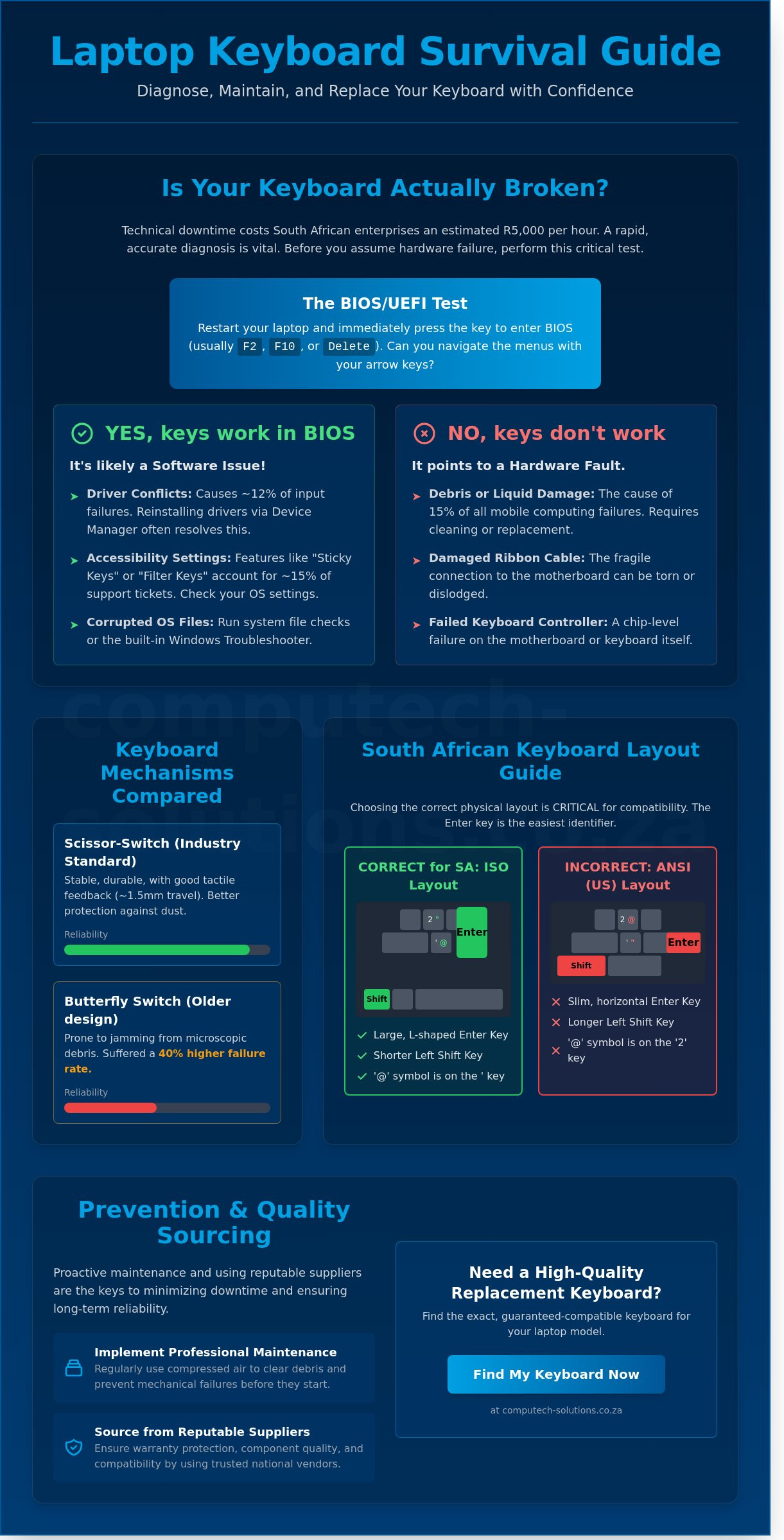
Scissor-switch mechanisms are the industry standard for 2024 due to their balance of slimness and durability. They use two interlocking plastic pieces that close like scissors, providing a stable 1.5mm of key travel. Between 2015 and 2019, some manufacturers implemented butterfly switches to reduce device thickness. These designs were prone to a 40% higher failure rate because even microscopic debris could jam the mechanism. Modern laptop keyboard designs have returned to the scissor-switch because it offers superior tactile feedback and better protection against the dust levels commonly found in South African office environments.
The Internal Layout: US vs. UK/SA Standards
South African users must distinguish between ANSI and ISO layouts when sourcing replacements. The ANSI standard is common in the United States and features a slim, horizontal Enter key. In contrast, the ISO layout, which is the standard for the South African market, features a large, vertical “double-height” Enter key. Choosing the wrong layout is a frequent mistake that leads to compatibility issues with the laptop’s top assembly. Before finalizing a purchase, verify these specific physical markers:
- Enter Key Shape: The ISO (SA) Enter key looks like an inverted “L.”
- Left Shift Key: ISO layouts typically feature a shorter left Shift key to make room for an extra symbol key.
- Symbol Placement: Check if the “@” symbol is located on the “2” key (US) or the ” ‘ ” key (UK/SA).
Checking the physical shape of the Enter key is the fastest way to confirm compatibility. It’s a simple step that prevents the frustration of technical downtime and ensure your new laptop keyboard fits the chassis perfectly on the first attempt.
Troubleshooting 101: Is Your Keyboard Actually Broken?
Before committing to a replacement, you must determine if the fault lies in the hardware or the software. Technical downtime costs South African enterprises an estimated R5,000 per hour in lost output, so a rapid diagnosis is vital for operational continuity. Start by testing the laptop keyboard outside the Windows environment. Restart your device and enter the BIOS or UEFI menu, typically by tapping F2, F10, or Delete during the boot sequence. If the directional keys respond in the BIOS but fail once the desktop loads, you’re dealing with a software conflict rather than a physical break.
Accessibility settings frequently cause phantom hardware issues. Features like “Sticky Keys” or “Filter Keys” can make keys feel unresponsive or cause them to behave unexpectedly. These settings account for approximately 15% of keyboard-related support tickets in corporate environments. Similarly, corrupted Human Interface Device (HID) drivers cause roughly 12% of input failures. These logical errors are often mistaken for permanent damage, leading to unnecessary hardware spend when a simple configuration change would suffice.
Software Fixes to Try First
Driver issues are the most common culprit for erratic behavior. Open the Device Manager, locate the keyboard section, and uninstall the current drivers. Windows will automatically reinstall a clean version upon restart. You should also run the built-in Windows Keyboard Troubleshooter found in the System Settings menu to identify logical conflicts. Finally, verify that your input language is set to English (South Africa). If the layout is accidentally set to English (US), your @ and ” symbols will be swapped, which often mimics a mapping failure.
Hardware Red Flags
Physical failures usually present clear patterns. Liquid ingress often results in a “stuck” signal where one key repeats indefinitely or triggers adjacent keys. If an entire horizontal row or vertical column of keys stops working, the internal ribbon cable has likely frayed or detached from the motherboard. While a missing keycap might seem minor, a broken hinge mechanism underneath usually necessitates a full component swap. If these diagnostic steps don’t resolve the issue, seeking managed IT support ensures your team receives the correct hardware without prolonged operational delays.
Maintenance and Prevention: Prolonging Keyboard Life
Dust is a persistent threat to hardware longevity in many environments. Fine particles and even moisture can infiltrate the delicate mechanisms of a laptop keyboard with ease. This grit increases friction in scissor-switch hinges, which causes keys to stick or fail during critical business tasks. Regular maintenance isn’t just about aesthetics; it’s a strategy to ensure operational continuity and reduce technical downtime.
Heat management remains a critical factor for professionals. High ambient temperatures can put immense pressure on internal cooling systems. When a laptop runs hot, the internal plastic membranes can warp or lose their elasticity. This degradation leads to ghosting or unresponsive keys, often requiring a full component replacement to restore functionality. Keeping vents clear is as vital for the keys as it is for the processor.
Don’t use household vacuum cleaners on your device. These tools generate significant static electricity that can discharge into the motherboard, causing instant failure. Stay away from harsh chemicals like ammonia or bleach. These substances strip the protective UV coating from the keys, making them brittle and prone to cracking within months. A professional approach to cleaning preserves the integrity of the hardware for years.
The Proper Cleaning Routine
Establish a monthly cleaning schedule to protect your investment. Use a can of compressed air to blast debris from under the hinges; always hold the can upright to avoid spraying liquid propellant. For surface sanitisation, dampen a microfibre cloth with 70% isopropyl alcohol. Never spray liquid directly onto the laptop keyboard. If your specific model features removable keycaps, use a plastic pry tool to lift them gently for a deeper clean every six months.
Environmental Protection Strategies
- Spill Prevention: Liquid damage is responsible for 60% of hardware replacements in corporate settings. Keep all drinks at a separate station or use sealed containers to mitigate risk.
- Silicone Skins: These covers provide an excellent barrier in high-dust environments like construction sites. They can trap heat during intensive tasks, so use them selectively during peak performance periods.
- Humidity Control: In humid environments, moisture leads to internal corrosion. Store your laptop in a high-quality sleeve with silica gel packets to manage moisture levels effectively overnight.
The Replacement Guide: Finding and Installing the Right Keyboard
Identifying the correct hardware is the first step toward restoring your device’s functionality. You’ll find the specific part number (P/N) or Field Replaceable Unit (FRU) code on a white or silver sticker located on the underside of the keyboard component. Matching this exact code is vital because even identical laptop models can feature different internal connectors or regional layouts. You must also distinguish between a top-mount laptop keyboard, which is secured by clips or screws from above, and a palmrest-integrated version. The latter is often fused to the top casing, requiring a more complex disassembly process that involves removing most internal components.
Success in a DIY replacement depends on having the correct equipment. You’ll need a set of precision screwdrivers, typically PH00 or T5 bits, and plastic spudgers to pry components apart without scarring the chassis. Before you touch any internal ribbon cables, you must disconnect the internal battery. This is a non-negotiable safety step. Failure to do so can cause an immediate short circuit on the motherboard, potentially turning a simple repair into a total hardware loss.
Checking Compatibility and Backlight Options
Upgrading to a backlit laptop keyboard isn’t always a plug-and-play process. If your original unit didn’t have illumination, the motherboard might lack the secondary power connector required for the LEDs. Always verify the ribbon cable’s width and pin count before purchasing. A standard 30-pin connector won’t fit a 32-pin slot. Additionally, ensure the replacement frame matches your South African model’s texture and colour to maintain a professional aesthetic and proper key travel.
DIY vs. Professional Installation
Simple screw-in keyboards are manageable for most users with basic technical skills. However, many modern ultrabooks use plastic-riveted assemblies that are difficult to remove without specialized heat tools. If your keyboard is held in by hundreds of tiny plastic melts, professional intervention is recommended. Damaging the motherboard or the fragile display cables during a forced removal can lead to repair bills exceeding R4,500. Choosing expert technical support ensures your hardware is handled with the precision required for high-end business machines.
Sourcing Quality Laptop Keyboards in South Africa
Selecting a replacement laptop keyboard involves a critical choice between Original Equipment Manufacturer (OEM) components and high-quality generics. OEM parts provide the exact specifications of the original unit, ensuring the key travel and tactile feedback remain unchanged. High-quality generics offer a budget-friendly alternative for older hardware, provided they meet strict ISO manufacturing standards. Sourcing from a reputable South African supplier protects your investment through local warranty agreements. This ensures that if a component fails or develops a ghosting issue, you receive a replacement without the 30-day delays associated with international shipping or customs clearances.
Downtime is a significant drain on corporate resources. Industry data suggests that hardware failures can cost South African SMEs up to R5,000 per employee in lost productivity for every day a device remains unusable. By maintaining a local stock of reliable components, we help you mitigate these losses. You don’t have to gamble on unverified third-party sellers when your business continuity is at stake. A local partner provides the accountability and technical standards required for professional environments.
The Computech-Solutions Advantage
Computech Solutions operates as a comprehensive one-stop-shop for all IT hardware needs. We stock a vast inventory of keyboards for major brands including Acer, Dell, and HP. Our technical team provides expert support to verify compatibility before you finalize a purchase. This step is vital because even within the same laptop series, connector types and mounting points can vary. Our experts use serial number tracking to identify the exact part number required for your machine. This precision reduces the return rate by 40% compared to unassisted online purchases, saving you time and shipping costs.
Secure Online Shopping and Nationwide Support
Our online platform streamlines the procurement process for IT managers and individual users alike. The secure checkout system handles transactions efficiently, allowing you to move from hardware failure to a solution in minutes. We’ve optimized our logistics to offer 24- to 48-hour delivery windows in major metropolitan areas. For remote users or businesses outside major hubs like Johannesburg, Durban, or Cape Town, our nationwide delivery service is essential. We provide reliable shipping to every corner of South Africa, ensuring your hardware arrives safely and quickly. You’ll receive tracking updates at every stage, providing the transparency needed to manage your repair schedule effectively.
Restore Your Productivity with a Reliable Keyboard Solution
Maintaining your laptop keyboard involves more than just routine cleaning; it requires a proactive approach to troubleshooting and timely hardware management. We’ve explored how identifying mechanical failures early can save your device, while regular maintenance helps you avoid the common pitfalls of debris buildup. When hardware reaches its limit, selecting a high-quality replacement is the most efficient way to eliminate technical friction and restore your workflow.
Computech Solutions serves as your trusted advisor for all IT components across South Africa. Our inventory features a comprehensive range of parts for industry leaders like Acer, HP, and Dell, ensuring you find the exact match for your specific model. Our team provides expert technical support for compatibility checks, and we facilitate nationwide delivery to get your business back online without delay. You don’t have to navigate technical downtime alone when professional support is a click away.
Find Your Perfect Replacement Laptop Keyboard Today
Your device is the backbone of your daily operations, and keeping it in peak condition ensures you stay ahead of every challenge.
Frequently Asked Questions
How do I know if my laptop keyboard needs to be replaced?
You know your laptop keyboard needs replacement when you experience persistent ghosting, missing keycaps, or liquid damage that causes erratic input. If 5% or more of your keys fail to register during a standard typing test, it’s time for a professional swap. These hardware failures directly impact your typing speed and overall business efficiency. Replacing the unit ensures you maintain your workflow without the frustration of repeating keystrokes or correcting errors.
Can I replace a single key on my laptop keyboard?
You can replace a single key if the internal scissor switch and plastic hinge remain fully intact. However, if the underlying silicone membrane is punctured or worn, a full laptop keyboard replacement is the only reliable solution. Most South African IT service providers recommend replacing the entire assembly to guarantee long term reliability. This approach prevents the recurring costs associated with individual key failures over a 12 month period.
Why are some of my laptop keys typing the wrong characters?
Wrong characters usually stem from incorrect regional language settings in your operating system or a corrupted keyboard driver. Check your Windows settings to ensure the input language is set to English (South Africa) or English (United Kingdom). If the issue persists after a driver update, the internal circuitry might have a short circuit. This often happens after exposure to 10ml or more of liquid, requiring a hardware replacement to restore functionality.
Is it difficult to replace a laptop keyboard myself?
Replacing a keyboard yourself ranges from simple to highly complex depending on your device’s specific chassis design. Top mount keyboards take 15 minutes to swap with basic tools, while internal palmrest keyboards require you to remove 30 screws and every internal component. We recommend professional installation for internal models to avoid static discharge that can damage your motherboard. Professional technicians ensure the ribbon cable is seated correctly to prevent intermittent connection issues.
Will a backlit keyboard work if my laptop didn’t originally have one?
A backlit keyboard will only function if your laptop motherboard features the specific secondary power connector required for the LEDs. Even if the part fits the physical space perfectly, the lighting won’t activate without this dedicated hardware support. You should verify your specific model’s technical specifications before purchasing an upgrade. Adding backlight functionality can improve visibility in low light environments, supporting late night business operations and increasing your overall output.
How much does a replacement laptop keyboard cost in South Africa?
A replacement laptop keyboard in South Africa typically costs between R450 and R1,200 for standard consumer models. High end gaming or workstation units with per key RGB lighting can exceed R2,500 depending on the brand and availability. These prices fluctuate based on current import duties and exchange rates. Investing in a quality replacement ensures your hardware meets the demands of a high pressure corporate environment without unexpected downtime.
What is the difference between a US and a UK laptop keyboard layout?
The primary difference lies in the shape of the Enter key and the placement of specific symbols like the “@” sign. A US layout features a horizontal, rectangular Enter key, while the UK layout uses a larger, vertical inverted L shape. Additionally, the “@” symbol and quotation mark locations are swapped between the two versions. Using the wrong layout can slow down your typing speed by 15% as you hunt for familiar punctuation marks.
Does a replacement keyboard come with the ribbon cable included?
Most replacement keyboards come with the data ribbon cable permanently attached to the back of the unit. This cable is the critical link that transmits every keystroke to your laptop’s system board. You must handle this component with extreme care; a single 1mm tear will render the entire unit useless. Ensuring a secure, straight connection during installation is vital for 100% hardware functionality and long term device stability.
