
Your laptop screen is likely the single biggest bottleneck in your professional workflow. While you might feel that a single display is enough for basic tasks, industry research suggests that a dual-monitor configuration can boost productivity by up to 42 percent. However, learning how to set up a dual monitor system with a laptop in 2026 is no longer as simple as plugging in a single cable. With the rapid adoption of Thunderbolt 5 and HDMI 2.2 standards, the physical connection is often the source of most technical frustration.
It’s understandable if you feel overwhelmed by the choice between USB-C 2.1 and DisplayPort 2.1b, or if you’re tired of seeing “No Signal” errors every time you boot up. You want a workspace that just works without draining your battery or causing screen flickering. This definitive guide will show you exactly how to master your workspace. We’ll walk you through selecting the correct hardware for your specific laptop, configuring software in Windows 11 or macOS 26 Tahoe, and optimizing power management to ensure your setup remains stable and high-resolution.
Key Takeaways
- Identify whether your hardware supports the latest Thunderbolt 5 or HDMI 2.2 standards to ensure maximum resolution and refresh rates across all screens.
- Master how to set up a dual monitor system with a laptop using a precise configuration sequence for Windows 11 and macOS 26 Tahoe.
- Determine if your specific workflow requires the expanded port capacity of a docking station or the simplicity of direct cable connections.
- Eliminate common technical disruptions like blurry text and “No Signal” errors through proven DPI scaling and detection protocols.
- Maintain operational stability by pairing your multi-screen setup with a higher-wattage laptop charger to manage the increased power demand effectively.
Step 1: The Hardware Audit – Can Your Laptop Handle Two Monitors?
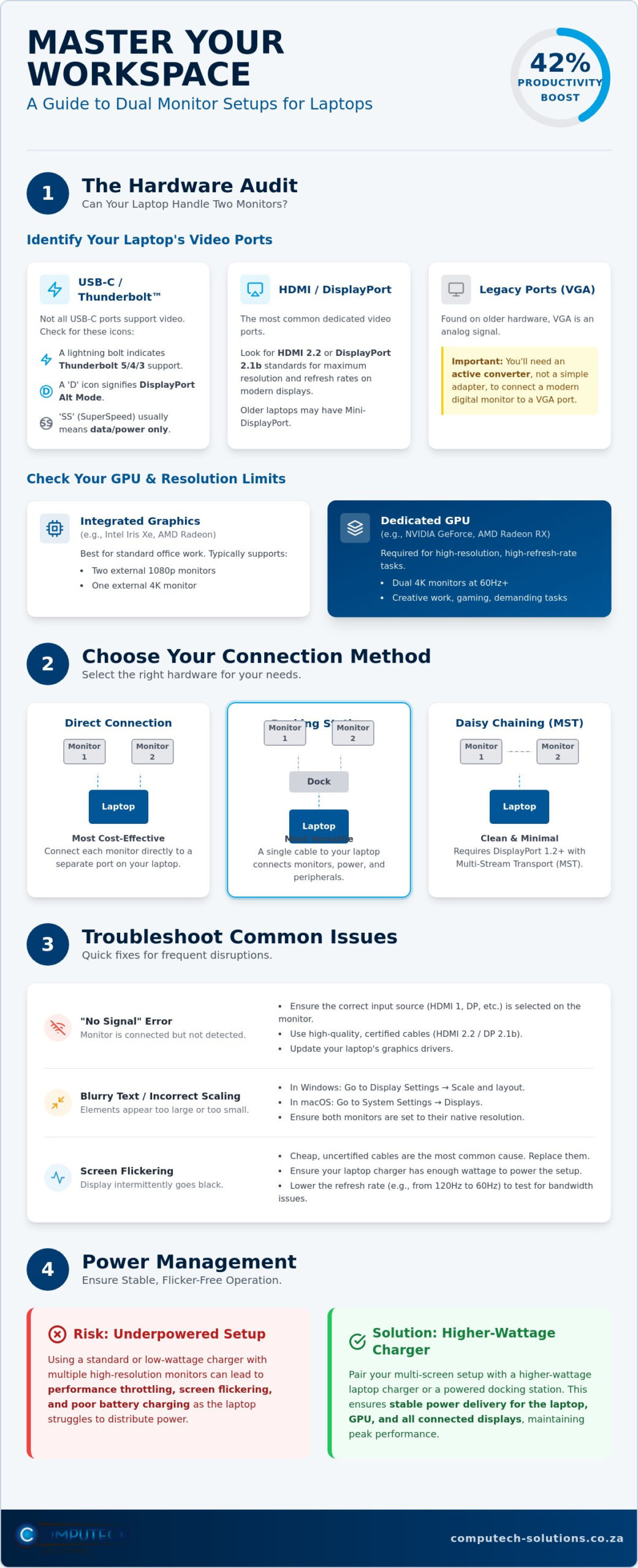
Before investing in cables or docking stations, you must determine the physical and internal capabilities of your machine. Understanding how to set up a dual monitor system with a laptop begins with a thorough audit of your available hardware. Not every port that looks the same functions the same, particularly in the era of USB-C. While multi-monitor setups are now standard in professional environments, your laptop’s Graphics Processing Unit (GPU) and physical port specifications define your upper limits for resolution and stability.
Identifying Your Laptop’s Video Ports
Most modern laptops feature at least one dedicated video output. The most common is the HDMI port, which looks like a wide, flattened hexagon. If your laptop is a few years old, you might see a Mini-DisplayPort, which is a small, square-ish connector. For those using legacy hardware, a VGA port is a large, 15-pin trapezoid. Note that VGA is an analog signal. If you’re connecting a modern digital monitor to a VGA port, you’ll need an active converter rather than a simple adapter cable to translate the signal correctly.
The biggest source of confusion is the USB-C port. Not all USB-C ports transmit video. To check if yours does, look for a small lightning bolt icon next to the port, indicating Thunderbolt 5, 4, or 3 compatibility. Alternatively, a “D” icon signifies DisplayPort “Alt Mode” capability. If your USB-C port has neither icon and is only labeled with “SS” (SuperSpeed), it likely only supports data transfer and power, meaning it won’t drive a monitor without a specialized DisplayLink adapter.
GPU and Resolution Limits
Your laptop’s GPU is the engine driving your pixels. Integrated graphics, such as Intel Iris Xe or AMD Radeon graphics found in standard business laptops, can typically handle two external 1080p monitors or one 4K display. However, attempting to run dual 4K monitors at high refresh rates often requires a dedicated GPU from NVIDIA or AMD. You can check your current limits by right-clicking your desktop, selecting “Display settings,” and looking at the “Advanced display” options.
Refresh rates, measured in Hertz (Hz), are just as vital as resolution. While 60Hz is the standard for office work, high-resolution setups can sometimes default to 30Hz if the bandwidth is spread too thin. This results in noticeable mouse lag and eye strain. When learning how to set up a dual monitor system with a laptop, always verify that your GPU can maintain at least 60Hz across all connected screens to ensure a professional, flicker-free experience. If your internal screen is high-resolution, you might need to disable it to free up GPU resources for your external displays.
Step 2: Choosing the Right Connectivity Hardware
Selecting your hardware is a balancing act between your budget and the resolution you require. If your laptop features multiple video-out ports, such as an HDMI port and a USB-C port with Alt Mode, you can connect two monitors directly without additional hardware. This is the most cost-effective method. However, if you’re limited to a single port, you’ll need to explore “Daisy Chaining” via DisplayPort 1.2 Multi-Stream Transport (MST). This technology allows you to connect one monitor to another in a series, with only a single cable returning to the laptop. For those configuring dual monitors in Windows, this method provides a clean aesthetic while maintaining high-speed data throughput.
Cable quality is often where setups fail. Cheap, uncertified cables are the primary cause of “screen blackouts” and intermittent flickering. For 2026 standards, ensure you use HDMI 2.2 or DisplayPort 2.1b cables to support the 80Gbps bandwidth required for modern high-resolution displays. Using a high-quality laptop charger alongside your setup ensures that your machine doesn’t throttle performance when driving these demanding external screens. Professional stability depends on consistent power delivery, especially when pushing pixels to multiple displays.
Adapters and Converters for Legacy Hardware
If you’re working with older monitors, you might encounter VGA or DVI ports. Connecting these to a modern laptop requires a signal converter. It’s vital to choose an “active” adapter rather than a “passive” one. Active adapters contain a small chip that actively converts the signal from digital to analog, which is necessary for stable performance on laptops from brands like Acer, Dell, and HP. This ensures your resolution remains crisp and doesn’t drop to lower, blurry defaults that cause eye strain during long work sessions.
The Power of Docking Stations
For professionals seeking a “one-plug” solution, a docking station is the superior choice. Unlike a simple USB-C hub, which draws power from your laptop’s battery, a dedicated docking station has its own power supply. This allows it to charge your laptop while simultaneously driving dual 4K monitors and multiple USB peripherals. This setup significantly reduces the physical wear and tear on your laptop’s ports, as you only plug in one cable each morning. When choosing a dock, ensure it matches your laptop’s specific wattage requirements. A mismatch can lead to slow charging or unexpected system shutdowns during intensive tasks. Mastering how to set up a dual monitor system with a laptop is ultimately about creating a stable environment where your hardware works in harmony.
Step 3: How to Configure Dual Monitors in Windows 11 and 10
Once your physical connections are secure, your focus shifts to the operating system. Configuring how to set up a dual monitor system with a laptop requires a logical sequence to avoid handshake errors between the GPU and the monitors. Start by connecting your primary external monitor. Once Windows recognizes it, connect the second. This phased approach allows the system to assign hardware resources correctly without overwhelming the display driver. You can manage these settings by right-clicking the desktop and selecting “Display settings.”
In the settings menu, you’ll see numbered boxes representing your screens. Click the “Identify” button to see which number corresponds to which physical monitor. If a screen remains black despite being plugged in, the “Detect” button triggers a fresh signal handshake. For daily productivity, you’ll want to select “Extend these displays” from the dropdown menu. This treats your monitors as one continuous canvas, whereas “Duplicate” mode merely mirrors your laptop screen, which is better suited for client presentations than deep work.
Display Arrangement and Orientation
Precision in your digital layout prevents the frustration of a “stuck” mouse cursor. Drag the display icons in the settings menu to match their physical positions on your desk. If your monitors aren’t perfectly aligned, you can move them up or down in the digital map so your cursor crosses the border at the exact point your eyes expect. For specialists like developers or legal professionals, changing a secondary monitor’s orientation to “Portrait” is a game-changer. This vertical view allows you to see hundreds of lines of code or full-page documents without constant scrolling. Ensure you also adjust the “Scale and Layout” settings; matching the text size across different resolutions keeps your workflow seamless.
Advanced Display Settings
Designating your “Main Display” is a strategic choice that determines where your primary Taskbar, system tray, and notifications appear. Most professionals prefer their largest, highest-resolution screen as the primary monitor to anchor their workspace. To ensure the smoothest visual experience, navigate to “Advanced display” to check your refresh rates. If your hardware supports it, verify that both external screens are set to at least 60Hz. If you’re mixing different monitor brands, use the Windows “Color Calibration” tool to align white balance. This prevents the distracting color shifts that occur when moving a window from a vibrant new panel to an older, dimmer one, ensuring professional-grade visual consistency across your entire setup.
Troubleshooting Common Dual Monitor Issues
Technical disruptions are an inevitable hurdle when expanding your digital workspace. Even after you’ve followed the protocol for how to set up a dual monitor system with a laptop, you may face the dreaded “No Monitor Detected” message or frustrating screen flickering. These issues rarely stem from broken hardware. They’re typically the result of communication failures between the operating system and the display hardware. Addressing these disruptions systematically ensures your workflow remains uninterrupted and your visual output stays crisp.
One frequent complaint involves blurry text on the secondary screen. This is usually a DPI (Dots Per Inch) scaling issue. Windows 11 often struggles to balance the high pixel density of a modern laptop screen with the lower density of a standard external monitor. To fix this, navigate to your display settings and manually adjust the “Scale” percentage for each screen. Aim for a setting where windows don’t change size when dragged from one display to another. This alignment reduces eye strain and maintains professional consistency across your workspace.
The ‘No Signal’ Checklist
When a monitor refuses to wake up, start with the 30-second power cycle. Unplug the monitor from both the wall outlet and the laptop. Hold the monitor’s power button down for 30 seconds to drain the capacitors and reset the internal controller. Reconnect the cables and check if the signal returns. If the issue persists, check your laptop’s BIOS or UEFI settings. Some high-performance laptops require you to manually enable “Discrete Graphics” or “Hybrid Mode” to allow video signals to pass through specific Thunderbolt or HDMI ports. This is common in machines designed for heavy rendering or data processing.
Software and Driver Conflicts
Outdated or generic graphics drivers are the primary cause of flickering and system crashes in multi-monitor environments. Avoid relying on Windows Update for these critical components. Instead, visit the official support pages for Intel, NVIDIA, or AMD to download the latest stable release. A “clean install” is often necessary; this process removes all previous driver remnants before installing the new version. This prevents legacy conflicts from destabilizing your setup during intensive tasks.
If your browser causes the screen to black out momentarily during video playback, disable “Hardware Acceleration” in the browser settings. This shifts the rendering load from the GPU back to the CPU, which often resolves flickering issues instantly. If your current machine continues to exhibit power-related display failures despite these fixes, consider upgrading to a more robust professional laptop designed to handle high-resolution multi-screen demands with ease. A stable setup is the foundation of operational efficiency.
Power Management and Setup Longevity
While previous steps focused on connectivity and configuration, the long-term stability of your workstation depends on managing the increased electrical and thermal load. Driving multiple displays increases the workload on your laptop’s internal components, specifically the Graphics Processing Unit (GPU). This extra effort translates directly into higher power consumption. Understanding how to set up a dual monitor system with a laptop involves more than just pixels; it requires a robust electrical strategy to prevent system throttling or hardware failure.
In the context of South African operational risks, such as load shedding, the reliability of your power source becomes a critical business factor. A dual-monitor setup often draws significantly more power than a standalone laptop. If you’re running your setup through a solar inverter or a UPS during power outages, you must factor in the combined wattage of the monitors, the laptop, and the docking station. Ensuring your system has a high-quality power supply is the only way to maintain productivity when the grid is unstable.
Ensuring Adequate Power Supply
Many users find that their standard, out-of-the-box charger is insufficient when powering a laptop and two high-resolution screens simultaneously. If your charger’s wattage is too low, the laptop may “drain while plugged in” or reduce its processing speed to save energy. Upgrading to a professional-grade laptop charger with a higher wattage rating provides the necessary overhead for these demanding environments. This is especially vital when using a single-cable USB-C docking station that must provide Power Delivery (PD) to the laptop while also managing data and video signals for two external panels.
Heat Management and Battery Health
Heat is the primary enemy of hardware longevity. When you master how to set up a dual monitor system with a laptop, you’ll notice the internal fans running more frequently. This is because the GPU generates significant heat when pushing millions of pixels across multiple displays. To protect your internal components, ensure your laptop is placed on a hard, flat surface or a ventilated stand to maximize airflow. Avoid keeping the laptop lid closed if it vents heat through the keyboard area, as this can lead to thermal throttling and reduced performance.
Battery health also requires careful management in a permanent multi-screen setup. If your laptop is constantly plugged into a dock, the battery remains at a high state of charge, which can lead to swelling or reduced capacity over time. Use your manufacturer’s software to set a “Battery Threshold” that stops charging at 80 percent. If your current battery has already suffered from heat degradation and no longer holds a charge during load shedding, investing in replacement laptop batteries for brands like Dell, HP, or Lenovo will restore your system’s mobile capabilities. Maintaining your hardware ensures that your dual-monitor investment continues to deliver professional results for years to come.
Maximize Your Operational Efficiency
Successfully mastering how to set up a dual monitor system with a laptop is more than a technical hurdle; it’s a strategic investment in your daily productivity. By conducting a thorough hardware audit and ensuring your software configuration matches your physical layout, you eliminate the friction that often plagues multi-screen environments. A stable setup requires a balance of correct cable selection and proactive power management to handle the increased load on your GPU. Stability and resolution should never be compromised by inadequate power delivery.
A high-performance workstation is only as reliable as its power source. If your current configuration faces disruptions or power-related failures, upgrade your workstation with reliable laptop chargers and replacement batteries at Computech-Solutions. We are specialists in Acer, Dell, and HP replacement parts, providing expert technical support for hardware compatibility alongside nationwide delivery across South Africa. Transforming your laptop into a comprehensive desktop powerhouse is now within your reach. With the right hardware and settings in place, you can focus on growth while your technology works in perfect harmony.
Frequently Asked Questions
Can I connect two monitors to a laptop with only one HDMI port?
Yes, you can achieve this by using your laptop’s other available ports. If your machine features a USB-C port with DisplayPort Alt Mode or a Thunderbolt icon, you can use a USB-C to HDMI adapter for the second screen. Alternatively, a docking station or a USB-to-HDMI adapter with DisplayLink technology can create the additional video output required. This is a common solution when figuring out how to set up a dual monitor system with a laptop with limited physical ports.
Does using two monitors slow down my laptop’s performance?
It can impact performance depending on your laptop’s GPU and the tasks you’re performing. Driving extra pixels requires more graphical processing power and system memory. While standard office applications usually run smoothly, intensive tasks like 4K video editing or high-resolution rendering across multiple screens might cause a slight dip in speed. Modern laptops with dedicated graphics cards handle these loads much better than those with integrated chips.
Why is my second monitor blurry compared to my laptop screen?
Blurriness is typically caused by mismatched DPI scaling settings between your laptop and the external display. Because your screens likely have different pixel densities, Windows scales text and icons to keep them legible, which can result in a fuzzy appearance. To resolve this, open your Display Settings and manually adjust the “Scale” percentage for the specific monitor until the text appears sharp and clear across all screens.
Can I use a USB port to connect a monitor if I don’t have HDMI?
Yes, but the type of USB port matters. A USB-C port with “Alt Mode” supports direct video output with a simple adapter cable. If you only have standard USB-A ports, you’ll need a specialized adapter that utilizes DisplayLink technology. These adapters function as external graphics controllers to push video signals through a data-only port, though they require specific driver installations to function correctly.
Do I need a docking station for a dual monitor setup?
You don’t strictly need a docking station, but it’s the most reliable method for professional environments. While direct connections to multiple laptop ports work, a docking station offers a streamlined, single-cable solution for video, data, and power. This reduces physical wear on your laptop’s ports and provides a more stable connection for high-resolution displays. It’s the most efficient way to manage how to set up a dual monitor system with a laptop.
Will my laptop battery drain faster with two monitors connected?
Your battery will definitely drain faster when driving multiple displays. The GPU must work harder to render images for the additional screen real estate, which increases the internal power draw. Furthermore, any bus-powered hubs or adapters you use will pull energy directly from the laptop. It’s highly recommended to keep your device connected to a high-wattage charger to maintain consistent performance and avoid battery depletion.
How do I make my taskbar show on both monitors?
You can enable this feature through the Windows Taskbar settings. Right-click any empty space on your taskbar and select “Taskbar settings.” Scroll down to “Taskbar behaviors” and check the box that says “Show my taskbar on all displays.” This allows you to access your pinned apps and the Start menu from any connected screen, significantly improving your navigation speed in a multi-monitor environment.
What is the difference between an ‘Active’ and ‘Passive’ HDMI adapter?
An active adapter contains an internal circuit chip that actively converts the video signal from one format to another. This is necessary for complex conversions, such as moving from DisplayPort to HDMI on many laptops. A passive adapter is a simple cable that relies on the laptop’s port to perform the signal conversion. Active adapters are generally more stable and support higher resolutions, making them the superior choice for dual-monitor configurations.
