
Your laptop screen isn’t just glitching; it’s either suffering from a minor software conflict or a terminal hardware failure. The difference determines whether you spend five minutes on a driver update or require a physical component replacement. We understand that a flickering display is more than a nuisance. It causes immediate visual strain and halts your professional productivity, often leaving you worried about the potential cost of a new machine.
This guide provides a definitive roadmap to resolve laptop screen flickering issues and fixes for 2026. You’ll learn how to pinpoint the root cause without unnecessary guesswork, ensuring you don’t overspend on repairs. We’ll start by verifying software compatibility with Windows 11 version 26H2 or macOS 26 Tahoe and checking the latest NVIDIA 610.74 or AMD 26.6.4 drivers. If those steps don’t restore stability, we’ll explain how to identify if a new LCD panel is the necessary, cost-effective solution to return your hardware to peak operational efficiency.
Key Takeaways
- Use the Task Manager diagnostic to immediately determine if your flickering is caused by a specific software application or a underlying hardware fault.
- Discover the exact keyboard shortcuts and driver reset procedures that can resolve common software-based laptop screen flickering issues and fixes in minutes.
- Perform the External Monitor Test to definitively isolate the problem to your physical LCD panel or your laptop’s internal graphics processor.
- Identify how mechanical hinge wear affects eDP cable integrity and recognize the visual signs of “flexgate” style hardware failure.
- Learn the professional requirements for matching resolution, pin counts, and mounting brackets to ensure a seamless installation when sourcing a replacement LCD panel.
Why Is My Laptop Screen Flickering? Identifying the Root Cause
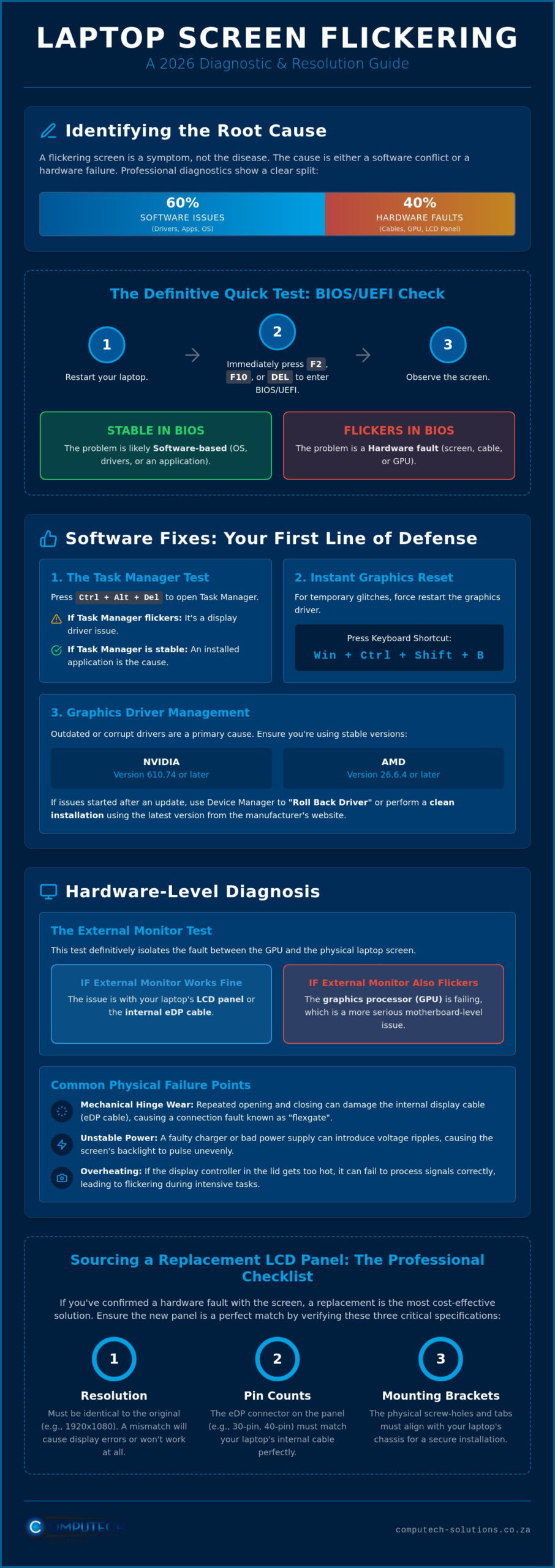
Identifying the source of a glitchy display is the first step toward a permanent resolution. To understand what is screen flicker? you must recognize it as an unintended change in luminance or color. In modern laptops, this manifests as intermittent flashing, sudden brightness shifts, or persistent horizontal lines that disrupt your workflow. While many sources claim software bugs are the primary culprit, professional diagnostics suggest that approximately 40% of flickering instances stem from hardware issues, such as loose internal ribbon cables or mechanical hinge wear, rather than simple driver conflicts.
In 2026, common triggers include compatibility issues with Windows 11 version 26H2 updates or thermal throttling in high-performance GPUs. If your device runs hot during intensive tasks, the display controller may struggle to maintain a stable signal. Addressing these laptop screen flickering issues and fixes promptly is critical. Ignoring a flicker can lead to permanent GPU degradation or short circuits within the LCD panel’s circuitry. This often turns a manageable component swap into a total system failure.
Software vs. Hardware Flickering: The Quick Test
A reliable way to isolate the cause is to enter your laptop’s BIOS or UEFI environment. Restart your device and tap the designated key, usually F2, F10, or Del, before the operating system loads. If the screen continues to flicker on this basic interface, the problem is physical hardware. If the display remains stable until you reach the login screen, you’re likely dealing with a driver conflict or an incompatible application. You should also distinguish between ghosting, where faint images of previous windows remain visible, and true flickering, which involves a rapid pulsation of the backlight.
External Factors Affecting Display Stability
Software Fixes for Windows Screen Flickering
Before assuming your hardware has failed, you must rule out operating system and driver conflicts. The most effective diagnostic tool is the Task Manager Test. Press Ctrl + Alt + Delete and select Task Manager. If the Task Manager window flickers along with the rest of the screen, a display driver is likely corrupt or incompatible with Windows 11 version 26H2. However, if the Task Manager remains stable while the background continues to glitch, an installed application is interfering with the display compositor. This simple distinction is a cornerstone of identifying laptop screen flickering issues and fixes without opening the device casing.
If you suspect a minor glitch, use the Windows keyboard shortcut Win + Ctrl + Shift + B. This command forces the graphics subsystem to restart. You’ll hear a brief beep and the screen will blink, which often clears temporary buffer errors. Additionally, check your refresh rate settings under Settings > System > Display > Advanced Display. Ensure the rate matches your panel’s native specifications, as mismatched frequencies are among the common causes of screen flickering. If these quick resets don’t provide stability, you must move toward deeper driver management.
Graphics Driver Management (Intel, NVIDIA, AMD)
Driver corruption is a frequent byproduct of automated updates. For NVIDIA users, ensure you’re on version 610.74 WHQL or later; AMD users should verify they’ve moved to version 26.6.4 to resolve known bugs. If your screen began flickering immediately after an update, use Device Manager to roll back the driver. If the “Roll Back Driver” button is greyed out, you’ll need to perform a clean install. This involves using a utility to completely wipe existing display drivers before installing the latest stable version from the manufacturer’s website. Disabling “Automatic Driver Updates” in System Properties can prevent Windows from re-installing a problematic version in the future.
Resolving Application Conflicts
Legacy software or poorly optimized third-party utilities can struggle with modern transparency and visual effects. To pinpoint the offender, boot your laptop into Safe Mode. This environment loads only the essential services. If the flickering stops in Safe Mode, you can systematically disable startup apps to find the culprit. Don’t overlook BIOS and firmware updates from your manufacturer. These updates often improve motherboard-to-screen communication, fixing flickering that occurs at the firmware level. If these software adjustments fail to yield a stable display, it’s time to investigate laptop LCD replacement panels to address potential hardware degradation.
Hardware-Level Issues: When Components Fail
When software adjustments fail to stabilize your display, physical component fatigue is the likely culprit. Hardware-induced flickering is often more aggressive than software glitches, manifesting as persistent strobing or vertical bands that don’t respond to driver resets. Understanding the physical architecture of your device is essential for diagnosing laptop screen flickering issues and fixes at this level. Most modern displays rely on a complex chain of components, including the graphics processor, the internal data ribbon, and the backlight circuitry. A failure in any of these links will immediately disrupt visual output.
In older laptop models, flickering often originated from a failing backlight inverter. This component converted low-voltage DC power into high-voltage AC power for CCFL (Cold Cathode Fluorescent Lamp) backlights. While modern LED panels integrate this functionality into the display controller, they’re still susceptible to voltage fluctuations. If your screen flickers specifically when you adjust the brightness, the integrated LED driver circuit on the panel itself is likely failing. This requires a full panel replacement rather than a simple cable adjustment.
Internal Cable Connectivity and Hinge Stress
The eDP cable serves as the primary data highway for laptop visuals, carrying high-speed signals from the motherboard to the LCD panel. Because this cable passes directly through the laptop’s hinge, it’s subject to mechanical stress every time you open or close the lid. If your screen flickers only when the lid is positioned at a certain angle, the internal copper strands within the eDP cable have likely frayed. This is a common issue in ultra-thin chassis designs where cables are pinched into extremely tight tolerances. Over time, this “flexgate” style fatigue breaks the signal integrity, leading to intermittent blackouts or rapid flashing that mimics a dying GPU.
Motherboard and GPU Complications
Determining if the motherboard or the dedicated Graphics Processing Unit (GPU) is at fault requires looking for specific visual artifacts. A failing GPU often produces random blocks of color, persistent static, or “tearing” across the screen. These symptoms usually intensify under heavy loads, such as video rendering or 3D processing. In many cases, these issues are caused by “cold solder joints” where the BGA (Ball Grid Array) connections between the GPU chip and the motherboard have cracked due to years of heat cycles. While professional reflow services can sometimes repair these joints, motherboard repair is only cost-effective if the device is a high-end workstation. For most consumer laptops, a failing GPU signals that the hardware has reached its end of life, unless the issue is localized to a replaceable LCD panel.
How to Confirm Your Laptop Screen Needs Replacement
Determining the exact point of failure is the most critical step in resolving laptop screen flickering issues and fixes. While previous sections addressed software glitches and cable fatigue, you must eventually decide if the LCD panel itself has reached its end of life. Physical damage is not always as obvious as a spiderweb crack across the glass. Internal layers of the display can fail due to localized heat or pressure, leading to symptoms that mimic driver errors. Modern LED and OLED panels typically offer a lifespan of 30,000 to 50,000 hours, but environmental factors or manufacturing defects can cause premature degradation. Identifying these “invisible” failures ensures you don’t waste time on software tweaks when a physical replacement is the only viable path.
You should also be aware of the safety implications of a failing display. If your flickering is accompanied by a faint buzzing sound or the smell of ozone, it may indicate internal electrical arcing within the panel’s power rails. This is a fire hazard and requires you to power down the device immediately. For most users, however, the failure is purely functional, manifesting as “bleeding” pixels that look like inky black blots or persistent pressure marks that appear as bright white spots on a dark background.
The External Monitor Diagnostic
The External Monitor Test is the definitive way to isolate the laptop screen from the rest of the system. Connect your laptop to a desktop monitor or television using an HDMI or USB-C cable. If the image on the external screen is perfectly stable while the laptop display continues to glitch, you have confirmed that your GPU and motherboard are functioning correctly. The fault lies exclusively with the internal panel or the eDP cable. If both screens flicker simultaneously, the issue is likely a failing graphics processor or a deep-seated motherboard voltage regulation problem. This test provides the confidence needed to invest in a replacement without fearing that the underlying hardware is broken.
Physical Inspection Checklist
Perform a close-up inspection of the display assembly to find subtle signs of mechanical failure. Check for bezel separation, where the plastic frame pulls away from the screen, often putting uneven pressure on the LCD’s fragile edges. In touch-screen enabled laptops, look for “delamination,” which appears as air bubbles or oily patches between the glass and the digitizer. These physical defects often cause “ghost touches” that trigger flickering. To ensure a successful repair, you’ll need your specific part number, such as an LTN156AT or similar identifier, usually found on a sticker on the back of the panel. Once you’ve confirmed the hardware failure, you can source high-quality laptop LCD replacement panels for a precise, brand-specific fit.
Sourcing and Installing Replacement LCD Panels
Once you’ve confirmed that software tweaks cannot resolve your display glitches, sourcing a compatible component is the final step in addressing laptop screen flickering issues and fixes. Success depends on technical precision. You must match the resolution, mounting bracket locations, and the specific pin count of the video connector. Most modern laptops utilize either a 30-pin or 40-pin eDP interface. Selecting the wrong interface results in a physical mismatch that prevents installation. By July 2026, Right to Repair legislation has simplified access to these genuine parts and technical manuals, ensuring you have a clear, cost-effective path to restoration.
In the current repair market, the average time investment for an LCD swap is between 30 and 60 minutes. While professional replacement for standard panels often falls within a specific price range, sourcing the part for a DIY project significantly reduces your total expenditure. New regulations now ban parts pairing. This allows you to use high-quality replacement panels without the risk of the manufacturer software-locking your device. Our nationwide delivery across South Africa ensures you receive these specialized components quickly, minimizing your operational downtime.
Finding the Correct Panel for Your Brand
Whether you’re repairing an Acer, Dell, or HP, expert technical support is vital for verifying hardware compatibility. You must also decide between matte and glossy finishes. Matte screens use an anti-glare coating that’s ideal for bright office environments, whereas glossy panels provide the high contrast required for color-accurate creative work. High-quality generic panels often provide better value than brand-locked parts while maintaining identical performance standards. We maintain a specialized inventory to ensure you find a brand-specific fit without the long lead times of international shipping.
The Replacement Process: DIY vs. Professional
A safe LCD swap requires precision tools, including plastic spudgers to pry the bezel and a set of magnetic screwdrivers. Safety is the absolute priority. You must disconnect the internal battery before touching any display connectors to prevent a catastrophic motherboard short circuit. If you’re uncomfortable with the delicate nature of eDP ribbon cables, seeking professional assistance is a reliable way to protect your investment. For those ready to restore their display to a stable, flicker-free state, browse our range of Laptop LCD Replacement Panels with nationwide delivery to secure the exact part for your specific model.
Restore Your Laptop’s Visual Performance
Resolving laptop screen flickering issues and fixes requires a systematic approach. You’ve learned how to isolate software bugs using BIOS tests and how to identify physical fatigue in eDP cables caused by repeated hinge stress. By utilizing the external monitor diagnostic, you can now confidently determine if a hardware replacement is the most efficient path toward restoring your productivity. Technical disruptions shouldn’t compromise your professional workflow or cause unnecessary financial stress.
As specialists in Acer, Dell, HP, and Lenovo components, we provide the authoritative guidance needed to ensure component compatibility. We offer expert technical support for all hardware queries to alleviate the risks of incorrect part sourcing. Order Your Brand-Specific Replacement LCD Panel for Nationwide Delivery and leverage our specialized inventory to get your device back in service. Our nationwide delivery across South Africa ensures your hardware returns to peak operational efficiency quickly. You have the tools and the knowledge to fix your display; now it’s time to execute the solution with confidence.
Frequently Asked Questions
Why is my laptop screen flickering but only when it is on battery power?
This behavior is typically caused by aggressive power management settings in your graphics control panel. When your device is unplugged, the system may automatically lower the refresh rate or enable features like “Intel Graphics Power Saving Technology” to conserve energy. You can usually resolve this by adjusting your power plan settings or disabling adaptive brightness in your display configuration.
Can a virus or malware cause my screen to flicker or flash?
While rare, certain types of malware can interfere with display drivers or consume excessive system resources, leading to visual instability. However, most laptop screen flickering issues and fixes involve driver corruption or physical hardware fatigue. If your Task Manager remains stable while the rest of the screen glitches, you should run a thorough security scan to rule out malicious background processes.
Is it worth replacing the screen on an older laptop in 2026?
Technicians generally recommend the “50% rule” for repair decisions. If the cost of a new LCD panel is less than half the price of a comparable new device, replacement is the more sensible economic option. With 2026 Right to Repair laws making genuine parts more accessible, extending the life of a high-performance older machine is often a highly cost-effective choice.
How much does it cost to replace a laptop screen in South Africa?
The total investment depends on your laptop’s brand, the panel resolution, and whether you choose a DIY or professional installation path. High-end OLED or 4K panels require a larger investment than standard HD screens. Because we provide nationwide delivery across South Africa, you can manage costs by sourcing the specific panel directly and performing the installation yourself.
Can I still use my laptop if the screen is flickering occasionally?
You can technically continue using the device, but it isn’t recommended due to resulting visual strain and the risk of escalating damage. Occasional flickering often signals a worsening hardware failure, such as a fraying eDP cable. Continued use can eventually lead to a total display blackout or a short circuit that could potentially impact the motherboard’s display controller.
What is the difference between a 30-pin and a 40-pin laptop screen connector?
The primary difference lies in the bandwidth capacity for data transmission between the motherboard and the panel. A 30-pin connector typically supports standard high-definition resolutions, while a 40-pin connector is required for high-refresh-rate displays or 4K panels. These connectors are not cross-compatible, so you must verify your original panel’s pin count before ordering a replacement part.
How do I know if my graphics card is dying or just the screen?
Use the External Monitor Test to definitively isolate the failure. Connect your laptop to a television or desktop monitor; if the flickering appears on both screens, your graphics card is likely failing. If the external image remains perfectly stable, the issue is localized to your internal LCD panel or the connecting video ribbon cable.
Does a flickering screen mean I have a loose connection inside?
A loose or fraying internal connection is a frequent cause, especially if the flickering changes when you adjust the angle of the lid. The eDP cable passes through the hinge and can become pinched or worn over time. It’s essential to rule out software-based laptop screen flickering issues and fixes first, as driver resets are much simpler than internal cable repairs.
