
You are deep into a critical task during a power outage when your laptop suddenly shuts down, even though the taskbar showed 20% remaining. This disconnect between your battery cells and the digital sensor creates unnecessary operational risk and anxiety. If you have recently installed a replacement, learning how to calibrate a new laptop battery is the most effective way to eliminate these inaccuracies. It’s a vital step in ensuring your device provides the reliable power you expect.
We understand that a dependable battery indicator is essential for maintaining productivity. This guide provides a definitive process to synchronize your battery’s brain with your operating system. You’ll learn how to manage modern software features, such as the macOS 26.4 Charge Limit and Windows 11 Smart Charging, to complete a successful calibration. We’ll show you how to temporarily bypass manufacturer-specific settings in apps like Lenovo Vantage, MyAsus, or Dell Power Manager to achieve a perfect 100% sync. This ensures your replacement hardware delivers maximum lifespan and operational efficiency.
Key Takeaways
- Understand the critical difference between a battery’s chemical health and its digital reporting accuracy to prevent unexpected power interruptions.
- Master the exact sequence of how to calibrate a new laptop battery to ensure your device’s power management software receives precise data from the start.
- Learn why the “saturation charge” phase is essential for balancing cells and why a 100% reading on your screen can be misleading.
- Implement long-term health strategies like the 20-80 rule and heat mitigation to maximize the operational lifespan of your replacement battery.
- Identify the clear indicators of hardware degradation versus software miscalibration to accurately determine when your battery has reached its physical limit.
What is Battery Calibration and Why Does It Matter?
Battery calibration is the process of aligning your laptop’s software with the actual energy stored in its lithium-ion cells. It’s a digital handshake. While your battery’s chemical health refers to the physical amount of energy it can hold, its reporting accuracy determines whether your screen shows 80% or 20%. If these two metrics fall out of sync, your laptop becomes unreliable. Understanding how to calibrate a new laptop battery is the first essential step after installing a replacement from brands like Lenovo, Apple, or ASUS to ensure operational stability.
Every new replacement battery requires an initial calibration cycle. Manufacturers typically ship units at a partial charge to maintain safety during transit. Because the battery has been in storage, the internal sensor hasn’t yet “learned” the specific capacity range of the cells it’s paired with. By performing a full charge and discharge cycle immediately, you establish a reliable baseline for your device’s power management software. This prevents the system from making incorrect assumptions about your remaining work time.
The Digital “Brain” of Your Battery
Modern portable power relies on an internal circuit board that monitors energy flow. This technology, known as the Smart Battery System, uses complex algorithms to estimate remaining run-time based on voltage discharge curves. Over time, these estimates drift. The sensor effectively “guesses” capacity based on usage patterns. Frequent software updates or major operating system changes can also desynchronize the battery reading. Calibration resets this digital brain, ensuring your hardware and software are perfectly synchronized.
Symptoms of a Desynchronised Battery
Identifying a desynchronized battery is straightforward once you know what to look for. The most common sign is the “cliff effect,” where your percentage drops from 30% to 5% in seconds. You might also encounter “plugged in, not charging” errors or find your laptop hibernating prematurely during critical tasks. These inaccuracies create significant stress during power outages or load shedding. When you can’t trust your battery meter, you risk sudden data loss and hardware interruptions. Learning how to calibrate a new laptop battery eliminates this uncertainty, providing the confidence that your 10% remaining is an accurate reflection of your available power.
Why Calibration is Critical for New Replacement Batteries
Most new batteries don’t arrive ready for immediate, precise reporting. They’ve often spent months on a shelf, causing the internal sensor to lose its alignment with the chemical state of the cells. When you first install a replacement, the hardware and software are essentially strangers. Learning how to calibrate a new laptop battery right out of the box ensures you don’t start your hardware’s life with incorrect data. This process creates a reliable map for your operating system to follow, which is vital for maintaining productivity during long meetings or travel.
Calibration also serves as a critical diagnostic tool. By forcing the battery through a controlled full cycle, you can identify a faulty unit early in its warranty period. If the battery cannot hold a charge near its rated capacity after a proper sync, it’s a clear sign of a manufacturing defect rather than a software glitch. This early detection is essential when you’ve invested in reliable replacement laptop batteries for brands like Dell, HP, or Lenovo. Beyond diagnostics, accurate reporting protects the lithium-ion cells from “deep discharge,” a state where the voltage drops so low that the battery may never charge again.
Baseline Establishment for Replacement Hardware
The first three charge cycles are the most important for any new battery. During this phase, you’re teaching the OS to distinguish between “Design Capacity” (what the battery should hold) and “Full Charge Capacity” (what it actually holds). You can verify this data in Windows by generating a Battery Report via the command prompt. If there’s a massive discrepancy after three cycles, the hardware may be at fault. To ensure these estimates are accurate, you should calibrate your laptop’s battery to align these two metrics perfectly.
Impact of Unstable Power on Battery Sensors
Frequent power fluctuations and load shedding create a unique challenge for digital sensors. Constant switching between AC and battery power confuses the Smart Battery System, as it rarely sees a complete discharge or a full “saturation” charge. Users in regions with unstable power grids often experience the “cliff effect” more frequently because the sensor’s estimates drift faster under these conditions. If your laptop frequently toggles between power sources, you’ll need to know how to calibrate a new laptop battery more often than someone in a stable power environment. This proactive maintenance prevents the system from failing to trigger a safe hibernation, which protects your data from sudden power loss.
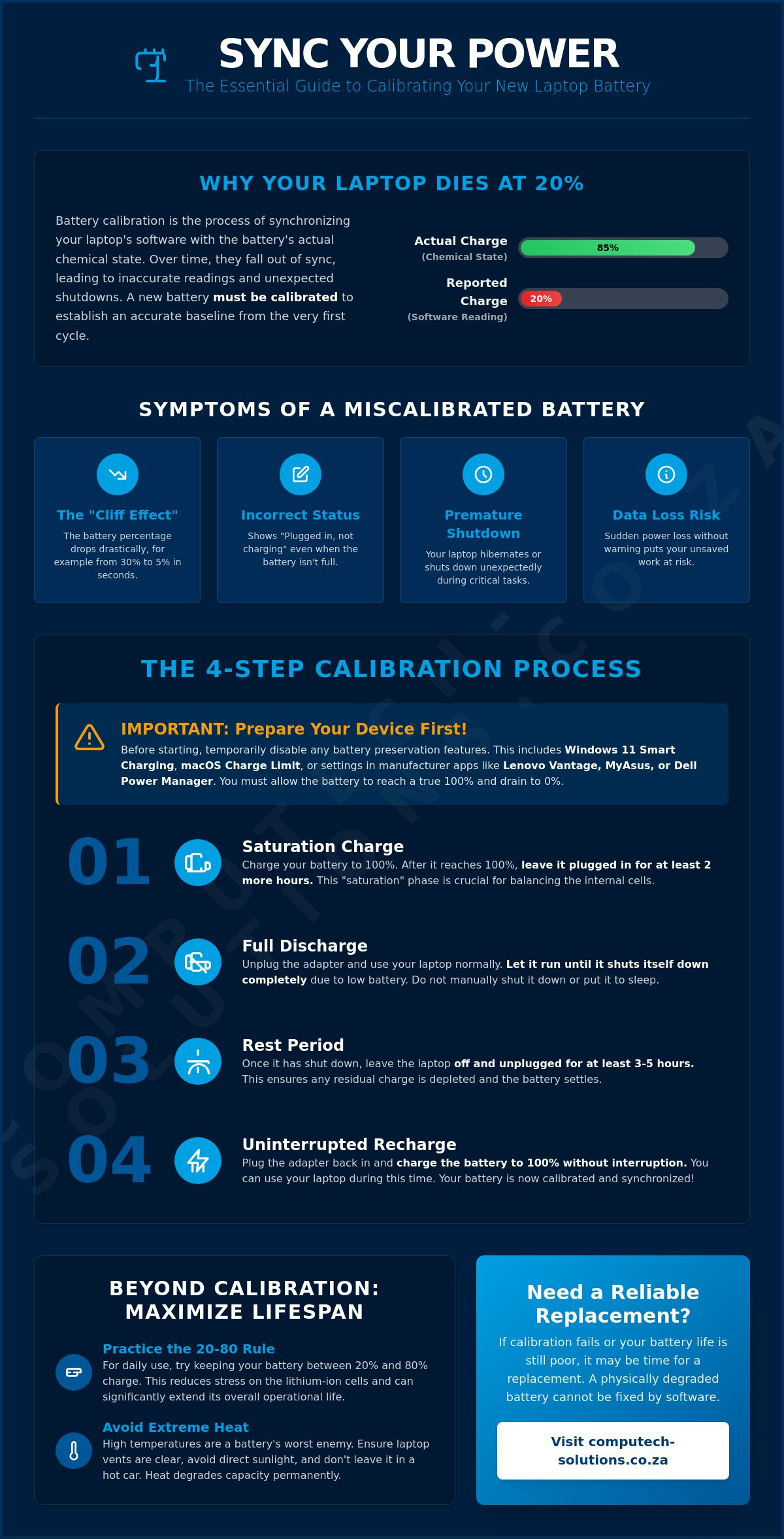
Step-by-Step Guide to Calibrating Your Laptop Battery
Performing a manual calibration is a precise operation that requires specific power settings to be successful. If you skip the preparation phase, your operating system might trigger a sleep mode or hibernation too early, which prevents the sensor from seeing the full discharge curve. When learning how to calibrate a new laptop battery, you must first ensure your laptop doesn’t take defensive actions before the process is complete. This digital handshake relies on a clean, uninterrupted cycle from a saturated charge to a safe low-voltage threshold.
Phase 1: Charging and Power Configuration
Start by charging your laptop to 100%. Once the meter hits its peak, leave the device plugged in for at least two extra hours. This “Saturation Charge” ensures the cells are truly full and balanced. During this time, you must disable any software-level charging limits. If you’re on macOS 26.4, go to System Settings and set the Charge Limit to 100%. Windows 11 users should check for a heart icon on the battery symbol; if active, use the manufacturer app like Lenovo Vantage or MyAsus to override smart charging and allow a full 100% capacity.
Next, adjust your Windows Power Options. Set “Screen off” and “Sleep” to “Never” for both battery and plugged-in modes. Navigate to the “Advanced power settings” and find the “Battery” section. Set the “Critical battery action” to “Hibernate” and the “Critical battery level” to 5%. This specific threshold is vital. It allows the sensor to record the low-voltage state without the risk of a “deep discharge” that can permanently damage lithium-ion cells.
Phase 2: The Discharge Process
Unplug your laptop and use it normally. You don’t need to stay idle, but you should avoid intensive tasks like 4K video rendering or high-end gaming. These activities generate excessive heat, which can skew the sensor’s readings. As the battery drains, the internal microprocessor tracks the voltage drop. This phase is explained in detail within the Wenatchee School District’s guide to battery care, which highlights how the battery’s microprocessor learns the actual capacity during this drain. Once the laptop hits the 5% mark and hibernates, let it sit unpowered for at least five hours. This resting period allows the chemical energy to stabilize, providing the most accurate “empty” reading for the digital sensor.
Phase 3: Final Synchronisation
The final step in how to calibrate a new laptop battery is the recovery charge. Plug your laptop back into its charger and let it reach 100% in a single, uninterrupted session. You can use the laptop during this time, but don’t unplug it until it’s finished. Once complete, your sensor and cells are synchronized. You can now restore your original sleep settings and re-enable smart charging features to protect your battery’s long-term health. To verify the success of the process, run a Windows Battery Report by typing powercfg /batteryreport into the command prompt. Your “Full Charge Capacity” should now closely align with your “Design Capacity.”
Optimising Battery Health Beyond Calibration
Calibration provides an accurate digital reading, but long-term battery health depends on how you manage the physical chemistry of the cells. Lithium-ion batteries are most stable when kept between 20% and 80% charge. Consistently keeping your battery at 100% while plugged into a charger creates high-voltage stress, which accelerates chemical aging and permanently reduces capacity over time. Modern laptops from brands like Dell, Lenovo, and ASUS include specialized power management software to address this. By using “Battery Threshold” or “Conservation Mode” settings, you can limit the maximum charge to 80%, significantly extending the hardware’s operational life.
Managing these settings is particularly important during extended periods of load shedding. While it’s tempting to keep your device at 100% to prepare for power outages, doing so 24/7 is detrimental. A better strategy is to use your manufacturer’s software to toggle between a 100% “Standard” charge when an outage is imminent and a restricted “Healthy” charge during stable power periods. If you have recently invested in a high-quality replacement laptop battery, utilizing these software tools ensures you get the maximum return on your investment.
Temperature Control and Airflow
Heat is the primary enemy of lithium-ion technology. Charging your battery in a hot environment or allowing the laptop to overheat during heavy use causes the internal chemicals to break down faster. You should always operate your device on a hard, flat surface to ensure proper airflow. Using a laptop on soft surfaces like beds or pillows blocks the intake vents, trapping heat directly against the battery housing. If you’re performing intensive tasks while on battery power, consider using a cooling pad to keep the internal temperature below 35°C, which is the threshold where degradation begins to accelerate.
Storage and Long-Term Maintenance
If you plan to store your laptop or a spare battery for more than two weeks, never leave it at 0% or 100%. A fully depleted battery can fall into a “deep discharge” state, rendering it unable to hold a charge again. Conversely, a fully charged battery stored in heat will lose capacity rapidly. The “Goldilocks zone” for storage is 50%. This balanced state provides enough energy to maintain the internal circuit without overstressing the cells. While knowing how to calibrate a new laptop battery is essential for accuracy, you should only perform the process every three months. Recalibrating too often adds unnecessary charge cycles, which eventually reduces the total lifespan of the hardware.
When Calibration Fails: Identifying a Dead Battery
Sometimes, even a perfect execution of the steps for how to calibrate a new laptop battery won’t restore your device’s performance. Calibration is a tool for digital accuracy, not a cure for physical chemical decay. If your laptop continues to shut down unexpectedly after a successful sync, the issue is likely rooted in the hardware cells. Lithium-ion batteries have a finite lifespan, typically measured in 300 to 500 full charge cycles. Once you reach this hardware limit, the internal resistance increases, and the battery can no longer hold enough ions to power your system reliably.
You must also be vigilant about the physical state of your hardware. A swollen or bulging battery case is a critical safety risk that no amount of software adjustment can fix. If you notice your trackpad lifting or the laptop casing warping, stop using the device immediately and do not attempt to charge it. Calibrating a swollen battery is dangerous, as the heat generated during the saturation charge could lead to a thermal event. In these instances, the only safe solution is a total hardware replacement from a trusted specialist.
Interpreting Your Battery Health Report
To determine if your battery is truly dead, you should analyze the relationship between “Design Capacity” and “Full Charge Capacity” in your OS health report. The wear percentage is calculated by subtracting the current full capacity from the original design capacity. Generally, a wear level of 30% or higher indicates that the battery has reached its “end of life” state. At this stage, you’ll experience “Voltage Sag,” where the battery appears to have 40% charge but lacks the electrical pressure to sustain the processor under load. This results in an instant crash that calibration cannot prevent.
Finding the Right Replacement in South Africa
When calibration fails and you’ve confirmed hardware exhaustion, selecting the correct replacement is vital for your laptop’s longevity. You must match the Voltage (V) and Capacity (Wh) of your original unit exactly. Installing a battery with the wrong voltage can permanently damage your laptop’s motherboard. Reputable suppliers ensure that every unit for brands like Acer, HP, and Samsung meets these strict technical specifications. Choosing a high-quality component provides the stability you need to maintain productivity during long work sessions or power outages. Ready for a fresh start? Browse our range of replacement laptop batteries to find a definitive power solution for your device.
Secure Your Device’s Power Reliability
Mastering how to calibrate a new laptop battery is a fundamental skill for any professional relying on mobile hardware. By synchronizing your digital sensor with the physical cells, you eliminate the operational risk of sudden shutdowns and inaccurate power readings. This process ensures your laptop’s software provides the precise data needed to navigate power outages and load shedding with confidence.
If your battery report continues to show significant wear or if calibration cycles fail to restore accuracy, it’s time to consider a hardware upgrade. We specialize in providing high-quality Acer, Dell, and HP replacement parts to keep your business running smoothly. With nationwide delivery across South Africa and expert technical support for all hardware installations, we provide a definitive solution for your portable power needs. Find the perfect replacement battery for your Acer, Dell, or HP laptop today. Taking control of your battery health is the best way to ensure your device remains a reliable partner in your daily operations.
Frequently Asked Questions
How often should I calibrate my laptop battery?
You should calibrate your battery once every three months or whenever you notice the percentage indicator jumping unexpectedly. While knowing how to calibrate a new laptop battery is vital for initial setup, doing it too frequently adds unnecessary charge cycles. This routine maintenance ensures your operating system remains synchronized with the battery’s actual capacity without causing premature chemical wear.
Does calibrating a battery make it last longer?
Calibration does not physically extend the chemical life of the lithium-ion cells. It only improves the accuracy of the digital sensor. To actually preserve physical health, you should follow the 20-80 rule and manage heat effectively. Calibration simply ensures that when your screen says 10%, you actually have 10% of power remaining, preventing sudden shutdowns.
Can I calibrate a battery that won’t charge at all?
No, you cannot calibrate a battery that refuses to accept a charge. Calibration requires the system to reach a 100% saturation point and then discharge to a low threshold. If your battery stays at 0%, it likely has a failed internal circuit or dead cells. In this case, you should check your laptop charger or consider a hardware replacement from a trusted specialist.
Is it safe to let my laptop battery go to 0%?
It is generally not safe to let lithium-ion batteries reach a true 0% because this can lead to a “deep discharge” state. During the calibration process, we recommend setting the critical battery level to 5% instead of 0%. This provides the sensor with a sufficient low-voltage reading while leaving enough energy to protect the cells from permanent chemical failure.
Why does my laptop say 100% but shuts down when I unplug it?
This symptom usually points to a hardware failure rather than a calibration issue. When a battery shows 100% but fails immediately upon unplugging, the cells can no longer sustain the voltage required to power the system under load. Calibration cannot fix dead hardware. You will likely need a new replacement battery for your Dell, HP, or Lenovo laptop to restore portability.
Does Windows 11 have a built-in battery calibration tool?
Windows 11 does not include a native, one-click calibration tool within the operating system. You must either use the manual charge-discharge method or a manufacturer-specific utility. Apps like HP Support Assistant or Lenovo Vantage often include battery reset functions. These tools automate parts of the process, but the manual principles we’ve outlined remain the most reliable way to sync your hardware.
Will calibrating my battery fix a “service recommended” warning on a MacBook?
Calibrating your battery will not remove a “service recommended” warning on macOS. This alert is triggered when the system detects that the battery’s capacity has dropped below 80% of its original design or has exceeded a specific cycle count. If you see this message on macOS 26.4, the battery’s chemical health is depleted, and a hardware replacement is the only definitive solution.
Can I use my laptop while it is calibrating?
You can use your laptop during the calibration process, but you must be careful. During the discharge phase, avoid high-intensity tasks like gaming that generate excessive heat. During the final “Recovery Charge” phase, it’s essential that you don’t unplug the charger until the meter reaches 100%. Interrupting the process can result in an incomplete digital handshake and inaccurate data reporting.
