
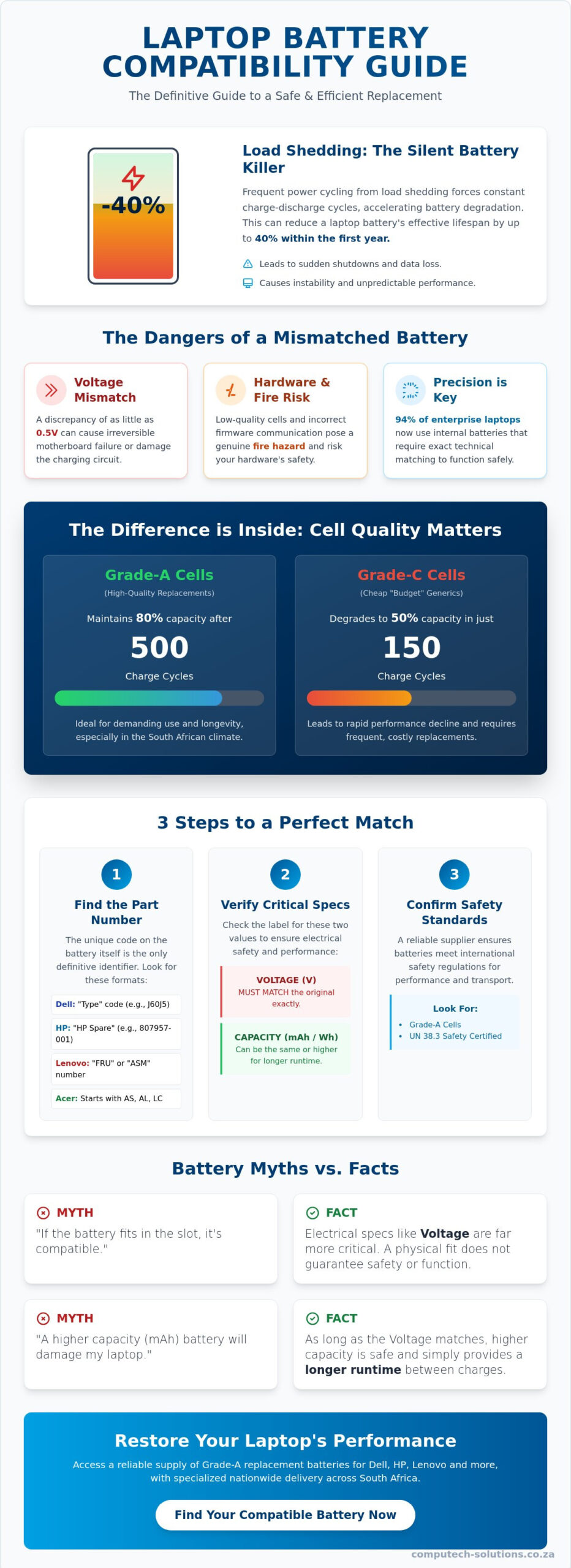
Did you know that frequent power cycling from load shedding can reduce a laptop battery’s lifespan by as much as 40% within its first year? When your device finally stops holding a charge, the most urgent question is: is my laptop compatible with a new battery? It is a valid concern, as approximately 94% of enterprise-grade laptops now feature internal batteries that require precise technical matching. Buying the wrong component is more than just a logistical headache; a voltage discrepancy of as little as 0.5V can cause permanent hardware damage or charging failures.
We understand the stress of deciphering complex labels and the fear of purchasing a low-quality unit that might compromise your device’s safety. This 2026 verification guide provides a definitive method for matching your current battery to a reliable replacement using part numbers and physical specifications. You will learn how to verify critical metrics like Voltage and Watt-hours to ensure total operational efficiency. We also explain how to identify Grade-A cells that meet UN 38.3 safety regulations, giving you a clear path to restoring your laptop’s performance with a professional solution delivered anywhere in South Africa.
Key Takeaways
- Understand the critical risks of voltage mismatching and how load shedding accelerates the need for high-quality replacement hardware.
- Identify the exact part number and technical specifications required to ensure your replacement battery functions safely and efficiently.
- Learn to use built-in system reports to answer the question, “is my laptop compatible with a new battery?” without ever opening the casing.
- Separate fact from fiction regarding “universal” batteries and the impact of higher capacity ratings on your device’s motherboard.
- Access a reliable supply of replacement batteries for major brands like Dell, HP, and Lenovo with specialized nationwide delivery across South Africa.
Understanding Laptop Battery Compatibility: Why It Matters
Assuming that a battery is safe to use simply because it fits into the physical slot is a dangerous misconception. Compatibility is an intricate match of electrical specifications, physical dimensions, and internal firmware communication. When you ask, “is my laptop compatible with a new battery,” you’re looking for more than a physical fit. A discrepancy of as little as 0.5V in the voltage rating can lead to catastrophic motherboard failure or permanent damage to the charging circuit. Beyond internal hardware risks, mismatched or low-quality cells pose genuine fire hazards, especially if the battery’s protective board doesn’t communicate correctly with your laptop’s power management system.
The Impact of Frequent Power Cycles
South Africa’s energy challenges have fundamentally changed how we maintain hardware. Frequent load shedding forces laptops into constant charge-discharge cycles, which accelerates the degradation of Lithium-ion battery technology. Verified data from 2026 indicates that heat and frequent power cycling from load shedding can reduce a battery’s lifespan by up to 40% within the first twelve months. Failing batteries aren’t just an inconvenience; they become unpredictable. This instability often leads to sudden shutdowns and data loss during critical work sessions when the grid goes offline. Recognizing early signs, such as a “service battery” warning or a battery that won’t charge past a certain percentage, is vital for maintaining your business’s operational continuity.
OEM vs. High-Quality Replacement Batteries
Choosing between an Original Equipment Manufacturer (OEM) unit and a generic replacement is a balance of budget and reliability. OEM batteries are produced by the original brand, such as Dell, HP, or Lenovo, and typically carry a significant price premium. However, high-quality generic replacements have become a sophisticated and cost-effective alternative for out-of-warranty devices. The distinction lies in the cell grade. Grade-A cells are designed to maintain 80% of their original capacity after 500 charge cycles, making them ideal for the South African climate. In contrast, cheap Grade-C cells often found in “budget” generics can degrade to 50% capacity in just 150 cycles.
When you investigate “is my laptop compatible with a new battery,” remember that the quality of the internal components is just as critical as the model number on the sticker. Visual similarity is never a guarantee of performance. A reliable South African supplier will be transparent about technical specifications like Watt-hours (Wh) and milliampere-hours (mAh), ensuring the replacement battery meets or exceeds the original’s safety standards. Relying on specialized experts ensures you receive a total solution that protects your hardware investment from technical disruptions.
Identifying Your Battery Part Number and Technical Specifications
Finding the correct replacement starts with looking past the laptop’s marketing name. While your device’s chassis might say “Dell Latitude 5400”, that specific series can house different battery configurations depending on the internal hardware revision. The only definitive way to answer the question, “is my laptop compatible with a new battery,” is to identify the unique part number assigned by the manufacturer. This alphanumeric code is the primary link between your hardware and the correct replacement unit.
Locating the Part Number on Common Brands
Manufacturers place this identifier directly on the battery’s physical casing. You’ll usually find it printed in a bold font or highlighted in a dedicated box. If you’ve already removed the component, look for these brand-specific patterns:
- Acer: Look for alphanumeric strings starting with AS, AL, or LC, such as AS10D31.
- Dell: These units use a “Type” designation, typically a five-character code like J60J5 or WD52H.
- HP: Focus on the “HP Spare” number, often formatted as a six-digit number followed by a dash and three more digits (e.g., 807957-001).
- Lenovo: Search for the FRU (Field Replaceable Unit) or ASM number.
If the label is worn or illegible, checking a curated list of replacement laptop batteries from a local specialist can provide the necessary cross-reference data to ensure a perfect match.
Decoding Voltage and Capacity Ratings
Voltage is the most critical electrical specification you must verify. Most laptop batteries operate at 10.8V, 11.1V, or 14.8V. While a small difference between 10.8V and 11.1V is often acceptable, you cannot replace a 10.8V battery with a 14.8V version. Doing so risks frying the motherboard’s power management chips. Voltage Tolerance is the safe range for power input, typically within 0.5V of the original rating.
Capacity, measured in Milliampere-hours (mAh) or Watt-hours (Wh), represents the total energy storage. Think of this as the size of a fuel tank. A battery with a higher mAh or Wh rating than your original is perfectly safe to use and will simply provide longer unplugged runtimes. Following established lithium-ion battery safety guidelines ensures that even high-capacity units are handled and charged correctly. Always prioritize matching the voltage first, as capacity is a secondary benefit rather than a strict compatibility restriction. Understanding these metrics ensures that when you ask, “is my laptop compatible with a new battery,” you’re making a choice based on technical facts rather than visual guesswork.
3 Ways to Verify Compatibility Before You Buy
Executing a verification check before completing your purchase eliminates the risk of receiving a component that doesn’t function. While searching by model name is a common starting point, it’s often insufficient because manufacturers frequently update internal hardware without changing the external model designation. To answer the question, “is my laptop compatible with a new battery,” you’ll need to use a combination of software diagnostics and physical inspection. This multi-layered approach ensures the replacement unit matches the electrical and physical requirements of your specific machine.
Generating a Windows Battery Report
If your laptop still powers on, the most efficient way to identify your current hardware is through a system-generated report. This method is particularly useful for modern devices where the battery is sealed inside the chassis. Follow these steps to access your data:
- Right-click the Start button and select Command Prompt (Admin) or Windows PowerShell (Admin).
- Type
powercfg /batteryreportand press Enter. - Windows will save an HTML file to your user folder. Open this file in your web browser.
The report provides a detailed overview of the hardware, including the “Battery Name” and the “Manufacturer.” Look closely at the “Design Capacity” versus the “Full Charge Capacity.” If the full charge capacity is significantly lower than the design capacity, the chemistry is failing. This report gives you the exact name to cross-reference when browsing laptop batteries from a specialized provider.
Physical Dimensions and Connector Placement
A software report is excellent for data, but it can’t confirm if a third-party casing will physically fit. You must ensure a 1:1 match of the battery’s shape and the placement of the connector pins. This is a critical step because a connector shifted by just a few millimeters will make installation impossible. As of 2026, approximately 94% of enterprise-grade laptops feature internal batteries. This means you’ll likely need a small Phillips or Torx screwdriver to open the back panel and verify the hardware.
When inspecting the battery, check the following:
- Pin Configuration: Count the number of gold contact points on the connector.
- Mounting Screws: Ensure the screw holes on the replacement match the positions in your laptop’s internal frame.
- Cabling: Some internal batteries connect via a flexible ribbon cable rather than a direct plug. Verify that the replacement includes this cable if the original is not detachable.
If you’re still uncertain, consulting the manufacturer’s official support page using your serial number or Service Tag is a reliable third option. Most brands like Dell, HP, and Lenovo provide detailed parts lists that confirm the exact specifications required for your specific build. Combining these three methods provides a total solution for compatibility verification, protecting your device from operational risks.
Addressing Common Compatibility Pitfalls and Myths
Misinformation regarding power specifications often prevents users from making confident purchasing decisions. When you ask, “is my laptop compatible with a new battery,” you might encounter conflicting advice about capacity and safety. Many users fear that installing a battery with a higher capacity than the original will cause an electrical surge or an explosion. This is a technical impossibility. Modern laptop charging circuits are designed to pull only the current they need; the battery does not “push” power into the system. Understanding these distinctions is the first step toward a successful hardware upgrade.
Capacity (mAh) vs. Voltage (V) Confusion
The relationship between capacity and voltage is the source of most compatibility errors. Capacity, measured in milliampere-hours (mAh), dictates how long your device stays powered away from a wall socket. Think of it as the size of a fuel tank. A larger tank allows for more kilometers, but it doesn’t change how the engine runs. If your original battery was 4400mAh and you find a compatible 5200mAh version, your laptop will simply enjoy a longer runtime.
Voltage, however, is the fuel type and must be precise. While you must match the voltage rating of your original unit, 11.1V and 10.8V are often interchangeable because they both represent a three-cell configuration with slightly different nominal voltage labels. The same logic applies to 14.4V and 14.8V units. However, you must never attempt to swap a 10.8V battery for a 14.8V one. This mismatch will likely trigger a circuit protection shutdown or permanent hardware failure.
Troubleshooting Post-Installation Issues
Even after verifying “is my laptop compatible with a new battery,” you may encounter a “Plugged in, not charging” error. This does not always indicate a defective battery. Modern laptops use sophisticated handshaking protocols between the BIOS, the battery firmware, and the AC adapter. If your system doesn’t recognize the new component, a BIOS update is often the solution. Manufacturers frequently release these updates to improve third-party hardware compatibility and power management efficiency.
Calibration is another essential post-installation step. To calibrate a new unit, charge it to 100%, let it rest for two hours, and then discharge it completely until the laptop shuts down. This process syncs the battery’s internal processor with the Windows or macOS power meter. If the problem persists, the fault might lie with your power brick rather than the cells. A damaged “sense pin” in the center of the charging jack can prevent the laptop from communicating with the charger, halting the charging process entirely. If you suspect your power supply is failing, you can browse our certified laptop chargers to find a reliable replacement that matches your new battery’s requirements.
The idea of a “universal” laptop battery is a myth that rarely holds up in professional environments. Every manufacturer uses proprietary pin configurations and communication chips to ensure safety. Relying on a total solution from a specialized provider is the only way to guarantee that your replacement hardware meets the exact operational standards of your device.
Reliable Laptop Battery Replacements Across South Africa
Sourcing a replacement battery from a local South African specialist is the most efficient way to restore your device’s operational health. While international marketplaces might seem attractive, they often involve long lead times and complex customs regulations regarding lithium-ion transport. By choosing a local partner, you gain access to immediate stock and technical support that understands the specific challenges of our regional power environment. This localized approach ensures that your hardware has been vetted for the specific demands of frequent power cycling, providing a level of reliability that global shipping cannot match.
The Computech-Solutions Advantage
Computech-Solutions provides a comprehensive range of power components designed to meet the highest performance standards. Our inventory includes high-quality replacement batteries for every major brand, including Acer, Apple, ASUS, Dell, HP, and Lenovo. We also maintain stock for Samsung, Sony, and Toshiba models, ensuring that even legacy devices can be brought back to full capacity. Our specialized knowledge in power parts ensures that when you ask, “is my laptop compatible with a new battery,” you receive a verified answer based on technical data rather than guesswork.
Beyond batteries, we offer a total solution for laptop maintenance. Our catalog features specialized components such as:
- Laptop Chargers and Adapters for all major brands.
- Laptop LCD Replacement Panels to restore visual clarity.
- Desktop Computers and new Laptops for full system upgrades.
This all-encompassing service model means you have a single, reliable source for all your technical needs. Every product we sell is expert-vetted to ensure it meets 2026 safety regulations, providing the stability you need to avoid operational risks.
Ready to Restore Your Mobility?
Finding the right part is a streamlined process through our digital storefront. You can filter our inventory by manufacturer and part number to confirm is my laptop compatible with a new battery before you complete your purchase. We place your needs at the center of our narrative, ensuring that technical features are always linked to practical business outcomes. A new battery is an investment in your productivity, and we are here to ensure that investment is protected by high-quality cells and professional support.
We also emphasize the importance of matching your power adapter to your new cells. Using an old, frayed charger can lead to charging failures or damage your new hardware. Our nationwide delivery service ensures that whether you are in a major city or a regional hub, your replacement parts arrive quickly and ready for installation. This rhythmic efficiency moves you quickly from identifying a hardware challenge to implementing a streamlined solution.
Find your compatible laptop battery at Computech-Solutions today and regain the mobility your work demands.
Restore Your Device’s Power and Reliability
Securing the correct replacement hardware is the most effective way to safeguard your laptop against the operational risks caused by South Africa’s unstable power grid. By matching the manufacturer’s part number and verifying exact voltage specifications, you eliminate the guesswork that leads to motherboard damage. This guide has provided you with the diagnostic tools needed to answer the question, is my laptop compatible with a new battery, with technical certainty. Whether you are performing a physical inspection or generating a system report, your focus remains on ensuring a total, long-term solution for your mobile workstation.
We provide expert technical support to assist with compatibility verification for all major brands. As specialists in Acer, Dell, and HP power solutions, we ensure that every component meets rigorous safety standards before it leaves our facility. Our national South African shipping network delivers these streamlined solutions directly to your door, minimizing downtime and restoring your productivity quickly. You don’t have to manage technical disruptions alone when a reliable partner is ready to assist.
Browse our full range of replacement laptop batteries with nationwide South African delivery and take the final step toward restoring your laptop’s mobility today.
Frequently Asked Questions
Can I use a battery with a higher mAh rating than my original?
You can safely use a battery with a higher mAh rating than your original unit. This rating indicates the battery’s capacity or the size of its fuel tank. A higher value simply means your laptop will run longer on a single charge. However, you must ensure the voltage remains identical to your original battery, as mismatched voltage can damage the internal power management chips.
Is it safe to use a third-party replacement battery in my laptop?
Using a third-party replacement battery is safe provided the unit meets international safety standards such as UN 38.3. High-quality generic batteries use Grade-A cells that offer performance comparable to original manufacturer parts. You should avoid unbranded, budget batteries that lack thermal protection or use inferior Grade-C cells, as these pose genuine operational risks and fire hazards to your hardware.
How do I find my laptop battery part number if the sticker is missing?
If the physical label is missing or illegible, you can identify the part number using software diagnostics. Windows users should generate a battery report via the Command Prompt, while macOS users can check the System Report under the Power tab. Alternatively, searching the manufacturer’s support site with your laptop’s serial number or Service Tag will reveal the exact part number required to confirm is my laptop compatible with a new battery.
Why does my laptop say “battery not detected” after I installed a new one?
A “battery not detected” error often stems from a poor physical connection or outdated BIOS firmware. Ensure the connector pins are fully seated and free of debris. If the hardware is secure, performing a BIOS update can often resolve communication issues between the laptop’s motherboard and the new battery’s firmware. In some cases, a hard reset of the power management system is required to trigger recognition.
Do I need to replace my charger when I buy a new battery?
You don’t need to replace your charger unless it shows signs of physical damage or fails to provide consistent power. However, if your laptop was struggling to charge before the battery replacement, the AC adapter might be the culprit. Using a high-quality, compatible charger ensures your new battery receives the correct voltage and current, which is essential for maximizing the component’s long-term health and performance.
How long should a new laptop battery last before it needs replacing?
A high-quality replacement battery generally maintains optimal performance for approximately 500 charge cycles, which equates to roughly two to three years of standard use. In South Africa, environmental heat and frequent power cycles can accelerate this degradation. You can expect Grade-A cells to retain 80% of their original capacity after these 500 cycles, while inferior cells may degrade to 50% capacity within just 150 cycles.
Can I replace an internal laptop battery myself?
Most users can replace an internal battery themselves by following a brand-specific service manual and using the correct tools. You will typically need specialized equipment like a Phillips #00 or Torx screwdriver to remove the back panel. Since approximately 94% of enterprise laptops now use internal designs, it’s essential to disconnect the power and ground yourself to prevent static discharge before touching any internal components.
Does load shedding damage my laptop battery?
Load shedding significantly damages batteries by forcing them into constant, deep discharge cycles that stress the lithium-ion chemistry. This frequent power cycling can reduce a battery’s total lifespan by as much as 40% within the first year of use. To protect your hardware, try to keep the battery level between 20% and 80% and use a surge protector to prevent voltage spikes when the grid power returns. Is my laptop compatible with a new battery check is even more critical when frequent outages have compromised your original unit.
