
That brand-new battery you just installed isn’t a dud just because it’s dying in under an hour. It’s incredibly frustrating to experience your laptop battery draining fast after replacement, especially when you’re trying to stay productive during a scheduled power outage. You likely feel like you’ve wasted money on a defective product, but the reality is that this issue is rarely a hardware failure. It’s usually a communication breakdown between the new lithium-ion cells and your laptop’s outdated power management firmware.
We understand the stress of technical disruptions and the need for a reliable power solution. This guide will explain the technical reasons why new batteries underperform and provide the expert steps needed to restore your laptop’s full three to five hour runtime. We’ll explore essential calibration techniques, the impact of the June 2026 Windows Secure Boot certificate updates, and how to optimize your system for South African power conditions. You’ll gain the clarity needed to determine if your battery is truly faulty or if your system simply requires professional optimization.
Key Takeaways
- Understand why your laptop battery draining fast after replacement is often a software synchronization issue rather than a hardware defect.
- Learn the manual calibration process to align your operating system’s reporting with the actual physical capacity of new lithium-ion cells.
- Master the “powercfg /batteryreport” command to identify hidden background processes that bypass standard power-saving modes.
- Discover how to verify critical voltage and watt-hour compatibility to ensure your replacement battery matches your laptop’s specific requirements.
- Implement professional charging strategies to protect your hardware from heat degradation and the operational strain of frequent power cycles.
Why Your New Laptop Battery is Draining Fast After Replacement
Installing a new battery should provide instant relief from power anxiety, yet many users find their laptop battery draining fast after replacement within the first few days. This phenomenon, often called “New Battery Syndrome,” usually stems from a desynchronization between the hardware and the software. While the physical cells are healthy, the operating system is still operating on the logic of your previous, degraded component. It isn’t a sign of a defective product; it’s a sign that your laptop needs to be re-educated on its new power limits.
Modern laptops, particularly those running Windows 11, utilize a feature called “Modern Standby.” This allows the device to stay connected to the internet and perform background tasks even while the lid is closed. If your power plan is set to “High Performance,” the system will aggressively pull power from the new cells. This creates the illusion of a faulty product when, in reality, the software is simply consuming energy at an accelerated rate to maintain background connectivity. You’ve essentially put a larger fuel tank in a car that’s idling at a very high RPM.
The Communication Gap: Battery vs. Motherboard
Every modern battery contains a Battery Management System (BMS) chip. This chip acts as the critical intermediary between the power cells and the motherboard. When you install a new unit, your laptop often “remembers” the discharge curve of the old, failing battery. It expects the voltage to drop at a specific, rapid rate. Because the Lithium-ion battery technology in your new replacement has a different energy profile, the internal power counter must be reset. Without this reset, the OS may report a 0% charge and trigger a shutdown even when the cells are still physically half-full. This communication gap is the primary reason why a laptop battery draining fast after replacement is reported by users who haven’t yet calibrated their systems.
Initial Expectations vs. Reality
It’s vital to understand that new batteries require a “break-in period” to reach their peak chemical efficiency. Specifically, the break-in period for replacement batteries is the initial phase where the internal chemistry stabilizes through three to five complete charge and discharge cycles. During this time, you might notice “phantom drain,” where the percentage drops while the laptop is idle. This isn’t a hardware flaw. Instead, it’s the system learning the new limits of the hardware.
- Background Indexing: Windows often triggers heavy file indexing and updates immediately after detecting hardware changes.
- Calibration Lag: The OS requires several data points to accurately estimate “time remaining” based on your active usage patterns.
- Cell Saturation: High-density cells often require a few full saturation charges to reach their maximum rated Watt-hour (Wh) capacity.
By allowing the battery to complete these initial cycles, you provide the BMS and the operating system with the data they need to provide accurate runtime reports. Jumping to the conclusion that a battery is a dud within the first 24 hours is premature; the hardware and software simply haven’t finished their handshake process yet.
The Critical Role of Battery Calibration and BIOS Updates
A primary reason for a laptop battery draining fast after replacement is a firmware mismatch. Your motherboard’s BIOS contains power tables that define how the system interacts with the battery cells. If these tables are outdated, the system may struggle to interpret the energy density of modern replacement units. This results in the laptop shutting down prematurely or reporting inaccurate percentages. Ensuring your BIOS and chipset drivers are current allows the hardware to perform a proper “handshake” with the new cells.
Step-by-Step Manual Calibration Guide
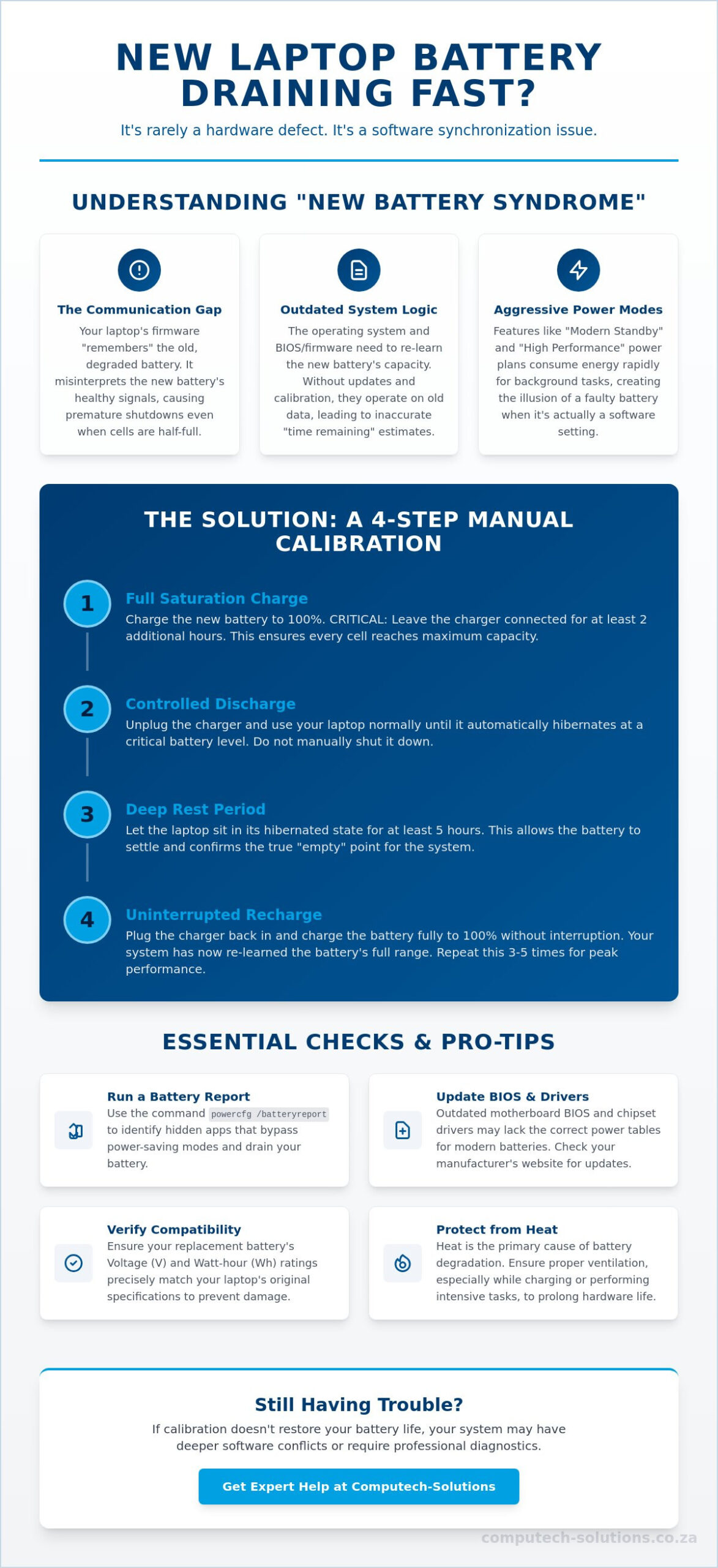
Manual calibration is the most effective way to synchronize the software with the physical hardware. It forces the operating system to relearn the full capacity and the true empty point of the new cells. Follow these steps precisely to reset the internal counters:
- Initial Charge: Charge the battery to 100% and keep the charger connected for at least two additional hours to ensure the cells are fully saturated.
- Controlled Discharge: Unplug the charger and use the laptop until it reaches its critical battery level and hibernates automatically. Don’t manually shut it down before this point.
- Deep Rest: Leave the laptop in its hibernated state for at least five hours. This period is crucial for clearing the Battery Management System (BMS) memory and allowing the voltage to stabilize.
- Full Recovery: Connect the charger and allow the battery to reach 100% in one uninterrupted session. You can use the laptop during this time, but don’t unplug it until it’s finished.
Updating Firmware for Enhanced Power Management
Outdated BIOS versions often lack the necessary instructions to manage modern ACPI (Advanced Configuration and Power Interface) states. If your laptop is between two and four years old, the manufacturer has likely released updates to address security vulnerabilities or power efficiency. You should visit the official support site for your specific model to compare your current BIOS version against the latest release. Updating these files, along with your chipset drivers, ensures that the power rails on the motherboard distribute energy with maximum efficiency.
The CMOS battery also plays a subtle role in this process. If this small internal battery is failing, your BIOS might revert to default power settings that aren’t optimized for your new hardware. If your system still struggles with a laptop battery draining fast after replacement after a manual reset, it may require a deeper diagnostic from a professional hardware partner to ensure the internal power rails are functioning correctly. This is particularly important for users managing frequent power cycles during South African load shedding conditions where hardware stability is paramount.
Diagnosing Software Culprits and Windows Power Settings
If you’ve completed the calibration steps but still find your laptop battery draining fast after replacement, the issue likely resides within your software environment. Windows 10 and 11 are complex operating systems with numerous background services that can bypass standard “Battery Saver” modes. Even with brand new cells, high software demand will lead to rapid depletion. Identifying these power hogs requires moving beyond the Task Manager and looking at the deeper analytics provided by the system itself.
A frequent contributor to unexpected drain is the dedicated GPU. Laptops equipped with NVIDIA or AMD graphics chips use “switching” technology to save power. If a background application incorrectly triggers the dedicated GPU instead of the integrated graphics, your power consumption can triple instantly. Additionally, Windows Update often initiates heavy indexing and file compression after it detects hardware changes. This process can hammer your new battery for several hours while it optimizes the system for the new hardware signature.
Hidden Power Hogs in Windows 10 and 11
Modern Windows versions include a feature called “Fast Startup.” While this makes your laptop boot quickly, it achieves this by saving a portion of the system state to the disk and keeping certain hardware components in a low-power “ready” state. This often causes your laptop battery draining fast after replacement even when the device is technically shut down. Disabling this in the Power Options menu is a critical step for South African users who need their devices to hold a charge during long periods without electricity.
- Manage Startup Apps: Review the “Startup” tab in Task Manager. Many apps, such as cloud sync tools or game launchers, trigger high-performance states as soon as you log in.
- Processor Power Management: Navigate to Advanced Power Settings and ensure your “Minimum processor state” is set to 5% on battery. If this is set to 100%, your CPU will never downclock to save energy.
- Background Apps: Use the “Battery use by app” setting in Windows to identify which programs are consuming the most energy over a 24-hour period.
Interpreting Your Battery Report
Windows includes a powerful command-line tool that provides a detailed history of your hardware’s performance. To generate the report, open the Command Prompt as an administrator, type powercfg /batteryreport, and press Enter to save the diagnostic file to your user profile. This HTML file reveals the “Design Capacity” versus the “Full Charge Capacity.”
On a new battery, these two numbers should be nearly identical. If the Full Charge Capacity is significantly lower than the Design Capacity, the software is still misreading the hardware limits. The report also tracks “Battery Life Estimates” based on your actual usage. By reviewing the “Recent Usage” section, you can see if the battery is losing charge while the system is in a suspended state, which confirms whether the drain is caused by active software or a failure to enter deep sleep.
Replacement Quality: Generic vs. OEM and Voltage Matching
When software optimization and calibration fail to solve the issue of a laptop battery draining fast after replacement, you must examine the physical specifications of the hardware. Not all replacement batteries are engineered to the same standard. A common pitfall for many users is focusing solely on the price while overlooking critical electrical metrics like Voltage (V) and Watt-hours (Wh). If these values don’t align with your laptop’s original power profile, the system’s charging controller will struggle to manage the energy flow efficiently.
Voltage matching is particularly sensitive. You may notice some batteries labeled as 10.8V while others for the same model are 11.1V. While these are often marketed as interchangeable, they represent different cell chemistries. Using a 10.8V battery in a system designed for 11.1V can lead to the laptop battery draining fast after replacement because the motherboard’s power rails are operating at a slight deficit. This forces the components to pull more current to compensate for the lower voltage, which generates excess heat and depletes the cells prematurely.
The Anatomy of a Quality Replacement Battery
The internal components of a battery determine its actual lifespan and daily performance. High-quality replacements utilize Grade A cells, which offer consistent energy discharge and lower internal resistance. In contrast, budget-friendly generic options often use recycled or lower-grade cells that have higher internal resistance. This resistance is a silent killer of runtime; it converts stored electrical energy into wasted heat instead of powering your processor. Quality units also include dedicated thermal protection circuits within the casing to prevent the cells from overheating during rapid charging cycles, a feature often stripped from “High Capacity” generic labels to save on manufacturing costs.
Matching Your Laptop Model Exactly
To ensure total compatibility, you should always identify the specific manufacturer part number rather than searching by the laptop model alone. For instance, a Dell user should look for a specific identifier like J60J5, while an HP user might require the HT03XL. These part numbers ensure that the Battery Management System (BMS) inside the battery uses the exact communication protocols required by your motherboard. Avoiding “Universal” batteries is essential, as they often lack these specific protocols, leading to the communication gaps discussed in earlier sections.
At Computech-Solutions, we vet every component to ensure it meets rigorous South African operational standards, providing the stability you need during frequent power disruptions. If you’re unsure which unit is right for your device, you can browse our range of brand-specific replacement batteries to find a guaranteed match for your hardware. Selecting a precisely matched unit is the most reliable way to secure the 3 to 5 hours of runtime your laptop was designed to deliver.
Extending Battery Life and Professional Support in South Africa
South African users face a unique set of environmental challenges that can compromise even the highest quality hardware. High ambient temperatures and the operational strain of load shedding create a demanding environment for lithium cells. If you’ve addressed the software settings but still find your laptop battery draining fast after replacement, it’s time to focus on long-term hardware preservation. Heat is the primary killer of lithium-ion technology. When your laptop operates in temperatures exceeding 30°C, the chemical degradation within the cells accelerates, leading to a permanent loss of capacity.
Using the correct charger is equally vital for battery health. An uncertified or mismatched adapter might provide the correct voltage but fail to deliver the stable amperage required by the Battery Management System (BMS). This causes the internal charging controller to work harder, generating excess heat that further depletes the cells. During load shedding, the moment power returns is the most dangerous time for your hardware. Power surges can exceed 250V in many residential areas, which can bypass basic internal fuses and damage the BMS logic, leading to inaccurate reporting and rapid drain.
Maintenance Tips for Longevity
Adopting proactive maintenance habits will significantly extend the lifespan of your new component. We recommend following the “20-80 rule,” which involves keeping your battery charge between 20% and 80% whenever possible. Lithium cells are under the most chemical stress when they’re pushed to the absolute limits of 0% or 100%. By staying within this middle range, you can often double the number of effective charge cycles your battery can handle.
- Surge Protection: Always use a high-quality surge protector or a UPS to shield your laptop from the “inrush current” when the grid power is restored after an outage.
- Refresh Cycles: Perform a “refresh” calibration cycle once every three months. This ensures the OS remains perfectly synced with the physical capacity of the cells as they naturally age.
- Thermal Management: Avoid using your laptop on soft surfaces like beds or carpets, which block ventilation and trap heat against the battery casing.
When to Contact Computech-Solutions
There are instances where a laptop battery draining fast after replacement is a sign of a rare manufacturing defect or a hardware failure within the laptop’s own charging circuit. If you notice any physical swelling of the battery casing or if the laptop feels excessively hot to the touch while charging, you should stop using the device immediately. These are signs of a compromised cell that could lead to further hardware damage. Similarly, if the operating system suddenly fails to detect the battery at all after a few weeks of use, the BMS may have entered a permanent failure state due to a power surge.
If your runtime remains significantly below the promised three to five hours after following our calibration and optimization guides, you may have a “dud” product that qualifies for a warranty claim. Our team is ready to assist with deep hardware diagnostics to determine if the issue lies with the battery, the charger, or the motherboard power rails. You can Contact our technical support team for expert advice to ensure your portable office remains reliable and efficient regardless of the local power conditions.
Restoring Your Laptop’s Operational Efficiency
Resolving the issue of a laptop battery draining fast after replacement requires a systematic approach that balances software calibration with hardware quality. By synchronizing your operating system through manual calibration and ensuring your BIOS firmware is up to date, you bridge the communication gap that often causes premature shutdowns. Optimizing Windows power settings and managing background processes further protects your runtime during critical work sessions, especially when facing the daily challenges of the South African power grid.
If your current hardware fails to meet these performance standards despite proper optimization, it’s time to invest in a component designed for stability and longevity. You can Shop Premium Replacement Batteries for Acer, Dell, and HP at Computech-Solutions. we maintain high-quality generic and brand-name stock backed by expert technical support based in South Africa. With nationwide delivery for all laptop components, we ensure your mobile workstation remains a reliable asset for your business operations.
You don’t have to settle for interrupted workflows or constant power anxiety. With the right system configuration and a high-quality battery match, your laptop will return to the peak performance levels you expect.
Frequently Asked Questions
How long should a new laptop battery last on its first charge?
A standard replacement battery should provide between three and five hours of runtime on its first charge, depending on your laptop’s power consumption and screen brightness. However, you might notice the percentage dropping faster than expected during the initial use. This happens because the operating system hasn’t yet mapped the new discharge curve. After three to five full charge cycles, the chemistry stabilizes and the software provides a more accurate estimate of the remaining time.
Is it normal for a new battery to drop from 100% to 90% very quickly?
It is common for the first 10% of a charge to deplete rapidly due to how Windows interprets voltage levels. Lithium-ion cells sit at their highest voltage when fully saturated, and this voltage drops quickly once a load is applied. If the drop happens instantly, it’s a clear sign that your system requires a manual calibration. This process ensures the software doesn’t misinterpret a minor voltage dip as a significant loss of capacity.
Can a faulty charger cause a new battery to drain fast?
A faulty or underpowered charger is a frequent cause of a laptop battery draining fast after replacement. If the adapter cannot provide the full amperage your laptop requires during high-performance tasks, the system will pull the “missing” energy from the battery even while plugged in. This results in a continuous cycle of micro-discharging. Always ensure your charger’s wattage matches the original manufacturer’s specifications to prevent this hidden drain on your new cells.
What is battery calibration and do I really need to do it?
Battery calibration is the process of synchronizing the internal Battery Management System (BMS) with your laptop’s software. You definitely need to perform this whenever you install new hardware. Without calibration, your laptop might rely on the “memory” of your old, degraded battery’s performance. This leads to the system reporting a low charge and triggering a forced hibernation even when the new cells still have significant energy remaining.
Why does my laptop say ‘Plugged in, not charging’ with a new battery?
This message often indicates a driver conflict or a built-in protection feature. Many modern laptops stop charging once they reach 95% to protect the cells from heat-induced degradation. If it occurs at a lower percentage, you should try uninstalling the “Microsoft ACPI-Compliant Control Method Battery” driver from the Device Manager and restarting your laptop. This forces Windows to re-identify the battery hardware and the charging protocols of the new BMS.
Does Windows 11 drain more battery than Windows 10?
Windows 11 generally has a higher idle power draw than its predecessor due to advanced background services and “Modern Standby” requirements. The visual transparency effects and updated widget system keep the GPU and CPU in an active state more frequently. If you’ve noticed your laptop battery draining fast after replacement on Windows 11, disabling background apps and adjusting the transparency settings can help recover a significant portion of your runtime.
How can I tell if my replacement battery is a fake or poor quality?
Physical weight and labeling are the primary indicators of quality. A high-quality battery uses dense, Grade A cells and will feel similar in weight to your original unit, while cheap fakes often feel surprisingly light. You should also check for regulatory certifications like CE or RoHS on the label. Using the “powercfg /batteryreport” command allows you to compare the “Design Capacity” against the “Full Charge Capacity” to see if the cells meet their advertised specs.
Should I remove my battery when using the laptop on AC power?
You should not remove your battery while using AC power, especially in regions with unstable electricity. Modern laptops are designed to stop charging the battery once it reaches 100%, so there’s no risk of “overcharging” the cells. Keeping the battery installed provides a critical buffer against data loss during load shedding or sudden power surges. The battery acts as a built-in UPS that protects your motherboard’s sensitive power rails from sudden voltage drops.
