
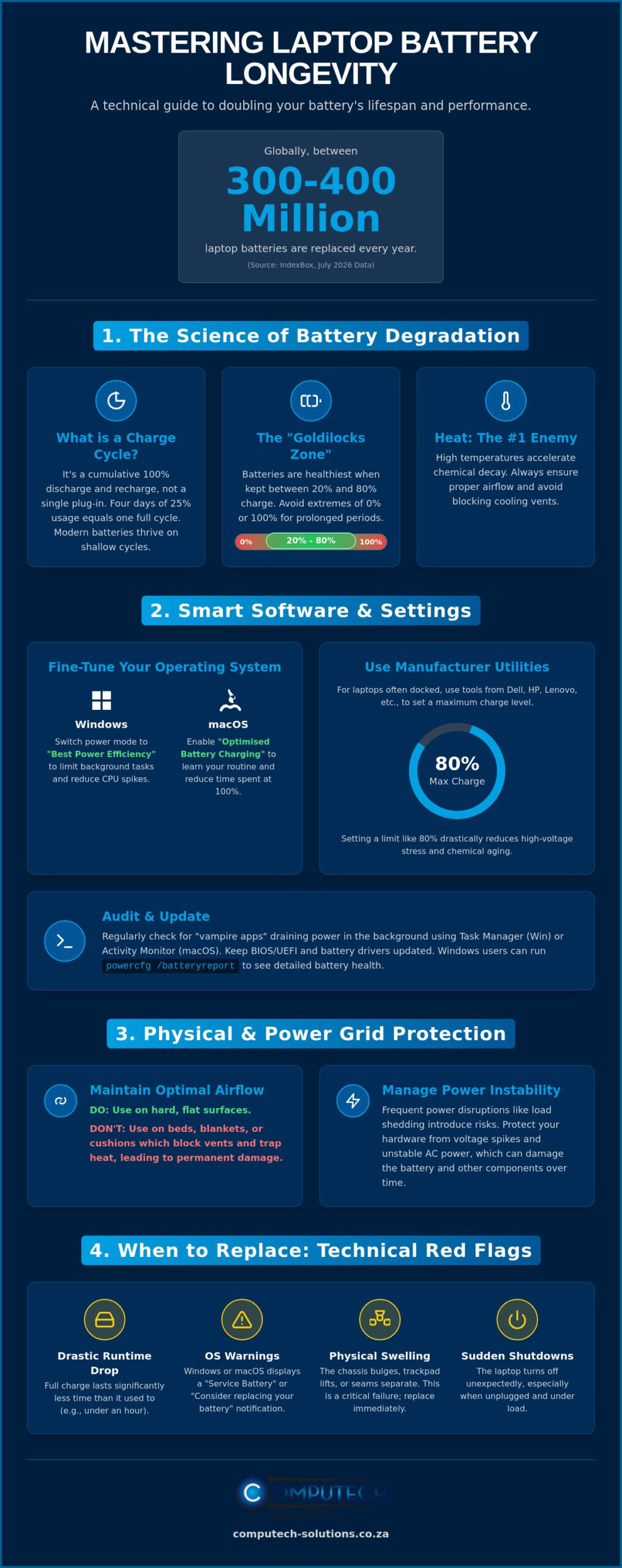
Did you know that between 300 and 400 million laptop batteries are replaced globally every year? According to July 2026 data from IndexBox, this massive turnover highlights a critical gap in how users manage their portable power. You’ve likely felt the frustration of watching your charge percentage plummet just as a load shedding block begins, or worried that your laptop is running too hot during a busy workday. It’s often confusing to decide whether to keep your charger plugged in or if doing so is slowly damaging your hardware. Implementing the best practices for laptop battery care is no longer just a suggestion; it’s a technical necessity for maintaining operational efficiency in a demanding environment.
We understand the stress that technical disruptions cause to your productivity. This guide provides a definitive roadmap to mastering the essential habits and technical settings required to double your battery lifespan. You’ll learn how to utilize the latest 2026 software updates from brands like Dell, HP, and Lenovo to protect your hardware against South Africa’s unique power challenges. We’ll preview a comprehensive approach involving active software management, ambient temperature control, and AC-stability protection to ensure you achieve slower long-term capacity loss and extended daily runtime.
Key Takeaways
- Understand how modern Lithium-ion technology degrades and why managing charge cycles is essential for hardware longevity.
- Implement the best practices for laptop battery care through OS-level power configurations and background application management.
- Protect your device from thermal stress by maintaining optimal airflow and following professional storage protocols.
- Learn to safeguard your battery against voltage spikes and the operational risks associated with frequent load shedding.
- Identify the specific technical red flags that signal when to replace your battery to maintain peak performance.
Understanding the Science: How Modern Laptop Batteries Degrade
Most modern laptops rely on Modern Laptop Batteries, specifically Lithium-ion (Li-ion) or Lithium-polymer (Li-po) variants. These power cells provide high energy density in a compact form factor but possess a finite lifespan measured in charge cycles. A charge cycle is defined as a cumulative 100% discharge and recharge, rather than a single plug-in event. For example, discharging 25% of your battery daily for four days equals exactly one cycle. Understanding this measurement is central to the best practices for laptop battery care because it helps you track the true wear on your hardware.
Chemical ageing is the irreversible loss of lithium ion mobility over time. This process is inevitable, but its speed depends heavily on how you treat the device. Batteries operate most efficiently within a “Goldilocks Zone,” typically between 20% and 80% charge. Operating consistently at the extreme ends of the spectrum, such as 0% or 100%, puts unnecessary strain on the internal chemistry, leading to premature capacity loss and reduced runtime.
The Role of Heat in Battery Decay
Heat remains the primary enemy of battery longevity. High temperatures accelerate the chemical reactions that cause degradation, leading to a permanent reduction in how much energy the cell can hold. As a battery ages, its internal resistance increases. This creates a dangerous “heat loop” where the battery generates more heat during operation, which in turn increases resistance and accelerates decay. You should never use your laptop on soft surfaces like beds, blankets, or cushions. These materials obstruct the cooling vents and trap heat against the chassis, which can cause the battery to swell or fail prematurely.
Depth of Discharge (DoD) Explained
Deep cycling, or draining a battery to 0%, is a legacy tip from the era of Nickel-Cadmium batteries that actually harms modern hardware. Lithium-based systems thrive on shallow discharge cycles. Frequent, small recharges are far superior to letting the battery run dry. Deep discharges cause significant voltage stress at the extreme ends of the charge spectrum, which physically degrades the battery electrodes. By avoiding deep discharges, you reduce the mechanical strain on the battery’s internal structure. Integrating these best practices for laptop battery care into your daily routine ensures that your laptop remains a reliable tool during extended power disruptions.
Software Optimisation: Best Practices for Daily Battery Care
Software serves as the operational brain of your device. It dictates how energy flows from the cells to your processor and display. While the hardware physics discussed in the previous section are fixed, your software configuration determines how quickly those cycles are consumed. Implementing the best practices for laptop battery care starts with fine-tuning your operating system’s power plan. On Windows, switching to “Best Power Efficiency” mode limits background activity and throttles CPU spikes. macOS users should ensure “Optimised Battery Charging” is active to reduce the time the battery spends at a high state of charge.
Vampire apps are silent killers of productivity. These programs run in the background, pinging servers or indexing files while you focus on other tasks. You should regularly check your Activity Monitor (macOS) or Task Manager (Windows) to identify high-impact processes that drain juice. Keeping your BIOS/UEFI and battery drivers updated is equally critical. Manufacturers frequently release firmware patches that refine how the motherboard communicates with the battery controller. To track your progress, run a diagnostic report. Windows users can type powercfg /batteryreport into the Command Prompt to generate a detailed history of their hardware’s capacity and usage patterns.
Leveraging Manufacturer Battery Management Tools
Many professionals leave their laptops plugged into a docking station or charger for extended periods. This practice holds the battery at a high voltage, which accelerates chemical wear. Brands like Acer, Dell, and HP provide specialized utilities to mitigate this risk. Using “Conservation Mode” or “Battery Thresholds” allows you to set a charge limit, typically 80%. This keeps the battery within its healthiest operating range without requiring you to manually unplug the cable. Modern systems also feature Smart Charging, which learns your daily routine and only tops up the final 20% right before you usually start your workday. If you find your current battery no longer holds a charge despite these settings, you might need to browse high-quality replacement laptop batteries to restore your mobility.
Display and Connectivity Tweaks
The screen is often the largest consumer of power in any portable system. Reducing brightness by even 20% can add significant runtime to your daily session. High refresh rate displays (120Hz or 144Hz) are smooth but energy-intensive; switching to 60Hz when on battery power is a smart move. You should also disable unused hardware like Bluetooth, backlit keyboards, and Wi-Fi when working offline. Dark Mode is an effective energy-saver for OLED laptop screens because these panels turn off individual pixels to display black, consuming zero power in those areas. Following these Physical and Environmental Protection Strategies ensures your software efforts aren’t wasted by unnecessary hardware drain.
Physical and Environmental Protection Strategies
Software settings provide the logic for energy management, but the physical environment dictates the efficiency of that process. Maintaining clear airflow is the most effective way to prevent thermal throttling and unnecessary battery stress. When dust accumulates in vents or fans, it acts as an insulator that traps heat. This forces the cooling system to work harder, which draws more power and accelerates chemical decay. You should use compressed air to clean your laptop’s cooling channels every few months to ensure the system remains efficient. These physical maintenance tasks are essential best practices for laptop battery care.
Ambient temperature is a critical factor for hardware health. Leaving a laptop in a parked vehicle is a common mistake that often results in permanent battery damage. Interior car temperatures can escalate rapidly, reaching levels that cause the lithium-ion cells to degrade or swell. This “car-baking” effect is often irreversible. Always bring your device into a climate-controlled environment to avoid exposing the internal components to extreme heat. If the chassis feels excessively hot to the touch, shut the system down and allow it to cool before resuming your work.
Safe Transport and Handling
You should never transport a laptop in Sleep Mode inside a bag or sleeve. In Sleep Mode, the device continues to draw a small amount of power and generate heat. If a Windows update or background process wakes the laptop while it’s enclosed, the lack of airflow can lead to a dangerous thermal spike. Use Hibernate instead. Hibernate saves your open applications to the storage drive and cuts power to the hardware entirely. This protects your thermal health and prevents the battery from draining while you’re on the move. Additionally, protect your device from physical shocks. Dropping a laptop can puncture the soft casing of Li-po batteries, which creates a fire risk.
Long-term Storage Guidelines
If you plan to store your laptop for more than two weeks, follow the 50% Rule. Storing a battery at a full 100% charge keeps the cells under high voltage stress, while storing it at 0% can lead to a deep discharge state. A battery that drops below its critical voltage threshold may become chemically unstable and fail to charge again. Aim for a 50% charge level and store the device in a cool, dry location. You must perform a periodic check-in every three months to ensure the charge hasn’t dipped too low. Adhering to these best practices for laptop battery care ensures your hardware is ready for use when you return to it.
Managing Power Instability: Load Shedding and Surge Protection
Constant power switching during load shedding creates a unique challenge for hardware longevity. Each time the grid fails, your battery undergoes a discharge event that contributes to its total cycle count. While modern systems handle transitions well, the sheer frequency of these events in South Africa accelerates chemical ageing. Beyond cycle counts, the grid’s return often brings “dirty power.” These are voltage spikes and fluctuations that can bypass basic internal protections and stress the lithium-ion cells. Implementing the best practices for laptop battery care in this environment requires more than just software settings; it demands active power management.
Integrating an Uninterruptible Power Supply (UPS) or a solar inverter into your workstation provides a critical layer of protection. These devices act as a buffer, ensuring your laptop receives a clean, stable sine wave rather than the erratic voltage found on a recovering grid. Using a high-quality replacement charger is equally non-negotiable for battery safety. A substandard adapter often lacks the sophisticated voltage regulation circuitry needed to shield your battery from external electrical noise and heat. Investing in stable power infrastructure is a fundamental part of maintaining your hardware’s operational efficiency.
Surge Protection and Voltage Regulation
Surge-protected plug points are mandatory for any professional charging station. These units are designed to absorb excess energy during a grid surge, preventing high voltage from reaching your laptop’s sensitive internal circuitry. Frequent voltage fluctuations can silently degrade charging components over time, leading to increased internal resistance and reduced efficiency. You should always disconnect your charger from the wall socket before power is scheduled to return to avoid the initial, most violent surge. This simple habit prevents the motherboard from absorbing the brunt of the grid’s restoration.
Adapting Charging Habits to Load Shedding
Strategic charging is your best defense against a fluctuating grid. You should time your charging cycles to reach roughly 80% shortly before a scheduled load shedding block begins. This ensures you have enough runtime to work through the outage without hitting the stressful 0% mark. For mobile professionals, high-capacity power banks offer a safer alternative to public charging points during erratic outages. Watch for signs of power-related damage, such as physical swelling of the chassis or a battery that drains significantly faster than usual after a surge event. If you suspect your current hardware has been compromised by grid instability, you can buy a certified laptop charger or replacement battery to restore your device’s reliability. Following these best practices for laptop battery care will help you maintain stability despite external power risks.
When to Replace: Identifying End-of-Life and Sourcing Parts
Even when you follow the best practices for laptop battery care, every lithium-ion cell eventually reaches the end of its chemical lifespan. Identifying the exact moment to transition from maintenance to replacement prevents unexpected downtime. You’ll often see specific red flags, such as sudden shutdowns when the battery still reports a 15% or 20% charge. This occurs because aged cells can’t maintain the required voltage under load. Software warnings like “Service Battery” or “Replace Soon” are also clear indicators that the internal resistance has reached a critical level. Physical swelling of the chassis or trackpad is a severe safety risk; if you notice your laptop case bulging, you should stop using the device immediately.
A practical way to assess health is the “Runtime Test.” Compare your current unplugged duration to the battery’s original performance when the device was new. If your laptop now provides less than 25% of its original runtime, the battery is technically at its end-of-life. To find the correct replacement, you’ll need the specific model number. This is usually printed on the battery itself or found within your system information settings. While manufacturer websites often suggest only buying OEM (Original Equipment Manufacturer) parts, high-quality generic replacements offer a reliable and cost-effective alternative, provided they meet the original technical specifications.
The Computech-Solutions Advantage
We’ve positioned ourselves as a reliable partner for professionals across South Africa by sourcing high-quality replacement batteries for Acer, Apple, ASUS, Dell, HP, Lenovo, Samsung, Sony, and Toshiba. Choosing the right hardware shouldn’t be a stressful experience. Our team provides expert technical support to help you navigate model numbers and voltage requirements, ensuring you get the exact part your system needs. With our nationwide delivery service, you can restore your laptop to full health regardless of your location. We focus on providing a total solution that eliminates the operational risks of a failing battery.
Installation and Technical Support
Modern laptops have moved away from external, clip-in batteries toward “sealed” internal designs. Replacing these requires a degree of technical precision to avoid damaging delicate internal ribbons. Expert advice is crucial during this process to ensure that your new battery is perfectly compatible with your existing laptop chargers and internal power management system. This level of care prevents secondary issues with other hardware, such as laptop LCD replacement panels. If your device is no longer holding the charge you need to work efficiently, it’s time to upgrade your power source. Browse our full range of replacement laptop batteries and chargers to find a definitive solution for your hardware needs.
Maximise Your Productivity with Reliable Power
Mastering software thresholds, maintaining physical cooling, and shielding against grid instability are the pillars of hardware longevity. By implementing these best practices for laptop battery care, you ensure your device remains a stable asset through thousands of charge cycles. These habits don’t just extend runtimes; they protect your business against the operational risks of sudden hardware failure. Consistency in maintenance is the most effective way to ensure your portable office remains truly mobile.
When maintenance is no longer enough to offset chemical ageing, sourcing high-quality hardware is the next logical step. We are specialists in Acer, HP, Dell, and Apple replacement parts, offering expert technical support for all your IT hardware needs. With national delivery across South Africa, we ensure your transition to a new power cell is seamless and efficient. Find the perfect replacement battery for your laptop today and return to full operational capacity with confidence. Your hardware is a critical investment, and with the right care, it’ll continue to support your professional growth for years to come.
Frequently Asked Questions
Is it bad to leave my laptop plugged in all the time?
Yes, keeping your laptop plugged in constantly is detrimental because it maintains the battery at a high voltage state. This constant pressure accelerates chemical decay and reduces the total lifespan of the cells. You should use manufacturer-specific software to limit the maximum charge to 80%. Following these best practices for laptop battery care prevents the cells from staying under constant electrical stress while you work at a desk.
How do I check my laptop battery health in Windows 11?
You can check your health status by running a system diagnostic report through the Command Prompt. Open the terminal and type powercfg /batteryreport to generate a detailed HTML file. This document provides a clear comparison between your battery’s original design capacity and its current full charge capacity. It’s a vital tool for tracking degradation and determining exactly when you need to source a replacement.
Should I drain my laptop battery to 0% before charging it?
No, you should avoid draining your battery to 0% whenever possible. Modern Lithium-ion and Lithium-polymer batteries thrive on shallow discharge cycles rather than full depletion. Frequent deep discharges put unnecessary strain on the electrodes and can lead to a state where the battery no longer accepts a charge. Aim to keep your device’s charge level between 20% and 80% to ensure optimal hardware health.
Why does my laptop battery die so fast after load shedding?
Load shedding causes frequent, unplanned discharge events that rapidly consume your battery’s finite charge cycles. The grid’s return often involves voltage spikes that can silently degrade internal charging circuitry. If your runtime has dropped significantly, it’s likely due to the cumulative stress of these power fluctuations and the resulting heat generated during rapid recharging cycles. This environment makes active power management essential for South African users.
Are generic replacement batteries safe for my Dell or HP laptop?
High-quality generic replacement batteries are safe provided they are sourced from a reliable partner. These units are engineered to meet the exact voltage and amperage requirements of your Dell or HP hardware. While they’re more affordable than OEM parts, they still provide the stability needed for professional operations. Always verify that the model number matches your specific laptop series before installation to ensure total compatibility.
What should I do if my laptop battery starts swelling?
Stop using the laptop immediately and disconnect it from any power source. Swelling is caused by a buildup of gas inside the cells, which indicates a serious internal failure and a potential fire risk. Don’t attempt to puncture the casing or squeeze the battery. Place the device in a cool, non-flammable area and contact a technical expert to handle the safe removal and disposal of the damaged hardware.
Does using a higher wattage charger charge my laptop faster?
A higher wattage charger won’t necessarily charge your device faster. Your laptop’s internal charging controller dictates the amount of power it draws from the adapter to protect the circuitry. While a 90W charger can safely replace a 65W unit, the device will only pull the maximum wattage its controller allows. Using an underpowered charger is more dangerous as it may overheat while struggling to meet the laptop’s power demands.
How long should a typical laptop battery last before needing replacement?
Most batteries provide peak performance for 2 to 4 years, which typically equates to roughly 300 to 500 full charge cycles. In environments with high ambient temperatures or frequent power instability, this lifespan may decrease. Implementing the best practices for laptop battery care can help you reach the upper end of this range before a replacement becomes necessary for maintaining your daily operational efficiency.
