
What if the terrifying black screen staring back at you isn’t a sign of a dead motherboard, but rather a simple power delivery failure? Most users assume the worst when their device fails to boot, yet many issues stem from components that are easily replaced. Mastering the process of troubleshooting a laptop that won’t turn on is the difference between a quick recovery and an unnecessary, expensive replacement. Even with South Africa’s power grid remaining stable for over 392 days as of June 2026, hardware wear and tear remains a constant reality for professionals. Since the median price of a new laptop in South Africa reached R10,499 this year, jumping to conclusions can be a costly mistake for your budget.
We understand the immediate stress of losing access to your critical work files and the confusion that technical jargon often creates. It’s frustrating to face a hardware failure when you have deadlines looming and no clear path forward. This guide provides a systematic framework to diagnose your device’s power issues with professional precision. You’ll learn how to isolate the fault, whether it’s a faulty charger or a degraded battery, so you can restore your productivity without the guesswork. We’ll walk through everything from basic power cycles to specific hardware tests for major brands like Dell, HP, and Lenovo.
Key Takeaways
- Learn how a 60-second static discharge can clear residual “flea power” and restore functionality to a device that appears completely unresponsive.
- Master expert techniques for troubleshooting a laptop that won’t turn on by systematically isolating failures within the AC adapter, battery, or DC-in jack.
- Identify the hidden impact of power restoration surges on internal circuitry and learn how to protect your power management ICs from long-term degradation.
- Perform the “Flashlight Test” to differentiate between a catastrophic system failure and a simple backlight issue on your laptop’s LCD panel.
- Utilize a professional decision matrix to calculate the cost-benefit ratio of replacing individual components versus investing in a new laptop.
Immediate Diagnostics: The 60-Second Hard Reset
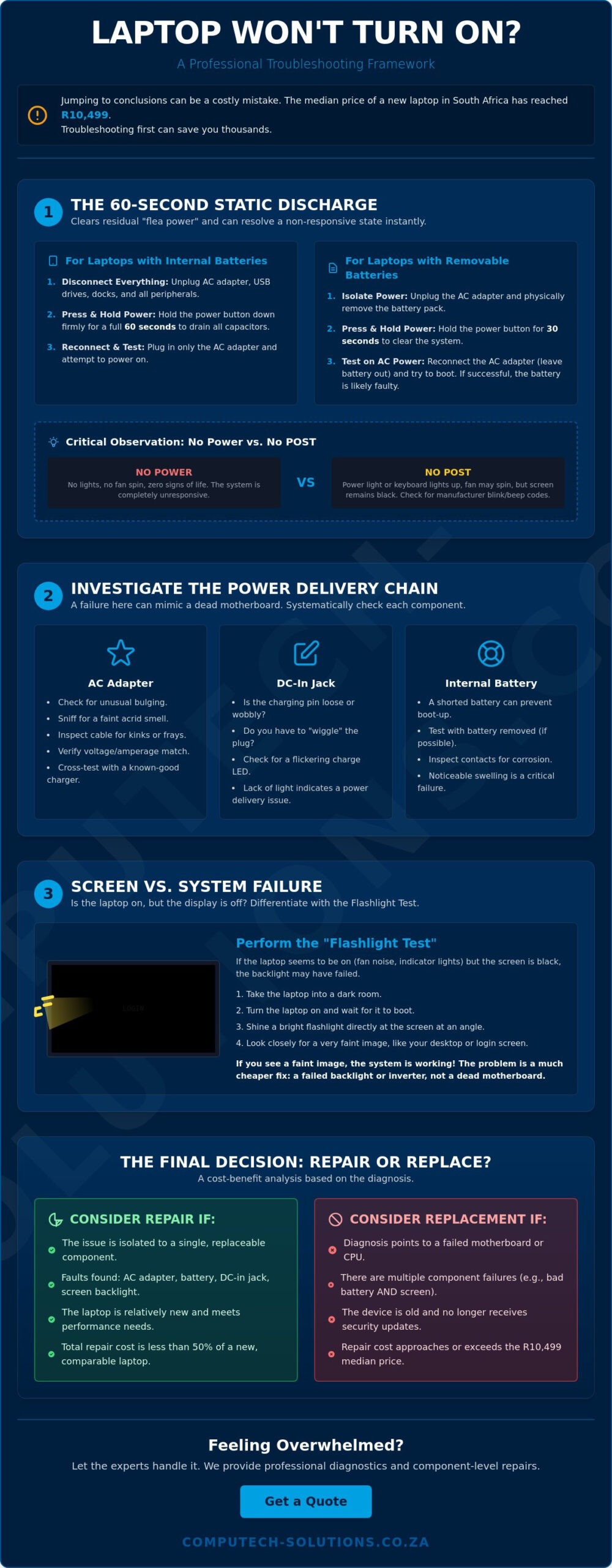
Before assuming a hardware failure, you must address the most common culprit: residual electricity. Often referred to as “flea power,” this is static charge trapped in the capacitors of the motherboard. This build-up can confuse the power management controllers, effectively locking the system in a state where it refuses to boot. Applying systematic troubleshooting principles is the most effective first step when troubleshooting a laptop that won’t turn on. Draining this energy resets the hardware’s power state without the need for invasive repairs or expensive component replacements.
It’s vital to distinguish between a “No Power” situation and a “No POST” (Power-On Self-Test) failure. In a No Power scenario, the laptop shows no signs of life; no LEDs illuminate, no fan noise is audible, and there is zero response to the power button. A No POST failure occurs when the machine receives power but fails to complete its initial hardware check. You might see the keyboard light up or hear the fan spin briefly before the system halts. Pay close attention to the Caps Lock or Power LEDs. Many manufacturers like Dell, HP, and Lenovo use specific blink sequences or beep codes to communicate exactly where the failure occurred within the boot cycle.
Performing a Hard Reset on Laptops with Internal Batteries
Modern laptops with sealed batteries require a specific sequence to discharge. First, disconnect all external peripherals like USB drives, mice, and docking stations. These devices can sometimes back-feed power or cause a conflict during the reset process. Unplug the AC adapter and hold the power button down firmly for a full 60 seconds. This extended duration ensures that the capacitors are fully depleted of any lingering electrical charge. Once complete, plug the charger back in and attempt to power the unit. A successful boot sequence confirms the integrity of your core hardware components and suggests the issue was a logic hang.
Hard Reset for Removable Battery Models
If your laptop features a removable battery, the process is even more direct. Slide the release latches and remove the lithium-ion pack to physically isolate the motherboard from its primary power source. While the battery is out, inspect the gold contact pins for any signs of green corrosion or physical bending. Hold the power button for 30 seconds to clear the system. We recommend testing the laptop using only the AC adapter first. If it boots successfully without the battery, you’ve identified a battery short as the root cause. This indicates it is time for a replacement battery from a reliable brand like Acer, ASUS, or Sony to ensure operational stability.
Evaluating Power Delivery: Charger and Battery Health
When a hard reset fails to revive your device, the next logical step in troubleshooting a laptop that won’t turn on involves a rigorous assessment of the power delivery chain. This chain includes the AC adapter, the DC-in jack, and the internal battery. A failure in any of these components can mimic a catastrophic motherboard death. You don’t always need a multimeter to identify a faulty charger. Start by checking the adapter brick for unusual bulging or a faint acrid smell, which indicates a blown capacitor. Inspect the cable for fraying or sharp kinks, particularly near the connectors where internal copper wires often fracture. If you have access to a secondary, compatible charger, cross-testing is the most definitive way to isolate the fault.
The DC-in jack is a frequent point of failure that many users overlook. If the charging pin feels loose or requires “wiggling” to initiate a charge, the internal solder joints have likely cracked. This physical disconnection prevents current from reaching the system. Some manufacturers provide common fixes for a laptop that include checking the status of the charging LED. A flickering light or a complete lack of illumination when the charger is plugged in points directly to a delivery issue rather than a logic board failure.
Inspecting Your Laptop Charger for Faults
Verify that your adapter meets the specific voltage and amperage requirements listed on your laptop’s underside. Using a “universal” charger is often a gamble; these units frequently fail to provide the precise wattage needed for high-performance tasks, leading to a system that refuses to boot. If your brick feels excessively hot to the touch, it’s struggling to convert AC power efficiently. This inefficiency often stems from internal component degradation caused by the power surges still prevalent in areas under load reduction programs. If your current unit shows these symptoms, investing in high-quality Laptop Chargers / Adapters is a necessary step to protect your hardware.
When to Replace Your Laptop Battery
A “zombie” battery is a component that has failed so completely it creates a short circuit, preventing the laptop from turning on even when connected to a wall outlet. If your device boots only when the battery is physically removed, the cells are likely defective. Keep an eye out for “Plugged in, not charging” warnings or rapid percentage drops. Heat is the primary enemy of lithium-ion health. In South Africa’s climate, internal temperatures can degrade cells quickly, leading to swelling that puts pressure on the trackpad and chassis. For those using professional workstations, sourcing genuine Acer Replacement Laptop Batteries ensures the voltage remains stable under heavy workloads.
South African Power Realities: Load Shedding and Surges
While South Africa has maintained a stable power grid for over 392 consecutive days as of June 1, 2026, the legacy of frequent power cycles continues to haunt older hardware. Even with Eskom’s Energy Availability Factor improving to 62.59%, localized “load reduction” programs in provinces like Gauteng still pose a significant risk to electronic components. When troubleshooting a laptop that won’t turn on, you must consider the environmental factors that preceded the failure. The primary threat isn’t the absence of power, but the high-voltage surge that often occurs the moment electricity is restored to a circuit. These spikes can easily bypass basic internal filters and strike the sensitive power management integrated circuits (ICs) on your motherboard.
Before assuming your motherboard has suffered a terminal failure, check the simplest point of failure: the South African plug top. Many local power cables for high-performance laptops include a replaceable fuse within the 3-pin housing. A sudden surge may have simply blown this fuse, acting as a primary line of defense. If the fuse is intact, the next component to investigate is the external power brick. These adapters often act as a “sacrificial lamb,” absorbing the brunt of an electrical spike to protect the more expensive internal circuitry of the laptop. If your adapter feels dead or looks discolored, replacing it with a certified unit from brands like Dell, HP, or Lenovo is a cost-effective way to restore functionality.
Diagnosing Surge Damage
Perform a “smell test” near the charging port and the adapter brick. A distinct scent of burnt plastic or ozone is a definitive sign of a catastrophic electrical event. If you suspect a surge occurred while the device was plugged in, disconnect it immediately from the wall outlet. Avoid attempting to power the unit repeatedly, as this can cause further damage to weakened capacitors. Modern power management ICs are designed with safety triggers, but a sufficiently powerful spike can override these protections, necessitating a professional diagnostic to determine if a motherboard replacement or a new laptop is required.
Best Practices for Load Shedding Management
Preventative care is the most effective strategy for maintaining hardware longevity in the current energy climate. Always unplug your laptop and its charger before a scheduled load reduction period begins. This simple habit prevents the initial “in-rush” current from hitting your device when the grid goes live. For those relying on solar inverters or UPS systems, ensure these devices provide a pure sine wave output to maintain stable voltage. If your current battery has been degraded by years of inconsistent power cycles, installing high-quality Apple Replacement Laptop Batteries or ASUS Replacement Laptop Batteries can provide the necessary uptime to bridge gaps without risking your data.
Screen vs. System: Is the Laptop Actually On?
A common mistake when troubleshooting a laptop that won’t turn on is conflating a display failure with a total system collapse. If your device’s power light is active or you hear the faint hum of a cooling fan, the motherboard is likely operational. The issue may reside entirely within the display assembly. To verify this, perform the “Flashlight Test” by shining a bright light at an angle against the dark screen. If you can faintly see your desktop icons or login window, your backlight has failed while the LCD remains functional. Another definitive diagnostic is connecting your laptop to an external monitor or television via an HDMI or DisplayPort cable. If the external display shows your operating system, your laptop is “on” but its internal visual output is compromised.
Listening for signs of life provides critical clues. Mechanical hard drives, though less common in 2026, produce a distinct clicking or spinning sound when they receive power. Even in modern systems with silent SSDs, the cooling fans usually spin at maximum velocity for a split second during the initial boot sequence. If you hear these sounds but see nothing, your core system is likely healthy. This distinction is vital because a screen replacement is significantly more affordable than replacing a motherboard or a high-end workstation that could cost upwards of R34,499.
Diagnosing a Failed LCD Panel
Physical damage is often obvious, but internal panel failure can occur without visible cracks. In 2026, the cost of a laptop screen repair in South Africa ranges from R1,500 to R10,000 depending on the technology. For standard non-touch panels, the repair typically falls between R900 and R1,600, whereas high-end Full HD or touchscreen models can reach R3,200 or more. When the cost of repair approaches 50% of the value of a new machine, replacement becomes a logical consideration. However, for premium workhorses, installing Laptop LCD Replacement Panels is a far more sustainable and cost-effective choice than purchasing a new mainstream model.
The Role of Internal Components
If the screen remains dark and the external monitor shows no signal, the fault might lie with the internal memory. A loose RAM module will stop the boot process cold, preventing the system from reaching the POST stage. Reseating the RAM by removing it and firmly clicking it back into its slot often resolves intermittent boot issues. Similarly, a depleted CMOS battery can cause BIOS settings to reset or hang, stalling the startup. In some cases, a corrupted SSD can interfere with the boot priority, leading the system to believe no bootable device exists. Disconnecting these drives can help you determine if the motherboard can at least reach the BIOS screen. If your diagnostics point to a hardware failure, visit computech-solutions.co.za to find the exact replacement part you need.
The Decision Matrix: Repair, Replace, or Upgrade?
Once you’ve finished troubleshooting a laptop that won’t turn on, you must evaluate the financial viability of the fix. In mid-2026, the median transaction price for a laptop in South Africa has reached R10,499. With Intel announcing a 10% price increase for PC CPUs earlier this year and the Rand’s ongoing volatility, purchasing a new machine is a significant capital expenditure. If your diagnosis indicates that the core motherboard and CPU are healthy, investing in a targeted repair is almost always the superior choice for your budget and the environment. Extending the lifespan of your current hardware bypasses the 15% VAT and the inflated costs of new imported electronics.
A standard rule for hardware lifecycle management is the 50% threshold. If the cost of a repair, such as a high-end motherboard replacement ranging up to R7,000, exceeds half the value of a comparable new model, then replacement is logical. However, most power-related failures involve components like batteries or chargers that cost a small fraction of a new system. Choosing a repair over a replacement prevents unnecessary electronic waste and ensures you don’t lose the familiar configuration of your existing workstation. For premium models that cost upwards of R34,499, even a relatively expensive screen or battery replacement is a sound investment.
When a Replacement Battery is the Right Choice
If your device operates perfectly while connected to AC power but loses all functionality the moment it’s unplugged, your motherboard is healthy. The issue is purely a degraded lithium-ion cell. Comparing the cost of a Dell Replacement Laptop Battery to the R10,000 plus cost of a new mainstream laptop reveals an obvious winner. A fresh battery doesn’t just restore mobility; it provides the stable voltage required for the system to maintain peak performance during intensive tasks. This is especially critical for professionals who need to maintain uptime during localized load reduction periods.
Securing Your Next Steps
Precision is vital when sourcing hardware. Before purchasing, locate the exact model number on the bottom of your chassis or within the BIOS menu to ensure perfect compatibility. Using the wrong voltage or a poorly fitted connector can lead to the very power failures you’ve just diagnosed. If you’re unsure about which component matches your specific hardware configuration, professional technical support can prevent costly ordering errors. Once you have a clear diagnosis and understand the fault, Browse our full range of laptop power solutions to find the definitive fix for your device.
Restoring Your Device’s Operational Efficiency
Systematically troubleshooting a laptop that won’t turn on is the most effective way to eliminate operational downtime and avoid the R10,499 median cost of a new device. Most startup failures originate from simple power delivery issues or residual static rather than terminal motherboard damage. By isolating the fault to a specific component like a battery, charger, or LCD panel, you can maintain your current hardware’s performance and protect your critical business data. You’ve now mastered the diagnostic framework needed to identify whether you need a quick reset or a targeted hardware replacement.
When your analysis confirms that a part has failed, choosing a high-quality replacement is the final step toward recovery. Computech-Solutions is a specialist in Acer, Dell, HP, and Apple components, offering expert technical support to ensure you find the exact match for your hardware. We provide nationwide delivery across South Africa to help you restore your productivity without delay. Find Your Reliable Replacement Laptop Battery Today and secure the long-term stability of your workstation. You have the tools and the expertise to resolve this technical challenge with confidence.
Frequently Asked Questions
Why is my laptop power light on but the screen is black?
This symptom usually indicates a display failure or a BIOS hang rather than a total system collapse. If you see active LEDs but no image, perform the flashlight test described in our earlier section to check for a failed backlight. If the screen remains dark but the system works on an external monitor, installing a replacement LCD panel is the most cost-effective fix to restore your workstation.
Can a completely dead battery prevent a laptop from turning on even when plugged in?
Yes, a defective battery can create an internal short circuit that blocks power from the AC adapter. When troubleshooting a laptop that won’t turn on, always try booting the device with the battery physically removed. If the machine starts on charger power alone, the battery is the culprit and requires replacement to ensure the system remains stable during mobile use.
How do I know if my laptop charger is broken or if it is the laptop?
Look for the status LED on the charger brick or the laptop’s charging port as your first diagnostic step. If the light is off or flickering when the cable is moved, the charger or the DC-in jack is likely failing. Testing with a known working adapter of the same voltage is the fastest way to confirm whether you need a new power brick or an internal repair.
Is it worth repairing a laptop that won’t turn on?
It depends on the age of the machine and the specific fault identified during your diagnosis. If the issue is a failed battery or a faulty charger, repair is highly recommended given that the median price of new laptops in South Africa reached R10,499 in 2026. If the motherboard requires replacement on a five-year-old unit, investing that capital into a new laptop might be more sensible.
Will load shedding damage my laptop battery over time?
Frequent power cycles from localized load reduction programs degrade the chemical health of lithium-ion cells significantly. While South Africa has seen 392 days without national load shedding as of June 2026, localized outages still cause harmful voltage fluctuations. These fluctuations force the battery to discharge and recharge more often than intended, which shortens its overall lifespan and reduces capacity.
What should I do if my laptop won’t turn on after a power surge?
Unplug the device immediately and perform a 60-second hard reset to drain residual flea power from the capacitors. Check the fuse in your South African 3-pin plug and inspect the charger for a burnt smell or visible discoloration. If the laptop remains unresponsive after these steps, the surge may have bypassed the adapter and damaged the internal power management integrated circuits.
How can I tell if my motherboard is fried?
A failed motherboard typically shows zero signs of life, even when connected to a verified working charger and a fresh battery. If the laptop does not produce fan noise, LED blinks, or beep codes after a hard reset, the logic board has likely suffered a catastrophic failure. Burnt smells near the exhaust vents or visible heat damage on the chassis are also definitive signs of terminal damage.
Can I use a higher wattage charger for my laptop safely?
You can safely use a charger with a higher wattage as long as the voltage output matches your laptop’s requirements exactly. The laptop’s internal power management circuitry only draws the amperage it needs to operate or charge the battery. However, you must never use a charger with a different voltage, as this will cause immediate and permanent hardware damage to your motherboard.
