
Your Android phone dying fast isn’t just bad luck—it’s a sign your setup needs more than a quick fix. Battery saver mode Android offers a fast way to stretch runtime, but it won’t solve everything alone. Pair it with the right charger and, if needed, a quality replacement battery to keep your device powered through long workdays and loadshedding. Let’s break down what really works to stop those surprise shutdowns. Learn more about saving battery on Android here.
Understanding Battery Saver Mode
To beat sudden shutdowns, it’s crucial to know what battery saver mode does. This mode can help, but only when used smartly with other solutions.
What Battery Saver Changes
Battery saver mode alters several settings to prolong power. It dims your screen, limits background activities, and reduces performance. These tweaks mean your phone uses less energy. For instance, your device may stop apps from refreshing in the background or syncing data regularly, helping your battery last longer. But remember, it’s not a permanent fix. Constant low performance might frustrate you, especially when multitasking. Learn more about Android battery saver settings here.
Best Situations to Use It
Activate battery saver mode when you’re low on power and far from a charger. It’s handy during long meetings, travel, or if you’re stuck in loadshedding. When the power is critical, this mode buys you time. Just be sure to switch it off when you’re ready to charge. Otherwise, you might miss crucial notifications or updates. For those curious about keeping battery saver on during charging, check out this discussion.
Quick Optimizations for Longer Life
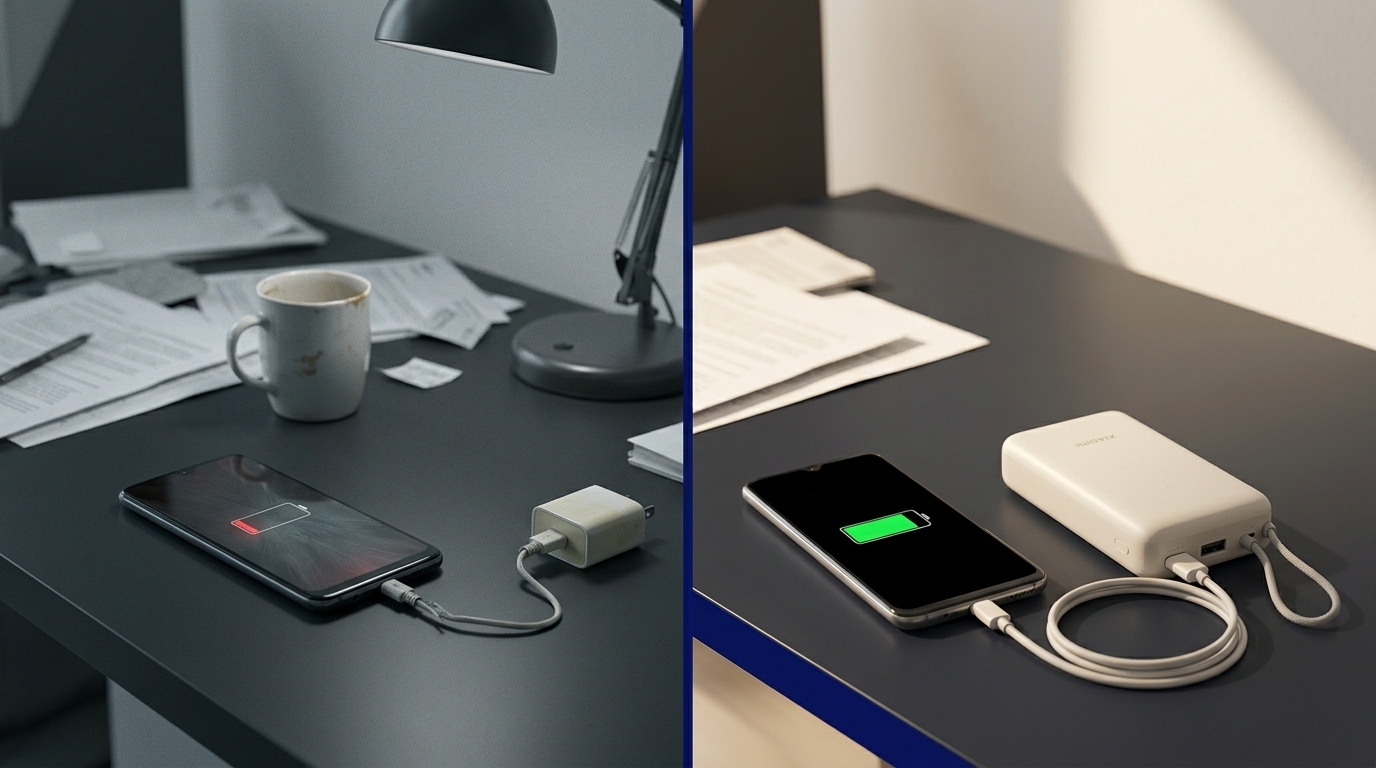
Beyond battery saver mode, simple adjustments can extend your battery life. Let’s explore some quick wins for your settings.
Screen and Connectivity Adjustments
Your screen is one of the biggest power consumers. Lower your brightness or switch to auto-brightness. Also, reduce screen timeout settings, so it turns off sooner when idle. Connectivity options can drain power, too. Turn off Bluetooth and Wi-Fi when not in use. Use airplane mode in low-signal areas to stop your phone from searching for a connection. These steps help squeeze more life from your battery.
Managing Background Processes
Background apps can quietly drain your battery. Check your settings to see which apps use the most power. Limit or stop those that aren’t necessary. Many Android devices let you manage this under battery settings. By tweaking these options, you effectively control what runs and when, saving juice for when you need it most.
Charging and Hardware Solutions
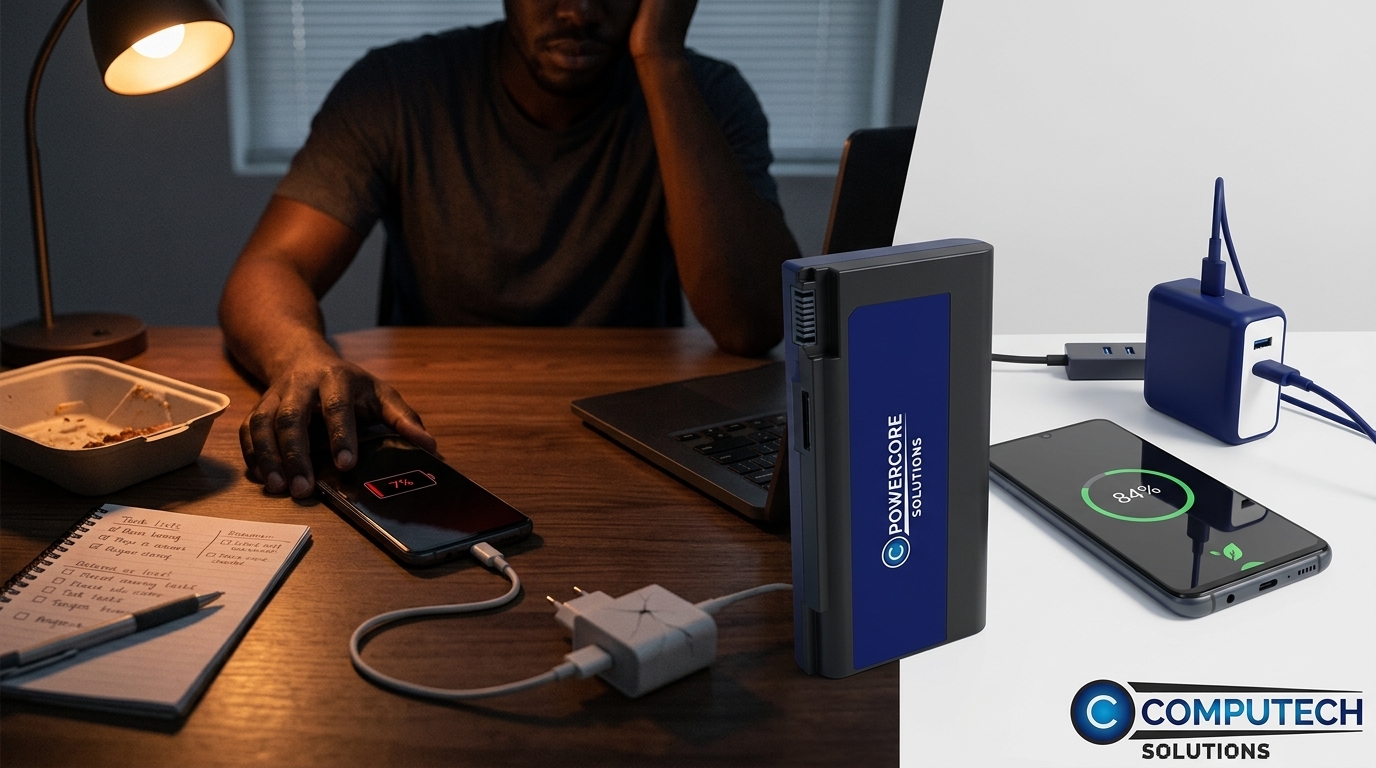
When tweaks fall short, it’s time to look at your hardware. The right charging gear and a good battery can make a huge difference.
Choosing the Right Charger
Not all chargers are created equal. A USB-C PD charger delivers faster, more efficient charging than standard ones. Look for one with the right power output for your device. Using the wrong charger can slow charging or even harm your battery. Investing in a quality charger ensures your phone charges quickly and safely. Find a reliable USB-C PD charger in South Africa here.
When to Replace Your Battery
If your phone still dies fast after trying these tips, it might be time to replace the battery. Signs include your phone not charging fully or dropping power rapidly. A new, high-quality battery can restore your phone’s usability. Computech Solutions offers reliable battery replacements, ensuring your device stays powered when you need it most. Explore more about battery replacements.
Frequently Asked Questions
How do I enable battery saver mode on Android?
To enable battery saver, go to Settings > Battery > Battery Saver. Toggle it on when you need to conserve power. Remember, it limits background activities.
Does battery saver mode affect app performance?
Yes, battery saver mode can slow down app performance by restricting background activities and syncing. It’s a trade-off for longer battery life.
Should I use a fast charger for my Android phone?
Using a fast charger, like a USB-C PD charger, can speed up charging times and is safe if it matches your phone’s specifications.
What are signs my phone battery needs replacing?
Frequent power drops, slow charging, or your phone not holding a charge well indicate it might be time for a new battery.
Can I leave my phone on charge overnight?
While modern phones manage power efficiently, consistently charging overnight might slowly degrade battery health. Use a charger that stops flow once full for best results.
