
Your iPhone’s battery slipping below 20% by midday is more than annoying—it’s a sign your device needs serious attention. Low Power Mode on iPhone is a quick fix, but it’s only a band-aid for deeper battery health or charging issues. Keep reading to find out when this mode really helps and how Computech Solutions can guide you back to full-day power with the right replacement batteries, chargers, and accessories. Learn more about optimizing your battery life here.
When to Use Low Power Mode
Low Power Mode can be a lifesaver when your iPhone’s charge is slipping fast. Here’s how to use it effectively and debunk some myths along the way.
Emergency Step for Battery Saver
When your battery dips below 20%, Low Power Mode reduces power consumption by disabling background apps, automatic downloads, and mail fetch. It’s an emergency measure for extending battery life without shutting your phone off entirely. While it helps in a pinch, relying on it daily indicates a deeper issue with your battery or charger. For a longer-term fix, consider investing in quality charging gear, like a USB-C to Lightning cable MFi.
Checklist for Efficient Use
To squeeze the most out of Low Power Mode, follow these steps:
Activate it manually in Settings or Control Center when you hit 20%.
Reduce screen brightness and close unused apps.
Avoid intensive tasks like streaming or gaming.
Remember, this is a short-term fix. If your battery drains fast even after a full charge, it’s time to examine your charging setup.
Myths About Battery Saver Mode
Many believe Low Power Mode ruins battery health, but it’s simply not true. It doesn’t harm your battery; it only limits power-intensive activities. However, if you depend on it every day, your iPhone battery health might be declining. Explore options like a PD wall charger for more efficient charging.
Signs of Battery or Charger Problems
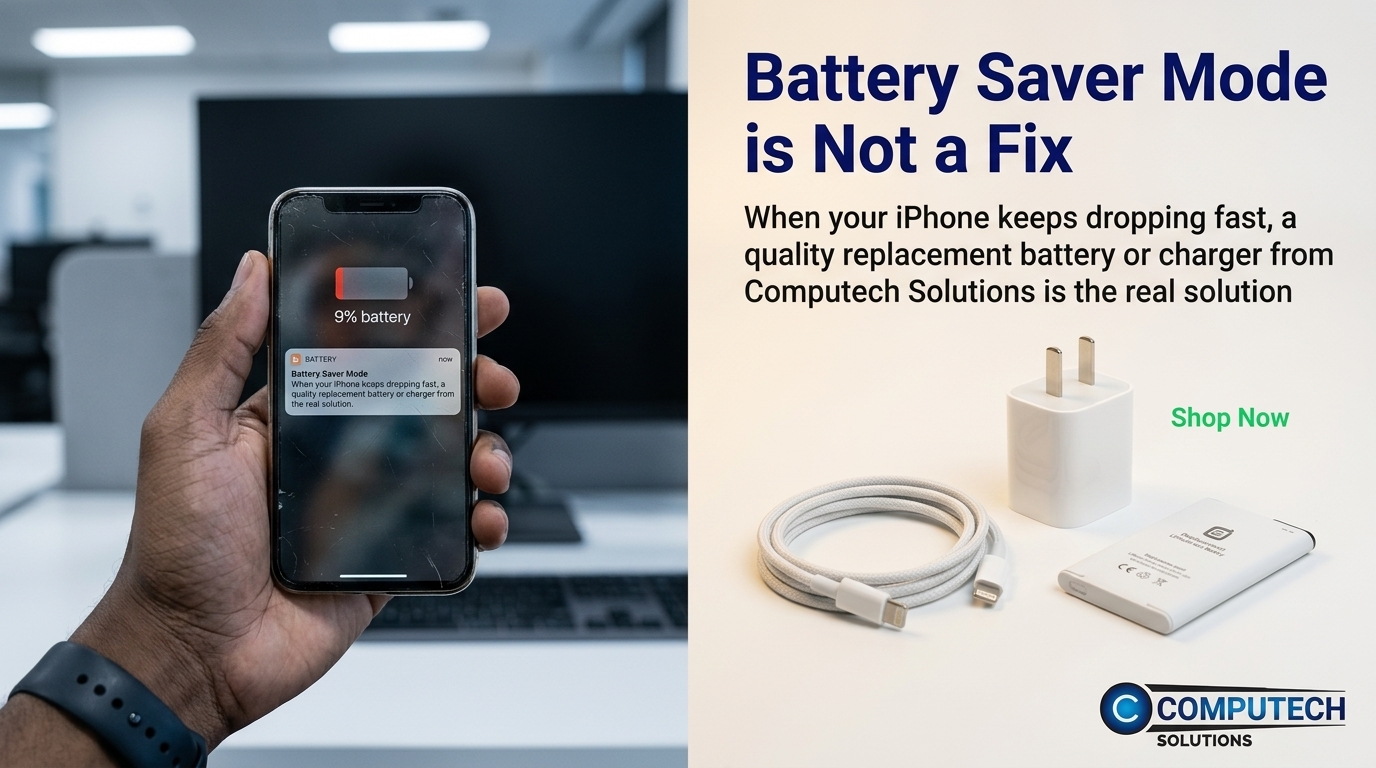
If your iPhone struggles to stay charged, you’re likely facing battery or charger issues. Here’s how to identify them and take action.
Fast Battery Drain After Full Charge
A quick battery drain points to a potential problem. If your iPhone drops from 100% to 20% within hours, it’s not functioning properly. Track your battery usage in Settings to see which apps consume the most power. A deep dive into your iPhone’s battery health might reveal the need for a replacement. For more detailed information, check out Apple’s support.
Identifying Charger Issues
A faulty charger can cause significant battery problems. If your iPhone charges slowly or intermittently, inspect your charging cables and adapters for wear or damage. Consider upgrading to a MagSafe charger for optimal performance.
Understanding iPhone Battery Health
Battery health deteriorates over time. To check it, go to Settings > Battery > Battery Health. If your battery’s maximum capacity falls below 80%, it’s time for a replacement. Don’t wait for it to fail; act now to keep your device reliable.
Recovery Path for Better Battery Life
Improving your iPhone’s battery life requires proactive steps. Here’s how to start your recovery journey.
Checking iPhone Battery Health
Regularly checking battery health ensures you catch issues early. Use the built-in Battery Health feature to monitor capacity and performance. If your battery struggles, it’s essential to address it before it impacts your daily routine.
Investing in Quality Charging Gear
Reliable charging gear is crucial for maintaining battery health. Opt for high-quality chargers like a 20W fast charger and certified cables. These tools preserve battery life, ensuring your iPhone stays powered longer.
Options from Computech Solutions
Computech Solutions offers a range of high-quality charging options, from replacement batteries to advanced chargers. Their expert team can guide you to the right products for your needs. Don’t let a failing battery disrupt your day—explore their solutions and keep your iPhone running smoothly.
Frequently Asked Questions
How can I tell if my iPhone battery needs replacement?
You can check your iPhone’s battery health under Settings > Battery > Battery Health. If maximum capacity is below 80%, consider a replacement.
Does Low Power Mode damage my iPhone battery?
No, Low Power Mode doesn’t harm your battery. It temporarily reduces power usage but shouldn’t be relied on as a daily solution.
What are the signs of a bad iPhone charger?
If your iPhone charges slowly or intermittently, the charger might be faulty. Inspect your cables and adapters for wear or damage, and consider upgrading to a certified charger.
What’s the best way to extend my iPhone’s battery life?
Turn off background app refresh, reduce screen brightness, and use quality charging gear like a 20W fast charger to extend battery life.
Is it safe to use generic replacement chargers?
High-quality generic chargers are safe and effective, as long as they come from reputable sources like Computech Solutions.
