
Did you know that the combined cost of DRAM and SSD storage is projected to surge by 130% by the end of 2026? This massive price hike, driven by the AI sector’s hunger for memory, is pushing consumers to extend their device lifespans by up to 20% rather than buying new machines. It’s frustrating when your once-reliable hardware starts to crawl, especially when you’re facing long boot times or applications that freeze during work. If you’re struggling with a battery that drains too fast or a system that overheats, you aren’t alone in seeking a cost-effective way of making your old laptop faster.
We understand that operational stability is vital for your productivity. This guide provides a definitive roadmap to restore performance through professional software optimization and strategic hardware maintenance. You’ll learn how to leverage the latest tools, such as Microsoft PC Manager and Ubuntu 26.04 LTS, to achieve faster load times and smoother multitasking. We’ll also examine how replacing a failing battery or upgrading to a modern LCD panel can extend your device’s lifespan and ensure reliable performance during load shedding.
For organizations that need more than just hardware fixes, exploring professional consultancy can be beneficial; you can learn more about LERNET Technology to see how their custom software and IT solutions support business productivity.
Key Takeaways
- Identify whether performance issues stem from software bloat or hardware limitations to apply the most effective technical solution.
- Implement zero-cost software optimizations like streamlining startup processes and adjusting visual effects for immediate speed gains.
- Learn how upgrading to an SSD or increasing RAM serves as a definitive method for making your old laptop faster and more responsive.
- Understand how maintaining thermal health and utilizing high-quality replacement batteries prevents CPU throttling and unexpected power failures.
- Evaluate the cost of component upgrades against new hardware to determine the most efficient path for your long-term productivity.
Why Your Laptop Is Slowing Down: Understanding the Bottlenecks
Performance isn’t just about the age of your processor; it’s about how effectively your system manages available resources. Understanding computer performance involves looking at the relationship between your hardware’s capacity and the demands of modern software. When these two are out of sync, you experience the lag that makes making your old laptop faster such a high priority for productivity. Most users assume their device is simply “old,” but the reality is often a combination of manageable technical hurdles.
Your laptop’s CPU has a built-in safety mechanism called thermal throttling. When internal temperatures rise too high, the system intentionally slows down the processor to prevent permanent heat damage. This often happens because of dust buildup in the vents or a failing cooling fan. You’ll notice a sudden drop in speed during intensive tasks as the hardware tries to cool itself down. Similarly, when a drive reaches 90% capacity, the operating system struggles to find “scratch space” to swap data, leading to significant system-wide lag.
The Software Load: Why Apps Get Heavier
Software has evolved rapidly to take advantage of high-end hardware, leaving legacy machines behind. Modern web browsers like Chrome and Edge are now resource-heavy platforms that can consume several gigabytes of RAM with just a few tabs open. Manufacturers often pre-install “bloatware”—unnecessary utility apps that run in the background from the moment you boot up. Running multiple security programs simultaneously creates further conflict. Each tool competes for the same CPU cycles to scan files in real-time, which can paralyze an older system.
The Hardware Wall: When Physical Limits Are Reached
Many older laptops still rely on mechanical Hard Disk Drives (HDDs). These drives use physical spinning platters, which represent the primary bottleneck in 2026. They simply can’t keep up with the data transfer speeds required by modern applications. Additionally, while 4GB of RAM was acceptable a few years ago, it’s no longer sufficient for smooth multitasking today. When you hit these physical limits, your laptop spends more time moving data between the drive and the memory than actually processing your work. Making your old laptop faster requires addressing these physical constraints alongside software cleanup.
- Mechanical Latency: HDDs take longer to “find” data than digital storage.
- Memory Exhaustion: Running out of RAM forces the PC to use the slow hard drive as temporary memory.
- Power Throttling: A degraded battery can force the OS into a low-power mode that limits CPU frequency.
Software Optimisation: Speeding Up Your Laptop Without Spending a Cent
Optimising your system’s software configuration is the most immediate way of making your old laptop faster without an upfront investment. Over time, operating systems accumulate background tasks and visual overhead that drain processing power. Windows 11 version 25H2 and macOS 26.5.1 Tahoe both include advanced visual effects that, while aesthetically pleasing, tax older integrated graphics units. By navigating to your system’s performance settings and selecting “Adjust for best performance,” you can disable animations and transparency. This simple change redirects GPU cycles back to your primary applications, resulting in a snappier interface and reduced input lag.
Browser management is equally critical for maintaining speed. Modern web browsers are notorious for high memory consumption. You should audit your installed extensions and remove any that aren’t essential for your daily workflow. Using built-in tools like the Microsoft PC Manager provides a safe, first-party alternative to third-party cleaners for basic maintenance. If these software adjustments don’t resolve the performance gaps, you may need to consider if your hardware is meeting modern demands by browsing reliable laptops and replacement parts to ensure your productivity remains stable.
Mastering the Task Manager and Startup Apps
Launch the Task Manager on Windows or Activity Monitor on macOS to identify which programs consume the most resources. Under the “Startup” tab, look for applications with a “High” startup impact and disable them. This ensures your CPU isn’t overwhelmed the moment you log in. Watch out for “zombie processes,” which are background tasks from previously uninstalled software that still claim memory. Using the “End Task” feature safely clears these out, though you should only terminate processes you recognise to maintain system stability. Making your old laptop faster starts with ensuring only the tools you need are active.
Operating System and Driver Hygiene
Stable communication between your hardware and software depends on current drivers. Manufacturers release these updates to fix bugs that cause unnecessary CPU spikes or memory leaks. You should clear your system cache and temporary files monthly to prevent data fragmentation from slowing down file access. If your system remains sluggish after a thorough cleanup, a “Fresh Start” or “Reset” is a powerful option. This process reloads the operating system while keeping your personal files intact. It’s often more effective than a full wipe because it removes manufacturer bloatware that a standard factory reset might include.
The Hardware Advantage: Why SSDs and RAM Are Game-Changers
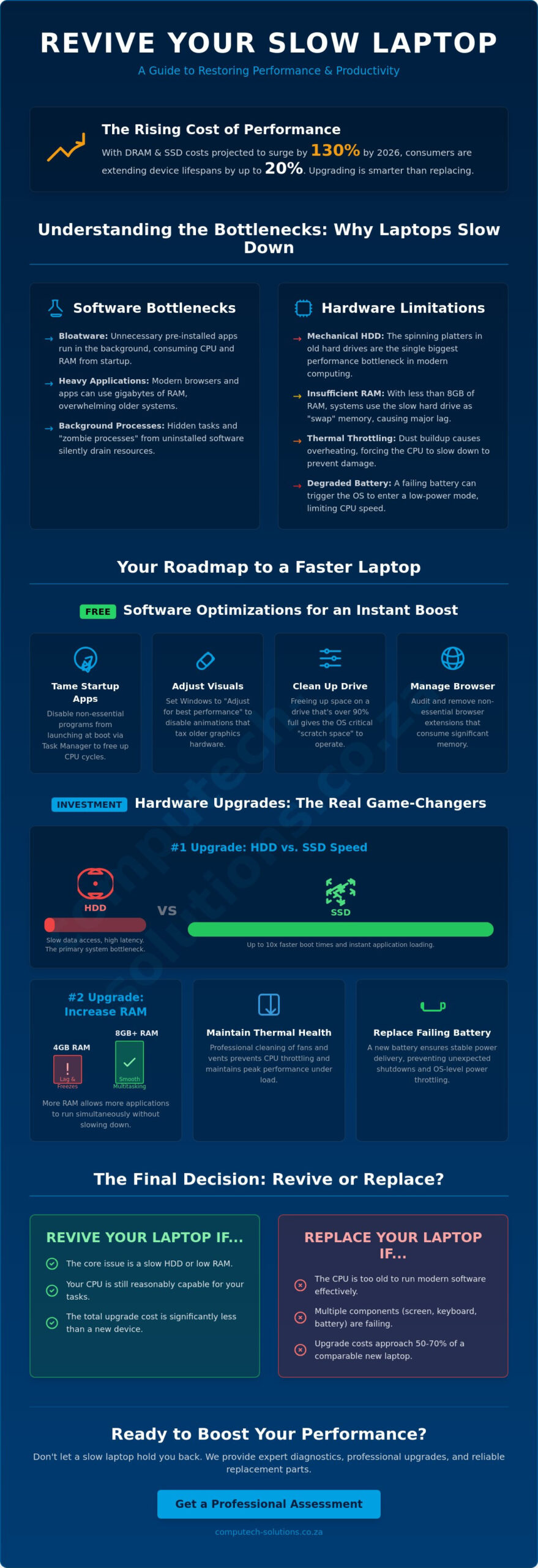
While software optimisations provide immediate relief, physical hardware upgrades remain the most definitive strategy for making your old laptop faster. The primary bottleneck in older systems is almost always the mechanical Hard Disk Drive (HDD). These drives rely on physical spinning platters and a moving read-write head, which creates significant latency. In contrast, Solid State Drives (SSDs) use flash memory to access data instantly. Upgrading to an SSD can reduce system boot times from several minutes to under twenty seconds, fundamentally changing your user experience.
In 2026, the cost-to-performance ratio of hardware upgrades has become more complex. Market data from June 2026 shows that a 1TB WD Black SN8100 SSD is priced at $209, while a 32GB DDR4 memory kit now costs between $150 and $180. These prices reflect a significant surge in component costs due to AI sector demand. However, with new PC prices rising by 17% compared to 2025, investing in specific components is still a professional, cost-effective way to maintain operational efficiency without the expense of a full device replacement.
Before purchasing parts, you must verify your hardware compatibility. Use this checklist to ensure a successful upgrade:
- Interface Type: Determine if your laptop uses a 2.5-inch SATA bay or a modern M.2 NVMe slot.
- RAM Generation: Identify if your motherboard requires DDR3, DDR4, or the newer DDR5 modules.
- Capacity Limits: Check the manufacturer’s documentation for the maximum RAM capacity your chipset can address.
SSD Upgrades: The Single Best Performance Boost
Switching from an HDD to an SSD is the most transformative upgrade available. SATA SSDs are the standard for older laptops, offering a massive leap over mechanical drives. If your device supports NVMe, you can achieve even higher throughput for data-heavy tasks. When making your old laptop faster through an SSD, you can choose to clone your existing data or perform a fresh installation. A fresh installation is generally preferred as it eliminates years of accumulated software clutter and ensures the new drive operates at peak efficiency from day one.
RAM Upgrades: Eliminating System Stutter
Random Access Memory (RAM) acts as your computer’s short-term workspace. If this workspace is full, the system is forced to use the much slower storage drive as virtual memory, causing the freezes and stutters common in older machines. While 8GB was the standard for years, 16GB has become the baseline for smooth multitasking in 2026. Before buying, open your laptop’s service hatch or check the Task Manager to see if you have an empty slot. Be aware that many modern ultra-portables use “soldered RAM,” which cannot be upgraded. If your memory is non-upgradable, software-level resource management becomes your primary tool for stability.
Thermal Management and Battery Health: The Overlooked Speed Boosters
Performance isn’t solely dependent on the speed of your silicon or the size of your drive. Heat and power delivery are the two most overlooked physical factors that dictate how your system behaves under load. When internal temperatures exceed safe thresholds, your processor enters a state of thermal throttling. It intentionally reduces its clock speed to shed heat, which manifests as stuttering and lag during work. Managing these thermals is a critical, yet frequently ignored, step in making your old laptop faster.
Stable power is the foundation of high performance. In a South African context, where load shedding creates frequent power transitions, your battery and charger must be in peak condition. A failing battery doesn’t just reduce your mobility; it actively compromises your speed. Modern operating systems monitor the health of your power cells. If they detect high internal resistance or a degraded charge capacity, the system may limit the CPU’s peak power draw to prevent a sudden shutdown. This power throttling can make a fast machine feel sluggish even when connected to a charger.
Why a Healthy Battery Matters for Performance
Power throttling is a protective measure that limits your processor’s frequency when the battery can no longer provide stable current. You’ll notice your laptop performs significantly better when plugged in than when on battery, or it might shut down unexpectedly at 20% charge. These are definitive signs that your hardware needs attention. To restore your device’s original speed and reliability, you can find professional replacement laptop batteries for major brands including Acer, ASUS, Dell, HP, Lenovo, and Samsung. Using the correct wattage laptop charger is also vital. An underpowered adapter will fail to charge the battery while the laptop is in use, causing further performance drops. Making your old laptop faster requires a synergy between clean software and reliable power delivery.
Keeping It Cool: Physical Maintenance
Physical obstructions are the most common cause of overheating. Dust accumulates in the cooling fins and fan blades over time, choking the airflow required to keep the CPU cool. You can safely blow out these vents using a can of compressed air to restore thermal efficiency. For laptops older than four years, the original thermal paste between the processor and the heatsink has likely dried out. Replacing this paste can drop temperatures significantly, preventing the throttling mentioned earlier. Using a simple laptop stand or a cooling pad also improves passive airflow, ensuring your system remains stable during intensive multitasking and high ambient temperatures.
Revive or Replace? Choosing the Best Path for Your Device
The decision to invest in making your old laptop faster often comes down to a simple cost-benefit analysis. As of June 2026, the tech market is facing a significant shift. With Gartner projecting that hardware price increases will raise the cost of new PCs by 17% this year, the financial argument for refurbishment has never been stronger. However, every device eventually hits a “Point of No Return.” If your laptop was manufactured before 2016 or suffers from persistent motherboard failures, the architecture may no longer support modern web standards or security protocols like those found in Windows 11 version 25H2. In these cases, the cost of cumulative upgrades might approach the price of a modern, more efficient replacement.
Adopting a “Repair, Don’t Replace” philosophy offers both environmental and financial advantages. By extending the lifespan of your current hardware, you reduce electronic waste and bypass the inflated costs of new entry-level machines, a market segment that is rapidly disappearing. For most users with a device between three and six years old, a targeted investment in an SSD, additional RAM, and a fresh battery provides a definitive performance boost for a fraction of the cost of a new laptop. In the South African market, where imported technology prices are sensitive to exchange rate volatility, sourcing high-quality replacement parts with nationwide delivery is the most reliable way to maintain your productivity.
The Upgrade Decision Matrix
Determining the best path requires an objective look at your hardware’s condition. If your laptop is three to six years old and the chassis is in good condition, it’s a prime candidate for an upgrade. If the speed is acceptable but you’re struggling with a flickering or cracked screen, sourcing Laptop LCD Replacement Panels can save a device that would otherwise be discarded. Conversely, you should consider a replacement if the motherboard is failing or if the device is older than eight years, as these machines often lack the instruction sets required for 2026 software. Making your old laptop faster is most effective when the underlying core components are still stable.
Shopping for Reliable Components
Reliability depends on the quality of the components you install. Using reputable South African retailers ensures you receive technical support and parts that are truly compatible with your specific model. This is especially important for power components, where using an incorrect or low-quality battery can lead to the power throttling issues discussed earlier. Whether you need a solution for a professional workstation or a home device, browse our full range of laptop batteries and chargers at Computech-Solutions to find the exact match for your Acer, Apple, ASUS, Dell, HP, Lenovo, Samsung, Sony, or Toshiba system. Ensuring compatibility with brand-specific batteries is the final step in securing a reliable, high-performance revival for your laptop.
Take Control of Your Laptop’s Future
Restoring a sluggish system requires a technical synergy between software discipline and physical maintenance. By streamlining your startup processes and upgrading to SSD storage, you effectively bypass the bottlenecks that modern 2026 applications create. We’ve explored how thermal management and battery health are often the missing links in maintaining high CPU clock speeds during demanding tasks. Making your old laptop faster isn’t just about a single fix; it’s about a comprehensive approach to device longevity.
As specialists in Acer, HP, Dell, and Apple replacement parts, we provide the hardware necessary to keep your operations running smoothly. Our expert technical support is based right here in South Africa, ensuring you receive the correct components with reliable nationwide delivery for all hardware. Don’t let a failing battery or an outdated drive disrupt your professional workflow. Find the perfect replacement battery for your laptop today and enjoy the stability of a device that performs like new. With the right strategy, your current hardware remains a powerful asset for years to come.
Frequently Asked Questions
Is it worth putting an SSD in a 10-year-old laptop?
It’s rarely worth investing in a 10-year-old machine because the CPU and motherboard architecture will bottleneck the SSD’s potential speed. While an SSD improves boot times, a decade-old processor will struggle with modern 2026 web standards and security protocols. You’re generally better off applying those funds toward a newer refurbished device that supports the latest operating system features.
How much RAM do I really need for Windows 11 in 2026?
For Windows 11 version 25H2, 16GB of RAM is the recommended standard for smooth multitasking and professional workloads. While 8GB can handle basic tasks, modern browsers and background applications will quickly exhaust that capacity. Given the 110% price jump for 8GB modules in early 2026, investing in a 16GB kit provides better long-term value for your productivity.
Can a bad battery actually slow down my laptop performance?
A degraded battery can significantly reduce system speed through a process known as power throttling. When the operating system detects a failing cell, it limits the CPU’s frequency to prevent sudden power failures or hardware instability. Replacing a worn battery with a high-quality unit is a proven method for making your old laptop faster and more reliable during mobile use.
Will resetting my laptop delete all my personal files?
A standard “Reset this PC” command in Windows allows you to choose between keeping your files or removing everything. Selecting the “Keep my files” option preserves your documents and photos but removes your installed applications and custom settings. It’s a useful way to clear out software bloat, but you should always perform a full backup before starting to avoid accidental data loss.
Why is my laptop fan so loud and the computer so slow?
A loud fan usually indicates that your cooling system’s struggling to dissipate heat, which triggers thermal throttling. When dust clogs the internal vents, the CPU temperature rises and forces the system to slow down to prevent permanent hardware damage. Maintaining thermal health by cleaning your vents is an essential part of making your old laptop faster during intensive work sessions.
Where can I buy reliable replacement laptop parts in South Africa?
You can source reliable, brand-specific components from Computech-Solutions, which specializes in the South African market. They offer a comprehensive range of replacement batteries, chargers, and LCD panels for Acer, HP, Dell, and Apple systems. Their nationwide delivery and expert technical support ensure you receive the correct parts to maintain your operational stability without unnecessary delays.
How do I know which battery model is compatible with my laptop?
To find the correct battery, you should look for the specific part number printed directly on your current battery’s label. This is often a string of alphanumeric characters that’s distinct from the laptop’s general model number. Cross-referencing this part number on a specialist site ensures the voltage and physical connectors are an exact match for your specific hardware configuration.
Does a faster charger make my laptop run faster?
A higher wattage charger won’t make your processor run faster than its original factory specifications. However, using a charger with a lower wattage than required will cause the system to throttle its performance to stay within the limited power envelope. You should always use an adapter that matches or slightly exceeds your manufacturer’s original wattage rating to ensure stable power delivery.
