
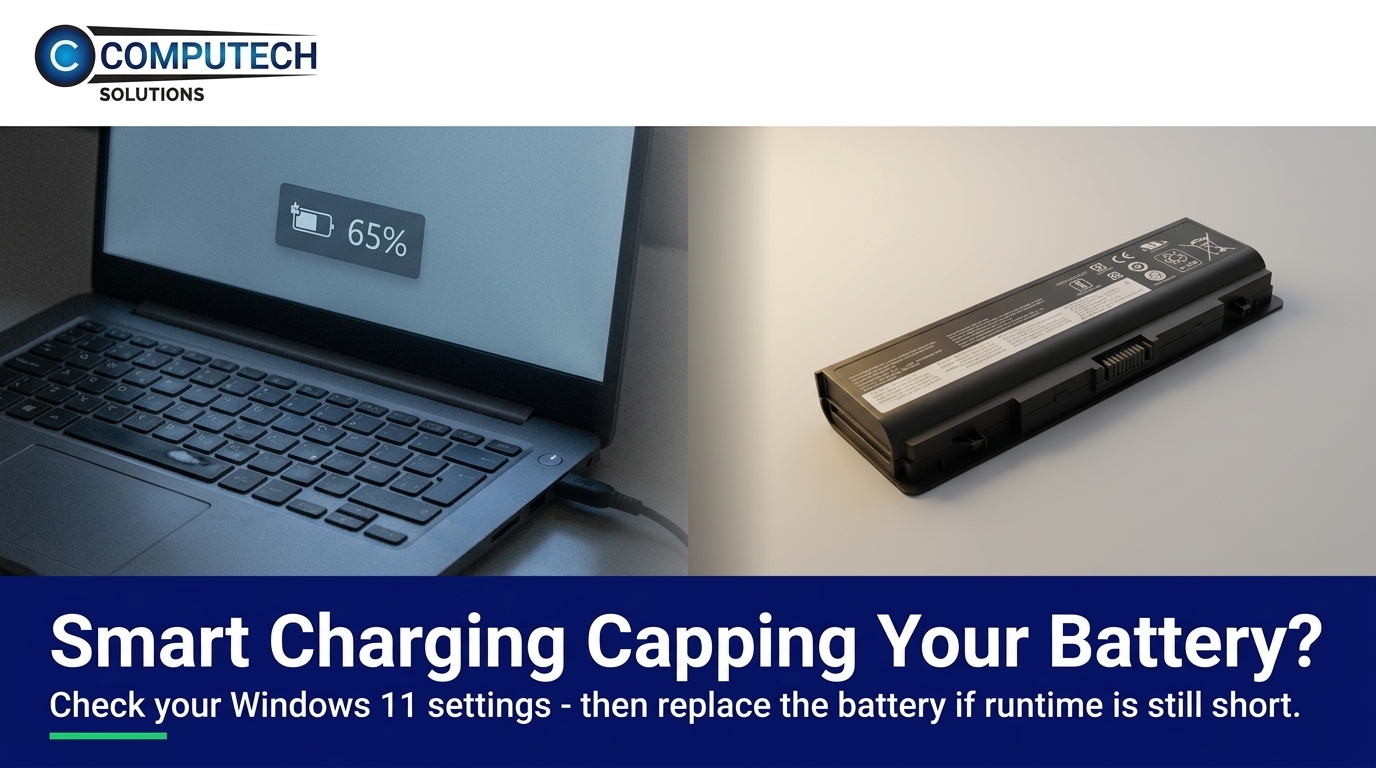
Your laptop stays stuck at 80 percent charge, and you wonder why your battery life feels shorter every day. The culprit might be Windows 11 Smart Charging quietly limiting your laptop’s uptime without you realizing it. This guide shows you how to disable Smart Charging in Windows 11 and when it’s time to replace that battery with a trusted generic option from Computech Solutions. For more details on disabling this feature, check out this helpful resource.
Troubleshooting Battery Issues
Many laptop users are puzzled when their batteries stop charging beyond a certain level. This can be frustrating, especially when you need your device for long periods. Let’s explore the signs of this problem and how to diagnose it effectively.
Recognizing the Problem
If you notice your laptop’s battery never charges beyond 80 percent, even when plugged in for hours, you’re likely dealing with Smart Charging. This feature aims to preserve battery health but can limit how much charge your device holds. Users often mistake this for a faulty battery, leading to unnecessary worry and troubleshooting. Understanding this feature helps in addressing the charging limitation effectively.
Initial Steps to Diagnose
The first step is to check your laptop settings. Navigate to the battery settings in Windows 11. Look for options related to battery health management. If you find Smart Charging enabled, this could be the reason for the capped charge. Another essential step is to evaluate your battery’s health. Many laptops have built-in tools that provide insights into battery health and performance. If issues persist, consider seeking professional advice or consulting online communities for similar experiences.
Disabling Smart Charging
Now that you know what might be causing the issue, let’s dive into how you can disable Smart Charging. By adjusting the settings, you can regain control over your battery’s charging behavior and improve its lifespan.
How to Change Settings
To turn off Smart Charging, open your laptop’s settings menu. Navigate to the ‘Power & Battery’ section. Here, you should find an option labeled ‘Battery Health Management’ or ‘Smart Charging.’ Simply toggle this feature off. This change allows your laptop to charge to its full capacity, ensuring you get the most out of each charge. If you need step-by-step guidance, Microsoft’s support page offers detailed instructions.
Benefits of Turning Off
Disabling Smart Charging can significantly enhance your laptop’s usage time. With this feature off, your device charges fully, providing more runtime between charges. This is especially beneficial for those who rely on their laptops for extended periods. It’s important to weigh these benefits against long-term battery health. While a full charge offers immediate convenience, consider the potential impact on battery longevity. For more ways to optimize battery life, visit our post on how to extend your laptop battery life.
Exploring Battery Replacement
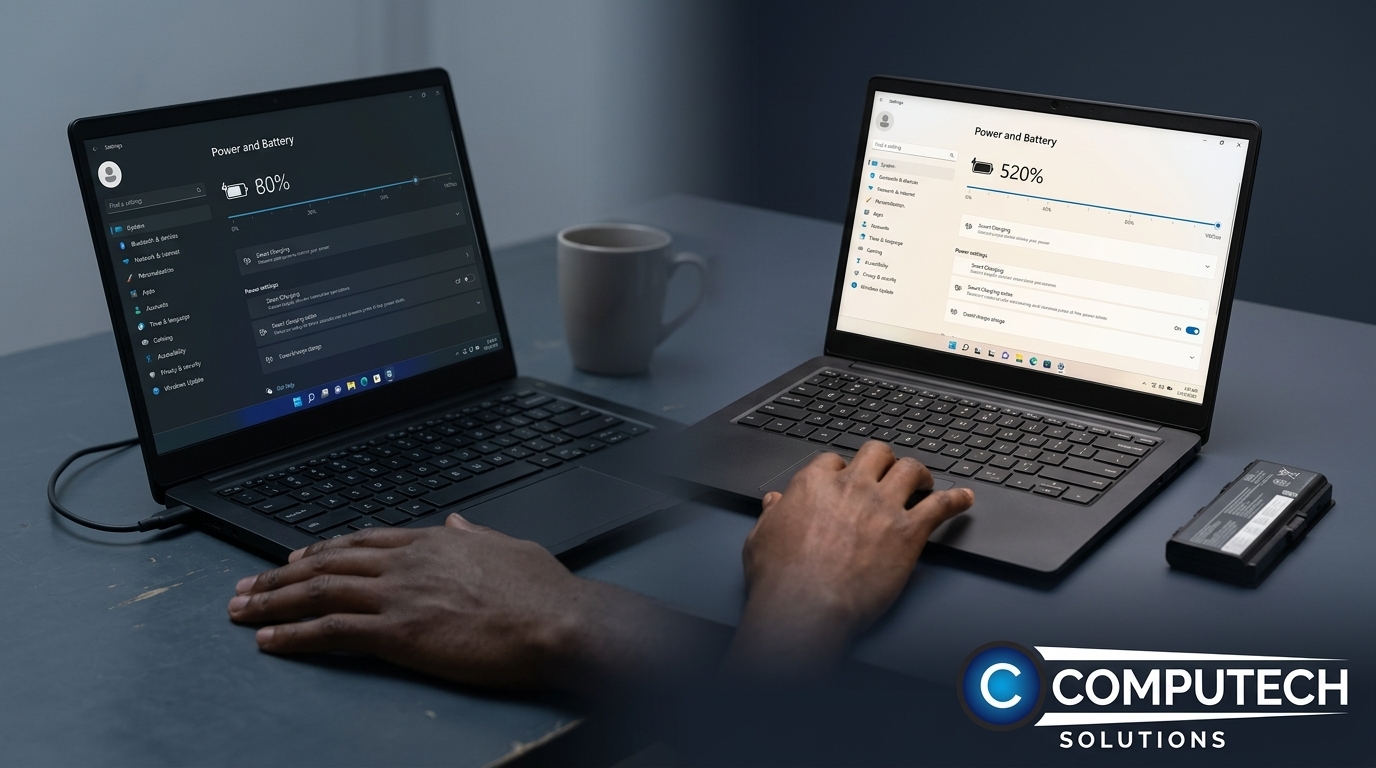
If disabling Smart Charging doesn’t solve your issue, it might be time to consider replacing the battery. A new, reliable battery can restore your laptop’s performance and reliability.
Choosing a Reliable Battery
When selecting a replacement battery, opt for high-quality generic options. These are often more affordable and provide comparable performance to brand-name batteries. Ensure the battery is compatible with your laptop model. Check for customer reviews and certifications for added assurance. Remember, a reliable battery can make a significant difference in your laptop’s performance and longevity. For more on choosing the right battery, read our guide on battery replacement options.
Purchasing from Computech Solutions 💡
At Computech Solutions, we offer a range of high-quality generic batteries that fit most laptops. Our products are tested for reliability and performance, ensuring you get a dependable replacement. Plus, with our nationwide delivery, you can receive your items quickly, no matter where you are in South Africa. By choosing Computech Solutions, you not only get a product but also expert advice and support. Visit our website to explore our selection of laptop parts online.
Frequently Asked Questions
Why does my laptop battery stop charging at 80%?
Smart Charging is designed to prolong battery life by capping the charge at 80%. This feature is enabled in many laptops to prevent overcharging.
How do I disable Smart Charging in Windows 11?
You can turn off Smart Charging in the ‘Power & Battery’ settings of Windows 11. Look for ‘Battery Health Management’ or a similar option and toggle it off.
Where can I buy a reliable replacement battery for my laptop?
You can purchase high-quality generic replacement batteries from Computech Solutions. We offer a wide selection of batteries compatible with many laptop models.
Will turning off Smart Charging harm my battery?
While disabling Smart Charging allows for a full charge, it may reduce the battery’s lifespan over time. Consider this trade-off based on your usage needs.
Is it easy to replace a laptop battery myself?
Replacing a laptop battery is usually straightforward, but it can vary by model. Always refer to your laptop’s manual or seek professional assistance if unsure.
